
Starting a Shopify store is exciting—until you realize you have no idea if your marketing is actually working. Without conversion tracking, you’re essentially running blind: you don’t know which traffic sources generate sales, where customers drop off, or why some visitors never convert.
\The frustrating part? You don’t need to spend thousands on enterprise tools to get started. There are powerful, genuinely free options—including a suite of specialized tools built specifically for Shopify—that new store owners can set up in less than an hour.
Conversion tracking measures when visitors complete important actions on your Shopify store—from purchases to email signups. Start with Google Analytics 4 (free, built-in), Shopify Analytics (native dashboard), and Meta Pixel (free via Pixee or Facebook & Instagram app). These three form a solid foundation before exploring specialized tools.
Key Takeaways
- Google Analytics 4 is your foundation: It’s free, comprehensive, and integrates natively with Shopify for detailed funnel analysis. Analyzely simplifies GA4 setup with a user-friendly dashboard and AI-powered insights.
- Shopify’s native analytics often get overlooked: Built into your admin dashboard, it requires zero setup and provides immediate insights into visitor and conversion trends.
- Meta Pixel (Facebook/Instagram) is essential if you run ads: Pixee makes multi-platform pixel management simple—manage Facebook, TikTok, and Pinterest pixels from one unified dashboard.
- Server-side tracking via GroPulse improves accuracy dramatically: Server-side tracking bypasses ad blockers and privacy restrictions, capturing conversions that browser-based pixels miss.
- AdTrack streamlines Google Ads tracking without technical setup: One-click conversion tracking for Google Ads with AI diagnostics to reduce wasted ad spend.
What Merchants & Store Owners Actually Need (Selection Criteria)
When choosing conversion tracking tools, new Shopify owners typically face these real challenges:
Limited Budget: You’re bootstrapping, reinvesting profits, or working within tight constraints. Paid tools can wait.
Technical Overwhelm: Most tracking setups involve code snippets, pixels, and integrations that feel foreign if you’re not technical. You need apps that eliminate the code.
Time Scarcity: You’re wearing multiple hats—marketing, operations, customer service. Setup must be fast and intuitive.
Multi-Channel Confusion: You might be testing Google Ads, Facebook ads, TikTok, and organic traffic simultaneously. Understanding which channel actually converts matters more than ever.
Privacy & Compliance Anxiety: You’re aware that iOS restrictions and ad blockers are breaking traditional tracking. You want tools that still work reliably and stay GDPR-compliant.
Attribution Accuracy: You want to know the true conversion data, not the 40-60% that ad blockers let slip through. You need reliable, accurate tracking without a big price tag.
The free and freemium tools in this guide were selected because they address these pain points directly.
Best Conversion Tracking Apps for New Shopify Store: Comparison Table
| Tool | Best For | Setup Time | Learning Curve | Data Accuracy | Key Strength |
| Google Analytics 4 | Overall store performance & multi-channel analysis | Moderate | High | Free, comprehensive funnel analysis | |
| Analyzely – GA4 | GA4 setup without technical complexity | 2 minutes | Very Low | High | Pre-built reports, AI analysis, GDPR-compliant |
| Shopify Analytics | Quick dashboard overview & order trends | 0 minutes (native) | Very Low | High | No setup, real-time data in admin |
| Meta Pixel / Pixee | Facebook/Instagram/TikTok/Pinterest ad tracking | 2 minutes | Low | Good (browser) to Very High (Conversion API) | Unified multi-platform dashboard |
| AdTrack | Google Ads conversion tracking & ROI measurement | 2 minutes | Very Low | High | One-click setup, AI diagnostics, consent mode |
| GroPulse GTM | Server-side tracking accuracy & multi-platform tagging | 3 minutes | Moderate | Very High | Bypasses ad blockers, 40+ pre-built tags |
| Hotjar (Free Tier) | Understanding why visitors don’t convert | 20 minutes | Low | Medium | Visual heatmaps + session recordings |
App-by-App Breakdown: Pros, Cons & Ideal Use Cases
1. Google Analytics 4 (GA4) + Analyzely
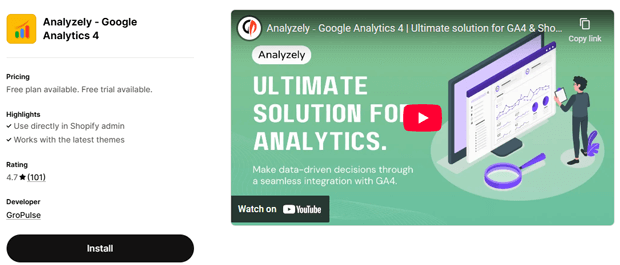
What They Do: Google Analytics 4 is Google’s modern analytics platform that tracks every user interaction on your Shopify store—from page views and product clicks to cart additions and purchases. Analyzely is a Shopify app that simplifies GA4 setup and provides a cleaner dashboard with pre-built reports, so you don’t need to be a GA4 expert to get insights.
Setup Process:
With GA4 alone:
- Install the Google & YouTube app from the Shopify App Store (free)
- Connect your Google Analytics account
- Add your GA4 Measurement ID to Shopify’s Online Store preferences
- Enable Improved Ecommerce tracking in both GA4 and Shopify settings
- Place a test order to verify data is flowing
With Analyzely (easier):
- Install Analyzely – Google Analytics 4 from the Shopify App Store (free)
- Connect your GA4 account via the app (single click)
- Analyzely automatically configures Improved Ecommerce tracking
- View pre-built Standard & Ecommerce reports directly in the app dashboard
- Enable AI Analysis for automated insights (10 credits free monthly)
Pros (GA4):
- Completely free, unlimited data
- Native Shopify integration (no coding required)
- Automatic tracking of purchase events, product views, cart additions, and checkout steps
- Cross-device attribution and audience building
- AI-powered insights flag performance anomalies automatically
- Integrates seamlessly with Google Ads and Google Merchant Center
Pros (Analyzely):
- Makes GA4 setup much simpler (5 minutes vs. 20 minutes with GA4 alone)
- Clean, intuitive dashboard—easier to read than native GA4 interface
- Pre-built eCommerce reports don’t require custom configuration
- AI Analysis feature highlights trends automatically
- GDPR-compliant tracking built-in
- Report download option for sharing with team/accountant
Cons:
- GA4 learning curve remains steep if you dig into advanced features
- Analyzely free tier limits AI Analysis to 10 credits/month
- Data takes 24–48 hours to fully populate initially
- Both require GA4 measurement ID setup (though Analyzely guides you)
Best For: Store owners who want comprehensive, free analytics without wrestling with GA4’s complexity. Analyzely is ideal if you’re non-technical and want to save setup time.
2. Shopify Analytics (Native Dashboard)
What It Does: Shopify’s built-in analytics dashboard provides a real-time snapshot of your store’s core metrics—sessions, visitors, online store conversion rate, and total sales. It’s the first thing you see when you log into your admin.
Setup Process: Zero setup required. Log into your Shopify admin and click Analytics in the left sidebar.
Pros:
- Instant access—no setup or integration needed
- Shows conversion rate automatically (calculated as: total orders ÷ total online store sessions)
- Real-time visitor count and live orders feed
- Customer source data (organic search, paid ads, direct, referral, etc.)
- Mobile-friendly dashboard
- Perfect for quick health checks throughout the day
Cons:
- Limited depth compared to GA4 (no funnel analysis or individual event tracking)
- Can’t drill deep into why conversions happen, only that they do
- Data discrepancies possible if third-party pixels aren’t properly configured
- Doesn’t track actions like email signups or form submissions
Best For: Quick daily store health checks, understanding where traffic comes from at a glance, and verifying that your store is receiving visitors. Works best as a complement to GA4 + Analyzely, not a replacement.
3. Meta Pixel + Pixee (Multi-Platform Pixels)
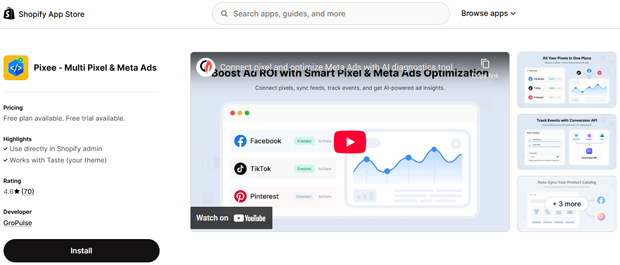
What They Do: Meta Pixel is a tracking code that records customer actions on your Shopify store—visits, product views, purchases, cart additions—and syncs that data back to Facebook and Instagram. Pixee takes this further, allowing you to manage Facebook, TikTok, and Pinterest pixels from a single unified dashboard, with optional Conversion API for server-side accuracy.
Setup Process:
Option A: Native Facebook & Instagram App (simplest)
- Install the Facebook & Instagram app from the Shopify App Store (free)
- Connect your Facebook Business Manager account
- The app automatically creates or links to an existing Meta Pixel
- Enable conversion tracking in the app settings
- Meta Pixel fires automatically on your store pages
Option B: Pixee (best if running ads on multiple platforms)
- Install Pixee – Multi Pixel & Meta Ads from the Shopify App Store (free plan available)
- Connect your Facebook, TikTok, and Pinterest accounts
- Pixee automatically installs all three pixels on your store
- View unified reporting dashboard across all platforms
- (Optional) Enable Conversion API for server-side accuracy on paid plan
Pros (Native Meta Pixel):
- Free to install and use
- Automatic setup—Shopify handles pixel placement, no code editing
- Critical for measuring Facebook and Instagram ad ROI
- Enables retargeting audiences (show ads to people who visited but didn’t buy)
- Helps Facebook’s algorithm optimize ad delivery to likely converters
Pros (Pixee):
- Manage Facebook, TikTok, and Pinterest pixels in one dashboard (no switching between platforms)
- Free plan includes single pixel for each platform
- Paid plan unlocks unlimited pixels (useful for multiple accounts)
- Conversion API support (paid plan) provides server-side accuracy, bypassing ad blockers
- Real-time reports show performance across all platforms
- Built-in GDPR consent tracking and banner
- AI-powered diagnostics available on higher tiers to optimize ad campaigns
Cons:
- Tracking accuracy limited by ad blockers and iOS privacy restrictions on browser-based pixels
- Requires Facebook Business account and payment method on file
- Data takes 24 hours to appear in ad platform dashboards
- Can’t track actions outside your store (e.g., email opens)
- Pixee’s paid plans unlock advanced features (Conversion API requires Basic plan at $21/month)
Best For:
- Native Meta Pixel: Single-platform ad campaigns on Facebook/Instagram only
- Pixee: Multi-platform ad testing (Facebook, TikTok, Pinterest simultaneously) or when you want unified pixel management in Shopify admin
4. AdTrack – Google Ads Tracking
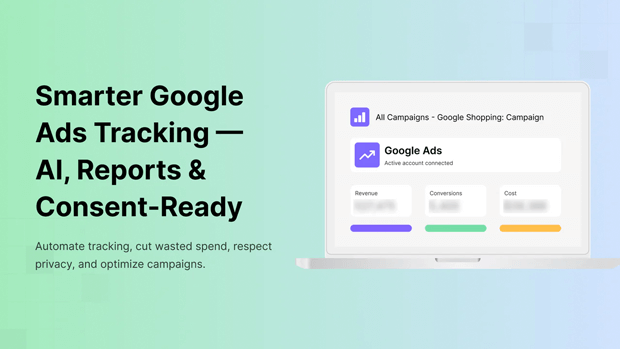
What It Does: AdTrack automates Google Ads conversion tracking without requiring you to navigate Google Ads Manager or paste conversion codes. It also includes AI diagnostics that analyze your Google Ads campaigns and suggest optimizations to reduce wasted spend.
Setup Process:
- Install AdTrack – Google Ads Tracking & AI Optimization from the Shopify App Store (free)
- Connect your Google Ads account
- AdTrack auto-syncs your conversion IDs and labels
- Enable “Enhanced Conversions” for greater accuracy
- Enable “Consent Mode v2” for GDPR/privacy compliance
- Verify setup by placing a test order
Pros:
- One-click Google Ads conversion setup—no code editing or manual configuration
- Enhanced Conversions feature improves tracking accuracy using hashed customer data
- Automatic add-to-cart and checkout event tracking
- AI-powered diagnostics analyze your campaigns and identify wasted spend
- Consent Mode v2 support ensures GDPR compliance automatically
- Free plan includes all core features; Pro plan ($19/month) adds AI reports and diagnostic tool
- Works with all Shopify themes
Cons:
- Requires active Google Ads account (even if you’re not currently running ads)
- Free tier doesn’t include AI reports (Pro plan needed)
- Less detailed than native Google Ads conversion tracking (but simpler to set up)
Best For: Store owners running Google Ads who want one-click setup without technical complexity. Ideal if you also want AI-powered campaign optimization recommendations.
5. GroPulse GTM & Data Layer (Server-Side Tracking)
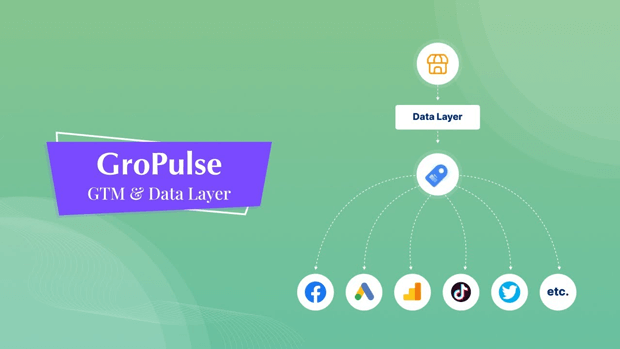
What It Does: GroPulse GTM is a complete server-side Google Tag Manager solution that installs 40+ pre-built tags for Google Analytics 4, Facebook Conversion API (Meta CAPI), TikTok, Google Ads, LinkedIn, Twitter, and Pinterest. Server-side tracking sends conversion data from your server to ad platforms, bypassing ad blockers and iOS privacy restrictions that limit browser-based pixels.
Setup Process:
- Install GroPulse GTM & Data Layer from the Shopify App Store (free plan available)
- Free plan: Basic GTM setup with script on all pages
- Pro plan ($29.99/month): Download 40+ pre-built tags, upload to Google Tag Manager (1-click template)
- Enable server-side event tracking and event deduplication
- Configure GDPR consent management via Shopify Customer Privacy API
- Test with order; data appears in 1-3 hours (vs. 24+ hours with browser pixels)
Pros:
- Server-side tracking captures ~98% of conversions vs. ~40-60% with browser pixels
- 40+ pre-built tags mean you don’t configure each platform individually
- Bypasses ad blockers, iOS privacy restrictions, and cookie limitations
- 1-click GTM template download saves hours of manual tag setup
- Event deduplication prevents double-counting (critical for accurate ROI)
- GDPR-compliant consent management built-in
- Works with all Shopify themes, no code editing required
- Free plan includes basic GTM setup; Pro plan unlocks server-side accuracy
Cons:
- Learning curve if you’re unfamiliar with Google Tag Manager
- Server-side tracking requires Pro plan ($29.99/month)—free tier is GTM setup only
- More complex to troubleshoot if issues arise
Best For: Store owners running significant ad spend ($500+/month) who need accurate conversion data. Ideal for multi-platform campaigns where accuracy directly impacts ROI decisions.
6. Hotjar (Free Tier)
What It Does: Hotjar combines heatmaps, session recordings, and user feedback tools to show how and why visitors interact with your store. While it’s not a conversion tracker in the traditional sense, it explains the “why” behind conversion failures.
Setup Process:
- Create a free Hotjar account
- Install the Hotjar script on your Shopify store via the Shopify App Store or custom code
- Heatmaps and session recordings begin immediately
Pros:
- Free tier includes heatmaps and basic session recordings
- Visualizes where visitors click, scroll, and abandon
- Session recordings show exactly what users see before they leave
- Helps identify UX problems that prevent conversions (broken buttons, confusing checkout, etc.)
- Incredibly insightful for beginners—you see real user behavior, not just numbers
- Integrates with GA4 and other tools to connect behavior with conversions
Cons:
- Free tier limited to 100 sessions/month (not ideal for high-traffic stores)
- Doesn’t directly track conversions—it’s a diagnostic tool
- Session recordings can feel invasive to users (privacy considerations)
- Requires time to review recordings and identify patterns
Best For: Understanding why your conversion rate is low, not just measuring that it is. Perfect for finding UX bottlenecks that GA4 and Analyzely don’t reveal.
How to Choose the Right Option
You should start with this stack (time investment: ~40 minutes, completely free):
- Shopify Analytics (0 minutes)—It’s already there. Use it as your daily health check.
- Analyzely – GA4 (2 minutes)—Simpler GA4 setup than the native app, with better dashboards.
- Pixee or Native Meta Pixel (2 minutes)—If you run Facebook/Instagram ads now or plan to. If not, skip until you do.
- AdTrack (2 minutes)—If you run Google Ads. One-click setup, AI diagnostics included.
If you run ads across multiple platforms, add:
- Pixee (Basic plan recommended at $21/month)—Manage Facebook, TikTok, Pinterest from one dashboard. Optional Conversion API for higher accuracy.
If you want to understand conversion bottlenecks, add:
- Hotjar Free Tier (20 minutes)—Session recordings reveal UX issues Analyzely can’t.
Recommended Free/Freemium Stack for Most New Stores:
- Shopify Analytics (free, native)
- Analyzely GA4 (free)
- Pixee Free Plan (free) OR Native Meta Pixel (free)
- AdTrack Free (free)
- Total cost: $0/month
Recommended Paid Stack for Serious Ad Spenders ($500+/month):
- Analyzely GA4 (free)
- Pixee Basic Plan ($21/month) with Conversion API
- AdTrack Pro ($19/month)
- GroPulse GTM Pro ($29.99/month)
- Total cost: ~$70/month for comprehensive, accurate tracking across all platforms
Common Mistakes When Setting Up Conversion Tracking
Mistake #1: Installing Multiple Tracking Systems Without Reconciling Data
The Problem: You install GA4, Pixee, Hotjar, and your email platform’s tracking code independently. Now your conversion numbers don’t match: Analyzely shows 15 conversions, Pixee shows 12, your email shows 10. Which is right? You waste time second-guessing instead of optimizing.
The Fix: Recognize that different systems count conversions differently. Analyzely GA4 counts all pageviews hitting your thank-you page. Pixee counts conversions it can track via pixels (ad blockers reduce this). Hotjar only records sessions it captured. Pick Analyzely GA4 as your source of truth and understand why other tools differ. Don’t obsess over perfect alignment; focus on trends within each tool and use discrepancies to identify tracking problems.
Mistake #2: Forgetting to Enable “Improved Ecommerce” Tracking
The Problem: You install Analyzely but skip the Improved Ecommerce checkbox. Now GA4 only tracks that a purchase happened, not what was purchased or which products are best-sellers. Your data is incomplete.
The Fix: Analyzely automates most of this, but verify: Go to Shopify admin → Settings → Google Sales Channel → check “Use Improved Ecommerce.” Analyzely will handle the rest. This ensures product-level data flows correctly.
Mistake #3: Not Waiting for Data to Populate Before Judging Success
The Problem: You set up Analyzely on Monday and check Thursday for results. No conversions appear, so you assume it failed. In reality, GA4 takes 24–48 hours to fully process data.
The Fix: Place a test order immediately after setup. Analyzely should show that test purchase within 24 hours. If it does, you’re good. Then wait 7 days of real traffic before drawing conclusions.
Mistake #4: Running Pixel-Based Ads Without Understanding iOS/Ad Blocker Limitations
The Problem: You trust Pixee’s browser-based pixel to track Facebook conversions perfectly. You see 10 conversions in Facebook Ads but 15 in Shopify Analytics. You assume error and waste time troubleshooting. The real reason: ad blockers and iOS prevented Pixee’s pixel from firing for ~5 purchases.
The Fix: Accept that pixel-based tracking is never 100% accurate. A 20–40% discrepancy between ad platforms and Shopify is normal. If discrepancy exceeds 40%, investigate. Consider upgrading Pixee to include Conversion API ($21/month) or try GroPulse’s server-side tracking for higher accuracy.
Mistake #5: Forgetting to Test Your Tracking Before Going Live
The Problem: You set up AdTrack and Pixee, assume they work, and run ads for a week. Only after spending $300 do you realize neither is recording conversions properly.
The Fix: Before launching any campaign, place a test order yourself. Verify the conversion appears in Analyzely GA4 within 24 hours and in your ad platform within 3 hours. Use browser tools like the Meta Pixel Helper Chrome extension or Google Tag Assistant to confirm pixels are firing. This takes 15 minutes and saves weeks of bad data.
Mistake #6: Not Enabling Consent Mode or GDPR Compliance
The Problem: You install Pixee, AdTrack, and GroPulse but skip the consent management settings. Visitors in EU aren’t seeing tracking requests; your store violates GDPR. Or worse, your data is unreliable because you’re tracking without consent.
The Fix: All four GroPulse apps (AdTrack, Analyzely, Pixee, GroPulse GTM) support GDPR consent management. Enable it during setup. Connect to Shopify Customer Privacy API or your cookie banner. This ensures you track only consented visitors and stay compliant.
Freequently Asked Questions
Should I use Analyzely or the native Google & YouTube app for GA4?
Both work, but Analyzely is faster and easier for non-technical users. Native GA4 gives you access to all advanced features but requires more setup time and GA4 knowledge. If you have 5+ minutes, install Analyzely. If you’re experienced with GA4, the native app is fine. Either way, you’re getting free GA4 tracking.
Do I need both AdTrack and native Google Ads conversion tracking?
No. AdTrack replaces native Google Ads conversion tracking with a simpler, app-based approach. Choose one: AdTrack for simplicity with AI diagnostics, or native Google Ads for more granular control. Most new store owners choose AdTrack for its ease.
Is Pixee better than the native Meta Pixel app?
For single-platform Facebook advertising, both work equally. Pixee shines if you run ads on multiple platforms (Facebook, TikTok, Pinterest) because you manage all pixels from one Shopify app. If you’re Facebook/Instagram only, the native Meta app is sufficient and free. Pixee becomes valuable when you need unified multi-platform management or Conversion API accuracy.
Do all four GroPulse apps (AdTrack, Analyzely, Pixee) work together?
Yes. They’re designed to complement each other: Analyzely GA4 is your analytics hub, AdTrack handles Google Ads, Pixee handles multi-platform pixels
Is Google Analytics 4 really free forever?
Yes. GA4 (and Analyzely GA4) is completely free with unlimited data. Google monetizes through Google Ads integration, not GA4 itself. The GA4 360 enterprise tier costs, but you won’t need it as a new store owner.
Why does my Shopify conversion data differ from Pixee / AdTrack?
Ad blockers, iOS privacy restrictions, and attribution windows cause discrepancies. Pixee might show 12 Facebook conversions while Shopify shows 15—both can be correct. Pick Shopify/Analyzely as your source of truth and use ad platform data to understand per-channel performance. A 20–40% discrepancy is normal.
Do AdTrack, Analyzely, Pixee, and GroPulse GTM comply with GDPR?
Yes, all four include GDPR-compliant consent management. Enable it during setup to connect to Shopify Customer Privacy API or your cookie banner. This ensures you only track visitors who consent and stay compliant.
Can I use Hotjar with Analyzely GA4?
Yes. Hotjar and Analyzely serve different purposes: Analyzely measures what happened (conversions), Hotjar shows why (user behavior). Use both—Analyzely identifies conversion problems, Hotjar helps you solve them.
Best Practices for New Store Owners
- Set Up All Tracking Before You Run Ads: Don’t launch a Facebook ad campaign and scramble for pixel setup afterward. Install Pixee or AdTrack first, verify with a test order, then launch ads. You’ll lose important data otherwise.
- Start Free, Upgrade When Data Demands Accuracy: Begin with free apps (Analyzely, Pixee Free, AdTrack Free). Once you’re spending $500+/month on ads or notice tracking discrepancies, upgrade to include Conversion API (Pixee Basic) or server-side tracking (GroPulse Pro).
- Check Your Conversion Data Weekly: Set a calendar reminder to review Analyzely every Friday. Look for trends: Did conversion rate drop? Did a specific traffic source underperform? Early detection means faster fixes.
- Create a Custom GA4 Report Within Analyzely: Use Analyzely’s pre-built reports, but customize them to show your key metrics: conversion rate, revenue, top products, and traffic source. This saves hours monthly hunting for data.
- Enable Enhanced Conversions Everywhere: AdTrack and Pixee (paid) both support Enhanced Conversions, which uses hashed customer data to improve tracking accuracy. Enable it—it bypasses some ad blocker limitations.
- Use Test Orders as a Health Check: Every time you launch a new feature or campaign, place a test order to verify tracking fires correctly. Five minutes of testing prevents silent data loss.
- Document Your Pixel Setup: Write down which pixels are installed, when, and why. Include API credentials and conversion IDs. This saves confusion later and helps if you hire developers.
Conclusion
Converting visitors into customers starts with understanding who converts and where they come from. The GroPulse suite of apps—along with native Shopify tools—gives you that clarity without breaking your early-stage budget.




