
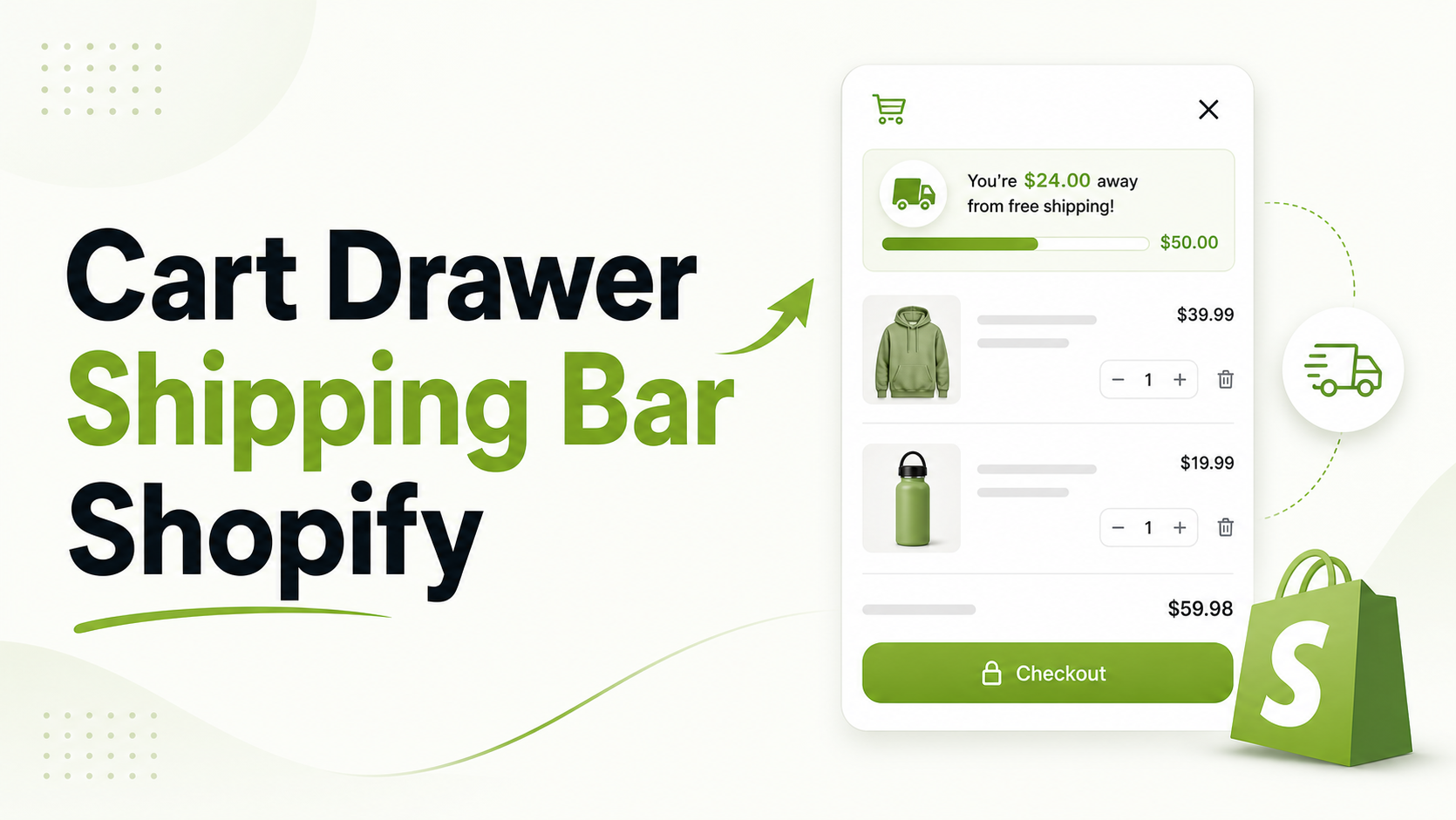
A standalone cart page used to be the standard in ecommerce. Today, forcing customers to leave a product page just to see their cart total is a conversion killer.
Sliding cart drawers—also known as AJAX carts—keep shoppers in the buying flow, allowing them to review their items without losing their place.
But a cart drawer is more than just a summary; it is prime real estate for increasing your Average Order Value (AOV). By placing a dynamic free shipping bar directly inside this drawer, you provide instant, visual feedback every time an item is added, nudging the customer toward a higher spend.
Summary
- Adding a free shipping progress bar directly inside your Shopify cart drawer provides real-time feedback and reduces checkout friction.
- Before starting, you must ensure your Shopify theme (like Dawn) features a native AJAX sliding cart.
- Using a dedicated Shopify app avoids complex Liquid and JavaScript coding while offering dynamic {remaining} value updates.
- Setting your free shipping threshold 10–20% above your current Average Order Value (AOV) is the optimal strategy for driving revenue growth.
To create a cart drawer free shipping bar in Shopify, install the GroPulse Free Shipping Bar app, upgrade to the Growth Plan, and use the “Cart Drawer” configuration menu to activate the bar embed within your theme’s sliding cart interface.
Why Cart Drawer Free Shipping Bars Matter Today
Cart abandonment remains one of the most frustrating challenges for Shopify merchants. According to the Baymard Institute, 48% of US online shoppers abandon their carts because extra costs—like shipping—are too high.
When you hide your free shipping threshold on a banner at the top of the homepage, customers forget about it by the time they are ready to check out.
A cart drawer shipping bar solves this by delivering real-time, gamified progress exactly when the customer is evaluating their total.
Many CRO experts recommend this exact placement because it strikes at the moment of highest purchase intent without disrupting the user experience.
If you want to stop leaving money on the table, this guide will show you exactly how to configure, design, and launch a highly effective cart drawer shipping bar.
We’ll also highlight a tool that makes this much easier for Shopify merchants without requiring a developer.
Recommended Blogs for You:
👉 How to Set Up Shipping on Shopify: Complete Guide 2025
👉 How to localize Shopify free shipping bar by country
👉 How to Schedule Shopify Free Shipping Bars for the Holidays
👉 7 Best Shipping Rate Apps for Shopify
What You Need Before Adding a Cart Drawer Shipping Bar to Shopify
Before executing this workflow, you need to ensure your store infrastructure supports the feature.
- A Compatible Shopify Theme: The setup requires a theme with built-in sliding cart drawer functionality. Most modern themes (including Shopify’s default Dawn theme) support this out of the box.
- A Defined Average Order Value (AOV): You cannot set a profitable free shipping threshold if you do not know your current AOV. Check your Shopify Analytics to find this baseline metric.
- Active Free Shipping Rates: Your visual shipping bar is a marketing tool. You must separately configure your actual shipping zones and free shipping rates inside Shopify Admin > Settings > Shipping and delivery.
How to Create a Cart Drawer Free Shipping Bar in Shopify (Step-by-Step)
Setting up a cart drawer bar involves activating the right tools and fine-tuning the mechanics. Here is the step-by-step workflow.
Step 1: Verify Your Shopify Theme Has an AJAX Cart Drawer
First, confirm that your theme doesn’t redirect users to a traditional /cart page. Add a product to your cart on your live storefront. If a side panel slides in showing your cart contents, your theme is ready.
If you are redirected to a dedicated cart page, you will either need to change your theme settings to enable the drawer or stick to a traditional Cart Page Bar.
Step 2: Choose the Right Shopify App for Cart Drawer Bars
Hardcoding a dynamic progress bar into a cart drawer requires advanced Liquid and JavaScript knowledge, especially to ensure it updates instantly without refreshing the page. Instead, most merchants use a dedicated app.
For this workflow, tools like the GroPulse Free Shipping Bar are highly effective.
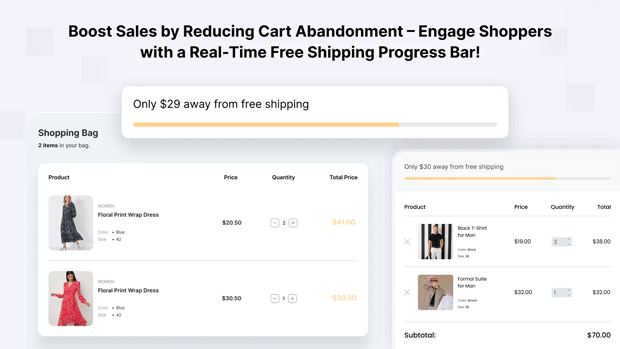
On their Growth Plan, they offer a specific “Cart Drawer Bar” feature designed exclusively for sliding carts.
It injects a progress bar into the drawer seamlessly, monitors real-time cart updates, and handles dynamic messaging without any custom coding.
Step 3: Set Your AOV-Boosting Free Shipping Threshold
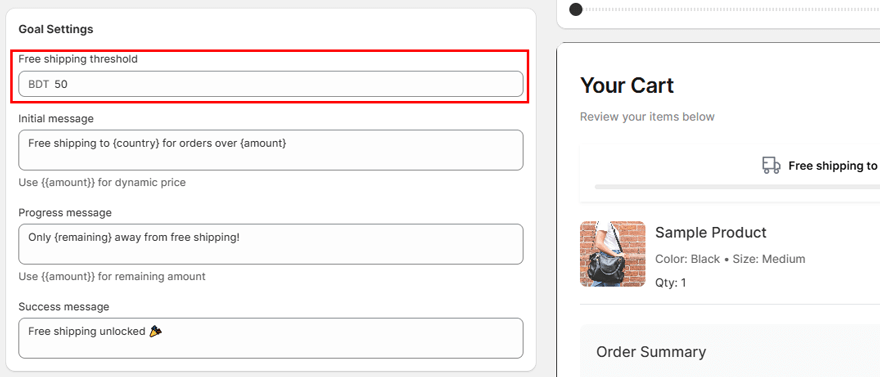
Your threshold should encourage customers to add “just one more item.” If your current AOV is $40, setting a free shipping threshold of $100 will likely cause cart abandonment.
Set the threshold about 15-20% higher than your AOV (e.g., $50). Enter this exact amount into your app’s goal settings so the progress bar calculates the remaining balance accurately.
Step 4: Customize the Progress Bar Design to Match Your Shopify Theme
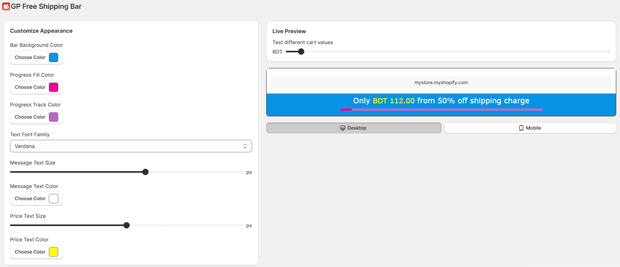
An unstyled progress bar can look like spam. You must ensure the aesthetics match your brand identity.
In your configuration settings, adjust the background colors and fonts. Keep the corner radius subtle (0px to 20px) to match the typical sharp or slightly rounded styling of modern Shopify cart drawers.
Visual Placement Rules for Your Shopify Cart Drawer Bar
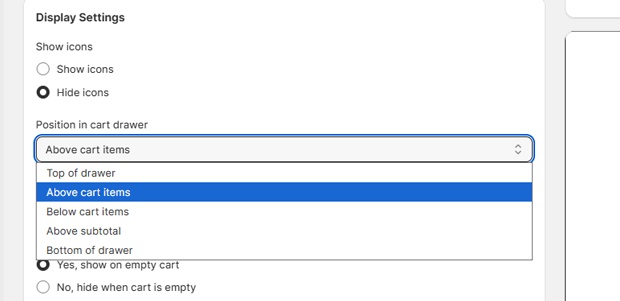
Where the bar sits inside the drawer drastically impacts visibility. When configuring your layout, you generally have a few placement options:
- Above Cart Items (Recommended): Placing the bar just before the cart item list ensures it is the first thing the customer reads after opening the drawer.
- Above Subtotal (Recommended): Placing it right above the pricing breakdown catches the eye exactly when the shopper is evaluating their total cost.
- Top/Bottom Extremes: Avoid pushing the bar too far down below the checkout button, as mobile users may never scroll far enough to see it.
High-Converting Copy Templates for Your Shopify Shipping Bar
The text inside your shipping bar must be dynamic, concise, and action-oriented. Use these proven templates for the three stages of the customer journey:
The Initial Message (Empty Cart): Set expectations immediately.
Template: “Free shipping to {country} for orders over {amount}”
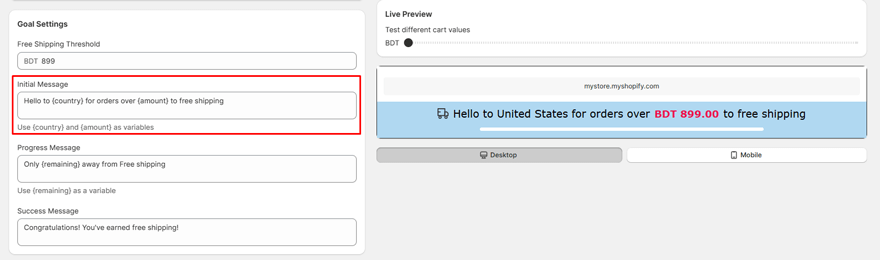
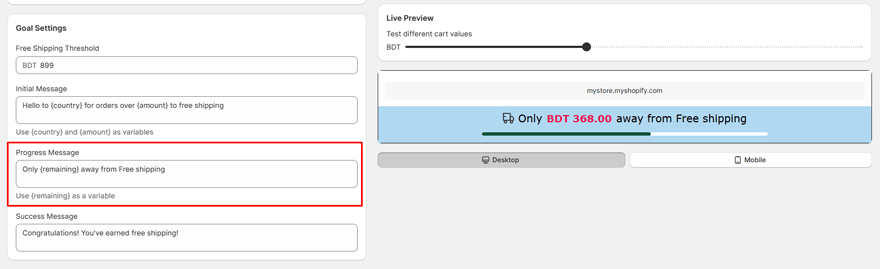
The Progress Message (Adding Items): This is where gamification happens. Always use dynamic variables to show the exact dollar amount needed.
Template: “Only {remaining} away from free shipping!”
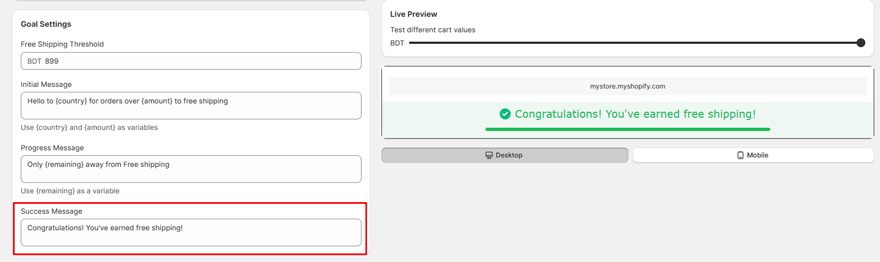
The Success Message (Goal Achieved): Celebrate the win and remove any remaining friction.
Template: “Free shipping unlocked! Proceed to checkout.”
Expert CRO Tips for Making Your Cart Drawer Shipping Bar More Effective
Experienced ecommerce strategists often suggest fine-tuning the psychological elements of the bar to maximize conversion rates.
- Leverage Color Psychology: Use a neutral color (like a brand-matching gold or gray) while the progress bar is filling up. Once the customer hits the threshold, switch the success background to a light green (#eef7f2) and the text to a darker green (#1eba58). Green is the universal UX signal for success and completion.
- Use Subtle Animations: If your app supports it, use a “Slide Down” or “Fade In” animation when the bar appears. This naturally draws the eye without being as aggressive as a pop-up.
- Don’t Clutter the Drawer: The cart drawer is a compact space. Do not use multiple shipping bars or overly thick borders (keep border size between 0px and 5px) to maintain a clean mobile experience.
How to Troubleshoot Common Shopify Cart Drawer Bar Issues
If your bar isn’t displaying correctly after setup, check these common roadblocks:
- The Bar Isn’t Showing at All: Ensure your app embed is toggled “ON” in your Shopify theme customizer. Even if configured in the app dashboard, Shopify requires explicit theme permission to display the script.
- The Progress Bar Isn’t Updating Automatically: If the total only updates when you refresh the page, your app may be conflicting with your theme’s AJAX cart script. Ensure you are testing on the live store, clear your browser cache, and verify your theme isn’t overriding the cart update webhooks.
- The Bar Looks Broken or Overlaps Elements: Cart drawers have limited width. If your text is too long or your font size is too large (keep it around 14px), it will force unnatural line breaks. Adjust your typography settings to fit a mobile-first layout.
Are There Alternative Ways to Build a Shopify Cart Drawer Bar?
If you prefer not to use a dedicated Shopify app, the only alternative is custom development.
A Shopify developer can edit your theme’s Liquid files (often cart-drawer.liquid or cart-notification.liquid) and write custom JavaScript to listen for cart updates.
While this avoids monthly app fees, it is highly rigid. If you ever want to change the threshold for a Black Friday sale, implement geo-targeting for international customers, or change the success colors, you will have to rewrite the code.
For 95% of merchants, an app is the more sustainable route.
What to Optimize Next After Launching Your Shopify Cart Drawer Bar
Once your cart drawer free shipping bar is live, your optimization work isn’t over.
Monitor your store’s AOV over the next 30 days. If AOV rises but your overall conversion rate drops, your free shipping threshold might be set too high, causing price shock.
Next, ensure your product pages are doing their part to help customers cross the threshold. Implement cross-sells or “Frequently Bought Together” widgets right below the “Add to Cart” button so customers have easy, low-friction items to add when your shipping bar tells them they are $10 short.
Frequently Asked Questions About Shopify Cart Drawer Shipping Bars
Does a cart drawer shipping bar actually configure my free shipping rates?
No. The bar is purely a visual marketing tool. You must configure the actual free shipping logic in your Shopify Admin under Settings > Shipping and delivery.
Can I show different shipping thresholds for different countries?
This depends on your app functionality. Many apps allow for country targeting, showing the bar only to eligible regions. For true multi-currency setups, ensure your app automatically converts the threshold to the customer’s local currency based on Shopify Markets.
Will a cart drawer bar slow down my Shopify store?
If built correctly using Shopify’s App Embed Blocks and asynchronous loading, a shipping bar will not noticeably impact your page speed or Core Web Vitals.
What happens to the bar if the customer’s cart is empty?
You typically have two choices: hide the bar entirely to minimize distraction, or display an “Initial Message” (e.g., “Spend $50 for Free Shipping”) to set the expectation before they begin browsing.




