
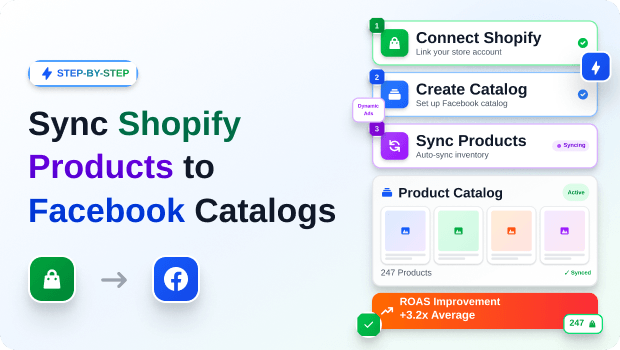
Running Meta ads without a synced product catalog is like trying to stock a physical store blindfolded. You might get a few things right, but eventually, you’re going to promote products you don’t actually have.
For Shopify merchants, connecting your store’s inventory directly to Meta Commerce Manager is the foundation of scalable, profitable advertising.
It unlocks Dynamic Product Ads (DPAs), allowing Facebook and Instagram to automatically retarget visitors with the exact items they left in their carts.
More importantly, an automated sync ensures that when a product sells out on your Shopify store, Meta instantly stops spending your money to advertise it.
If you’ve ever felt overwhelmed by Meta’s Business Manager or confused by XML feeds and variant mapping, you aren’t alone. Connecting these two ecosystems can be technically frustrating.
This guide will walk you through exactly how to sync your Shopify products to Facebook catalogs, keep your data clean, and set your dynamic campaigns up for success.
Summary
- The Main Benefit: Syncing your Shopify catalog to Meta allows you to run highly profitable Dynamic Product Ads (DPAs) that automatically show shoppers the exact items they previously viewed or abandoned.
- Who It Helps: Shopify store owners, DTC brands, and performance marketers scaling their Meta (Facebook & Instagram) ad campaigns.
- What You’ll Learn: How to correctly format your product data, establish a reliable catalog sync, map product variants, and troubleshoot common Commerce Manager errors.
- Key Insight: A real-time catalog sync prevents you from wasting ad spend on out-of-stock items and ensures pricing updates are immediately reflected in your creatives.
To sync your Shopify catalog to Meta, you need to connect your store’s inventory to Meta Commerce Manager. You can do this using a direct API integration or Pixee ‑ Multi Pixel & Meta Ads app to automatically push real-time updates for product titles, pricing, variants, and stock availability directly to your dynamic ads.
Prerequisites for Syncing Your Shopify Store to Meta Commerce Manager
Before you start clicking buttons and connecting apps, you need to ensure your foundational Meta assets are correctly configured. Trying to sync a catalog without these elements in place will result in immediate API errors.
Here is exactly what you need:
- An Active Shopify Store: Your products must be published and available to your online store sales channel. Products in “Draft” status will not sync.
- A Meta Business Manager Account: This is the umbrella account that holds your ad accounts, pages, and pixels.
- A Meta Commerce Manager Account: This is where your catalog will physically live inside Meta.
- A Meta Pixel Connected to Your Store: Your catalog needs to communicate with your tracking pixel so Meta knows which user looked at which specific product ID.
How to Sync Shopify Products to Facebook Catalogs
There are a few ways to push your Shopify data to Meta. While Shopify offers a native sales channel integration, many scaling merchants prefer using dedicated pixel and feed apps for granular control over sync frequencies and variant mapping.
For this workflow, we’ll look at how this process is handled using Pixee ‑ Multi Pixel & Meta Ads app, which creates and manages product feeds for dynamic advertising.
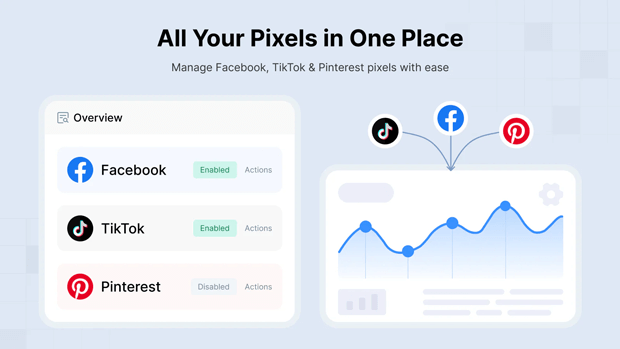
Step 1: Connect Your Meta Assets
First, ensure your Facebook account is authorized to communicate with your store. If you are using a tool like Pixee, you will need to log in with Facebook and authorize permissions for ad account read access, campaign data, and product catalogs.
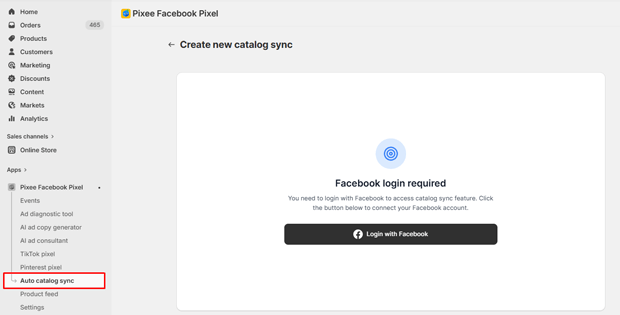
Step 2: Create a New Catalog Sync
Navigate to your catalog sync settings and choose to either select an existing Facebook catalog from the dropdown or create a brand new one. Name your catalog something easily identifiable, like “Main Store Q3 Catalog.”
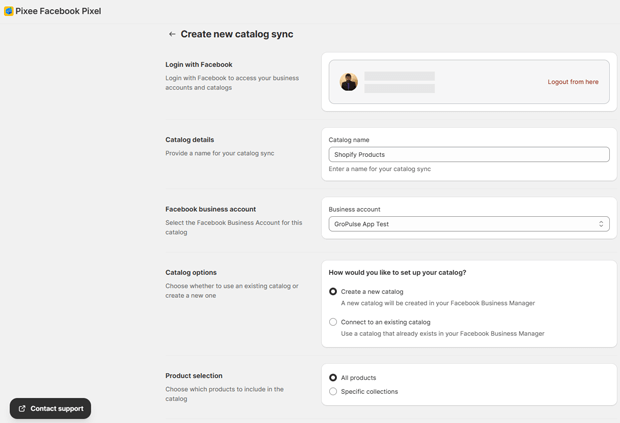
Step 3: Define Your Sync Rules and Frequency
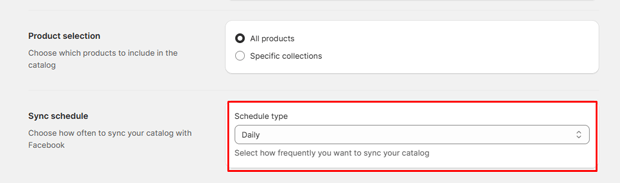
You don’t always need to sync every single product. You can choose to sync all products or restrict the sync to specific collections. Next, set your sync frequency. Your options typically range from “Every hour” for fast-moving inventory to “Daily” for highly stable inventory.
Step 4: Execute the Initial Sync
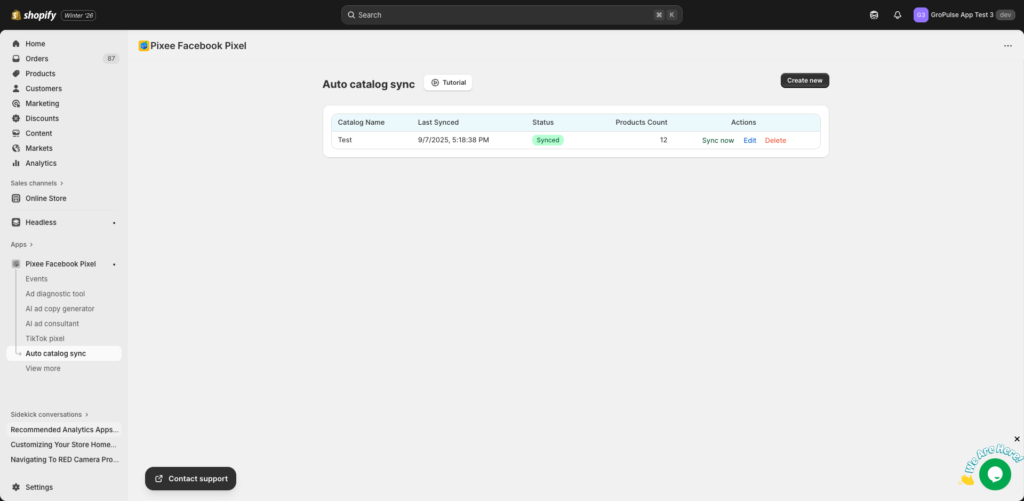
Save your configuration to trigger the initial sync. The data pushed to Meta will include the product ID, Title, Description, Price, Sale Price, Currency, Availability, Image URL, Product Link, Brand, and Category.
Essential Visual Checks for Your Meta Commerce Manager Setup
Once your sync is active, do not blindly assume it worked flawlessly. You need to visually verify the data structure inside Meta.
Navigate to Meta Commerce Manager > Select your catalog > Catalog > Products to view all of your synced products.
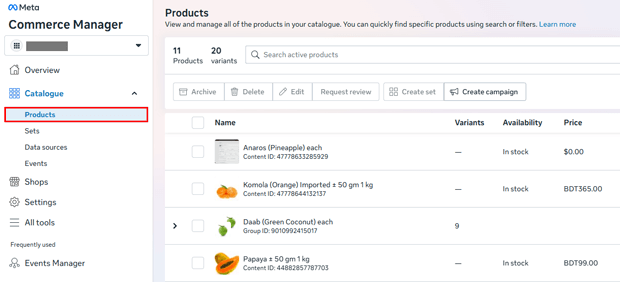
Look for these critical visual cues:
- Image Formatting: Are your images cropping weirdly? Meta prefers 1:1 (square) images for standard dynamic carousel ads.
- Price Accuracy: Verify that the “Sale Price” pushed from Shopify is displaying correctly alongside the standard price.
- Availability Status: Spot-check a product you know is out of stock on Shopify and ensure it is flagged as unavailable in the Meta catalog.
Recommended Blogs for You:
👉 Dynamic Product Ads on Facebook
👉 TikTok Pixel for Shopify: Complete Guide
👉 Facebook Events Manager for Shopify
👉 How to Set Up Facebook Pixel on Shopify
👉 How to Audit Facebook Ads with AI
Best Practices for Mapping Shopify Product Variants in Meta
Ad platforms need to understand product variants to show correct colors, display available sizes, and match user preferences. If you sell apparel, mapping variants correctly is non-negotiable.
By default, every variant of a product (e.g., a Red T-Shirt in size Medium) should be synced as a separate item, but they must be tied together using an item_group_id. This tells Meta, “These are all the same shirt, just in different sizes and colors.”
Ensure your Shopify option names match what the feed expects. For example, if your store uses “Colour” instead of “Color”, or “Fabric” instead of “Material”, you must map these custom names to the standard feed attributes.
Expert Strategies for Optimizing Meta Dynamic Product Ads
Once your catalog is synced, the real work begins. To get the highest return on ad spend (ROAS) from your DPAs, consider these expert strategies:
- Segment Your Audiences by Intent: Don’t treat a “Viewed Content” visitor the same as an “Added to Cart” visitor. Create separate dynamic ad sets. Bid higher on cart abandoners because their purchase intent is significantly stronger.
- Customize the Ad Copy: Use dynamic placeholders in your Meta ad copy. You can automatically pull the product [Name] or [Price] directly from the catalog feed into the ad text.
- Leverage Collection Ads for Broad Targeting: DPAs aren’t just for retargeting. You can use broad targeting with dynamic formats (like Advantage+ Catalog Ads) to let Meta’s machine learning find new customers based on which products in your catalog match their historical browsing behavior.
Troubleshooting Common Shopify-to-Facebook Catalog Sync Errors
Catalog syncs occasionally break. When they do, ad performance drops. Here is how to troubleshoot the most common issues:
Error 1: “Permission Denied”
This usually means the authorization token between your store and Meta has expired. To fix this, log out of Facebook within your integration app, log back in, and carefully grant all requested permissions again.
Error 2: Products Not Updating in Meta
If your inventory changes on Shopify aren’t reflecting in ads, check your sync frequency settings; you may need to consider more frequent syncs (like hourly instead of daily). You can also try to trigger a manual sync to force the update immediately.
Error 3: Missing Variant Data
If variants are grouping incorrectly or missing entirely, review your variant mapping settings. Ensure your store’s option names match exactly with the fields required by the feed.
Alternative Methods for Managing Meta Product Feeds
If an automated API sync isn’t fitting your needs, you have alternative options for getting product data into Meta:
1. Third-Party XML Product Feeds
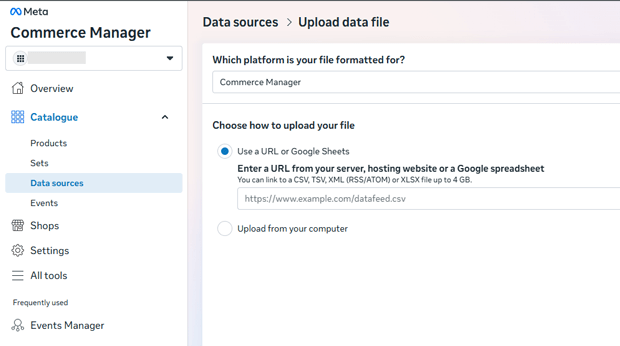
Instead of a direct API sync, you can use a structured XML file. A product feed is a structured file containing your product information hosted on a secure URL (e.g., https://pixee.gropulse.com/feeds/your-feed-id.xml).
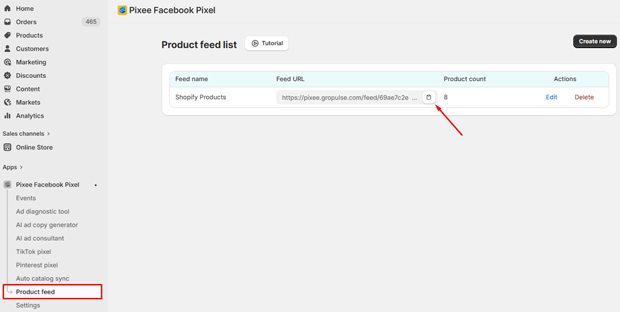
You then paste this URL into Meta Commerce Manager, and Meta will “fetch” the file on a schedule you define. This is highly reliable and easily customizable.
2. Manual CSV Uploads
If you have a very small catalog (under 10 items) that rarely changes price or stock, you can manually upload a CSV file to Meta. However, this is highly discouraged for standard e-commerce operations, as it almost guarantees you will eventually run ads for out-of-stock items.
Next Steps: Launching Your First Meta Dynamic Ad Campaign
Your catalog is synced, your variants are mapped, and your images look great. Your next step is to leverage this data.
- Open Meta Ads Manager.
- Create a new campaign and select the Sales objective.
- Choose the Advantage+ catalog ads toggle at the campaign level, or select your catalog at the Ad Set level.
- Define your retargeting window (e.g., Retarget people who viewed or added to cart but didn’t purchase in the last 14 days).
- Launch the campaign and let Meta’s algorithm match your live catalog data to user intent.
Frequently Asked Questions About Shopify and Meta Catalog Syncs
Do I need a separate catalog for Instagram and Facebook?
No. A single Meta Commerce Manager catalog serves inventory data to both Facebook and Instagram placements simultaneously.
Why does my catalog show more products than I actually have?
Because of variants. If you have 10 t-shirts, and each comes in 3 sizes and 3 colors, your catalog will actually show 90 items (10 x 3 x 3). Each variant requires its own unique entry in the feed.
Can I exclude certain products from syncing?
Yes. Most robust catalog integrations allow you to configure product selection so you only sync specific collections rather than your entire store.
How often should I sync my Shopify catalog?
If you sell fast-moving inventory or limited drops, you should sync every hour. If your stock is stable and deeply stocked, a daily sync is sufficient.
Final Thoughts on Automating Your E-commerce Ad Setup
Syncing your Shopify catalog to Meta is the crucial bridge between your store’s reality and your advertising strategy. Without it, you are relying on manual updates and static imagery, severely limiting your ability to scale.
By establishing a reliable, automated sync, whether through direct integration or a dynamic XML feed, you ensure Meta’s algorithm always has the accurate data it needs to put the right product in front of the right buyer at the perfect time.




