
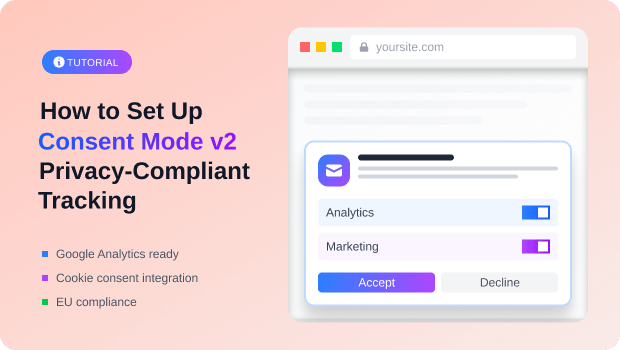
If you’re running a Shopify store with traffic from Europe or other GDPR-regulated regions, you’ve probably discovered that Consent Mode v2 is mandatory—but the implementation feels overwhelming.
Here’s the reality: Without it, you’re losing conversion data. With it, you’re juggling Google Tag Manager, dataLayers, consent triggers, and debugging tools. It’s technical, time-consuming, and error-prone if you get it wrong.
But what if setting up Consent Mode v2 on Shopify was actually simple?
For most Shopify merchants, the solution isn’t complex coding or hiring an agency. It’s using the right app—one built specifically for your tracking setup. The difference between a 4-hour nightmare implementation and a 30-minute setup often comes down to choosing the app that matches your exact needs.
This guide shows you which app is right for you, how to set it up in minutes, and how you’ll recover the conversion data that compliance usually costs you.
Shopify merchants can implement Consent Mode v2 in a minutes using AdTrack (for Google Ads), Analyzely (for GA4), or GroPulse GTM Data Layer (for GTM setups). Each app handles default consent, consent updates, and GDPR compliance automatically—no coding required. Choose based on your primary tracking system.
Key Takeaways
- Consent Mode v2 is non-negotiable for Shopify stores serving EEA/UK traffic; without it, expect 50–80% conversion data loss and potential account restrictions
- Shopify doesn’t have a native Consent Mode v2 solution, but three specialized apps fill this gap—each designed for different tracking architectures
- App-based implementations are faster, safer, and more maintainable than manual GTM setup; they handle default consent, consent updates, and compliance checks automatically
- The “right” app depends on your current tracking setup: AdTrack for Google Ads–first merchants, Analyzely for GA4-focused shops, GroPulse for GTM–heavy implementations
- Advanced Consent Mode (with data modeling) recovers 70–90% of lost conversion data; all three apps support it, making them ideal for performance-focused businesses
Understanding Consent Mode v2 and Why It Matters
What Is Consent Mode v2?
Consent Mode v2 is Google’s framework that automatically adjusts how Google tags (Analytics, Ads, Floodlight, Conversion Linker) behave based on user consent preferences. Instead of blocking tracking entirely when users decline cookies, Consent Mode v2 allows you to:
- Collect compliant data even from users who opt out
- Maintain meaningful analytics and ad performance measurement
- Avoid triggering GDPR or DMA violations
- Enable Google to use machine learning to estimate missing conversion data
Think of it as a translator between your cookie banner and Google’s services. When a user makes a choice on your consent banner, Consent Mode v2 communicates that choice to Google in real time.
Why Google Consent Mode v2 Is Legally Critical
The Digital Markets Act (DMA) and GDPR requirements forced Google—designated as a “gatekeeper” by the EU—to give users more granular control over their data. Consent Mode v2 emerged directly from this regulatory pressure.
Key compliance facts:
- Starting March 6, 2024, Consent Mode v2 is mandatory for all websites in the EEA (European Economic Area) and UK using Google Ads or Google Analytics
- Without it, Google explicitly stated it will restrict or stop processing advertising data for EU/EEA users
- U.S. state privacy laws (California CPRA, Virginia, Colorado, Connecticut, Utah) are tightening too—implementing v2 now future-proofs your setup
- Non-compliance can result in regulatory fines, Google Ads account suspension, and loss of conversion tracking
Real business impact: Merchants who haven’t properly implemented Consent Mode v2 report losing 50–80% of conversion data visibility because Google restricts data collection without valid consent signals.
What Changed from Consent Mode v1 to v2?
The original Consent Mode v1 had only two parameters: analytics_storage and ad_storage. It was optional and focused on basic consent collection.
Consent Mode v2 added two critical new parameters:
- ad_user_data: Whether the user consents to their data being shared with Google for advertising purposes (essential for Google Ads to function properly)
- ad_personalization: Whether the user allows personalized remarketing and retargeting ads
Additionally, v2 introduced two implementation methods—Basic and Advanced—giving businesses flexibility based on their compliance posture and data needs.
Recommended Blogs for You:
👉 What Metrics Should I Track in My Google Ads Performance Reports?
👉 How to Optimize Your Google Ads Without Hiring an Expert
👉 Event Match Quality Explained: How to Get a Score of 8+ on Every Event
👉 Top 10 Schema Types Every Shopify Store Should Use for Better SEO
The Shopify Consent Mode v2 Problem
When Google mandated Consent Mode v2 in March 2024, the guidance was clear but intimidating: implement it or lose ads functionality in the EEA/UK. For most merchants, the step-by-step involved:
- Installing a cookie consent platform (CMP)
- Adding Google Tag Manager to your store
- Writing custom code for the dataLayer
- Configuring consent triggers in GTM
- Setting up each tag’s consent requirements
- Testing with Tag Assistant
For a savvy digital marketer or developer? Manageable. For a solo Shopify merchant juggling inventory, customer support, and marketing? A multi-week project.
Even worse, small mistakes—like setting default consent after tags fire, or using the wrong CMP event name—silently broke the entire setup. Many merchants implemented Consent Mode v2 thinking they were compliant, only to discover months later that Google wasn’t receiving any consent signals.
Why Apps Win Over Manual GTM Setup
Specialized Shopify apps skip the complexity by handling the hard parts for you:
What the apps do automatically:
- Set default consent values before any tags fire (the #1 failure point)
- Sync with your CMP correctly (no mismatched event names)
- Configure consent requirements for all relevant tags
- Test and validate on deployment
- Provide ongoing compliance monitoring
What you don’t have to worry about:
- Editing theme code or creating GTM snippets
- Debugging dataLayer logic
- Verifying tag firing order
- Manually testing consent flows
- Maintaining custom code when Shopify updates
The net result: A working, compliant setup in 30 minutes instead of weeks.
How to Set Up Consent Mode v2 : Step by Step Guide
If you run a Shopify store, you probably don’t want to write custom scripts or manually wire every consent event. The easiest way to set up Consent Mode v2 is to use a Shopify app that integrates a CMP, cookie banner, and Consent Mode v2 for you.
AdTrack – Google Ads Tracking
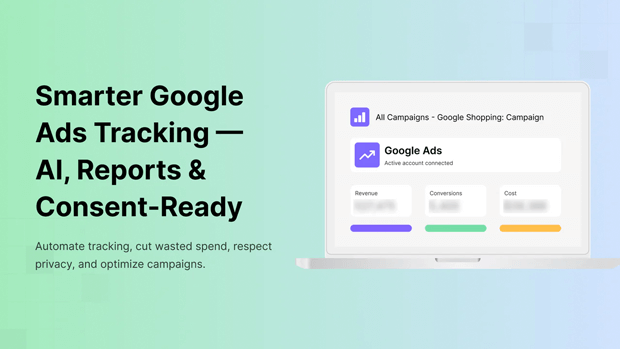
Best for: Shopify stores running Google Ads as their primary tracking tool
Key features:
- Automatic Consent Mode v2 integration (no manual configuration)
- Enhanced conversion tracking (hashed customer data for privacy)
- AI-powered diagnostics to reduce wasted ad spend
- Google Ads performance reports built into Shopify Admin
- Free plan includes all essential Consent Mode v2 functionality
Step-by-Step Setup Process
- Install AdTrack from the Shopify App Store.
- Connect your Google Ads account.
- In the AdTrack dashboard (inside your Shopify Admin), click the Configure button.
- Sign in using your Google account.
- Select the Google Ads account you want to use.
- Enable the conversions you want to track.
- Enable Google Consent Mode v2 for Google Ads.
- Click Save to apply your settings.
Result: Conversions from EEA/UK traffic are now recorded with full Consent Mode v2 compliance. Your Google Ads account warning should disappear within 24 hours.
Analyzely – Google Analytics 4
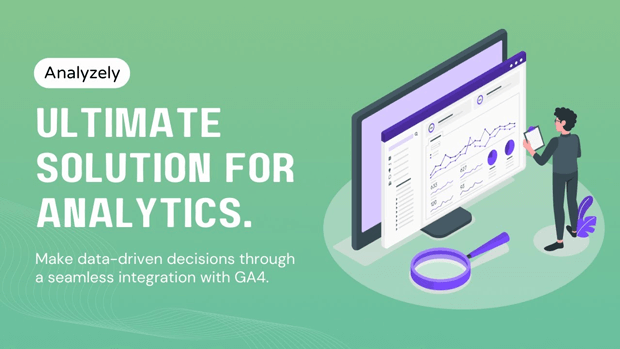
Best for: Shopify stores using GA4 as their primary analytics tool; merchants who want precise event tracking with compliance built in.
Key features:
- Seamless GA4 integration (no code, no GTM required)
- Automatic Measurement ID detection
- Server-side event tracking (more accurate, resistant to ad blockers)
- GDPR-friendly Consent Mode v2 enabled by default
- Real-time ecommerce reports (standard & custom metrics)
- Free plan includes Measurement ID integration; Pro plan ($19/month) adds ecommerce reports and advanced event tracking
Step-by-Step Setup Process
Install Analyzely from the Shopify App Store.
Go to the Analytics Setup section
Sign in with your Google account
Select your Analytics account and property.
Enable the conversions you want to track.
Enable Google Consent Mode v2.
Click Save to apply all changes.
Result: GA4 now respects Consent Mode v2. Transactions from users who opt in are tracked accurately; Advanced mode estimates conversions from opt-out users using Google’s ML models.
GroPulse – GTM & Data Layer
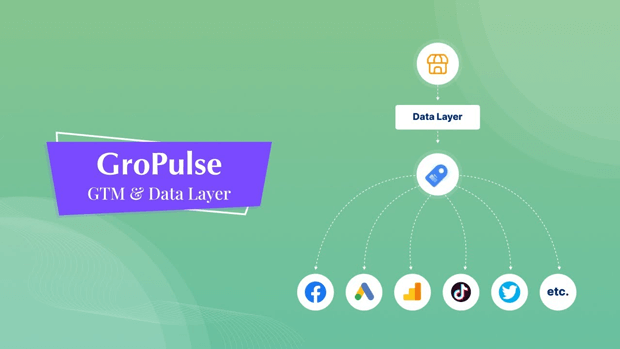
Best for: Shopify stores using Google Tag Manager for complex tracking (multiple pixels, custom events, diverse platforms).
Key features:
- Easy GTM container setup without code editing
- Automatic dataLayer population with Shopify ecommerce data
- Consent Mode v2 auto-configuration for all tags at once
- Support for GA4, Google Ads, Facebook Pixel, TikTok, LinkedIn Pixel, etc.
- Free tier allows GTM connection; Pro plans ($29.99/month+) enable advanced event firing
- Excellent for headless Shopify or custom implementations
Step-by-Step Setup Process
- Install the GroPulse GTM & Data Layer app from the Shopify App Store.
- Activate the app.
- Enter your GTM Container ID and click Save.
- Configure your data layer settings inside the app.
- Enable Google Consent Mode v2 in the app settings.
- Click Save to apply all changes.
- Enter your platform ID in the template section, then download the GTM template from the app.
- Import the template into your Google Tag Manager container.
- Publish the GTM container changes.
Result: All your GTM tags now respect Consent Mode v2 automatically. GroPulse GTM Data Layer handles dataLayer population, so you don’t have to manually code ecommerce events; your purchase data, product views, and custom events feed into GTM and your connected platforms.
Which App Should You Actually Choose?
This decision matrix helps you pick the right fit:
| Criteria | AdTrack | Analyzely | GroPulse GTM Data Layer |
| Primary tracking system | Google Ads | Google Analytics 4 | Multiple (GTM-based) |
| Setup time | 1 min | 1 min | 3 min |
| Coding required? | No | No | No |
| Best for merchants who… | Run Google Ads campaigns heavily; want AI diagnostics | Rely on GA4 insights; want real-time reporting | Use multiple tracking platforms; need tag control |
| Pricing | Free (with Pro at $19/month) | Free (with Pro at $19/month) | Free tier; Pro at $29.99/month |
| Cons | Limited to Google Ads (no GA4 data) | Limited to GA4 (no ads campaign data) | Most complex setup; requires GTM knowledge |
| Best result | High-intent Google Ads optimization | Accurate GA4 behavioral insights | Unified tracking from all platforms |
Decision Flowchart
Q1: Do you primarily track Google Ads performance?
- Yes → Use AdTrack
- No → Go to Q2
Q2: Is Google Analytics 4 your main analytics tool?
- Yes → Use Analyzely
- No → Go to Q3
Q3: Are you using Google Tag Manager with multiple tracking platforms (Ads, GA4, Facebook, TikTok)?
- Yes → Use GroPulse GTM & Data Layer
- No → Use Analyzely (safest general choice)
Common Implementation Questions
Do I need to install a CMP (cookie consent banner) first?
No, you can use Shopify’s default consent banner.
Can I use multiple apps together?
Not recommended. If you install AdTrack, Analyzely, and GroPulse together, they’ll conflict and cause double-tracking or consent conflicts. Choose one based on your primary tracking system.
Will switching apps delete my historical data?
No. The apps are layers on top of your tracking; switching doesn’t affect Google Ads, GA4, or GTM historical data. It just changes how new data is collected going forward.
How do I know if my setup is actually working?
Use Google Tag Assistant (browser extension). Visit your store, click the Tag Assistant icon, go to the Consent tab, and verify consent parameters are set to “granted” or “denied” (not blank or missing).
What if my CMP isn’t recognized by the app?
All three apps allow “Custom CMP” configuration. You’ll need your CMP’s event name (e.g., cookie_consent_update). Check your CMP docs or support; they can tell you the exact event name.
Will using an app slow down my Shopify store?
No. These apps add minimal code (typically <5KB). They’re designed to be lightweight. Store speed shouldn’t be noticeably affected.
Can I upgrade from free to paid plans without re-setup?
Yes. Free → Pro upgrades are seamless. No re-configuration needed; just activate in the app dashboard.
What if I have questions about my setup?
All three apps offer email support. AdTrack and Analyzely respond within 24 hours; GroPulse has live chat. Don’t hesitate to reach out—they’re used to merchant questions.
Is Advanced Consent Mode better than Basic?
For most merchants, yes. Advanced mode lets Google estimate conversions from users who opt out (using AI modeling), recovering 70–90% of lost data. Basic mode blocks all tracking on opt-out. All three apps default to Advanced; you can switch to Basic if your legal team advises it.
Can I test the app before going live?
Yes. Set up the app in your Shopify store preview first. Test consent flows (accept, reject, selective). Only publish to the live store once you’ve verified everything works.
What happens if I uninstall the app?
Consent Mode v2 stops working. Your store reverts to pre-Consent Mode behavior (which violates GDPR). Don’t uninstall without a replacement plan. If you need to switch apps, install the new one before uninstalling the old one.
How often should I check if my setup is still working?
Monthly at minimum. Set a calendar reminder to check Google Tag Assistant and GA4/Google Ads compliance warnings. Most issues are minor (CMP events change, GTM is republished wrong), and catching them early prevents data loss.
Can these apps help with other privacy laws (CCPA, Brazil LGPD, etc.)?
Partially. Consent Mode v2 is primarily GDPR/DMA. For CCPA/LGPD, you’ll need an app or CMP that explicitly supports those laws. Many CMPs (like Cookiebot, Usercentrics) handle all regions; check your CMP’s capabilities.
If I have multiple Shopify stores, can I use the same app on all of them?
Yes, if you have a Shopify Partner account or manage multiple stores under the same account. Each store needs its own app installation, but you can manage them centrally.
Troubleshooting: When Something Isn’t Working
Issue 1: “Consent Mode is not active” warning in Google Analytics 4
Cause: Default consent wasn’t set before other tags fired, or the app’s Consent Mode initialization isn’t active.
Fix:
- Make sure app is activated
- In the app dashboard, go to Settings and Verify that “Enable Consent Mode v2” is toggled ON
- Check that your Consent Banner is Showing on the storefont
Issue 2: Conversions from EU visitors suddenly dropped 80%+
Cause: Default consent set to “denied,” but app isn’t receiving consent updates from your CMP.
Fix:
- Open your store in an incognito window
- Open browser dev tools (F12)
- Go to your cookie banner and click “Accept All”
- Watch the console for a consent update message
Conclusion: Compliance Without the Chaos
The reality of Consent Mode v2 compliance doesn’t have to be a multi-week nightmare. For most Shopify merchants, the right app—installed today—resolves the problem in 2 minutes.




