
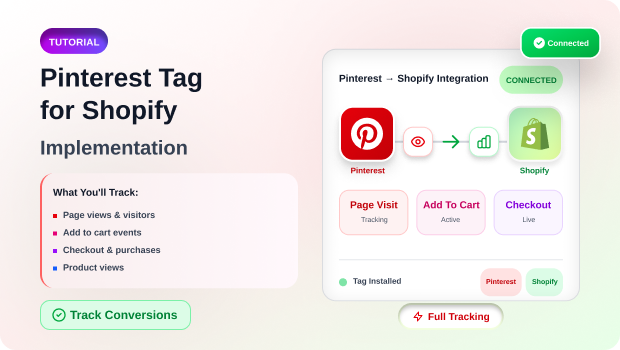
Most Shopify merchants obsess over Meta and Google. While those platforms are essential, they are becoming increasingly expensive and crowded. Pinterest remains a massive opportunity—not just as a social network, but as a visual discovery engine where 80% of weekly users have discovered a new brand or product (Source: Pinterest Business).
However, there is a common point of failure: The Tracking Gap.
Many merchants “set and forget” their Pinterest integration, only to realize months later that their ROAS looks low because the tag isn’t firing on the checkout page, or duplicate events are skewing their data. Without a healthy Pinterest Tag, the platform’s algorithm is essentially flying blind, unable to find the “lookalike” audiences that actually want to buy your products.
This guide will move past the complete setup Pinterest Tag for Shopify and show you how to build a high-integrity tracking foundation that scales.
Summary
- The Goal: Learn how to accurately install, test, and troubleshoot the Pinterest Tag on your Shopify store.
- Who It Helps: Shopify merchants looking to lower Customer Acquisition Cost (CAC) and leverage Pinterest’s high-intent visual search traffic.
- Key Insight: Clean data is the difference between a “pretty” Pinterest profile and a high-converting sales engine. Standard integrations often miss granular event data; manual or app-based setups provide better attribution.
To install the Pinterest Tag on Shopify, retrieve your Tag ID from your Pinterest Business account. For the most reliable tracking, use the Pixee Multi-Pixel app to automate event firing, or manually inject the Pinterest Base Code into your theme.liquid file for a custom, code-first setup.
What You Need Before Starting This Shopify Task
Before you touch a single line of code or install an app, ensure you have the following ready:
- A Pinterest Business Account: Personal accounts do not have access to the Ads Manager or Tag health dashboards.
- Claimed Website: Your Shopify domain must be verified/claimed within Pinterest settings to ensure data ownership.
- Pinterest Tag ID: A unique 13-digit identifier found in your Pinterest Ads Manager under the “Conversions” tab.
Recommended Blogs for You:
👉 Pinterest Marketing for Shopify: The Ultimate 2025 Guide
👉 How to Set Up Facebook Pixel on Shopify (Beginner’s Guide)
👉 How to Audit Facebook Ads with AI: The Shopify Merchant’s Guide
👉 Instagram Marketing for Shopify: Complete Strategy Guide
How to Set Up Your Pinterest Tag For Shopify
1. The “Easy Route”: Using the Pixee Multi-Pixel App
While the native Shopify integration is a common starting point, many scaling merchants prefer a dedicated tracking solution to avoid data gaps and manage multiple platforms from a single dashboard. Pixee ‑ Multi Pixel & Meta Ads simplifies the Pinterest Tag deployment while ensuring high data integrity.
How to set up your Pinterest Tag using Pixee:
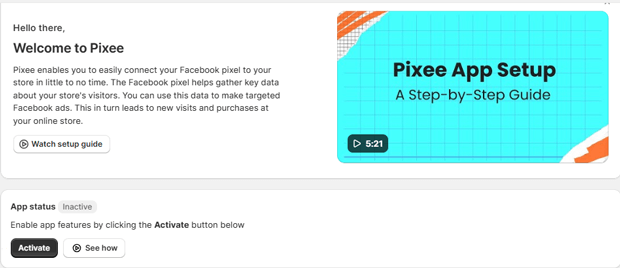
Install & Activate: Once you’ve added the app from the Shopify App Store, navigate to the Pixee Dashboard and ensure the app status is set to Active.
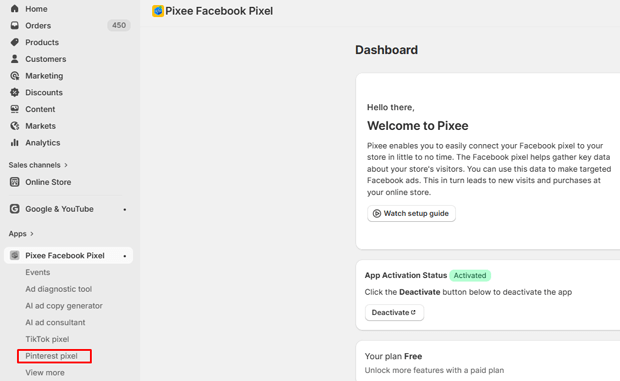
Select Pinterest Tracking: From the side menu, navigate to the Pinterest Pixel section.
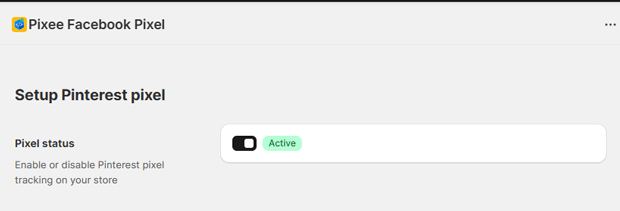
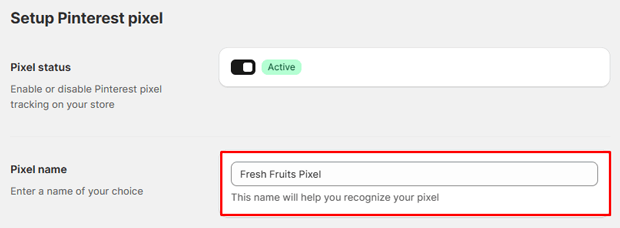
Configure Your Tag: Toggle the Pixel Status to “Active.”
Internal Name: Enter a recognizable name for your tag (e.g., “Main Brand Pinterest Tag”) to keep your dashboard organized.
Pinterest Tag ID: Paste your 13-digit Tag ID sourced from your Pinterest Ads Manager.
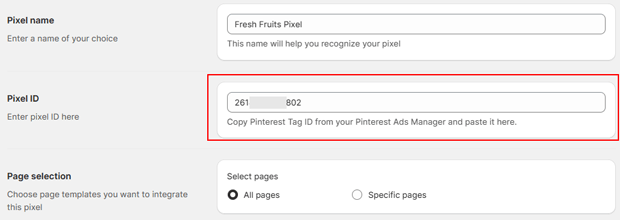
Define Tracking Scope: Choose between tracking All Pages (recommended for full funnel visibility) or selecting Specific Pages if you are running a niche campaign or a localized landing page.
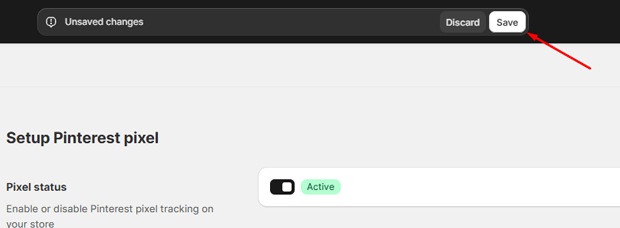
Click the Save button to complete the setup.
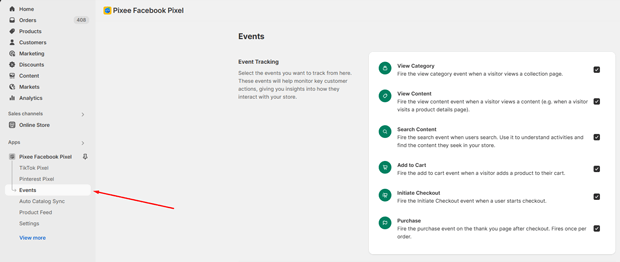
Please enable the eCommerce events you would like to track in your Pinterest Pixel.
2. Manual Installation (For Custom Themes)
If you use a headless build or a highly customized Shopify theme, you may need to paste the Base Code manually:
- Copy your Base Code from Pinterest Ads Manager.
- In Shopify, go to Online Store > Themes > Edit Code.
- Paste the snippet into the <head> section of your theme.liquid file.
How to Test and Troubleshoot Your Pinterest Tag
Installation is only 50% of the job. You must verify that the data is actually reaching Pinterest.
Use the Pinterest Tag Helper
Download the Pinterest Tag Helper (Chrome Extension). Navigate to your Shopify store and click the extension icon. It will show you:
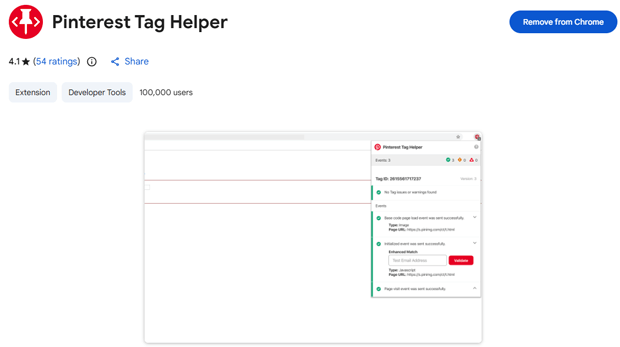
- If the Base Code is initialized.
- If specific events (like PageVisit or AddToCart) are firing.
- If there are errors in your “Enhanced Match” data (e.g., missing hashed emails).
Check the “Test Events” Tool
Inside the Pinterest Ads Manager, use the “Test Events” feature. This allows you to interact with your live site and see the events appear in real-time within the Pinterest dashboard. If you don’t see a Checkout event after a test purchase, your conversion tracking is broken.
Expert Tips That Make Pinterest Tracking Work Better in Real Stores
- Enable Enhanced Match: This is the most underrated step. By passing hashed customer data (like email or zip code) back to Pinterest, you help the platform match “anonymous” site visitors to real Pinterest users. This can significantly increase your reported conversions.
- Track “Add to Cart” as a Secondary Goal: Don’t just optimize for purchases. Pinterest needs a high volume of signals (at least 50 conversions per week) to optimize its bidding. Tracking “Add to Cart” helps the algorithm learn faster.
- Watch Out for Duplicate Firing: If you have the official app installed AND manual code in your theme.liquid, you will double-count your revenue. Always stick to one primary method.
Common Roadblocks: Why Isn’t My Pinterest Tag Working?
| Symptom | Likely Root Cause | Fix |
| “No Tag Detected” | Ad blocker is active on your browser. | Disable AdBlock/uBlock and refresh. |
| Missing Product IDs | Your Tag and your Catalog aren’t synced. | Ensure the product_id in your tag matches the ID in your Pinterest Feed. |
| Low Match Rate | Enhanced Match is not configured. | Use a tracking app that supports advanced matching or update your manual snippets. |
Freequently Asked Questions
How long does it take for Pinterest Tag data to show up?
Usually, it takes 15–30 minutes for events to appear in the “Test Events” tool, but it can take up to 24 hours for data to populate in your main reporting dashboards.
Does the Pinterest Tag slow down my Shopify store?
If installed via a reputable app or Shopify’s official integration, the script is “asynchronous,” meaning it loads in the background without blocking the visual elements of your store.
Can I track multiple Pinterest Tags on one Shopify store?
Yes. For brands running multiple niche Pinterest accounts, using a multi-pixel app like Pixee allows you to manage multiple IDs without slowing down your site with redundant code.
What To Do Next After You Finish This Setup
Once your tag is healthy and the “Event Health” status is green in Pinterest, your next step is Creative Testing. Pinterest is a visual-first platform.
Unlike Facebook, where “interruption marketing” works, Pinterest users are in “planning mode.” Use your newly minted tracking data to create Retargeting Campaigns for users who added items to their cart but didn’t buy.
Because your tag is now accurate, you can show them the exact products they were looking at, significantly lowering your CPA.




