
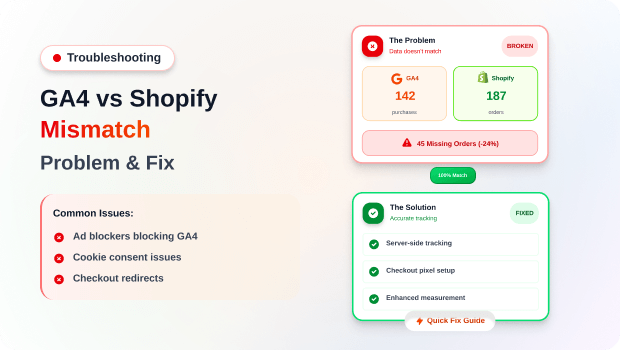
There is a specific kind of “Monday morning dread” reserved for Shopify merchants: opening your Shopify Admin to see $5,000 in sales, then switching to GA4 only to find $3,800.
Where did the other 24% of your revenue go? Did the tracking break, or is Google simply “losing” your orders?
In the world of DTC ecommerce, data isn’t just a record of what happened; it’s the fuel for your next ad campaign. When your GA4 purchases don’t match your Shopify reports, the problem isn’t just an “ugly dashboard”—it’s a broken feedback loop.
If Google Analytics misses 20% of your conversions, your “Return on Ad Spend” (ROAS) looks 20% worse than it actually is. This lead to merchants killing profitable ads, scaling the wrong products, and losing trust in their marketing team. Understanding the “Why” behind this mismatch is the first step toward reclaiming your strategy.
Summary
- The Main Benefit: Understand exactly why your Google Analytics 4 (GA4) revenue never perfectly aligns with your Shopify Admin.
- Who It Helps: Shopify merchants and marketing managers struggling with data-driven decision-making.
- What You’ll Walk Away With: A checklist of technical fixes and a realistic framework for interpreting “missing” data.
- Key Concept: The transition from client-side to server-side tracking is the single most effective way to close the reporting gap.
GA4 and Shopify data rarely match due to client-side tracking limitations (ad blockers/ITP), 24–48 hour processing delays in Google’s pipeline, and differing attribution models. A 10–20% discrepancy is industry-standard for basic tracking setups.
What Problem Are Shopify Merchants Actually Facing with GA4 Data?
The core issue is that Shopify and GA4 are built for two entirely different purposes. Shopify is your “Source of Truth” for financial and inventory data. It records a transaction the moment a database entry is created.
GA4, however, is a behavioral analytics platform. It relies on a series of “pings” sent from a customer’s browser. If that ping is interrupted—by a slow Wi-Fi connection, a browser privacy setting, or a user closing the tab too quickly—the sale never “happens” in the eyes of Google. This creates a permanent gap where Shopify shows more revenue than GA4.
Why Your GA4 Purchases Don’t Match Shopify: The Root Causes of Shopify Tracking Gaps
To fix the discrepancy, we first have to identify which technical “leak” is causing it.
1. The Rise of Ad Blockers and Privacy Tools
Standard GA4 setups use “client-side” tracking. This means the tracking script runs in the visitor’s browser. According to industry estimates, between 10% and 30% of users now use ad blockers or privacy-focused browsers (like Brave) that stop GA4 scripts from ever loading.
2. GDPR and Cookie Consent Walls
If you are selling in the EU or UK, users must opt-in to tracking. If a customer buys a product but clicks “Decline” on your consent banner, GA4 is legally prohibited from recording that session or the subsequent purchase.
3. GA4 Data Processing Latency
Unlike Shopify, which is near-instant, GA4 has a documented processing delay. Standard reports can take 24 to 48 hours to fully populate. If you are looking at “Today” or even “Yesterday,” your data is likely incomplete.
4. Timezone and Currency Mismatches
If your Shopify store is set to EST but your GA4 property is set to UTC, a sale at 11:00 PM will show up on different days in each platform. Similarly, if Shopify converts a CAD sale to USD using a different exchange rate than Google’s daily rate, the totals will never match to the cent.
Recommended Blogs for You:
👉 How to Track Conversions in GA4 for Shopify Dropshippers
👉 GA4 Event Tracking for Shopify: A Guide for Non-Developers
👉 Shopify Success Rate 2026: Why 90% of Stores Fail
👉 How to Set Up Consent Mode v2 for Privacy-Compliant Tracking
👉 GA4 Marketing ROI: The Expert’s 7-Step Framework
How Tracking Discrepancies Hurt Your Shopify ROI
When your data is “leaky,” your marketing efficiency suffers in three ways:
- Under-Reported Attribution: Your Facebook or Google Ads campaigns look like they are failing because GA4 isn’t seeing the final purchase.
- Inaccurate Funnel Analysis: You might think your “Checkout to Purchase” conversion rate is low, when in reality, the purchases are happening but simply aren’t being tracked.
- Poor Audience Building: You can’t effectively retarget “Past Purchasers” if GA4 doesn’t know who half of them are.
How To Align Your Shopify and GA4 Reports
You will never get a 100% perfect match, but you can get within 2% to 5% by following these steps:
Step 1: Audit Your Timezone and Currency
Ensure your Google Analytics 4 property settings match your Shopify Admin settings exactly. Navigate to Admin > Property Settings in GA4 to verify.
Step 2: Implement Server-Side Tracking
This is the “Gold Standard” fix. Instead of relying on the browser to send data, server-side tracking sends a signal directly from your Shopify server to Google’s server.
- Why it works: It cannot be blocked by ad blockers or ITP.
- The Result: You capture the 10–20% of sales that standard “client-side” tags miss.
Step 3: Use a Dedicated Integration Tool
Many merchants try to “hard-code” GA4 into their theme or use multiple apps. This often leads to duplicate events or missing data. Using a streamlined app like Analyzely ‑ Google Analytics 4 can automate this process.
Analyzely offers Server-Side Events (on their Pro plan) which specifically targets the “Add to Cart”, “Beging Checkout”, “Add Payment Info”, “Add Shipping Info”, “Purchase” and “Refund” events to ensure they match Shopify’s records as closely as possible.
Step 4: Verify Your “Transaction ID” Configuration
GA4 uses a transaction_id to deduplicate data. If your tracking script fires twice (e.g., the customer refreshes the “Thank You” page), GA4 should ideally ignore the second hit. Ensure your setup correctly passes the Shopify Order ID as the Transaction ID.
Common Shopify Mistakes That Make the Data Mismatch Worse
- Duplicate Script Installation: Having the “Google & YouTube” app active while also having manual GTM code or another GA4 app. This causes double-counting or script conflicts.
- Ignoring the “App Embed” Status: If you use a tracking app, you must ensure the “App Embed” is toggled ON in your Shopify Theme Editor. If it’s OFF, no data flows.
- Testing in “Realtime” only: Realtime reports are great for testing if a button works, but they are not representative of your final processed data. Don’t panic if a Realtime sale doesn’t show the exact revenue immediately.
Smarter Alternatives: When Standard GA4 Tracking Isn’t Enough
For high-volume stores (doing $1M+ ARR), relying solely on “Client-Side” GA4 is a recipe for bad data. At this scale, the 15% data loss represents hundreds of thousands of dollars in “dark” revenue.
Advanced merchants use a Hybrid Tracking Model:
- Client-Side: For “top of funnel” behavior (page views, scrolls).
- Server-Side: For “bottom of funnel” financial events (add to cart, begin checkout, purchase).
Tools like Analyzely help bridge this gap by capturing the browser-based data while backing it up with server-side “Measurement Protocol” hits for purchases. This ensures that even if a customer uses an ad blocker, the revenue still reaches your GA4 reports.
What To Do Next in Your Shopify Optimization Journey
- Check your current gap: Compare your last 30 days of Shopify “Total Sales” vs. GA4 “Total Revenue.”
- If the gap is >15%: Investigate if you have multiple tracking scripts or if your consent banner is blocking too much data.
- Upgrade to Server-Side: If you are running paid ads, the accuracy gained from server-side tracking usually pays for itself in optimized ad spend within the first month.
Frequently Asked Questions
How much data discrepancy is “normal” between Shopify and GA4?
A discrepancy of 10% to 12% is considered normal for most stores. This is caused by standard browser limitations and processing times. If your gap is over 20%, you likely have a technical configuration error.
Does GA4 track tax and shipping in revenue?
By default, GA4 revenue often includes tax and shipping unless your tracking script is specifically configured to exclude them. Shopify reports can be toggled to show “Gross” vs “Net” sales, which is a common source of confusion.
Why are my Shopify orders missing from GA4 entirely?
This is usually caused by ad blockers, customers closing the thank-you page before it loads, or a failure in the client-side JavaScript. Server-side tracking is the only way to reliably capture these “missing” orders.
How long does it take for Shopify sales to show up in GA4?
While some data appears in “Realtime” reports within seconds, the final, processed revenue data in standard GA4 reports typically takes 24 to 48 hours to be fully accurate.
Conclusion
Data perfection in ecommerce is a myth, but data accuracy is a requirement. By understanding that GA4 is a window into customer behavior rather than a financial ledger, you can stop stressing over small cent-mismatches and focus on the big trends.
However, for those looking to scale, closing the gap with server-side tracking isn’t just a technical “nice-to-have”—it’s the only way to ensure your marketing budget is being spent on what actually works.




