
For most Shopify merchants, a frictionless “Add to Cart” button is the holy grail of conversion optimization. But if you sell custom machinery, bulk wholesale goods, or highly personalized services, forcing a customer through a standard checkout can actually kill the sale.
When pricing depends on volume, shipping complexity, or material costs, your customers don’t want to buy immediately—they want to negotiate.
If your Shopify store relies on B2B relationships or custom orders, a standard checkout flow creates friction. Buyers get frustrated when they can’t submit their exact specifications for pricing.
By swapping out the traditional buy button for a quote request, you open a direct line of communication, allowing you to tailor pricing, calculate complex freight shipping, and ultimately close higher-value deals.
We’ll walk through exactly how to set this up, including the essential steps, the tools that make it painless, and the common pitfalls to avoid.
Summary
- The Main Benefit: Adding a “Request a Quote” button allows you to capture high-intent leads for custom, wholesale, or variable-priced products instead of losing them at checkout.
- Who It Helps: B2B merchants, wholesale distributors, and brands selling bespoke or highly customized items that require manual pricing.
- What You Will Learn: How to replace your standard “Add to Cart” button with a custom quote form using both app-based solutions and alternative methods.
- Key Insight: While editing your theme’s Liquid code is possible, using a dedicated app provides better tracking, automated email workflows, and a smoother customer experience.
To add a request a quote button in Shopify, the easiest method is installing GP Request Quote app. These apps automatically hide the “Add to Cart” button, replace it with a “Request a Quote” CTA, and let you build custom intake forms without editing Liquid code.
What You Need Before Replacing Your Shopify “Add to Cart” Button
Before modifying your product pages, you need to map out your quote workflow. Hiding your prices and adding a form is only half the battle; you also need a system for handling those requests once they come in.
- A Clear Criteria for Quoted Products: Decide if all products need a quote button, or only specific collections (e.g., “Wholesale” or “Custom Builds”).
- A Defined Pricing Strategy: Ensure your sales team has a standardized way to calculate quotes quickly so customers aren’t left waiting.
- The Right Form Fields: Determine exactly what information you need from the customer to generate an accurate quote (e.g., company name, desired quantity, target delivery date, file uploads for custom designs).
Step-by-Step Instructions To Add a Request a Quote Button in Shopify
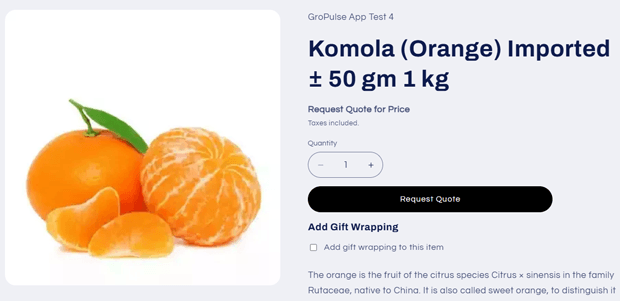
The most efficient way to manage this without breaking your theme’s code is through a “Built for Shopify” app. Using the GP Request Quote app. Let’s walk through the simple steps to get started.
Step 1: Install a Dedicated Shopify Quote App
Navigate to the Shopify App Store and install your chosen quote app. Tools like GP Request Quote are engineered specifically to integrate with standard Shopify themes seamlessly.
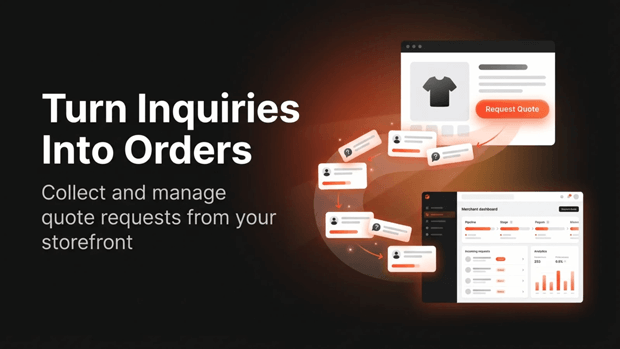
Step 2: Activate the App in Theme App Embed
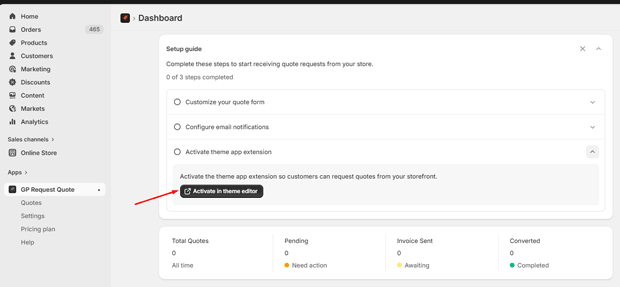
After installing the app, go to the app dashboard in your Shopify admin and click the “Activate in Theme Editor” button.
This will open your theme editor. Turn on the Quote Request App Embed and Click Save.
Step 3: Customize Your Quote Request Form
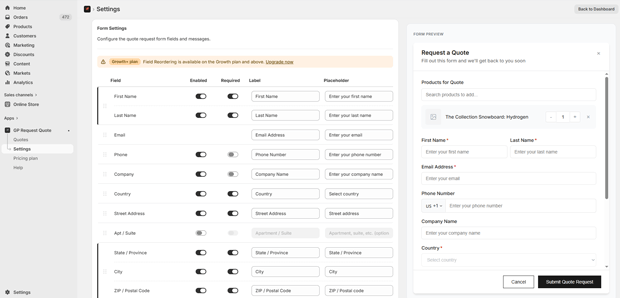
Next, you can customize the quote request form that customers will fill out.
You can choose:
- Which fields appear in the form
- Which fields are required
- Custom labels and placeholders
You can keep the form simple or add more fields depending on what information you need from customers.
Step 4: Configure Email Notifications
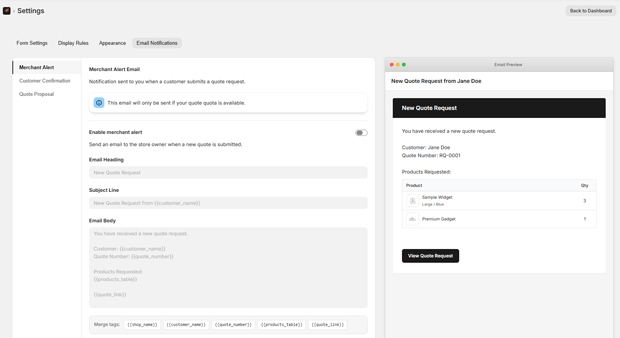
Once a customer submits a quote request, the app can automatically send email notifications.
You can configure:
Merchant Alerts: Receive an email whenever a customer submits a quote request.
Customer Confirmation: Automatically send customers a confirmation email after they submit the form.
Quote Proposal: Send a custom quote back to the customer directly from the app.
Recommended Blogs for You:
👉 5 Best Shopify Request a Quote Apps for B2B & Wholesale
👉 How to Sync Shopify Products to Facebook Catalogs
👉 The Ultimate Shopify Tech Stack: From Tracking to AI Chat
Control Where the Quote Button Appears
You can easily choose where the Request Quote button appears in your store.
For example, you can place it:
- Below the Add to Cart button
- On specific products
- On collection pages
- On product cards
You can also choose to show the button on all products or only selected ones.
Hide Prices or Add-to-Cart (Optional)
If your store relies on quotes instead of direct purchases, you can also:
- Hide product prices
- Hide the Add to Cart button
- Hide the Buy Now button
This encourages customers to submit a quote request instead of purchasing immediately.
Customize the Quote Button to Match Your Brand
The app also provides several customization options so the button fits perfectly with your store design.
You can easily change:
- Button text
- Background color
- Text color
- Border style
- Button shape
You can also customize the quote form design, including colors, labels, and layout.
This makes it easy to match the quote experience with your store’s branding.
Alternative Ways To Achieve the Same Outcome (Code Snippet Approach)
If you have a very simple store and absolutely cannot use an app, you can manually edit your Shopify theme’s Liquid code.
- Duplicate your product page template (e.g., creating a product.quote.liquid template).
- Locate the <button> or <input> tag responsible for the “Add to Cart” action.
- Replace this code with an HTML form or a link to your store’s contact page.
- Assign this new template to the specific products that require quotes.
Note: While this is free, it lacks backend tracking. You will receive standard contact emails, but you won’t have a dashboard to manage quote statuses, track conversions, or easily send PDF invoices back to the customer.
Expert Tips That Make Shopify Quote Forms Work Better
- Use Conditional Logic: If your app allows it, show different form fields based on the product. A custom jewelry piece requires different intake information than a bulk order of office supplies.
- Maintain Brand Consistency: Ensure the “Request a Quote” button matches your theme’s primary button colors and typography. A mismatched button looks untrustworthy.
- Monitor Mobile UX: Test the quote form on your phone. Pop-ups that are impossible to close or forms that require excessive scrolling are major causes of mobile abandonment.
How To Troubleshoot the Most Common Shopify Quote Button Issues
- The “Add to Cart” Button is Still Visible: This usually happens due to theme conflicts. If you are using a highly customized or headless theme, the app’s CSS might not target the correct button class. You may need to manually input your theme’s button CSS class into the app’s settings.
- Customers Aren’t Completing the Form: Your form is likely too long. Every additional field drops your conversion rate. Stick to the absolute minimum information required to start the conversation.
- Quote Emails Are Going to Spam: Ensure your Shopify email settings are authenticated with proper SPF and DKIM records so your auto-responders reach your customers’ primary inboxes.
What To Do Next After You Finish This Setup
Once your quote button is live and collecting leads, focus on the negotiation and fulfillment phase. When you finalize a price with a customer, you need a way to collect payment.
Create draft orders in your Shopify admin for the agreed-upon amount and email the checkout link directly to the customer. This keeps the final transaction within Shopify, ensuring your inventory and financial reporting remain accurate.
Frequently Asked Questions About Shopify Quote Buttons
Can I hide prices on Shopify without an app?
Yes, you can hide prices by editing your theme’s Liquid code (typically commenting out the price display tags within your product template). However, using an app is safer and allows you to toggle prices on and off without touching the codebase.
Do request quote apps work with Shopify B2B?
Yes. Many quote apps are designed specifically for B2B merchants, allowing them to capture wholesale inquiries and negotiate bulk pricing before finalizing an order.
Can I have both “Add to Cart” and “Request a Quote” on the same product?
Yes. This is a great strategy for products that can be bought individually at retail price, but also require a quote for bulk wholesale purchases.
How do I send an invoice after a quote is approved?
The standard method is to create a Draft Order in your Shopify Admin containing the custom pricing and shipping details, then email the secure checkout link to the customer to complete the payment.




