
Log into your Google Ads account, navigate to your conversion actions, and there it is: a glaring red warning stating, “Cart data needs attention.” For Shopify merchants relying on Google Ads to drive predictable revenue, this is a highly stressful notification.
It means Google is registering that a purchase happened on your store, but it isn’t receiving the granular data required to understand what was actually in the cart, how much the specific items cost, or which variants were purchased.
If your cart data tracking is broken, you lose the ability to accurately calculate your Return on Ad Spend (ROAS) and retarget shoppers with dynamic product ads.
Many store owners assume their basic Google channel setup or a default Shopify pixel handles this perfectly out of the box. Unfortunately, customized themes, headless setups, or outdated tracking tags often break the data payload.
In this guide, we will break down exactly why this error triggers, how it impacts your Google Ads performance. How to Fix Cart Data Needs Attention in Google Ads for Shopify: Follow this step-by-step process so you can get back to confidently scaling your campaigns.
Summary
- The Main Benefit: Learn exactly how to clear the “Cart data needs attention” warning in Google Ads to ensure you are tracking the true value of your Shopify conversions.
- Who It Helps: Shopify merchants, media buyers, and agency partners running Google Ads campaigns who rely on accurate conversion value reporting.
- What You Will Learn: The root cause of the error, how to align your Shopify store’s tracking payload with your Google Merchant Center feed, and how to implement a permanent, code-free fix.
- Key Insight: This error almost always stems from a disconnect between the product ID format sent by your Shopify tracking tag and the exact item ID format stored in your Google Merchant Center.
The “Cart data needs attention” error in Google Ads for Shopify happens when the product IDs sent through your tracking do not match the Item IDs in your Google Merchant Center feed.
To fix this, make sure your tracking sends the correct ID format:
shopify_US_{{product_id}}_{{variant_id}}
If you’re using the AdTrack app, you can easily resolve this by going to Purchase Conversion Settings and ensuring the Google Merchant Center Item ID format is correctly set (AdTrack uses the correct format by default).
What the “Cart Data Needs Attention” Warning Means for Shopify Stores
When a customer checks out on your Shopify store, Google Ads expects a highly specific payload of data to be sent alongside the purchase conversion event. This is known as “cart data tracking,” and it includes an array of the specific items purchased, alongside parameters like the transaction value and currency.
The “Cart data needs attention” warning triggers when Google detects one of the following scenarios:
- Conversions are being recorded, but the cart data array is entirely missing from the payload.
- The cart data is present, but the product IDs in the array do not match any active items in your linked Google Merchant Center account.
- The numerical values (like individual item price and quantity) are formatted incorrectly, preventing Google from calculating the total basket size accurately.
Without this itemized data, Google’s algorithm is flying blind. It knows a sale occurred, but it cannot attribute the sale to specific product clicks or optimize for higher-value shopping carts.
Why Google Ads Rejects Your Shopify Cart Data (The ID Mismatch)
The root cause of this problem almost always comes down to Product ID formatting.
When you sync your Shopify store to Google Merchant Center via the standard Google channel, the system assigns a unique identifier to every product and variant.
By default, the conventional Google Merchant Center format for a Shopify product looks like this: shopify_US_{{product_id}}_{{variant_id}}.
However, if your Google Tag, custom pixel, or outdated theme.liquid script is only sending the raw Shopify {{product_id}}—without the country code prefix or the specific variant string—Google Ads looks at the payload, compares it to your Merchant Center feed, finds zero matches, and throws the error.
Other common causes include:
- Outdated Liquid Code: Hardcoding tracking scripts into your theme files often fails to capture dynamic checkout variables accurately, especially with Shopify’s newer checkout extensibility.
- Incomplete Funnel Tracking: The data drops off before the checkout is completed because add-to-cart or begin-checkout events aren’t passing the item array forward properly.
How Broken Cart Data Tracking Hurts Your Shopify ROAS
Ignoring the “Cart data needs attention” warning directly impacts your bottom line. When Google cannot read your cart data, you lose access to powerful advertising features:
- Dynamic Remarketing Fails: You cannot show users the exact products they left in their carts across the Google Display Network because Google doesn’t know what those products were.
- Inaccurate Conversion Values: If the script fails to parse the cart items, your reported conversion value may default to zero or a static fallback number, completely throwing off your ROAS calculations.
- Smart Bidding Suffers: Google’s Target ROAS (tROAS) bidding relies heavily on historical basket sizes and item-level margins. Without itemized cart data, the algorithm cannot learn which users are likely to buy high-ticket items versus low-ticket accessories.
Step-by-Step Fix: Aligning Shopify Product IDs with Google Merchant Center
To fix this issue permanently, you need to ensure your tracking mechanism pushes the exact ID format that matches your Google Merchant Center feed.
Step 1: Verify Your Google Merchant Center Item IDs
First, log into your Google Merchant Center account. Navigate to your Products list and click on any active product. Look at the Item ID. Take note of its exact structure. Does it include “shopify_US”? Does it include the variant ID at the end? You must replicate this exact structure in your tracking payload.
Step 2: Implement a Custom Pixel for Reliable Tracking
Instead of editing theme.liquid, the modern and most stable way to track Shopify events is via Web Pixels. Navigate to Settings > Customer events in your Shopify admin. Here, you can add a custom pixel that listens to Shopify’s standard events (like checkout_completed) and safely passes the correctly formatted data back to Google.
Step 3: Format the Item Array Correctly
If you are coding this manually in Google Tag Manager or a custom pixel, you must loop through the checkout.lineItems array and format each item ID to match your GMC feed. For example, you must use JavaScript to concatenate the string to build the shopify_US_{product_id}_{variant_id} structure before sending the purchase event to Google Ads.
Step 4: Validate with Google Tag Assistant
Once updated, open Google Tag Assistant, connect it to your live store, and run a test transaction. View the data layer and ensure the items array is firing with the correctly formatted IDs.
How to Automate the Cart Data Fix Using AdTrack
Manually coding custom pixels and data layer variables can be tedious, and these custom scripts often break whenever Shopify updates its checkout architecture.
If you want to bypass the technical setup and ensure your data format is always perfectly aligned with Google, using the AdTrack Shopify app.

It simplifies this by handling the data payload and formatting automatically. AdTrack enhances event tracking by adding a custom pixel directly to Shopify’s Customer Events.
In the AdTrack dashboard, under the Purchase conversion settings, there is a specific feature to Customize Google Merchant Center item ID format. By default, this is perfectly mapped to the standard format: shopify_US_{{product_id}}_{{variant_id}}.
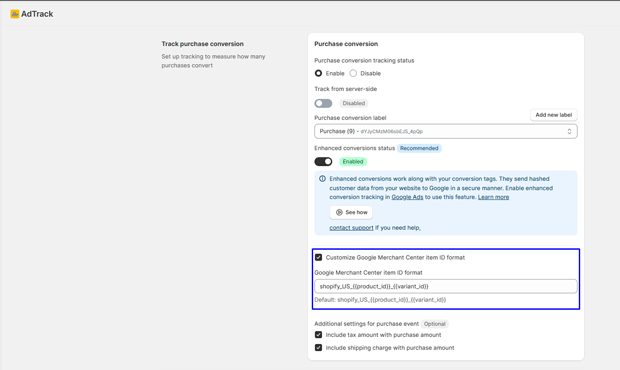
If your specific feed uses a different structure (for example, if you sell in the UK and use a different prefix), you can simply check the box and edit the variables in the input field to match your feed requirements exactly.
Furthermore, AdTrack allows you to fine-tune your conversion value data to prevent other reporting anomalies.
Directly beneath the item ID format settings, you can check boxes to “Include tax amount with purchase amount” and “Include shipping charge with purchase amount”.
By standardizing how these values are reported, you ensure the conversion value in Google Ads matches your actual Shopify payouts.
Common Google Ads Tracking Mistakes That Prevent Cart Data Syncing
As you fix your cart data, be careful to avoid these frequent pitfalls:
- Leaving Duplicate Tags Active: If you install a new tracking app or pixel to fix the cart data issue, ensure you remove old Google Ads conversion scripts from your theme files and your checkout order status page. Firing two different item ID formats at the same time will confuse Google and keep the error active.
- Ignoring Enhanced Conversions: Basic tracking is often blocked by ad blockers and browser privacy features (like Safari’s ITP). To ensure maximum data capture alongside your cart data, you should enable Enhanced Conversions. This sends hashed customer data from your website to Google in a secure manner, improving attribution.
- Only Tracking the Purchase Event: Cart data shouldn’t just fire on the “Thank You” page. You need comprehensive funnel tracking capturing “Add to Cart,” “Begin Checkout,” and “Add Payment Info” events so Google can build proper audiences.
Next Steps After Fixing Your Shopify Cart Data Payload
Fixing the “Cart data needs attention” warning is a critical step in building a strong foundational tracking setup. Once your IDs are matching and the error disappears from your Google Ads dashboard (which usually takes 24 to 48 hours after a successful purchase is recorded), your next priority should be auditing your remarketing strategy.
With accurate cart data flowing, you can now build highly specific remarketing audiences—such as targeting users who added a specific product variant to their cart but abandoned the checkout—and deploy dynamic display ads to recover that lost revenue.
Freequently Asked Questions
Why does Google Ads say my cart data needs attention?
This error appears when the product identifiers sent by your Shopify store’s conversion tracking code do not match the item identifiers stored in your linked Google Merchant Center feed.
What is the correct Google Merchant Center ID format for Shopify?
By default, the standard format for Shopify products in Google Merchant Center is shopify_US_{{product_id}}_{{variant_id}}. Your tracking tag must send this exact format for Google to recognize the items.
How long does it take for the cart data error to disappear?
Once you fix the tracking payload format and a new, correct conversion is recorded on your live store, it typically takes 24 to 48 hours for the warning to clear from your Google Ads dashboard.
Can I fix cart data errors without coding?
Yes. You can use Shopify tracking apps to bypass manual liquid or pixel code. These apps allow you to automatically format your product IDs to match Merchant Center standards with a simple checkbox.




