
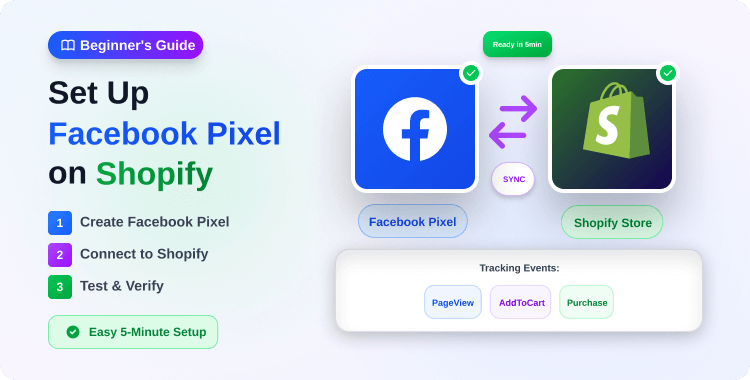
In the early days of Facebook advertising, a simple snippet of code in your theme’s header was all you needed. Today, that “set it and forget it” approach is costing you money.
According to recent industry data, up to 30% of conversion data is lost when relying solely on browser-based pixels. Between iOS 14.5+ privacy restrictions and the widespread use of ad blockers, your “blind” pixel often fails to report the very sales you paid for.
For a Shopify merchant, this is a financial leak: if Meta doesn’t see your sales, its algorithm can’t optimize your delivery, leading to higher CPCs and wasted budget.
To survive in 2026, you must bridge this gap using the Conversions API (CAPI), a server-to-server connection that ensures your data reaches Meta even when browsers block it.
In this blog post, we will show you how to set up Facebook Pixel on Shopify — no technical expertise or programming knowledge required.
How do I set up the Meta Pixel on Shopify?
To set up the Meta Pixel with maximum accuracy, install Pixee ‑ Multi Pixel & Meta Ads from the Shopify App Store. Connect your Facebook account, select your Pixel, and toggle “Conversions API” to ON. This enables both browser and server-side tracking automatically.
Summary
- The Goal: Install the Meta Pixel and Conversions API (CAPI) on Shopify to stop losing sales data.
- Who it helps: Merchants seeing a discrepancy between Shopify orders and Facebook Ads Manager reports.
- The Benefit: High-accuracy server-side tracking, lower Customer Acquisition Cost (CAC), and better ROAS.
- The Tool: Using Pixee to manage multiple pixels and CAPI without coding or native app limitations.
What You Need Before Starting This Shopify Task
Before beginning your setup, ensure you have the following assets ready:
- Meta Business Suite Access: You must be an Admin of the Business Account.
- A Facebook Pixel ID: Created within your Meta Events Manager.
- A Published Store: Ensure your store is not password-protected during the setup.
- The Pixee App: This will serve as your centralized tracking hub.
How to Set Up Facebook Pixel on Shopify : Step-by-Step Instructions
Using a dedicated tool like Pixee is often preferred by scaling brands because it allows for multiple pixels and deeper AI diagnostics that the native Shopify channel lacks.
1. Install and Activate Pixee
Search for Pixee ‑ Multi Pixel & Meta Ads on the Shopify App Store.
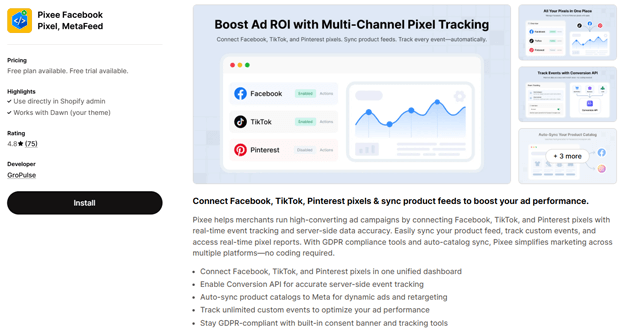
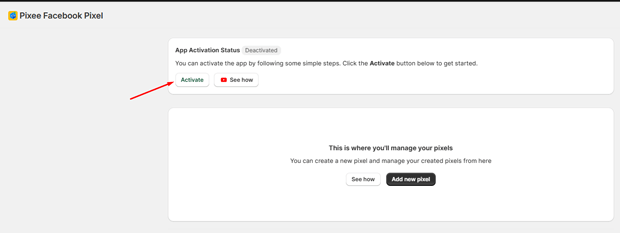
Once installed, navigate to the app dashboard and Activate the app
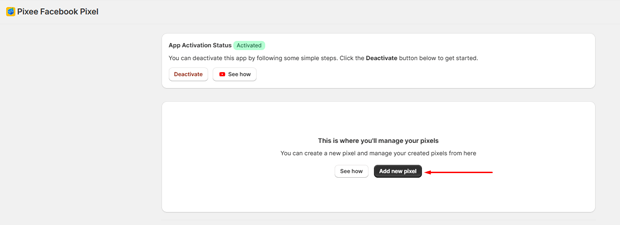
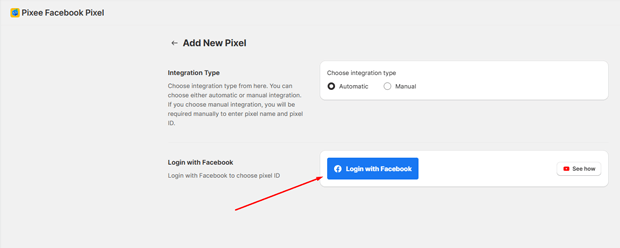
Click Add New Pixel
2. Connect Your Meta Assets
Click Connect to log in with your Facebook account.
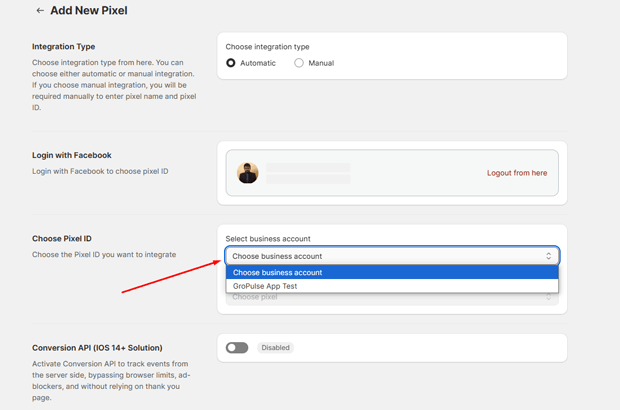
Select the correct Facebook Business Manager account associated with your store.
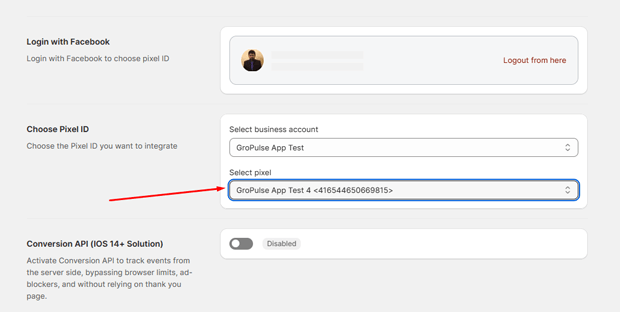
Choose the specific Pixel you want to install from the dropdown list.
3. Enable Conversions API (CAPI)
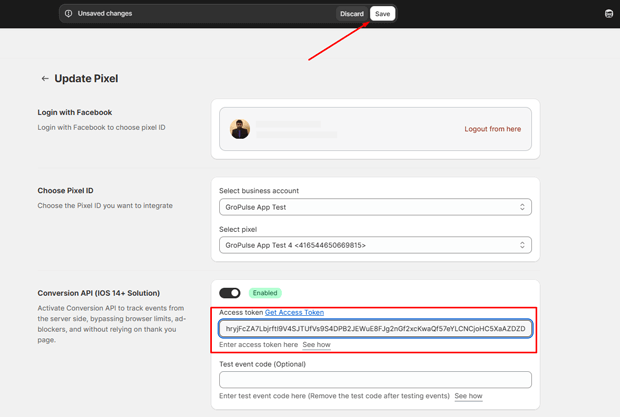
Locate the Conversions API section within the app. Toggle the switch to ON.
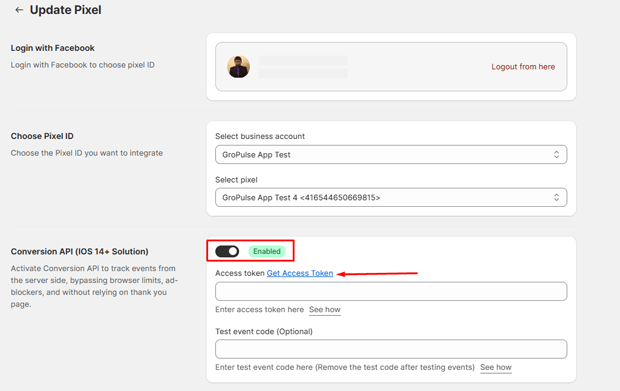
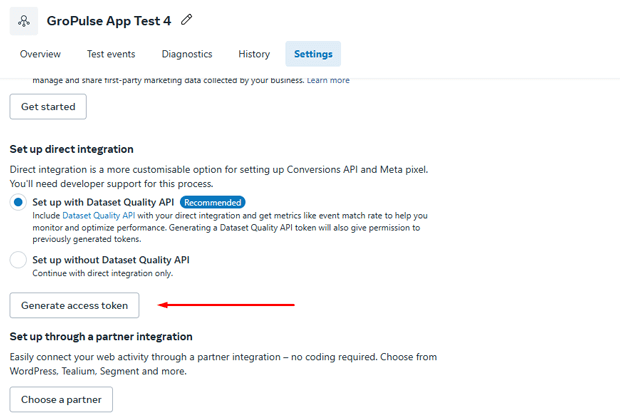
Generate your API Token: In your Meta Events Manager, go to Settings, scroll to “Conversions API,” and click “Generate access token.”
Paste this token into the designated field in Pixee and hit Save button
4. Activate Event Tracking
Enable the specific events you want to track (e.g., ViewContent, AddToCart, InitiateCheckout, Purchase).
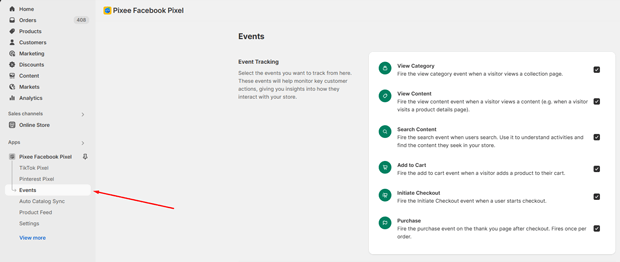
Pixee will automatically embed the necessary code across your store—no manual theme editing required.
Read More: How to Add Multiple Facebook Pixels on Shopify (The Correct Way)
Why Manual Scripting and GTM Often Fail
Some merchants attempt to add the Pixel via theme.liquid or Google Tag Manager (GTM). While these methods “work,” they often lead to:
- No CAPI Support: Manual scripts only track the browser side.
- Tracking Breaks during Theme Updates: If you change your Shopify theme, your manual code is often wiped out.
- Data Latency: GTM can slow down page load speeds, negatively impacting your Shopify conversion rate.
Expert Tips for High-Accuracy Pixel Tracking
Setting up the pixel is just the foundation. To truly scale, you need to focus on Event Match Quality (EMQ).
- Avoid “Double Tracking” Errors: A common mistake is having the same Pixel ID active in both Pixee and the native Shopify Facebook channel. This inflates your revenue data and confuses the ad algorithm. Pick one hub—we recommend Pixee for its multi-pixel flexibility—and disable tracking elsewhere.
- Use AI Diagnostics: Take advantage of Pixee’s AI-powered diagnostics. It analyzes your Meta ads to provide actionable recommendations on CTR and CPC improvements based on your real-time pixel data.
- Test with Meta Pixel Helper: Always verify your setup using the Meta Pixel Helper Chrome extension. Perform a test purchase to ensure the “Purchase” event fires with the correct currency and value.
Recommended Blogs for You:
👉 Facebook Ads for Shopify: Complete Marketing Guide
👉 Dynamic Product Ads on Facebook: The Complete Guide
👉 The Ultimate 5-Step Guide to Diagnose Your Facebook Ads Campaign
👉 How to Write Facebook Ad Copy for Shopify Products
How To Troubleshoot Common Shopify Pixel Issues
- “Pixel Not Active”: This usually just means there hasn’t been any recent traffic. Visit your store from your phone and click “Add to Cart” to trigger an event.
- Deduplication Errors: If Meta reports duplicate events, it means your server (CAPI) and browser (Pixel) are sending the same event ID but Meta can’t tell they are the same. Pixee handles deduplication automatically, but ensures no old manual scripts are left in your theme.liquid.
- Missing “Purchase” Events: If you use third-party “Post-Purchase” upsell apps, the purchase might not trigger until the customer clears the upsell page. Ensure your tracking app is compatible with your checkout flow.
Frequently Asked Questions
Can I use multiple Facebook Pixels on one Shopify store?
Yes. While Shopify’s native integration only allows one pixel, the Pixee app allows you to connect multiple pixels (e.g., for different niches, backup tracking, or collection-specific targeting) simultaneously.
Does Pixee support TikTok and Pinterest too?
Yes. You can connect Facebook, TikTok, and Pinterest pixels in one unified dashboard, ensuring CAPI is enabled for all major social platforms.
Is the Conversions API (CAPI) compliant with GDPR?
Yes, provided you use a tool with built-in consent management. Pixee includes tracking tools that help you stay GDPR-compliant by respecting customer consent.




