
Every Shopify merchant eventually hits the same frustrating wall. You launch a beautiful Online Store 2.0 theme, but the moment you need to display specific, structured details—like washing instructions for a linen dress, technical specifications for a power tool, or active ingredients for a facial serum—you realize the default product description box is wholly inadequate.
If you paste all that technical details into the standard rich text editor, your product pages turn into an unreadable wall of text. Worse, if you create a custom layout for one product, it changes across every single product page using that same template.
Summary
- The Core Benefit: Learn how to break free from rigid theme templates to display unique product data without touching code.
- Who It Helps: Shopify merchants, e-commerce managers, and DTC growth marketers struggling with messy product descriptions.
- What You Will Learn: A step-by-step framework to configure metafields, map them to your theme customizer, and optimize for both UX and SEO.
- Key Concept: Utilizing native Online Store 2.0 dynamic sources to eliminate heavy page-builder apps and maintain blazing-fast page speeds.
What are Shopify metafields?
Shopify metafields are custom data fields that allow you to add and display unique product specifications, care instructions, or size guides on specific product pages without editing theme code or duplicating templates.
The Reality of Modern E-Commerce UX: Why Product Details Matter
In modern digital commerce, clear information beats flashy design every single time. According to extensive user experience research by the Baymard Institute, insufficient product information is one of the leading causes of cart abandonment and user hesitation on product detail pages (PDPs). When buyers cannot find exact dimensions, compatibility data, or clear material transparency, they don’t guess—they leave.
Historically, merchants bypassed this Shopify limitation by installing heavy third-party tabs or page-builder apps. While this solved the immediate layout problem, it introduced code bloat that actively harmed mobile page speeds, core web vitals, and search engine crawlability.
By utilizing native Shopify Metafields, you unlock structural flexibility. You can inject hyper-specific data into collapsible rows, specification tables, and tooltips across thousands of items while maintaining a singular, highly efficient theme template. Here is exactly how to do it.
What You Need Before Creating Shopify Metafields
Before jumping directly into your Shopify admin, you need a basic architectural plan. If you build metafields haphazardly, your backend editing workflow will become chaotic for your fulfillment and marketing teams.
Ensure you have the following prerequisites ready:
- An Online Store 2.0 Theme: Your theme must support sections and blocks with dynamic source mapping (e.g., Dawn, Impulse, Flex, or any modern theme from the Shopify Theme Store).
- A Product Data Taxonomy: A simple spreadsheet detailing exactly what extra pieces of information your products require based on their collection or category.
- Clean Source Data: Gathered specifications, ingredient lists, or size charts so you can test the fields immediately upon deployment.
Step-by-Step Instructions to Set Up Metafields in Your Shopify Admin
Configuring custom fields requires a two-part workflow: defining the field structure globally, and then linking it visually within your theme.
Step 1: Create the Metafield Definition
Navigate to your Shopify Admin > Settings > Metafields and metaobjects
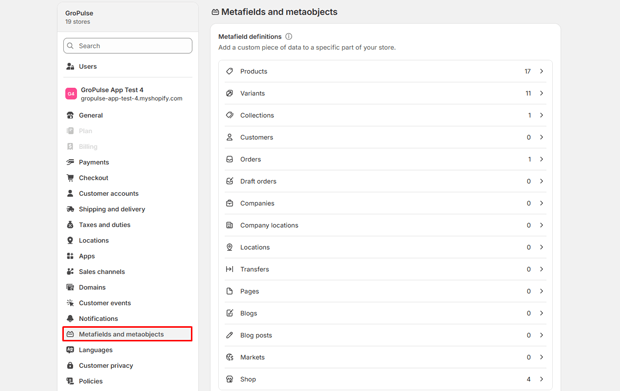
Select Products (you can also apply these to Variants, Collections, or Customers, but we are focusing on product detail pages). Click Add definition.
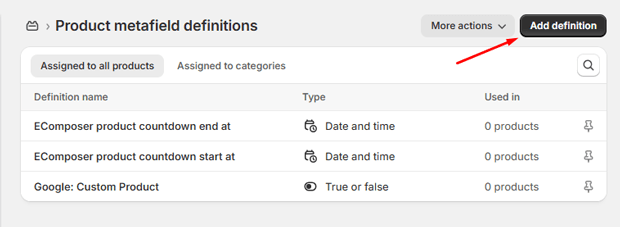
In the Name field, enter a clear label, such as Fabric Care Instructions, Author, or Technical Specs Table.
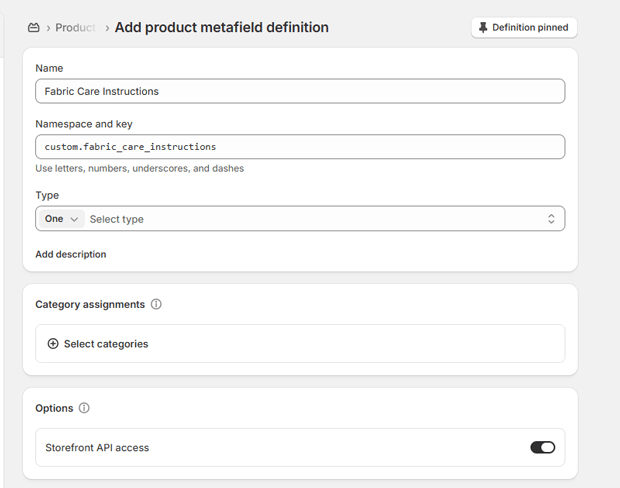
In the Namespace and key field, enter a unique identifier for the metafield. Shopify usually auto-generates this from the name, but you can edit it if needed.
Examples: custom.author
Use lowercase letters, numbers, underscores, or dashes. Avoid spaces.
Next, select the Type of data. Shopify offers specialized types such as Single line text, Multi-line text, Rich text, File for PDF manuals, Integer, and more.
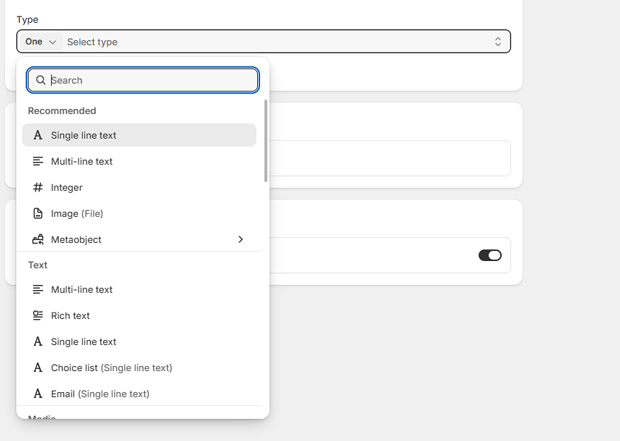
For standard text callouts, select Multi-line text or Rich text.
Click Save.
Step 2: Populate the Data on Individual Product Pages
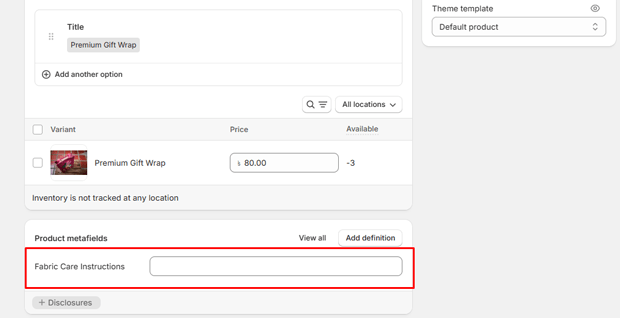
- Go back to your main admin and click on Products.
- Select a specific product that requires these custom details.
- Scroll completely to the bottom of the product page. You will see a new section labeled Metafields.
- Find your newly created definition and type in the specific details unique to that exact item.
- Click Save.
Step 3: Map the Metafield to Your Theme Customizer
Go to Online Store > Themes and click Customize on your live theme.
Using the top dropdown menu, switch from the Home Page to Products > Default Product.
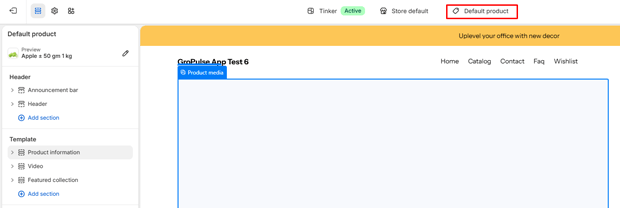
In the left-hand sidebar, locate the Product Information section.
Click Add block and choose an appropriate layout option, such as Collapsible row (ideal for clean UX) or Text.
Click on the newly added block to open its settings on the right side.
Look for the small icon that looks like stacked coins/layers—this is the Connect Dynamic Source button.
Select your custom product metafield from the list.
Click Save in the top-right corner.
Where to Add Content Blocks for Maximum CRO Impact
Where you place this metadata drastically impacts your conversion rate optimization (CRO) metrics. Dumping everything directly below the “Add to Cart” button can clutter your checkout area, while burying it too low ensures mobile buyers will miss it completely.
- The Buy-Box Collapsible Accordion: Place secondary decision-making items—like sizing notes, materials, and shipping quick-facts—inside collapsible rows right beneath the add-to-cart array. This keeps the mobile interface neat and scannable.
- The Technical Specification Grid: If you sell complex machinery, electronics, or automotive parts, add a dedicated custom Liquid section or multi-column layout below the main fold. Link individual product specs to clean text lines to present structured information transparently.
Reusable Copy Snippets and Metafield Frameworks for DTC Brands
To help you organize your backend fields quickly, copy these industry-standard architectures for your custom data plan:
1. Apparel & Fashion Brands
- Metafield Name: Fabric Composition (Type: Single-line text)
- Metafield Name: Care Guidelines (Type: Rich text — for adding bold lists like Hand wash only, Do not iron).
- Metafield Name: Model Fit Details (Type: Single-line text — e.g., “Model is 5’10” wearing size M”).
2. Clean Beauty & Skincare
- Metafield Name: Key Active Ingredients (Type: Multi-line text)
- Metafield Name: Application Ritual (Type: Rich text — step-by-step how to apply).
- Metafield Name: pH Level (Type: Single-line text).
3. Home Goods & Furniture
- Metafield Name: Dimensions Box (Type: Single-line text — e.g., “75cm x 120cm x 40cm”).
- Metafield Name: Assembly Requirement (Type: Single-line text — e.g., “No tools needed, ships flat”).
- Metafield Name: Downloadable Setup Guide (Type: File — allows uploading an instruction PDF directly accessible on the frontend).
4. Bookstores, Publishers & Media (New)
Running a book shop or publishing brand requires highly rigid, search-indexable data. These fields map perfectly to standard schema properties (isbn, author, numberOfPages) to help Google categorize your titles accurately in organic search results.
- Metafield Name: Book Author (Type: Single-line text — e.g., “William Gibson”).
- Metafield Name: ISBN-13 (Type: Single-line text — Your canonical 13-digit standard book identifier. Tip: Essential for book-matching crawlers and marketplace indexing).
- Metafield Name: Page Count (Type: Integer — Whole numbers only; ideal for automated layout rendering).
- Metafield Name: Binding Format (Type: Single-line text — e.g., “Hardcover”, “Trade Paperback”, or “Special Edition Box Set”).
- Metafield Name: Publisher & Release Date (Type: Single-line text — e.g., “Tor Books – October 2024”).
5. Food, Beverage & Consumables (New)
- Metafield Name: Allergen Warnings (Type: Single-line text / List of values — e.g., “Contains nuts, dairy-free, gluten-free”).
- Metafield Name: Nutritional Panel Image (Type: File — Dedicated file pointer to display high-resolution FDA/regulatory nutrition labels cleanly inside an accordion tab).
- Metafield Name: Shelf Life & Storage (Type: Single-line text — e.g., “Refrigerate after opening. Consume within 14 days”).
6. Consumer Electronics & Technical Goods (New)
- Metafield Name: Compatibility Matrix (Type: Multi-line text — e.g., “Compatible with iOS 15+, Android 11+, and macOS Sonoma”).
- Metafield Name: Power & Battery Metrics (Type: Single-line text — e.g., “5000mAh lithium-ion, up to 18 hours of continuous use”).
- Metafield Name: In The Box Inventory (Type: Rich text — A precise bulleted manifest detailing accessories, charging bricks, and cables included with the primary item purchase).
Expert UX and SEO Tips That Make Metafields Work Better
Experienced e-commerce SEO strategists and conversion engineers treat metafields as hidden search performance weapons, not just formatting tools.
Boost Semantic SEO and rich snippet eligibility
Search engines crawl your page looking for clear entity connections. When you cleanly isolate data into metafields (like dimensions, materials, or weight) instead of pasting them into raw HTML layouts, search engines can index your technical text with higher accuracy. Furthermore, if your theme uses schema markup, you can map your metafield parameters directly into your product schema settings, increasing your eligibility for complex Google rich results.
Eliminate “App Creep” to preserve mobile page speed
Every script-heavy application you add to handle tabs, variant swatches, or product downloads hurts your Core Web Vitals. Because native Shopify metafields load entirely via server-side Liquid logic, they display instantly without calling external JavaScript APIs. Transitioning from a layout app to native custom data often yields immediate improvements in mobile performance metrics.
How to Troubleshoot the Most Common Shopify Metafield Issues
Issue: The block displays empty space or blank bullet points on items that don’t have this data filled out.
- The Fix: Shopify’s native Online Store 2.0 system is designed to be smart. If a product does not have a specific metafield filled out in the backend, the entire theme block (like a collapsible accordion row or text string) will automatically hide itself on that product page. If it isn’t hiding, check to see if you typed any static text or added global spaces around the dynamic source badge inside the theme customizer field. Keep the customizer input block entirely clean.
Issue: Rich text styling (bolding, spacing) looks broken or shows unrendered HTML code.
- The Fix: Ensure your custom data definition type perfectly matches the target block. If you defined a field as a basic Multi-line text, it will display raw code strings if you paste HTML formatting into it. For formatted paragraphs, always select the Rich text definition type.
Alternative Ways to Achieve Custom Layouts: Metafields vs. Metaobjects
As your product catalog scales, simple text fields may prove too limited for your store architecture.
| Feature Strategy | Shopify Metafields | Shopify Metaobjects |
| Best Used For | Simple, unique item details (e.g., dimensions, ingredients). | Complex, relational reusable data (e.g., brand profiles, designer bios). |
| Data Scope | Bound directly to an individual product entity. | Acts as an independent database block that multiple pages can reference. |
| Maintenance Effort | Low; filled directly within the basic product page. | Medium; managed in a central data repository. |
If you need a shared block of information across a selection of items—such as an ingredient glossary where clicking an ingredient opens a dedicated window—build a Metaobject instead. If the text is unique to that item alone, stick with Metafields.
What to Do Next After You Finish Your Shopify Metafield Setup
Now that you understand the mechanics, do not attempt to update 500 items manually.
- Build a pilot template: Set up your metafield configurations on 3 to 5 core products first to guarantee your front-facing theme design renders correctly on both mobile and desktop screens.
- Utilize bulk editing mechanics: Go to your Shopify Product list, check the items you want to modify, click Bulk Edit, and add your newly created metafield columns to the editing grid. This allows you to paste your specifications downward rapidly, exactly like a spreadsheet.
- Track conversion health: Tag your setup date inside Google Analytics 4 (GA4). Monitor your product page performance, add-to-cart clicks, and session lengths over the next 30 days to see the direct financial impact of better, clearer product data.
Frequently Asked Questions
Can you bulk edit Shopify metafields?
Yes. You can manage them directly inside the native Shopify bulk editor by adjusting your column settings, or use standard CSV product export matrices to fill and re-upload large quantities of structured product data efficiently.
Do metafields slow down your Shopify site?
No. Unlike third-party layout apps that run slow client-side JavaScript execution loops, Shopify metafields process directly on Shopify’s fast servers using optimized Liquid code architecture, keeping site performance highly efficient.
Can I use metafields to show separate size charts for different collections?
Yes. By mapping a file-type or rich-text metafield to your global theme’s sizing row block, each product page will automatically display its own dedicated measurement instructions or image layout.