
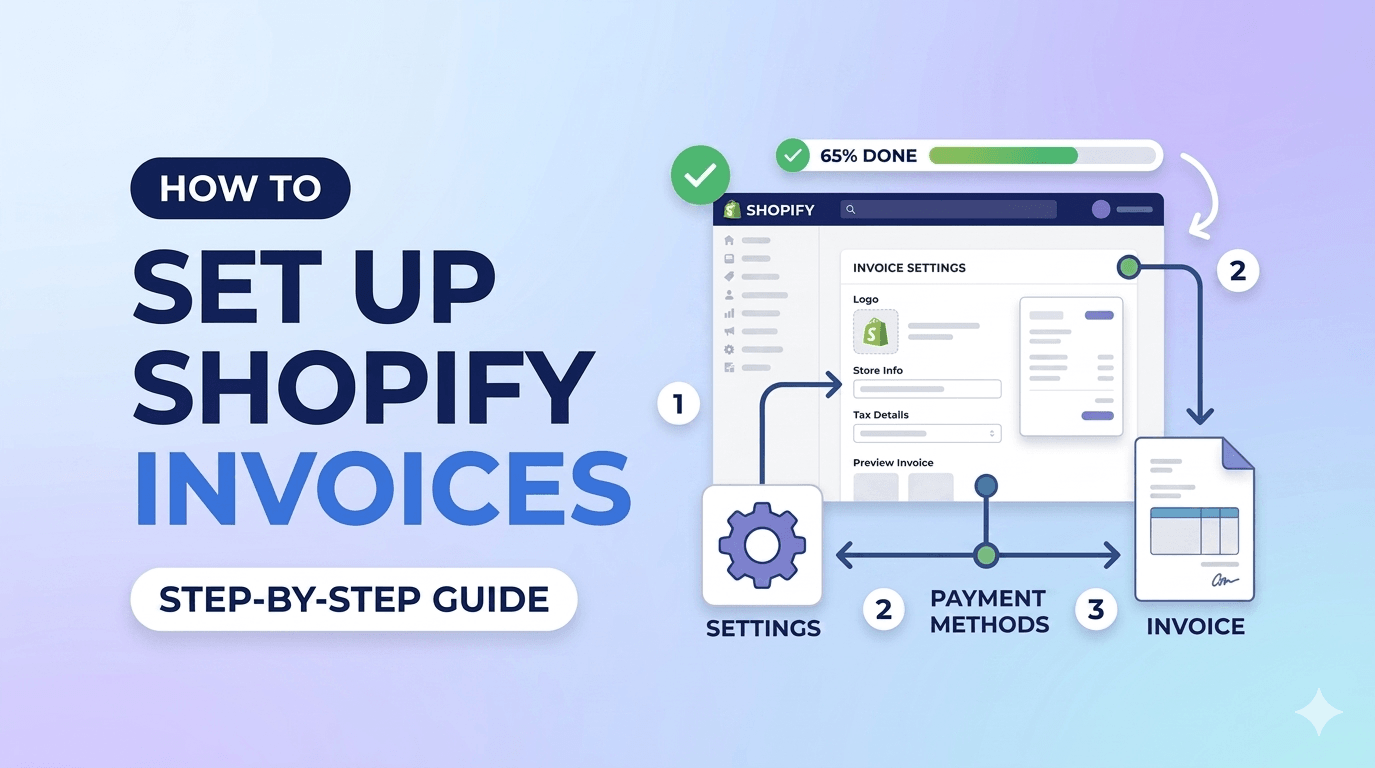
Most new Shopify merchants make the same mistake: they assume the automated “Order Confirmation” email is a legal invoice.It isn’t.
In 2026, as global tax authorities tighten regulations on digital commerce, providing a “proper” invoice is no longer just about looking professional, it’s about staying compliant and reducing customer support friction.
This guide walks you through the transition from “unprofessional default” to “enterprise-ready.”
We will cover what data you need, how to structure your numbering, and how to ensure your customers can access their documents the moment they finish checking out.
Summary
- The Goal: Transition from Shopify’s basic “Order Confirmation” to a legally compliant, branded PDF invoice.
- Who It’s For: New Shopify store owners and growing DTC brands.
- Key Takeaway: You’ll learn the difference between a receipt and a tax invoice, plus a 5-step workflow to automate billing.
- 2026 Context: Modern billing now requires Customer Account UI extensions so buyers can self-serve downloads without emailing support.
To set up Shopify invoices, go to Settings > Notifications for basic email receipts. For professional, legally compliant PDF invoices, use an app like GP PDF Invoice Generator to automate PDF creation, sequential numbering, and self-serve downloads via the Customer Account page.
The 5-Minute Professionalism Check: Why Default Receipts Aren’t Enough
For many new store owners, “billing” is an afterthought until an accountant or an upset customer asks for a VAT-compliant PDF. According to the Baymard Institute’s 2025 checkout usability study, 12% of B2B and high-ticket buyers will abandon or lose trust in a brand if they cannot easily retrieve a formal invoice for their records.
The problem? Shopify’s default notifications are HTML emails. They lack sequential numbering, proper VAT/Tax ID breakdowns, and the structured data formats (like ZUGFeRD in Europe) that modern accounting software requires. If you are selling into the EU, UK, or Australia, a simple email receipt often fails to meet legal “Tax Invoice” standards.
Setting up a professional template today is about “The 5-Minute Professionalism Check”—moving from a generic system email to a branded document that reinforces your brand identity while satisfying the tax man.
Recommended Blogs for You:
👉 5 Must-Have Elements in a Professional Shopify Packing Slip
👉 How to Negotiate Prices on Shopify
👉 Consolidate Shopify Invoices: B2B & Wholesale Guide
👉 How to Sync Shopify Products to Facebook Catalogs
What You Need Before Starting Your Shopify Invoice Setup
Before you touch a single template, you need to gather your “Compliance Stack.” Missing even one of these details can lead to a messy “re-do” during tax season.
- Legal Entity Details: Your official business name and registered address (which may differ from your “Store Address” in Shopify).
- Tax Registration Numbers: Your VAT, GST, or local Tax ID. In 2026, many jurisdictions require both the seller’s and the buyer’s Tax IDs to be visible on the document.
- A High-Resolution Logo: Use a PNG with a transparent background. Professional invoices usually look best with the logo in the top-left or top-right header.
- A Numbering Strategy: Will you start at 0001, or do you need to match your existing accounting series (e.g., INV-2026-1050)?
- Multi-Language Requirements: If you sell globally, you’ll need translations. Current best practices involve auto-detecting the customer’s locale to serve invoices in their native language.
Step-by-Step Instructions To Complete Your Setup
Follow this workflow to move from zero to a fully automated professional billing system.
Step 1: Configure Your Global Store Settings
Navigate to Settings > Store Details in your Shopify Admin. Ensure your legal business name is correct. This is the primary data source Shopify uses for default templates. If you want your invoices to show a different address than your warehouse, you will need a dedicated invoicing tool to “override” these fields.
Step 2: Establish a Sequential Numbering Pattern
Accountants loathe gaps in invoice numbers. In your invoicing app, set a Prefix (like INV-) and a Zero-pad length (like 0000). This ensures that your 10th order looks like INV-0010 rather than just INV-10, maintaining a consistent visual hierarchy in your files.
Step 3: Choose and Customize Your Template
You have three levels of customization:
- The No-Code Route: Use a “Quick Customizer” to pick colors and fonts that match your brand.
- The “Pro” Blocks: Add specific sections for PO numbers, payment terms (Net-30), or custom footer notes (like “Thank you for supporting small businesses!”).
- The Developer Route: For total control, look for apps that support LiquidJS or HTML/CSS editing. This allows you to add conditional logic—for example, showing a specific “Customs Declaration” block only for international orders.
Step 4: Enable Self-Serve Customer Downloads
Don’t make your customers email you. In 2026, the standard is to add a “Download Invoice” button directly to the Thank You page and the Customer Account order history. Using Shopify’s new UI Extensions, you can embed these buttons natively so the customer never has to leave your store to get their PDF.
Step 5: Automate the Delivery Trigger
Decide when the invoice should be sent.
- On Order Created: Best for B2B stores where the invoice acts as a “bill to be paid.”
- On Order Paid: Best for DTC stores where the invoice serves as a proof of purchase.
Expert Tips for High-Growth Shopify Stores
- Use B2B Specifics: If you sell to other businesses, ensure your template can pull PO References and Payment Terms directly from Shopify’s B2B Company profiles.
- The “Consolidated” Advantage: For wholesale clients who place multiple orders a week, offer a Consolidated Invoice—a single document at the end of the month that lists all transactions. This is a massive “stickiness” factor for B2B buyers.
- Audit Your Email Logs: Ensure your billing app has an email log with delivery status. If an invoice bounces, you want to know before the customer’s payment becomes overdue.
Professional Accelerator
Many merchants use GP PDF Invoice Generator because it handles 14 different document types, including packing slips, quotes, and proformas, under one subscription.
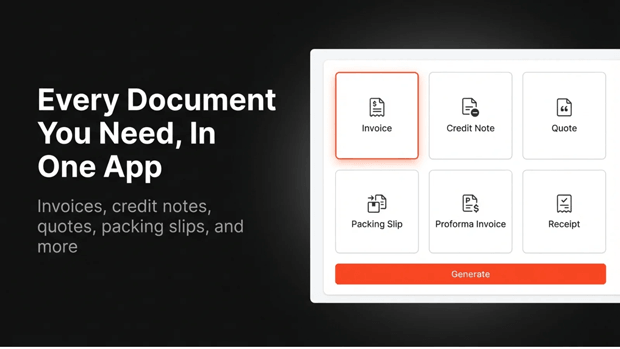
This “one-app” approach keeps your Shopify admin clean and your billing consistent across the entire fulfillment cycle.
Troubleshooting Common Shopify Billing Issues
- “My logo looks blurry”: Ensure you are using a vector-based SVG or a high-DPI PNG. Most PDF generators render at 300 DPI; a web-optimized 72 DPI logo will look pixelated in print.
- “The VAT isn’t showing up”: Check if your Shopify Tax settings are actually collecting tax on the order. If the “Tax” line item in the order is $0, most templates will hide the tax block by default.
- “Customer says they didn’t get the email”: If you aren’t using a dedicated SMTP server (like Gmail, Outlook, or AWS SES), your invoices might be hitting spam folders. Switching to a managed sender often fixes delivery rates.
Frequently Asked Questions
Does Shopify generate PDF invoices automatically?
By default, no. Shopify sends an HTML order confirmation. To generate a downloadable, legally compliant PDF invoice, you must use an app or a custom Liquid template.
What is ZUGFeRD, and do I need it for my Shopify store?
ZUGFeRD is a hybrid PDF/XML format for e-invoicing, primarily used in Germany and France. If you sell B2B in the EU, enabling ZUGFeRD is often a legal requirement for your customers to reclaim VAT.
Can I send an invoice before the customer pays?
Yes. This is called a Proforma Invoice or a Quote. Professional invoicing apps allow you to generate these from “Draft Orders” in Shopify, including a “Pay Now” link for the customer.
Final Recap: How Professional Billing Scales Your Store
Setting up your first professional invoice template is a “set it and forget it” task that pays dividends in brand trust and administrative ease. By moving away from default receipts and toward automated, compliant PDFs, you:
- Reduce Support Tickets: Customers can self-serve their own documents.
- Stay Legal: Meet VAT/GST and e-invoicing requirements globally.
Look Bigger Than You Are: Professional documentation gives a “small” store the polish of a global enterprise.




