
In the Shopify ecommerce, showing up on page one of Google is only half the battle. The real victory is winning the click. As organic search becomes more crowded with ads and AI-generated overviews, standard blue links often get buried.
This is where FAQ Schema (structured data) becomes a merchant’s best friend. By adding specific JSON-LD code to your pages, you tell Google exactly which questions and answers are on your page.
If Google trusts your data, it rewards you with an “FAQ Rich Snippet”—an interactive accordion below your search result that pushes competitors further down the page.
However, many merchants struggle with the technical implementation. Manually coding JSON-LD is risky and prone to errors that can lead to Google Search Console warnings.
In this guide, we’ll break down the exact workflow on how to add FAQ schema on Shopify store to win rich snippets.
How do I add FAQ schema to Shopify?
To add FAQ schema to Shopify, install a JSON-LD app like GP JSON-LD Schema, activate the app block in your Shopify 2.0 theme, enable “FAQ Schema” in the app settings, and validate the URL using Google’s Rich Results Test.
Summary
- The Benefit: FAQ schema turns standard search results into interactive accordions, significantly increasing your “real estate” on Google.
- Who it helps: Shopify merchants looking to improve organic Click-Through Rate (CTR) and answer customer questions directly in search results.
- What you’ll learn: How to configure, activate, and validate FAQ JSON-LD markup without touching a single line of liquid code.
- Key Insight: FAQ schema is most effective on product and informational pages where users have high-intent questions.
What You Need Before Starting This Shopify Task
Before you begin the implementation, ensure your store meets these requirements:
- Shopify 2.0 Theme: Your theme must support App Blocks (standard for most modern Shopify themes).
- Question-and-Answer Content: You must have actual FAQ content on your pages. Google’s guidelines strictly prohibit using FAQ schema for promotional or “fake” questions.
- GP JSON-LD Schema App: Required for implementing advanced structured data types such as FAQ Schema beyond basic organization markup.
- Google Search Console: Essential for monitoring your performance after the setup.
How to Add FAQ Schema on Shopify: Step-by-Step Instructions
1. Activate the App in Your Theme Customizer
Unlike older apps that require you to edit theme.liquid, modern Shopify SEO Apps use Theme App Extensions.
Install the GP JSON-LD Schema from Shopify app store.
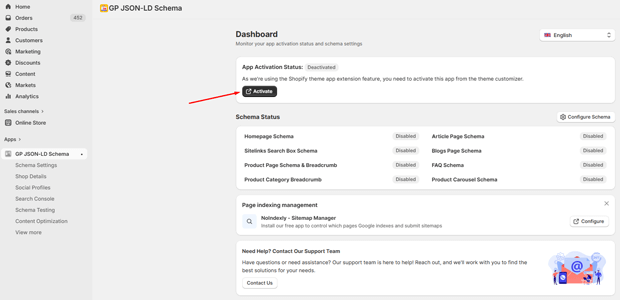
Open dashboard. If your status shows “Deactivated,” click the Activate button.
This will redirect you to your Shopify Theme Editor. Ensure the app block is toggled ON and click Save.
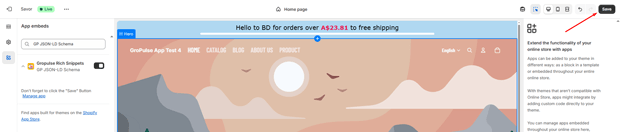
Note: This is a critical step. If the app isn’t activated in the theme, the schema code won’t render even if enabled in the app settings.
2. Enable FAQ Schema in the App Settings
Once the app is live on your theme, you need to tell it which schema types to generate.
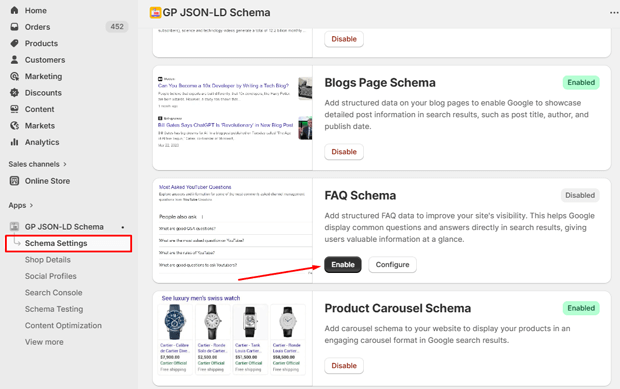
- Navigate to Schema Settings from the app’s sidebar.
- Locate FAQ Schema in the list of available types.
- Toggle the switch to Enable.
3. Configure the FAQ Schema
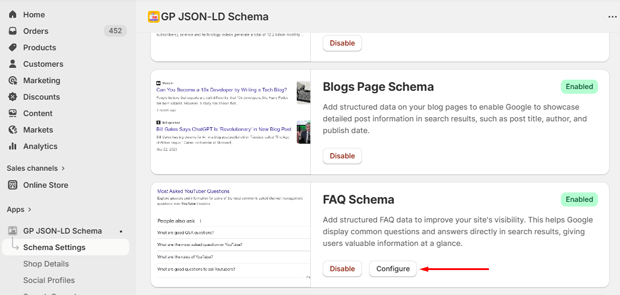
After enabling, click the Configure button.
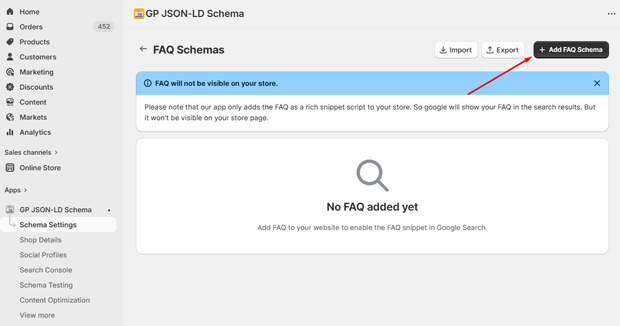
Click Add FAQ Schema.
- Enter the URL of the page where you want to apply the FAQ snippet. Only the last part of the URL is required. Example: If the full URL is https://gropulse.myshopify.com/pages/faq, enter pages/faq.
- Add the questions and answers for the selected page to generate the FAQ schema data.
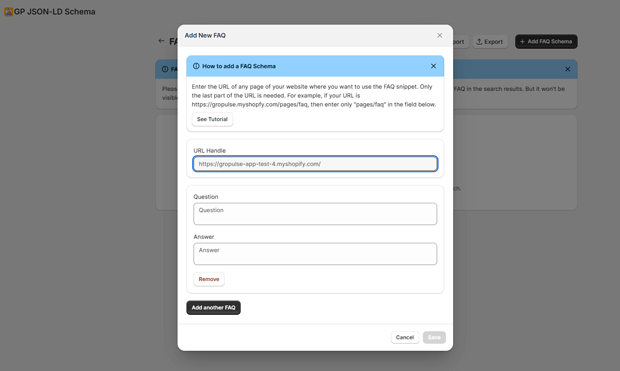
Please note: The FAQ schema will appear only in Google rich results and will not be visible on your store’s front end.
4. Validate Your Implementation with Schema Testing
Never assume the code is working just because the switch is on.
- In the app, go to the Schema Testing section.
- Enter the URL of a page where you’ve added FAQs.
- Click Inspect URL.
- Alternatively, use the Google Rich Results Test to see exactly how Google sees your page. You are looking for a green checkmark next to “FAQ.”
Expert Tips That Make FAQ Schema Work Better in Real Stores
- Prioritize High-Volume Pages: Don’t just add FAQs everywhere. Focus on pages that already rank in the top 10 but have low CTR. According to some SEO studies, rich snippets can improve CTR by up to 30% depending on the industry.
- Avoid “Thin” Answers: Google prefers comprehensive, helpful answers. Aim for 2–3 sentences per answer to provide real value to the shopper.
- Keep it Natural: Write for humans first. If the FAQ looks like keyword stuffing, Google may ignore your structured data entirely.
Recommended Blogs for You:
👉 Schema Markup for Shopify: Complete Implementation
👉 AI Meta Tags Generator for Shopify Products Automatically
👉 Shopify Local Business Schema: Boosting Your Service Area SEO
How to Troubleshoot Common FAQ Schema Issues
If your FAQ rich snippets aren’t appearing after 1–2 weeks, check these common roadblocks:
- Store Under Password Protection: Google cannot crawl or index pages if your store is still in “coming soon” mode or password-protected. Disable this in Online Store → Preferences.
- Schema Errors in Search Console: If you see “Missing field ‘name’” or “Missing field ‘acceptedAnswer’,” go to the Schema Testing tab in your app and inspect the problematic URL to identify the exact missing data.
- Caching Issues: If you’ve just made changes, clear your browser cache or your site’s CDN cache (if applicable) and re-run the Rich Results Test.
- Duplicate Schema: If you use multiple SEO apps, they might be outputting conflicting FAQ data. Use the Schema Testing tool to check for “Duplicate Schema Found” warnings.
What To Do Next After You Finish This Setup
Implementation is only the beginning. To truly dominate the SERPs:
- Connect Google Search Console: Use the Search Console Integration in your app to monitor how many “FAQ” impressions you are getting.
- Request Re-indexing: After fixing any errors, use the URL Inspection tool in Google Search Console to ask Google to re-crawl your updated page.
- Analyze Performance: Use the Content Optimization features to see if your updated FAQs are leading to more clicks and better rankings over the next 30 days.
Frequently Asked Questions
How long does it take for FAQ schema to show in Google?
Typically, it takes between 1 and 4 weeks. Google must re-crawl your site to detect the new JSON-LD markup. You can speed this up by submitting your sitemap or requesting a manual crawl in Google Search Console.
Can I use FAQ schema on the Shopify Free plan?
Most automated apps, including GP JSON-LD Schema, offer FAQ schema as part of their Pro or Advanced plans. Basic schema (like Organization or Website) is often available on free plans, but interactive rich snippets usually require an upgrade.
Does FAQ schema help with Shopify SEO rankings?
While schema itself is not a direct ranking factor, it significantly improves Click-Through Rate (CTR). High CTR signals to Google that your page is relevant to users, which can indirectly lead to higher rankings over time.




