
If you sell anything that might be given as a gift—beauty, jewelry, home decor, kids’ products, even food—shoppers expect one simple feature: a way to add a personal message to their order.
They want the experience they’d get in a physical store when they ask, “Can you add a card with this?”
On Shopify, that “tiny” feature touches product pages, cart, checkout, fulfillment, and even analytics.
Implement it poorly and you get confused customers, support tickets, and missed revenue. Implement it well and you unlock a smoother gifting experience that scales during holidays and peaks.
In this guide, we’ll walk through exactly how to offer personalized gift messages on Shopify—from the simplest no-code methods to more robust, automated setups that work for growing merchants.
Summary
- Personalized gift messages make your Shopify store feel more human and increase perceived value at checkout.
- You can add gift message fields using native Shopify features, theme edits, or dedicated gift-wrap/message apps.
- Done well, gift messages improve conversion rates, average order value, and customer loyalty—especially around gifting seasons.
- This guide walks you through setup options, UX best practices, and troubleshooting common issues.
Quick Answer
To offer personalized gift messages on Shopify, add a custom message field on product, cart, or checkout using theme customizations or a gift message app, then store that data in order notes, line item properties, or metafields for fulfillment teams to print or include.
Why Personalized Gift Messages Matter for Shopify Stores
For many shoppers, the emotional “why” behind a purchase is the gift experience, not just the product itself. If your store doesn’t support simple gifting flows, those customers often abandon and head to marketplaces or competitors that do.
Around major holidays, gifting-centric features become even more critical. According to Shopify’s own holiday ecommerce reports, gifting and personalization are consistent growth drivers for Q4, with consumers actively seeking merchants that can offer thoughtful touches like gift wrap and custom notes.moneris+1
Personalized gift messages do three important things for Shopify merchants:
- Reduce friction for gift buyers who need a quick, done-for-you solution
- Increase perceived value and willingness to pay for extras (like gift wrap)
- Create memorable unboxing experiences that turn recipients into future customers
We’ll also highlight how tools that combine gift wrapping, personal messages, and order tagging can make this much easier to manage as you scale.
What You Need Before Starting This Shopify Task
Before you start changing your theme or installing apps, get a few fundamentals in place so you don’t have to rework everything later.
1. Decide where gift messages should appear
- Product page (per item, great for mixed carts)
- Cart page or drawer (one message per order, simpler UX)
- Checkout (only for eligible themes / setups, more technical)
Most merchants start with either the product page (line-item messages) or cart (one message per order) based on their fulfillment workflow.
2. Define your fulfillment workflow
Ask internally:
- Who prints or reads the gift message (warehouse, in‑house team, 3PL)?
- Where should the message appear (packing slip, pick list, separate insert)?
- Do you need different messages for multiple items in one order?
Deciding this now helps you choose between storing messages as order notes vs line item properties vs metafields.
3. Clarify whether gift messages will be free or paid
Some merchants offer free text messages but charge for physical cards. Others bundle a handwritten card with gift wrapping as a paid add‑on. Your pricing model informs whether you simply add a text field or pair it with a paid gift option.
Step-by-Step: How to Offer Gift Messages Using Native Shopify Options
If you want to start lean and avoid adding apps immediately, you can use Shopify’s built‑in features and theme customizations.
1. Use order notes for simple, store‑wide gift messages
Order notes are the simplest way to collect one gift message per order.
- Enable “cart notes” in your theme settings (many OS 2.0 themes support this).
- Rename or clarify the label copy to something like: “Gift message (optional)” instead of a generic “Order note.”
- Add helper text: “We’ll print this message on a card and include it with your order.”
This approach works well when:
- You typically have one gift recipient per order.
- You don’t need different messages per product.
- Your fulfillment team already reads order notes on every packing slip.
Limitations: you can’t easily charge for the message alone, and it’s hard to handle multiple gifts in a single order.
2. Add line item properties for per-product messages
If you want customers to add a different message for each product (e.g., gift sets for multiple people), line item properties are a better fit.
At a high level, the implementation looks like this:
- In your product form (theme code), add a text area tied to the specific line item.
- Make sure this field is saved as a line item property so it carries through to the order details in Shopify.
- Test that the messages appear under each product within the order in your admin.
Benefits of line item properties:
- Granular control (different messages per item).
- Clear visibility for fulfillment staff per product.
- Works well for shops selling gift bundles, greeting cards, or customized items.
You’ll likely need a developer or to follow a detailed tutorial for your specific theme, but once set up, this is a powerful native approach.
3. Store messages in metafields when you need more structure
For more advanced setups—like syncing gift messages into external systems, or using them to generate custom inserts—you can store messages in order or customer metafields.
Typical flow:
- Collect message via cart or product form.
- Use a small script or automation to write that text into an order metafield.
- Surface that metafield in your packing slip template or via your 3PL integration.
This requires more technical comfort, but it’s ideal when you want structured data and long‑term reporting on gift orders.
Where Screenshots or Visual Callouts Help Most
If you’re documenting this for your team or creating training material, screenshots go a long way:
- Theme settings: Show where to enable cart notes and rename the label.
- Product form code: Highlight where the line item property text area is added.
- Order details screen: Point out exactly where messages appear for fulfillment teams.
- Packing slip template: Show how and where the message prints.
Capturing “before and after” views helps non-technical staff understand the flow and reduces mistakes during peak seasons.
When to Use a Gift Message App Instead of Manual Setup
Native setups are fine when you’re small, but they start to break down as volume and complexity increase, especially during Q4, Valentine’s Day, Mother’s Day, and other gifting peaks.
Experienced merchants typically run into these pain points:
- They need to offer multiple gift options (wrap types, boxes, ribbons) plus a message field.
- They want to charge different prices for different options.
- They need clean, automatic tagging so gift orders are easy to filter and fulfill.
- They want analytics: which options convert best, how much revenue gifting adds, and seasonal trends.
At this stage, using a dedicated gift wrap and message app is usually more efficient than maintaining custom code.
A practical example of this kind of tool is a Shopify app that:
- Lets you create multiple gift wrap options (papers, boxes, ribbons) with custom pricing and images.
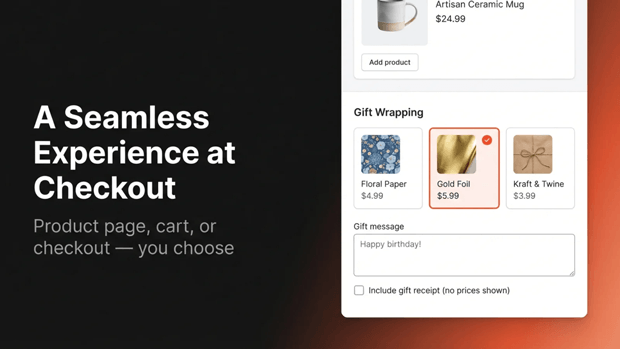
- Adds a personal message field and optional gift receipt request directly in the purchasing flow.
- Auto‑tags gift orders so your fulfillment team can filter and handle them separately.
- Provides an analytics dashboard to track gift‑related revenue, popular options, and long‑term customer preferences.
Because these apps are built specifically for gifting workflows, they often support flexible placement—on product pages, cart, or both—so you can align the UX with your merchandising strategy instead of forcing your theme into complex customizations.
Step-by-Step: How to Offer Gift Messages With a Dedicated App
The exact UI varies, but the overall pattern is similar across most gifting apps.
1. Configure your gift options and message fields
Install the GP – Gift Wrap & Message App from the Shopify App Store

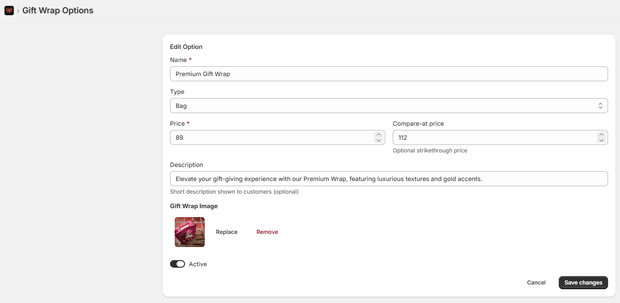
Create one or more gift wrap options (e.g., “Classic Wrap,” “Premium Box,” “Eco-Friendly Wrap”) with images, descriptions, and prices.
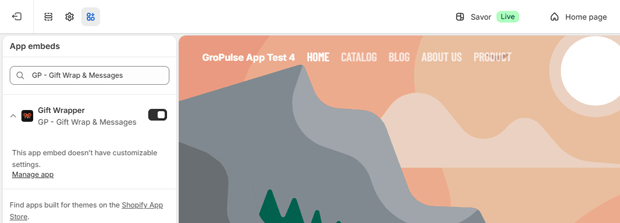
Start by enabling the app embed feature from your theme settings. This allows the gift wrap functionality to integrate seamlessly with your store.
This combines the emotional appeal (message) with a clear, paid upsell (wrap), which tends to increase average order value.
2. Choose where the gift message appears in your Shopify store
Most apps let you pick one or more locations:
- Product page: Best when gifts are tied to specific items and you want per-product control.
- Cart or cart drawer: Ideal when one message per order is enough and you want a quick, frictionless UX.
- Both: Useful if you sell both “giftable” and “standard” products and want maximum flexibility.
As a best practice, keep the initial UI minimal—e.g., a single “Add gift options” link that expands into fields—so you don’t clutter the page for non-gift buyers.
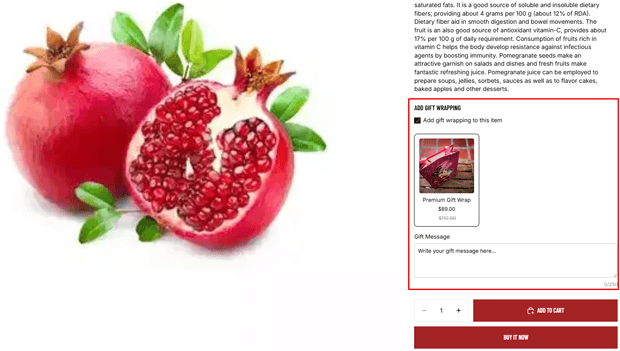
3. Set up auto-tagging and fulfillment workflows
The real operational win comes from automation:
- Configure the app to auto-tag orders that include any gift option or message (e.g., “gift-order”).
- In Shopify, create views or saved searches for tagged gift orders so your fulfillment team can quickly filter and batch process them.
- Update your packing slip template to ensure gift messages and gift receipt preferences are clearly visible.
This drastically reduces mistakes such as shipping without the message, including prices in a gift shipment, or missing gift wrap.
4. Leverage analytics to refine your gift message strategy
Many gifting apps provide built-in analytics to help you answer questions like:
- What percentage of orders include a gift option or message?
- Which wrap style or gift option converts best?
- How much incremental revenue is driven by gifting add-ons over specific periods (e.g., BFCM, December, Valentine’s Day)?
Use these insights to:
- Optimize pricing (e.g., test small price increases on popular options).
- Decide which options to spotlight on key gift collections.
- Plan inventory and staffing for peak gifting periods.
Expert UX & Copy Tips for Shopify Gift Messages
Adding a text box is easy; designing a frictionless gifting experience is harder. Use these UX and copy best practices drawn from real merchant workflows.
1. Ask for gift messages at the right moment
- On product pages, keep the UI collapsed by default and triggered by “Add gift options.”
- On cart pages, place the gift message option near order summary, not buried under fields.
- Avoid forcing a modal that interrupts the primary add‑to‑cart or checkout flow, especially on mobile.
The goal is to surface gifting for those who need it without distracting buyers who are simply shopping for themselves.
2. Use clear, friendly microcopy
Microcopy should remove doubt and set expectations:
- “Add a free personal message for your recipient (optional).”
- “We’ll print this on a card and include it with your order.”
- “Max 250 characters; we’ll format it neatly on your card.”
Clarity here reduces support tickets and prevents customers from using message fields for non‑gift requests.
3. Clarify costs and what’s included
If the message is free but wrap is paid, make that distinction obvious:
- “Personal message: free. Gift wrap: from $4.99.”
- “Every gift message is printed on a simple card. Upgrade to premium gift wrap for a fully wrapped present.”
Transparent pricing builds trust and supports higher conversion rates.
4. Plan for mobile-first shoppers
On mobile, gifting UI can quickly become overwhelming:
- Keep fields minimal (one text area and simple toggles).
- Avoid stacking multiple text boxes; use progressive disclosure where possible.
- Test the full flow—from PDP to checkout—on a real device, not just the theme editor.
Most Shopify stores see a majority of traffic on mobile, so this is not optional; it’s foundational.
How to Troubleshoot Common Gift Message Issues on Shopify
Even with a good setup, merchants often hit similar snags.
“Customers say they added a gift message, but we don’t see it”
Likely causes:
- The theme update removed or changed the field connection to line item properties or notes.
- A cart drawer or custom AJAX cart bypasses the part of the template where the field is saved.
Fixes:
- Confirm the field is present in both the visible cart and the actual form that submits line items.
- Check a test order in Shopify admin to see whether the property/notes appear at all.
- If you’re using an app, ensure its widget is active in your current theme and not blocked by new customizations.
“Our 3PL or warehouse doesn’t see the gift message”
Likely causes:
- You’re storing messages in order notes, but your 3PL integration doesn’t sync those fields.
- Messages live as line item properties but your pick lists only show product titles and SKUs.
Fixes:
- Work with your 3PL or integration provider to expose line item properties or order metafields in their system.
- Use auto-tags like “gift-order” plus internal SOPs prompting staff to check the message field before packing.
“Gift messages are being misused for non-gift communication”
Sometimes customers use gift message fields to ask shipping questions or write instructions to the courier.
Mitigations:
- Add clear helper text: “For personal messages to the gift recipient only. For delivery instructions, use the shipping notes at checkout.”
- Keep character counts modest and use labels that emphasize “gift message” rather than “note.”
Alternative Ways to Offer Gift Messages on Shopify
If your current theme or setup makes it difficult to add new fields, consider these alternate approaches.
1. Use product variants for “Add a gift message” upsells
You can create a separate “Add gift message” product or variant that includes a free-form note collected using an app or post-purchase survey. This is less elegant but can work when you have limited theme flexibility.
2. Use post-purchase or thank-you-page flows
Some merchants capture the message immediately after checkout:
- Use a post‑purchase page or thank‑you page customization to show a “Add your gift message” step.
- Store the message in a metafield and attach it to the order.
This reduces friction during checkout but introduces operational risk if the message comes in after the order has entered fulfillment, so you’ll need tight SOPs and automation.
3. Limit gift message availability to certain products or seasons
If your catalog is mixed (some products giftable, others not), consider:
- Showing gifting options only on specific collections or tags.
- Enabling gift messages only during peak gifting seasons like Q4, Valentine’s Day, and Mother’s Day.
This keeps your UI focused and helps your team concentrate on the periods when gifting is most impactful.
What To Do Next After You Add Gift Messages
Once you’ve implemented personalized gift messages on Shopify, don’t stop at “it works.”
Here’s how to turn it into a growth lever:
- Measure adoption: Track what percentage of orders include a gift message or gift wrap to see if your placements and copy are working.
- Experiment with pricing for paid add-ons like premium wrap, especially during peak seasons when willingness to pay is higher.
- Coordinate with email and SMS: Promote gift-friendly bundles and mention the availability of gift messages in your campaigns.
- Plan seasonal variants: Offer different wrap styles and message prompts for holidays to keep the experience fresh and on-brand.
Over time, treat gifting as a mini product line within your store—with its own merchandising, pricing, and optimization strategy—rather than a one-off feature.
FAQs: Shopify Gift Messages
How do I add a gift message box to my Shopify store?
You can add a gift message box using theme cart notes, custom line item properties on product pages, or a dedicated gift message app that injects a text field into product or cart templates.
Should I put the gift message field on the product page or cart?
If you need different messages per product, use the product page with line item properties; if one message per order is enough, placing it on the cart page usually creates a simpler, faster checkout.
Can I charge extra for gift messages on Shopify?
You can’t natively charge for a text field alone, but you can bundle the message with a paid gift wrap or card product, or use an app that treats gift options as paid add-ons.
Where do gift messages show up for fulfillment staff?
Depending on your setup, gift messages appear in order notes, line item properties, or metafields. Make sure your packing slips and 3PL integrations surface those fields clearly.
Do gift messages work with Shopify’s mobile checkout?
Yes, as long as your theme or app widget is mobile-friendly and properly integrated with your cart or product forms. Always test the entire gift flow on a mobile device.




