
Imagine this scenario: It is 11:55 PM on the night before Black Friday. While your competitors are resting up for the biggest retail day of the year, you are sitting in front of your laptop, hovering over the “Publish” button in your Shopify theme editor.
You are waiting to manually swap your standard “Free Shipping over $50” banner for your “BFCM: Free Shipping on ALL Orders” banner.
If you click too early, you lose margin. If you click too late, you confuse early shoppers.
For serious Shopify merchants, this manual workflow is unsustainable.
During high-stakes periods like Cyber Week or Christmas, your store’s messaging needs to be fluid. It needs to shift from building hype to driving urgency without you needing to be awake to flip the switch.
In this guide, we will break down exactly how to schedule Shopify free shipping bars, why automation protects your conversion rate, and the timeline you should be using for major holidays.
To schedule a free shipping bar on Shopify, use GP Free Shipping Bar app that supports “start” and “end” scheduling. This allows you to pre-set holiday campaigns to go live automatically at specific times.
Summary
- The Problem: Manually updating Shopify themes at midnight during holiday sales is stressful and prone to error.
- The Solution: Scheduling your free shipping bars allows you to automate the transition from “Teaser” to “Live Sale” to “Last Chance.”
- The Benefit: You capture peak traffic without constant monitoring, ensuring your messaging matches your ad campaigns perfectly.
- The Tool: We’ll look at how tools like GP Free Shipping Bar handle this automation.
Why Shopify’s Default Theme Editor Can’t Handle Holiday Automations
Many new merchants assume they can simply “schedule” a theme update. While Shopify allows you to schedule a theme publish date, this is often a clumsy solution for changing just one top bar.
To change a banner via the theme editor, you generally have to duplicate your entire live theme, edit the banner in the copy, and schedule that specific theme copy to go live. If you make any other changes to your live site in the meantime (like updating inventory or a product description), those changes might be overwritten when the “scheduled theme” replaces the live one.
This creates a “version control” nightmare.
To maintain a dynamic, high-converting storefront, you need a system that updates only the announcement bar layer, independent of your theme files.
Recommended Blogs for You:
👉 How to Add a Free Shipping Progress Bar in Shopify
👉 7 Best Shipping Rate Apps for Shopify
👉 Best Practices for Designing a Free Shipping Bar
👉 5 Best Free Shipping Bar Apps for Shopify in 2025
👉 How to Increase Shopify Sales with Smart Upsell Popups
How to Schedule Shopify Free Shipping Bars for the Holidays
To automate this, you need an app that overlays the bar and possesses an internal calendar logic. For this tutorial, we’ll use the GP Free Shipping Bar, as it allows for precise start and end times that don’t interfere with your core theme code.
1. Define Your “Campaign Containers”
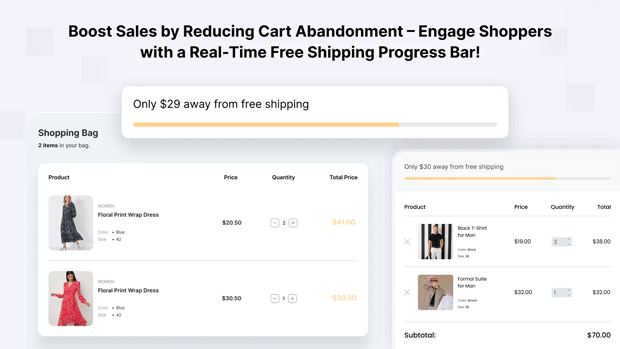
Don’t think of your holiday shipping bar as a single message. Think of it as a series of containers. You likely need three distinct bars for a single holiday:
- The Pre-Sale Tease: “Get your cart ready.”
- The Active Sale: “Free Shipping Applied!”
- The Deadline: “4 Hours Left for Holiday Delivery.”
2. Configure the “Active Sale” Bar First
In the GP Free Shipping Bar dashboard, create your main holiday offer first. Set your threshold (e.g., $0 for free shipping, or a lowered threshold like $50).
- Key Step: Look for the Scheduling settings.
- Start Time: Set this for exactly when your email blast goes out (e.g., Nov 24th at 00:01).
- End Time: Set this for the hard stop of the sale (e.g., Nov 27th at 23:59).
3. Set Up “Smart” Shipping Goals
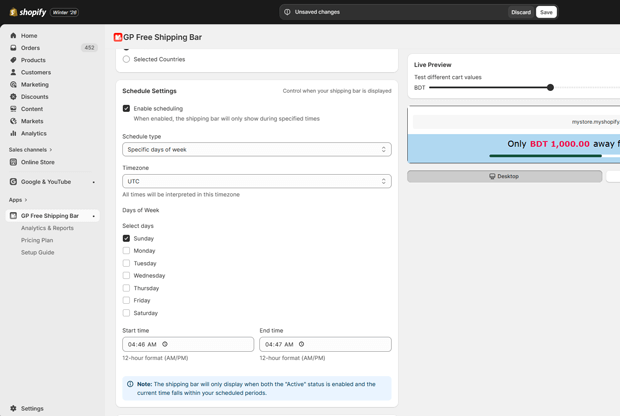
Static text is fine, but progressive messages work better. Configure the bar to do the math for the customer.
- Message 1: “Free Holiday Shipping over $100”
- Message 2 (Progress): “You’re only $20 away from free holiday delivery!”
- Message 3 (Achieved): “Congrats! Your order ships free.”
4. Test the Transition
Before the holiday rush, create a test bar scheduled to run for just 10 minutes on a slow Tuesday. Ensure that when the time hits, the bar appears (or replaces the default bar) without you needing to refresh the cache.
The Perfect Holiday Timeline: What to Display and When
Strategic scheduling is about psychology. You want to move the customer from curiosity to action to panic (the good kind). Here is a scheduling framework experienced merchants use:
Phase 1: The “Hype” Bar (48 Hours Before)
- Goal: Email capture and cart building.
- Message: “BFCM Starts in 2 Days. Build your wishlist now.”
- Scheduling: Ends 1 minute before the sale starts.
Phase 2: The “Prime” Bar (The Event)
- Goal: Maximum conversion and AOV boost.
- Message: “Free Express Shipping on Orders $100+ (Ends Sunday!)”
- Scheduling: Runs for the duration of the sale.
Phase 3: The “Urgency” Bar (Last 6 Hours)
- Goal: Closing the fence-sitters.
- Message: “LAST CHANCE: Order by midnight for Christmas Delivery.”
- Scheduling: Starts 6 hours before the deadline.
Pro Tip: If you are running ads on Facebook or TikTok via tools like Pixee, ensure your scheduled bar matches the creative in your ads. If your ad says “Free Shipping Ending Soon,” but your site bar still says “Welcome,” you create a disconnect that kills trust.
3 Common Configuration Errors That Kill Holiday Conversions
Even with automation, things can go wrong. Avoid these common setup mistakes.
1. The “Double Bar” Glitch
If you schedule a holiday bar via an app but forget to disable your theme’s native announcement bar, users might see two stacked bars pushing your content down the page.
This is a UX disaster, especially on mobile devices where screen real estate is precious. Always ensure your “default” bar is set to toggle off when the “campaign” bar toggles on, or use the app to manage all bars year-round.
2. Ignoring Time Zones
“Midnight” is relative. If your store is based in New York (EST) but your biggest customer base is in California (PST), cutting off a sale at midnight EST means you are kicking Californians out of your store at 9:00 PM.
- Best Practice: Always schedule your end times based on the latest relevant time zone (usually PST or HST for US merchants) to capture the “night owl” shoppers.
3. Forgetting the “Post-Holiday” Revert
What happens when your scheduled Cyber Monday bar expires? If you haven’t scheduled a “Default” bar to resume immediately after, your site might go naked—no shipping info, no trust signals.
- Ensure your evergreen “Free Shipping over $75” bar is scheduled to resume at 12:01 AM the day after the sale.
Can You Schedule Banners Without Apps? (The “Launchpad” Method)
Is an app strictly necessary? Technically, no, but the alternatives are gated or complex.
If you are on Shopify Plus, you have access to a tool called Launchpad. Launchpad allows you to schedule theme changes, script changes, and product pricing changes in advance. It is a powerful tool, but it is exclusive to the Plus tier (which starts at $2,000/month).
For the vast majority of merchants on Basic, Shopify, or Advanced plans, using a dedicated app like GP Free Shipping Bar is the most cost-effective way to mimic this enterprise-level functionality without touching code.
Frequently Asked Questions: Holiday Shipping Bar Strategy
Should I lower my free shipping threshold for the holidays?
Many experts recommend keeping your threshold the same but offering faster shipping, OR lowering the threshold slightly to increase conversion volume. However, do not lower it so much that you eat your entire margin.
How does a free shipping bar affect AOV?
Progressive bars (which show how much more you need to spend) are proven to increase Average Order Value. Baymard Institute research consistently highlights that “unexpected shipping costs” are a top reason for cart abandonment; a clear bar removes that surprise.
Can I target different bars for different countries?
Yes, advanced configurations in apps like GP Free Shipping Bar often allow for geolocation targeting. You should absolutely schedule different shipping deadlines for international customers vs. domestic ones.
Conclusion
The holidays are chaotic enough without you needing to manually manage your website’s UI in real-time. By scheduling your free shipping bars in advance, you ensure a seamless experience for your customers and a better night’s sleep for yourself.




