
If you run a Shopify store, you already know that customer acquisition costs (CAC) are unforgiving. Once a shopper is finally on your site, maximizing their Average Order Value (AOV) isn’t just a growth hack, it’s a survival requirement.
One of the highest-ROI conversion levers in ecommerce is bundling. Specifically, offering a mix-and-match gift box empowers customers to curate their own experience, making the purchase feel personalized rather than forced.
According to McKinsey’s latest consumer personalization report, 71% of consumers expect companies to deliver personalized interactions, and custom bundles directly satisfy that demand.
However, most Shopify merchants either don’t bundle at all, or they bolt together manual discount codes and duplicate SKUs that create backend chaos.
This guide walks you through exactly how to build a high-converting mix-and-match gift box that scales, keeps your inventory accurate, and seamlessly integrates into your native checkout flow.
Summary
- The Goal: Launch a customized mix-and-match gift box experience to drive higher Average Order Value (AOV) and clear seasonal inventory.
- Who This Is For: AOV-obsessed DTC founders and category stores selling natural product pairings like skincare routines, accessories, or coffee.
- The Blueprint: A complete no-code workflow using GP Bundle Builder to deploy native Shopify discount functions and theme app extensions without breaking your checkout.
- The 2026 Reality Check: Avoid legacy bundling apps that hijack your cart. Today’s top-converting stores use edge-deployed WASM functions to keep Shopify Shop Pay, fraud rules, and gift cards perfectly intact.
How do you create a mix-and-match gift box on Shopify?
Use a Shopify 2.0 app like GP Bundle Builder to select a “Mix & Match Grid” template, add your targeted products, set a tiered discount, and publish the bundle directly via the theme editor without writing custom code.
Why Broken Checkouts Are Killing Your Shopify Bundle Conversions
Historically, creating a bundle on Shopify required editing complex Liquid theme code or duplicating products entirely. Worse, many third-party bundling apps relied on “custom checkouts” that bypassed Shopify’s native cart.
When you hijack the checkout, you break native Shopify features like gift cards, Shop Pay installments, and fraud rules. According to the Baymard Institute’s checkout usability research, nearly a quarter of shoppers will abandon their carts if the checkout process becomes too long or complicated.
If your bundle app strips away their preferred accelerated payment method, your AOV gains will be wiped out by cart abandonment.
That’s why this workflow focuses entirely on the modern Shopify stack. By using stabilizing tools like Shopify Discount Functions and Theme App Extensions, you can now deploy custom gift boxes anywhere in your theme and apply discounts directly in the native checkout.
What You Need Before Starting This Shopify Task
Before you build your gift box, verify your store meets a few basic technical and strategic prerequisites:
- A Shopify Online Store 2.0 Theme: You need a modern 2.0 theme because the modern deployment method relies on theme app extensions.
- A Clear “Natural Pairings” Strategy: Don’t bundle randomly. Sweet spots include skincare routines, coffee and grinders, or “Shop the Look” fashion sets.
- GP Bundle Builder Installed: We will use this specific app because it provides a no-code bundle editor and natively connects to Shopify GraphQL Admin APIs.
Step-by-Step Instructions: Building Your Mix-and-Match Gift Box
This workflow takes roughly five minutes and requires zero coding knowledge.
1. Install the App and Run the Onboarding Wizard
First, install GP Bundle Builder from the Shopify App Store.
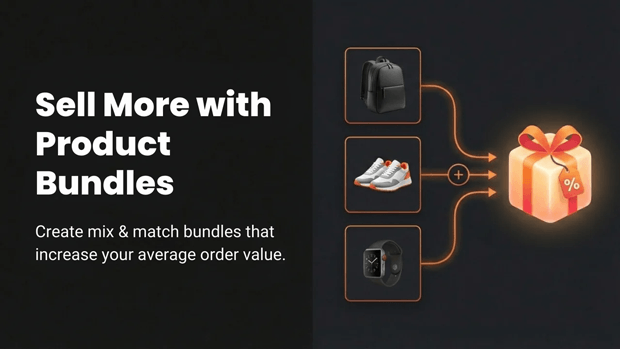
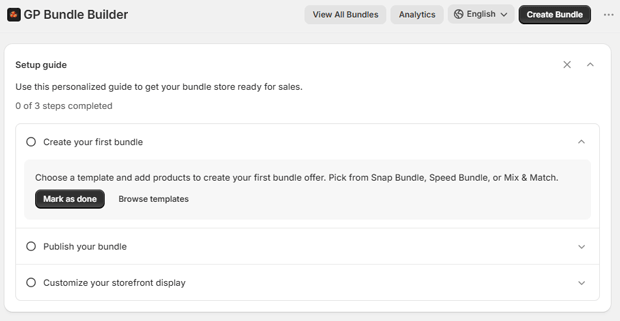
Once authenticated via OAuth, an onboarding wizard will guide you through the initial setup and highlight key benefits.
2. Select Your Mix and Match Template
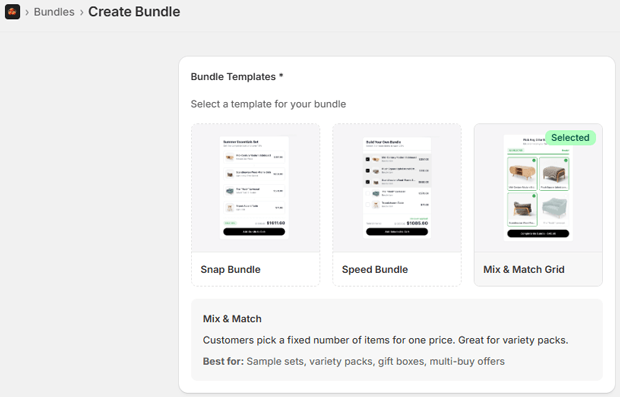
Navigate to the app’s template library, which features 9 out-of-the-box bundle types. For a gift box, you have two optimal choices:
- Mix & Match Grid: A standard layout allowing customers to “choose any X items”.
- Gift Builder: A specialized template designed to curate giftable kits, perfect for Q4 holidays or Valentine’s Day.
Note: If you want a full-page experience, you can also select the “Build Your Own Box” (BYOB) template.
3. Define Your Product Catalog and Variant Rules
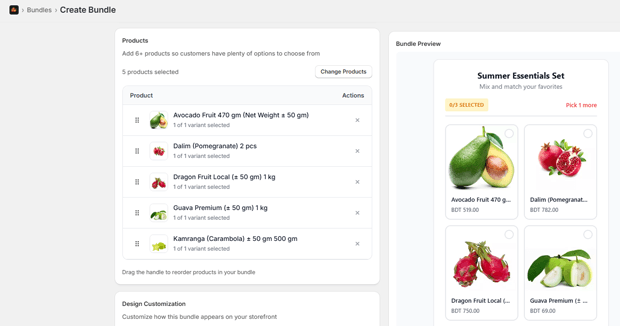
Use the app’s search and filtering tools to drop your specific Shopify products into the bundle.
- Set Restrictions: You can limit the bundle to a specific number of selections, establish minimum/maximum quantities, and force a “base product” if needed.
- Inventory Awareness: The builder is inventory-aware, meaning it will automatically hide out-of-stock items to prevent overselling.
4. Configure Your Shopify Discount Engine
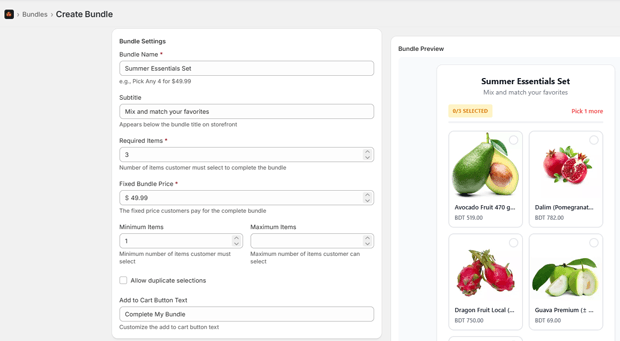
Determine your pricing model. GP Bundle Builder allows you to apply discounts directly via Shopify Functions.
- Choose between a percentage discount, a fixed bundle price, or tiered discounts based on quantity.
- The dynamic pricing engine updates live as the customer selects their products, displaying a live savings badge and compare-at pricing.
5. Customize the UI for Your Store’s Brand
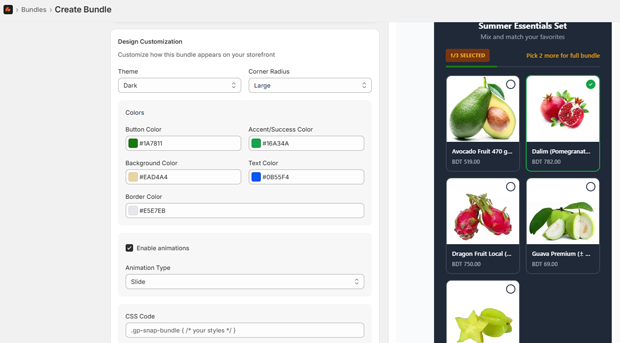
Design the bundle block to match your storefront.
- Layouts: Choose from grid, vertical, horizontal, or a step-by-step wizard format.
- Styling: Set custom primary and secondary colors with a live preview inside the admin. If you are on the Pro plan, you can inject custom CSS for tighter brand alignment.
6. Publish via Theme App Extensions
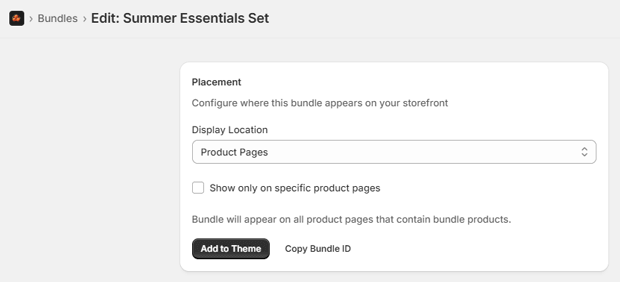
Click publish. Because GP Bundle Builder uses client-side JS to fetch bundle data from an app proxy, you simply deploy the block anywhere in your theme editor—product pages, cart, or a dedicated landing page—without editing a single line of Liquid code.
Templates, Copy Snippets & Reusable Blocks
The microcopy you use in your mix-and-match UI drastically impacts conversion rates. Use these proven snippets inside your bundle settings:
- The Urgency Nudge: “Add 1 more item to unlock 15% off your entire gift box!”
- The Value Framing: “Build Your Skincare Routine: Pick 3 for $75 (Save $20).”
- The Step-by-Step Guide: “Step 1: Pick your base. Step 2: Choose 2 add-ons. Step 3: Review and save.”
Expert Tips That Make Mix-and-Match Work Better in Real Stores
Rethink Your AOV Thresholds Your bundle pricing should intentionally cross your store’s free shipping threshold. If free shipping is at $75, price your fixed-price mix-and-match box at $79.
Leverage Tiered Perks Instead of a flat percentage off, use a tiered discount strategy (“Buy 2 save 10%, buy 3 save 20%”). GP Bundle Builder powers this using a dedicated WASM function called builder-section-discount, which applies the logic flawlessly at Shopify’s edge.
How To Troubleshoot Common Shopify Bundling Issues
- Bundles Not Displaying Properly: Ensure you are using a Shopify 2.0 theme. Theme app extensions cannot inject blocks into vintage themes.
- Discounts Failing at Checkout: Double-check that no legacy discount apps are conflicting with your new Shopify Discount Functions.
- Analytics Missing: If your per-bundle analytics aren’t populating, verify that the orders/create webhook is firing correctly in your app setup/diagnostics page.
Alternative Ways To Achieve the Same Shopify Upsell
If a grid-style gift box isn’t right for your specific product line, consider these alternative layouts:
- The Snap Bundle: A compact, fast add-to-cart widget ideal for tech accessories (e.g., phone case + charger) that sits directly beneath the standard add-to-cart button.
- Full-Page Build-Your-Own-Box (BYOB): A dedicated Liquid page template (page.bundle-builder.liquid) featuring a left sidebar category filter, a center product grid, and a right-side slot panel. This is excellent for monthly subscription brands letting users pick 6 items for a set price.
What To Do Next After You Publish Your Gift Box
Once your bundle is live, do not set it and forget it. You need to know what’s actually working. Navigate to the built-in analytics dashboard in GP Bundle Builder. Monitor your overview KPIs: revenue, views, conversion rate, and AOV impact. Look at your top 5 bundles leaderboard to see which product combinations resonate most with your audience, and optimize your underperforming boxes by swapping out stagnant SKUs.
Frequently Asked Questions
Do I need to edit my Shopify theme code to create a bundle?
No. By using theme app extensions, you can add bundle blocks anywhere via the Shopify theme editor without making any code edits.
Will a bundle app break my Shop Pay or gift cards?
Not if it uses native integration. GP Bundle Builder applies discounts via Shopify Functions directly at the native checkout, ensuring Shop Pay, gift cards, and fraud checks remain functional.
Can I track the revenue of individual Shopify bundles?
Yes. Modern bundle builders feature per-bundle analytics dashboards that track views, add-to-carts, conversion rates, and total revenue generated per bundle on a daily rollup.
How do tiered discount bundles work on Shopify?
Tiered bundles offer progressive savings, such as “Buy 2 save 10%, buy 3 save 20%”. These are powered by dedicated WASM discount functions that calculate cart lines dynamically at checkout.
Can customers filter products while building their own box?
Yes, if you use a full-page BYOB experience. This includes a sidebar category filter mapped to your Shopify productType or collections to help customers sort through large catalogs easily.
Final Recap: How To Maintain and Iterate on Your Upsell Strategy
Creating a mix-and-match gift box is just step one. The true power of merchandising lies in iteration. Use the 30-day analytics history (or 90-day history on the Pro plan) to track your daily metrics. If a specific mix-and-match grid isn’t converting, experiment with changing the layout from grid to a step-by-step wizard. By keeping your tools native and your data clear, you can continually nudge your Average Order Value higher without sacrificing user experience.




