
Get your Google reviews displaying on your Shopify store in minutes. This guide walks you through the essential steps to set up GroPulse Google Reviews and display your first review widget.
Prerequisites
Before you begin, make sure you have:
- A Shopify store with GroPulse Google Reviews installed
- A Google Business Profile with reviews
Dashboard Overview
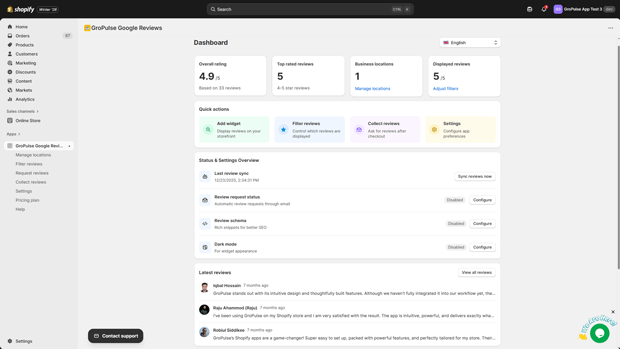
Your Dashboard displays key metrics at a glance:
| Metric | Description |
|---|---|
| Overall rating | Average rating across all locations |
| Top rated reviews | Count of 4-5 star reviews |
| Business locations | Number of connected locations |
| Displayed reviews | Reviews shown vs. total available |
Add Your Business Location
After installing the app, your first task is to connect your Google Business location.
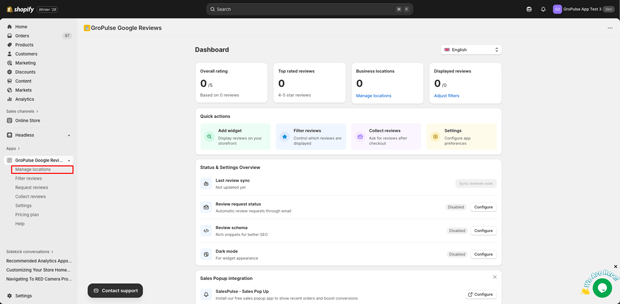
Navigate to Manage Locations
- From the Dashboard, click Manage locations in the Business locations card
- Or select Manage locations from the sidebar navigation
Add Your Location
Click the Add location button
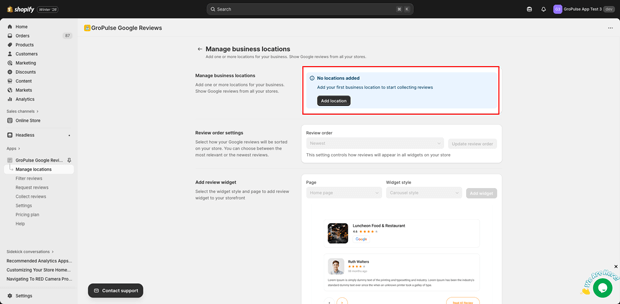
Choose one of the following methods:
Option A: Search by Name (Recommended)
- Type your business name in the search field
- Select your business from the Google Maps results
- Click Select on the info window that appears
Option B: Enter Place ID
- Switch to the Enter Place ID tab
- Paste your Google Place ID
- Click Add location

Your location will be added and automatically marked as Primary.
Finding Your Place ID
Search for your business on Google Maps, click on it, and look for the Place ID in the URL. Alternatively, use Google’s Place ID Finder.
Add a Review Widget
Now that your location is connected, let’s display your reviews on your store.
Configure Your Widget
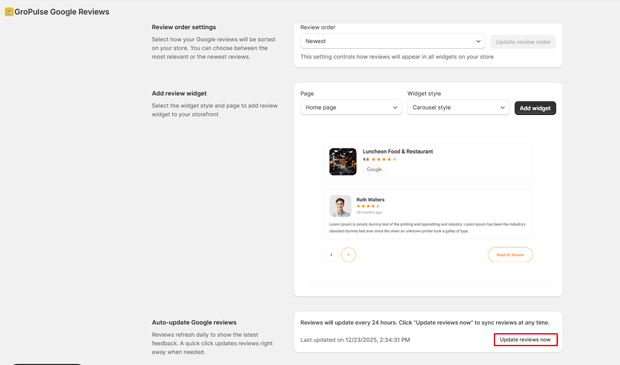
- On the Manage locations page, scroll to Add review widget
- Select a Page for your widget:
- Home page
- Product pages
- Collection pages
- Cart page
- Blog pages
- Select a Widget style:
- Carousel style
- Grid layouts
- Click Add widget

Position in Theme Editor
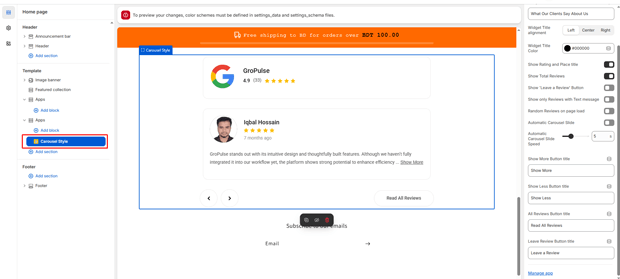
- The Shopify theme editor will open
- Find the GroPulse Google Reviews app block
- Drag it to your desired position
- Click Save
Verify Your Widget
- Visit your store’s live page where you added the widget
- Confirm your Google reviews are displaying correctly
- If reviews don’t appear, click Update reviews now on the Manage locations page
Last updated on December 23, 2025
Was this article helpful?
Powered by Support Genix