
Bulk settings allow you to apply NoIndex and NoFollow rules to entire categories of pages at once. Instead of configuring each page individually, you can set rules that automatically apply to all pages of a specific type.
Overview
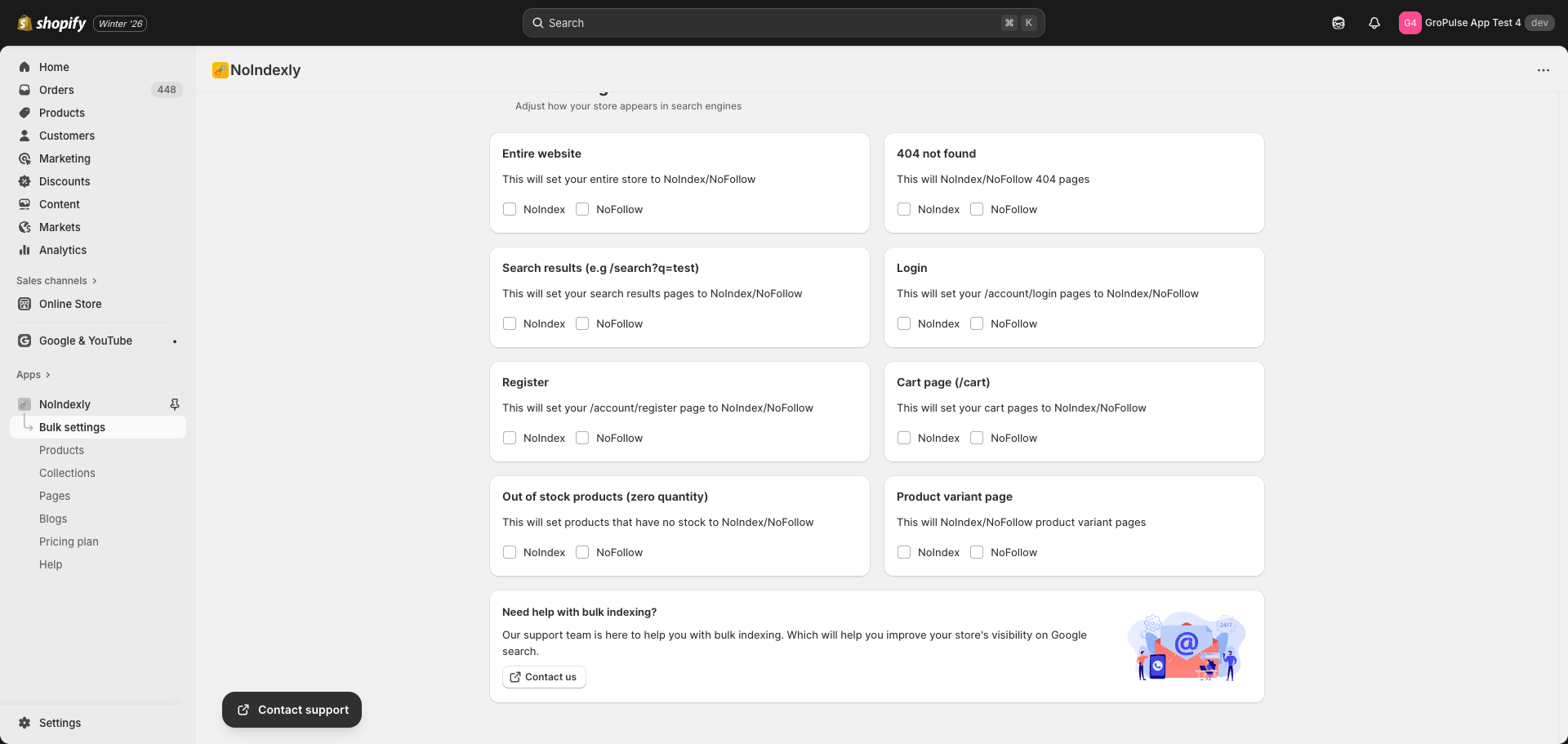
Bulk settings control how search engines index these page categories:
- Entire Website – All pages on your store
- 404 Not Found – Error pages when content is not found
- Search Results – Pages showing search results (e.g., /search?q=shoes)
- Login Page – The account login page (/account/login)
- Register Page – The account registration page (/account/register)
- Cart Page – The shopping cart page (/cart)
- Out of Stock Products – Products with zero inventory
- Product Variant Pages – Individual variant URLs for products
Note: Bulk settings are a Pro feature. You need a Monthly or Yearly plan to use this feature.
Accessing Bulk Settings
- From the dashboard, click Manage bulk settings on the Bulk Settings Status card
OR
- Click Bulk settings in the left sidebar navigation
Understanding NoIndex and NoFollow
Each category has two checkboxes:
| Option | What it does |
|---|---|
| NoIndex | Tells search engines not to include this page in search results |
| NoFollow | Tells search engines not to follow links on this page |
Common Combinations
| Setting | Use case |
|---|---|
| NoIndex + NoFollow | Page should not appear in search results and links should not be followed |
| NoIndex only | Page should not appear in search results, but links can be followed |
| NoFollow only | Page can appear in search results, but links should not be followed |
| Neither checked | Page is fully indexed and links are followed (default) |
Configuring Each Category
Entire Website
What it affects: Every page on your store
When to use:
- Temporarily hide your entire store from search engines (e.g., during major updates)
- If you want complete control and prefer to enable indexing on specific pages only
Warning: Enabling NoIndex for the entire website will prevent all pages from appearing in search results. Use with caution.
404 Not Found Page
What it affects: Error pages displayed when a URL does not exist
When to use:
- Recommended: 404 pages typically have no useful content for search engines
- Enabling NoIndex prevents search engines from indexing broken or outdated URLs
Search Results Page
What it affects: Pages showing search results (URLs like /search?q=keyword)
When to use:
- Recommended: Search result pages often create duplicate content issues
- These pages change frequently and offer little value in search results
Login Page
What it affects: The customer account login page (/account/login)
When to use:
- Recommended: Login pages do not need to appear in search results
- There is no unique content that benefits from indexing
Register Page
What it affects: The customer account registration page (/account/register)
When to use:
- Recommended: Registration pages do not need to appear in search results
- Similar to login pages, these have no unique searchable content
Cart Page
What it affects: The shopping cart page (/cart)
When to use:
- Recommended: Cart pages are personal and session-based
- They contain no useful content for search engines
Out of Stock Products
What it affects: Product pages where all variants have zero inventory
When to use:
- When you want to hide unavailable products from search results
- Useful for seasonal products or items you may restock
Note: When products come back in stock, they will automatically become indexable again.
Product Variant Pages
What it affects: URLs with variant parameters (e.g., /products/t-shirt?variant=12345)
When to use:
- Recommended: Variant URLs often create duplicate content
- The main product page usually contains all necessary information
How to Save Changes
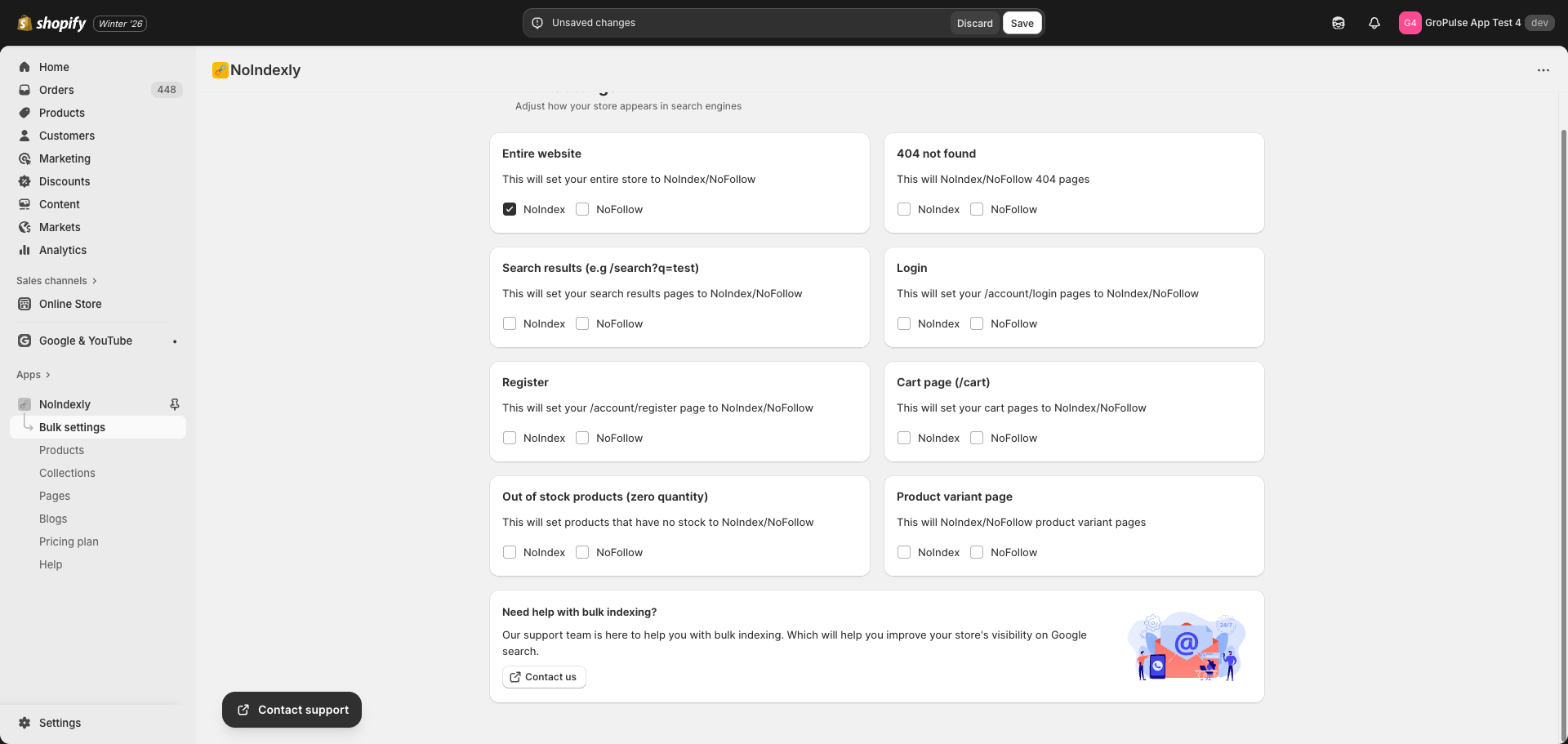
- Check or uncheck the NoIndex and NoFollow boxes for each category
- A save bar will appear at the top of the page when you have unsaved changes
- Click Save to apply your changes
- Click Discard to undo your changes and return to the saved settings
Viewing Current Settings
You can view your current bulk settings from the dashboard:
- Look at the Bulk Settings Status card on the dashboard
- Each category shows a badge indicating its current status:
- NoIndex+NoFollow – Both options are enabled
- NoIndex – Only NoIndex is enabled
- NoFollow – Only NoFollow is enabled
- Index – Neither option is enabled (page is fully indexed)
Upgrading to Use Bulk Settings
If you see an upgrade banner on the Bulk Settings page, you are on the Free plan. To use bulk settings:
- Click the Upgrade plan link in the banner
- Choose either the Monthly or Yearly Pro plan
- Complete the subscription process
- Return to Bulk Settings to configure your rules
See Pricing Plan page for more information about plan features and pricing.