
Control how search engines discover and display your store’s static pages. You can set different indexing rules for pages like About Us, Contact, FAQ, and custom pages.
Overview
The Pages feature allows you to:
- View all static pages in your store
- See the current indexing status of each page
- Apply NoIndex/NoFollow rules to one or multiple pages
- Search for specific pages by title
Accessing the Pages Section
- From the dashboard, click the Pages card in Quick Settings
OR
- Click Pages in the left sidebar navigation
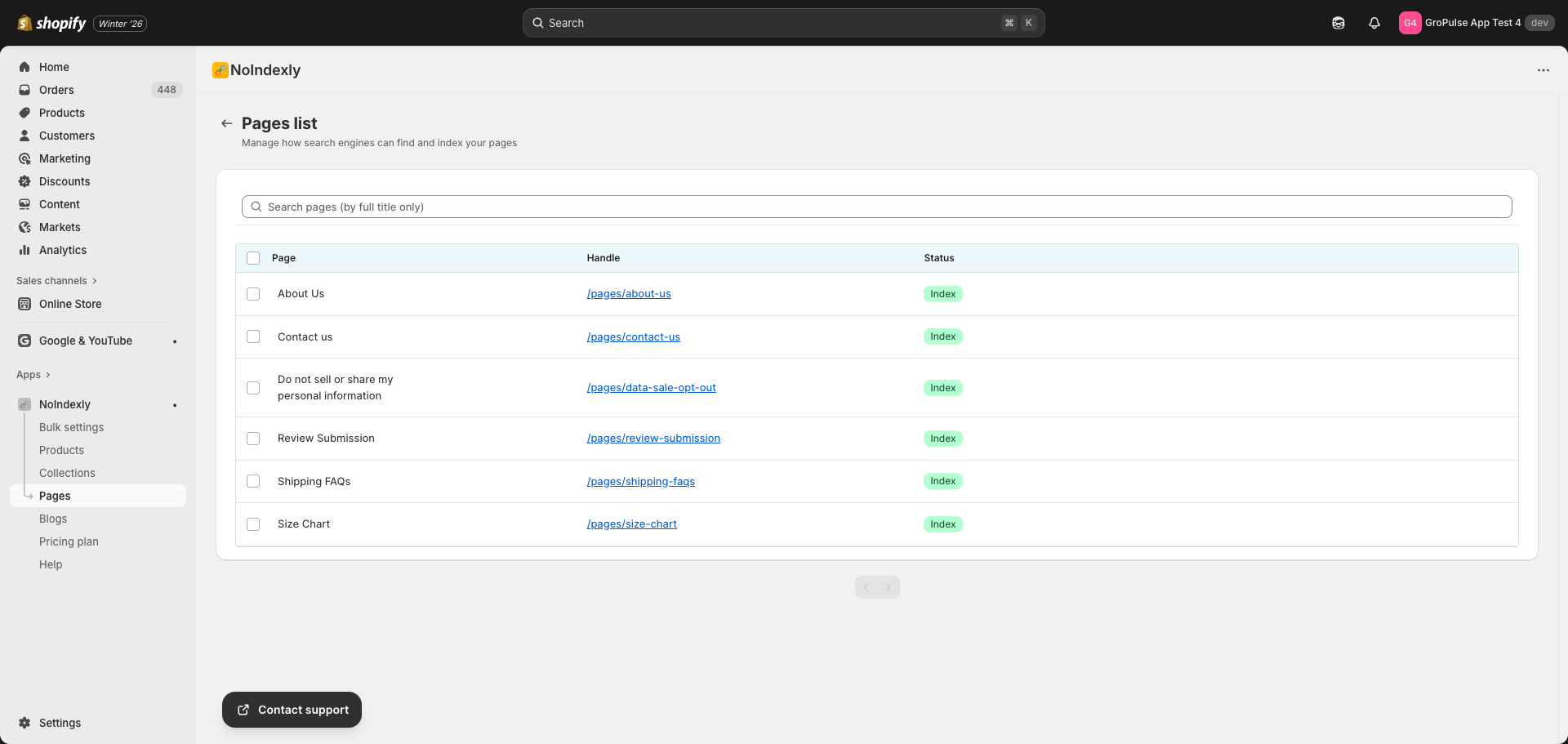
Understanding the Pages List
The pages list shows:
| Column | Description |
|---|---|
| Page | The page title |
| Handle | The URL path (e.g., /pages/about-us) – click to view on your store |
| Status | Current indexing status of the page |
Status Badges
| Badge | Meaning |
|---|---|
| Index (green) | Page appears in search results normally |
| NoIndex + NoFollow (gray) | Page is hidden from search results, links not followed |
| NoIndex + Follow (blue) | Page is hidden from search results, but links are followed |
| No Sitemap + NoIndex + NoFollow + No Search (gray) | Complete exclusion from all search visibility |
Searching for Pages
Use the search bar at the top of the page to find specific pages:
- Type the full page title in the search field
- The search requires matching the complete title
- Click the X button to clear your search
Changing Page Indexing Status
Selecting Pages
- Check the checkbox next to each page you want to update
- To select all pages on the current page, check the checkbox in the header row
- The number of selected pages will appear above the table
Applying an Index Status
After selecting one or more pages:
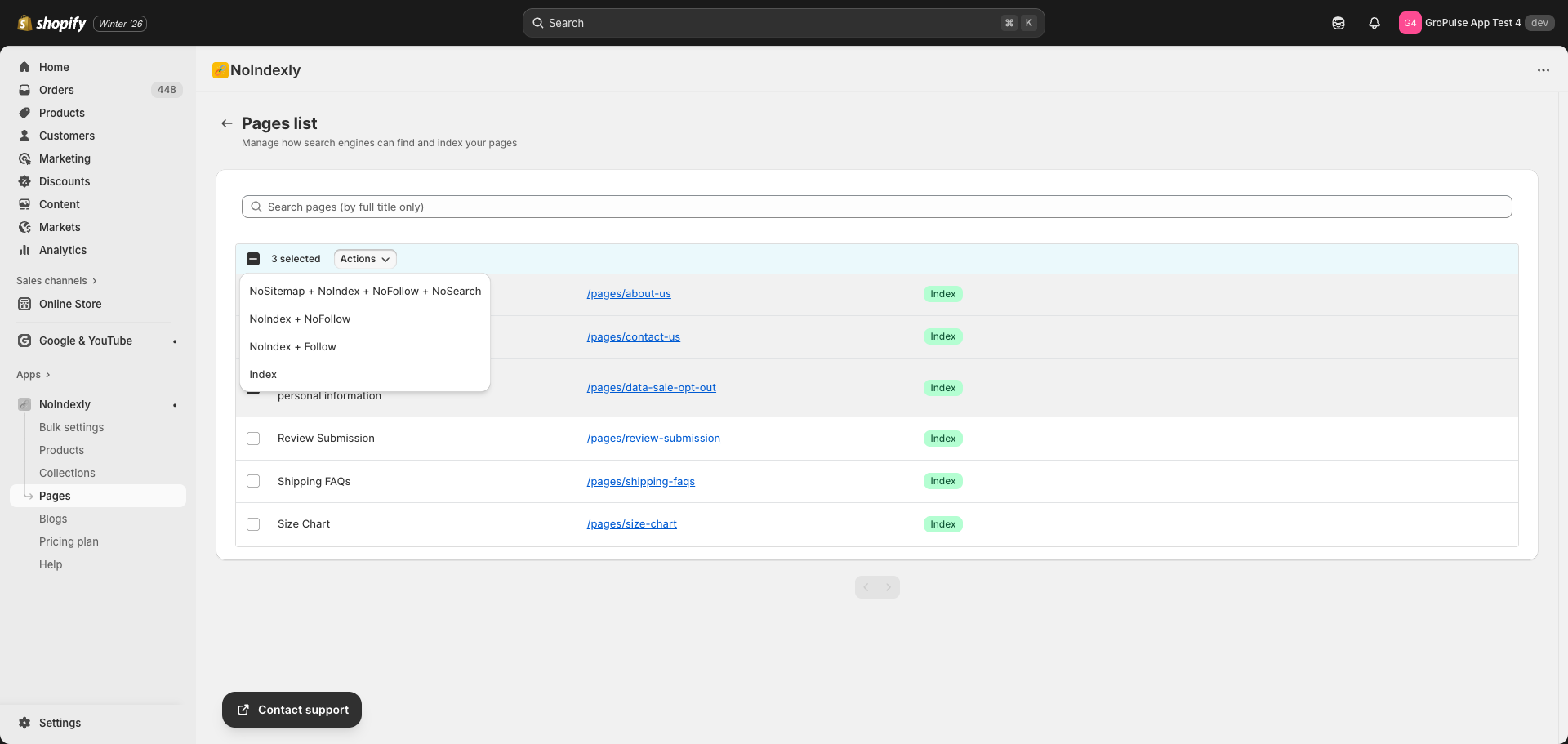
- Click the Actions dropdown button that appears
- Choose one of the following options:
| Action | What it does |
|---|---|
| NoSitemap + NoIndex + NoFollow + NoSearch | Completely hide from all search engines and your store’s search |
| NoIndex + NoFollow | Hide from search results and do not follow links |
| NoIndex + Follow | Hide from search results but allow links to be followed |
| Index | Allow the page to appear in search results (default) |
- The status will be applied to all selected pages
Understanding Each Index Option
Index (Default)
- Page appears in Google and other search engines
- Links on the page are followed by search crawlers
- This is the normal setting for most content pages
NoIndex + NoFollow
- Page does not appear in search engine results
- Search engines do not follow links on this page
- Use for: Internal pages, policy drafts, or temporary pages
NoIndex + Follow
- Page does not appear in search engine results
- Search engines still follow links to other pages
- Use for: Navigation pages or pages that link to important content
NoSitemap + NoIndex + NoFollow + NoSearch
- Complete removal from all search visibility
- Excludes from XML sitemap
- Hides from your store’s internal search
- Applies NoIndex and NoFollow
- Use for: Test pages or pages that should be completely hidden
Pagination
If you have many pages, they will be split across multiple screens:
- Use the Previous and Next buttons at the bottom of the list
- The page scrolls to the top automatically when changing pages
Common Store Pages
Here are recommendations for common store pages:
Pages to Keep Indexed
| Page Type | Why Keep Indexed |
|---|---|
| About Us | Builds trust and can rank for brand searches |
| Contact | Important for customer service and local SEO |
| FAQ | Answers common questions and attracts search traffic |
| Shipping Information | Customers search for this before purchasing |
| Size Guides | Attracts product-related searches |
Pages to Consider NoIndexing
| Page Type | Why Consider NoIndex |
|---|---|
| Password-protected pages | Content not accessible to search engines anyway |
| Thank you pages | Only relevant after purchase |
| Landing pages for ads | May duplicate other content |
| Legal pages (sometimes) | Terms of service rarely need search ranking |
Troubleshooting
Pages not showing in the list
- Make sure pages exist in your Shopify admin (Online Store > Pages)
- Try clearing the search field
- Check if pages are on a different page (use pagination)
Status not updating after selection
- Wait a few seconds for the change to save
- Refresh the page if the status does not update
- Check for any error messages
Last updated on February 16, 2026
Was this article helpful?
Powered by Support Genix