
Control how search engines discover and display your blogs and individual articles. You can set indexing rules for both blog landing pages and individual blog posts.
Overview
NoIndexly allows you to manage:
- Blogs – The main blog pages (e.g., /blogs/news)
- Articles – Individual blog posts within each blog
This gives you complete control over your content marketing SEO.
Accessing the Blogs Section
- From the dashboard, click the Blogs card in Quick Settings
OR
- Click Blogs in the left sidebar navigation
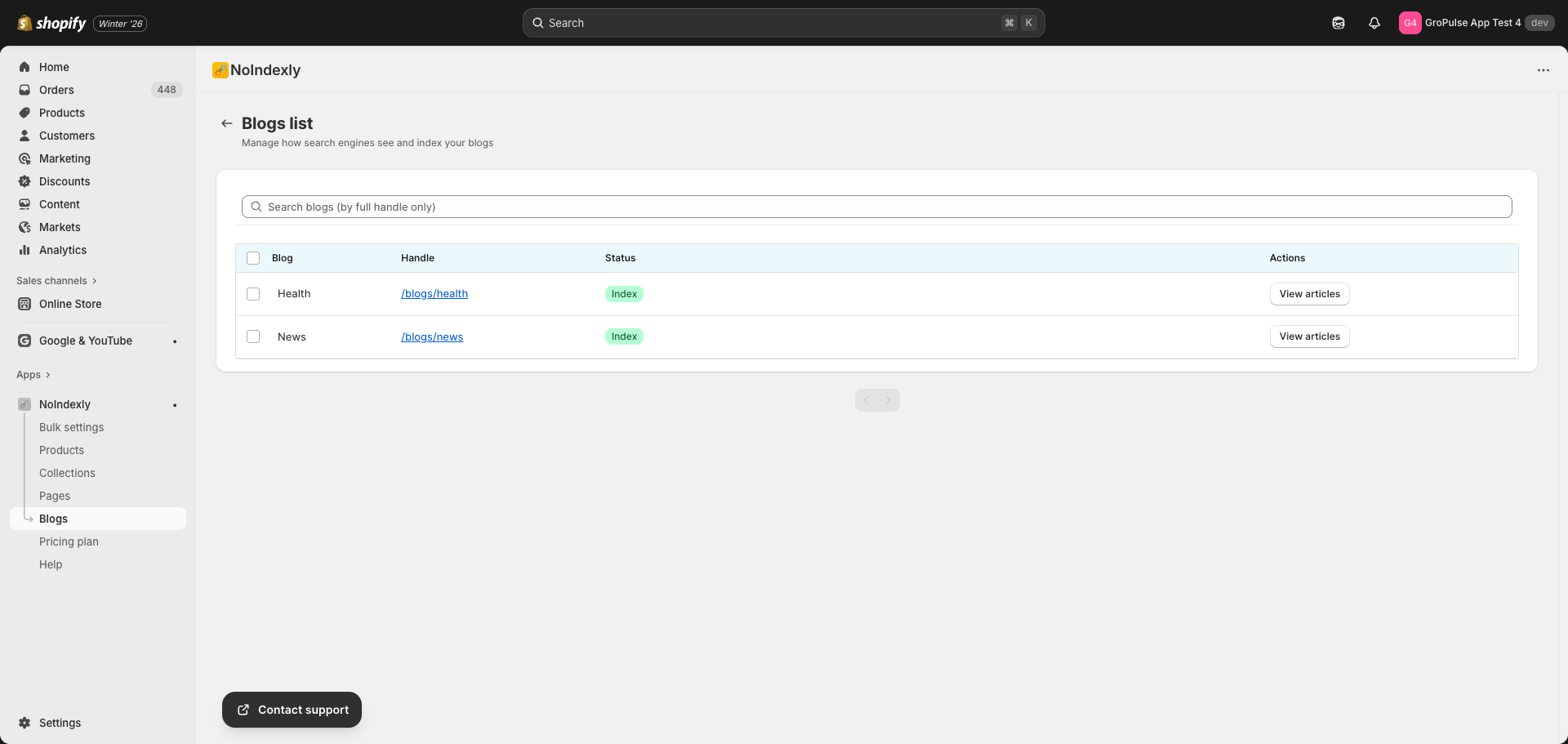
Understanding the Blogs List
The blogs list shows:
| Column | Description |
|---|---|
| Blog | The blog title |
| Handle | The URL path (e.g., /blogs/news) – click to view on your store |
| Status | Current indexing status of the blog landing page |
| Actions | Button to view articles within this blog |
Status Badges
| Badge | Meaning |
|---|---|
| Index (green) | Blog appears in search results normally |
| NoIndex + NoFollow (gray) | Blog is hidden from search results, links not followed |
| NoIndex + Follow (blue) | Blog is hidden from search results, but links are followed |
| No Sitemap + NoIndex + NoFollow + No Search (gray) | Complete exclusion from all search visibility |
Managing Blog Indexing
Changing Blog Index Status
- Check the checkbox next to the blog(s) you want to update
- Click the Actions dropdown button
- Choose your preferred indexing option:
- NoSitemap + NoIndex + NoFollow + NoSearch
- NoIndex + NoFollow
- NoIndex + Follow
- Index
Note: Changing a blog’s index status does not affect its articles. Each article has its own independent index status.
Viewing and Managing Articles
Accessing Articles
To manage articles within a specific blog:
- Find the blog in the list
- Click the View articles button in the Actions column
- You will be taken to the article list for that blog
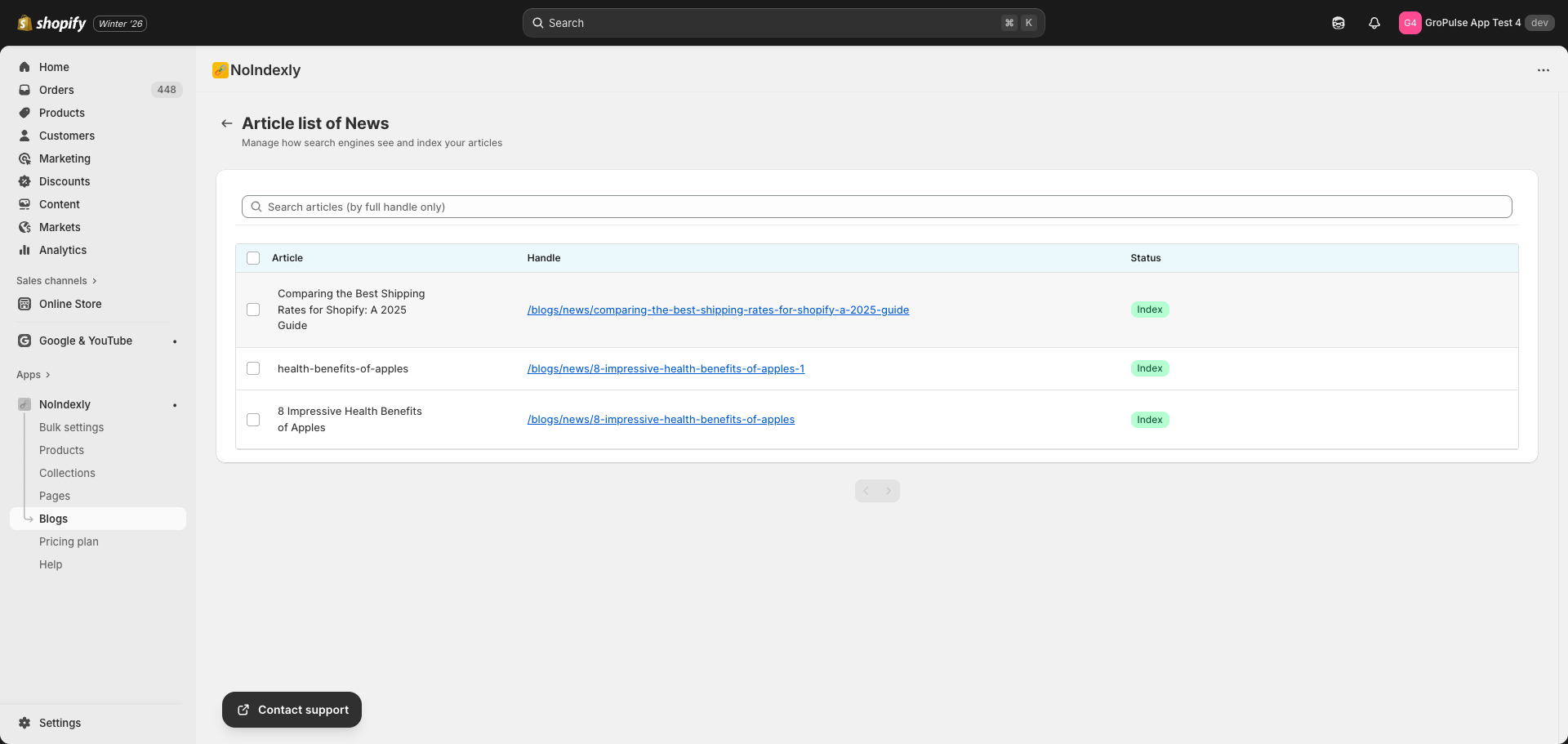
Understanding the Articles List
The articles list shows:
| Column | Description |
|---|---|
| Article | The article title |
| Handle | The full URL path (e.g., /blogs/news/my-first-post) – click to view |
| Status | Current indexing status of the article |
Changing Article Index Status
- Check the checkbox next to the article(s) you want to update
- Click the Actions dropdown button
- Choose your preferred indexing option
- The status will be applied to all selected articles
Returning to Blogs List
Click the back arrow or Back button at the top of the page to return to the main blogs list.
Searching
Searching Blogs
- Type the full blog handle in the search field
- The search filters by the URL handle, not the title
- Click the X button to clear your search
Searching Articles
- Type the full article handle in the search field
- The search requires matching the complete handle
- Click the X button to clear your search
Note: Both blog and article searches require the full handle for accurate results.
Understanding Index Options
Index (Default)
- Content appears in Google and other search engines
- Links are followed by search crawlers
- Best for content you want to attract search traffic
NoIndex + NoFollow
- Content does not appear in search engine results
- Search engines do not follow links on the page
- Use for: Outdated posts, internal announcements, or draft content
NoIndex + Follow
- Content does not appear in search engine results
- Search engines still follow links to other pages
- Use for: Posts that link to products but do not need to rank themselves
NoSitemap + NoIndex + NoFollow + NoSearch
- Complete removal from all search visibility
- Excludes from XML sitemap
- Hides from your store’s internal search
- Use for: Test posts or content that should be completely hidden
Blog vs. Article Indexing
Understanding the difference:
- Blog page (/blogs/news): Lists all articles in the blog
- Article page (/blogs/news/article-title): The individual post
You might want to:
- Index the blog page but NoIndex certain articles
- NoIndex the blog page but keep valuable articles indexed
- Set both blog and articles based on your content strategy
Pagination
Both the blogs list and articles list support pagination:
- Use the Previous and Next buttons at the bottom
- The page scrolls to the top automatically when changing pages
Troubleshooting
Blogs or articles not showing
- Make sure content exists in your Shopify admin (Content > Blog posts)
- Try clearing the search field
- Check if items are on a different page (use pagination)
Status not updating
- Wait a few seconds for the change to save
- Refresh the page if the status does not update
- Check for any error messages
Last updated on February 16, 2026
Was this article helpful?
Powered by Support Genix