
The Product Page Bar displays a shipping progress bar directly on your product pages, near the Add to Cart button. This strategic placement shows customers the free shipping incentive right when they’re making purchase decisions.
Plan Required: Growth Plan
Overview
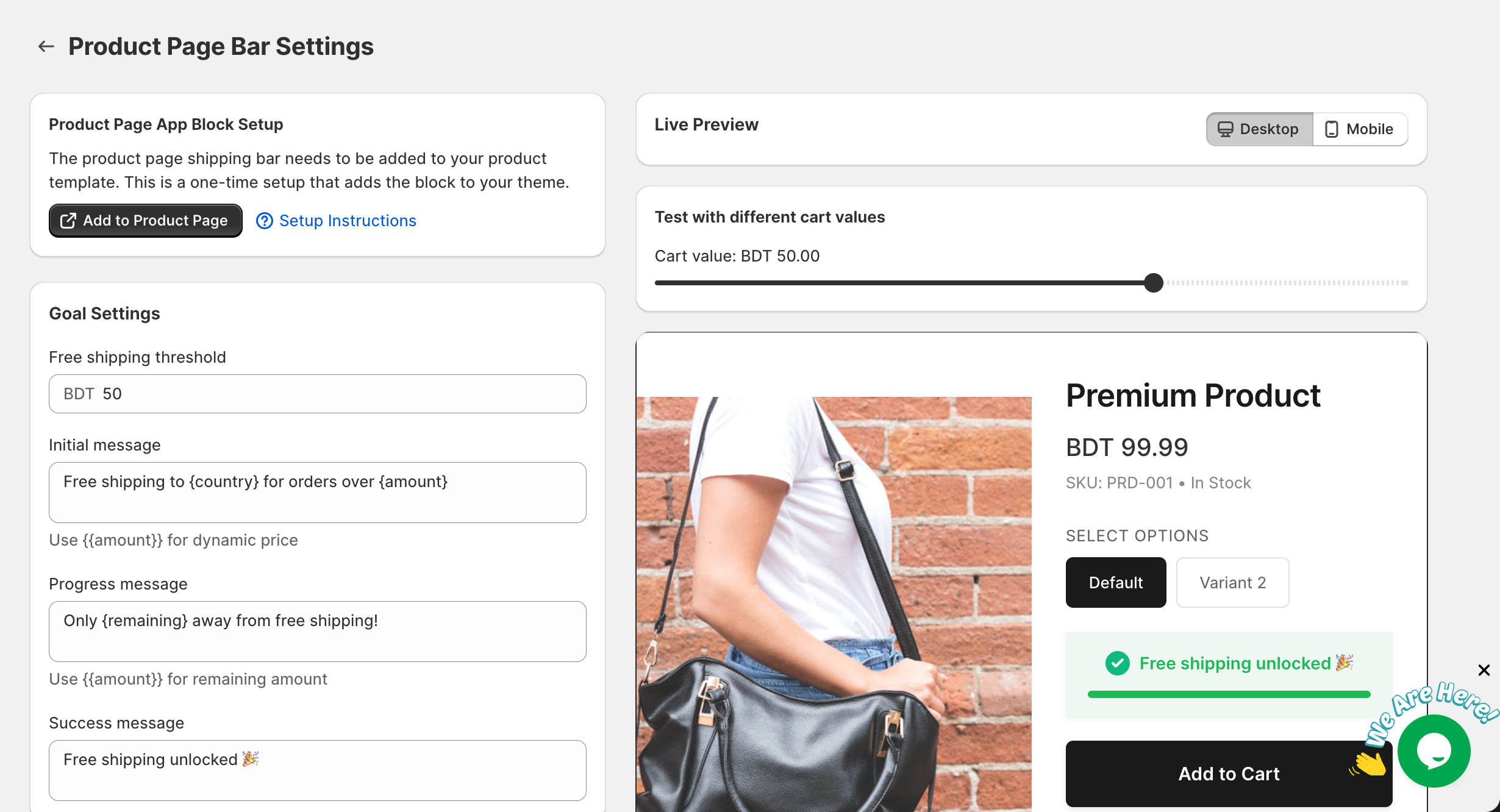
The Product Page Bar appears as a styled card on your product template, showing:
- A customizable message about free shipping progress
- A visual progress bar
- An optional shipping icon
- Automatic cart value calculation
Prerequisites
- GroPulse Free Shipping Bar app installed
- Growth Plan subscription (or higher)
- App block added to your product template
Adding the App Block to Your Theme
Unlike the Top/Bottom Bar which uses an app embed, the Product Page Bar requires adding an app block to your product template.
Step-by-Step Setup
- Open the GroPulse Free Shipping Bar app
- Click Configure on the Product Page card
- Look for the Product Page App Block Setup banner
- Click Add to Product Page
- This opens your Shopify theme customizer on the product template
- The app block will be added to the main product section
- Drag the block to your preferred position (recommended: below Add to Cart button)
- Click Save in the theme customizer
Repositioning the Block
Once added, you can move the block:
- Go to Online Store > Themes > Customize
- Select Products > Default product
- Find the GP Product Page Bar block in the left sidebar
- Drag it to your preferred position
- Save your changes
Recommended positions:
- Below the Add to Cart button (most effective)
- Above the Add to Cart button
- Below variant selectors
- Below product description
Accessing Product Page Bar Settings
- Open the GroPulse Free Shipping Bar app
- Click Configure on the Product Page card
- Configure settings on the left side and preview on the right
Goal Settings
Configure your free shipping threshold and customer-facing messages.
Free Shipping Threshold
The minimum cart value for free shipping.
To configure:
- Enter the amount in the threshold field
- Currency is automatically detected from your store settings
Initial Message
Displayed when the customer’s cart is empty.
Default: Free shipping to {country} for orders over {amount}
Variables:
{country}– Customer’s country{amount}– Threshold amount with currency
Progress Message
Shown when the customer has items but hasn’t reached the goal.
Default: Only {remaining} away from free shipping!
Variables:
{remaining}– Amount needed to reach free shipping
Success Message
Celebrates when the customer qualifies for free shipping.
Default: Free shipping unlocked!
Design Settings
Customize the appearance to match your store’s branding.
Card Design
Progress Background Color
Background color of the bar when the customer is still working toward free shipping.
Default: #ffffff (white)
Success Background Color
Background color when free shipping is achieved.
Default: #eef7f2 (light green)
Corner Radius
Roundness of the bar corners.
- Range: 0px to 50px
- 0px = square corners
- Higher values = more rounded
Border Size
Thickness of the bar border.
- Range: 0px to 10px
- 0px = no border
Progress Bar
Customize the progress indicator.
Progress Bar Background
The track color (unfilled portion).
Default: #a1a1a133 (light gray)
Progress Bar Fill Color (Incomplete)
Color of the filled portion during progress.
Default: #f5b540 (gold)
Progress Bar Fill Color (Complete)
Color when the progress bar is full.
Default: #1eba58 (green)
Progress Bar Radius
Roundness of the progress bar.
- Range: 0px to 25px
Typography
Configure text appearance.
Message Text Size
Size of the main message.
- Range: 12px to 24px
- Default: 14px
Message Text Color
Color of the message text.
Default: #000000 (black)
Price Text Size
Size of price/amount values.
- Range: 12px to 28px
- Default: 14px
Price Text Color
Color of price values.
Default: #f5b540 (gold)
Success Message Color
Message color when goal is achieved.
Default: #1eba58 (green)
Display Settings
Control visibility and targeting.
Show Icons
Toggle the visibility of the shipping truck icon:
- Show icons: Displays truck icon with message
- Hide icons: Text only
Device Target
Choose which devices see the bar:
| Option | Description |
|---|---|
| All devices | Desktop, tablet, and mobile |
| Desktop only | Only computers |
| Mobile only | Only smartphones |
| Tablet only | Only tablets |
Country Targeting
Limit visibility by country:
- All countries: Everyone sees the bar
- Selected countries: Only specific countries
When "Selected countries" is chosen, enter country codes separated by commas (e.g., "US, CA, UK").
Status
Toggle the bar on or off:
- Active: Bar is visible on your store
- Inactive: Bar is hidden (settings preserved)
Schedule Settings
Requires Growth Plan
Display the bar only during specific times.
Enable Scheduling
Check to activate scheduling features.
Schedule Types
| Type | Description |
|---|---|
| Always Show | Bar displays continuously |
| Date Range | Show only between specific dates |
| Days of Week | Show on selected days |
| Time-Based | Show during specific hours |
Timezone Selection
Choose your timezone for accurate scheduling.
Countdown Timer
Requires Growth Plan
Add urgency with an inline countdown timer.
Enable Countdown Timer
Check to display a countdown timer with the message.
Timer Duration
Set the countdown:
- Minutes: 0-59
- Seconds: 0-59
Timer Color
Choose the timer display color.
Default: #e74c3c (red)
Note: The timer creates urgency but resets on page refresh.
Live Preview
Preview your bar in real-time with a simulated product page.
Test Cart Values
Use the slider to simulate different cart amounts:
- Slide left for lower values (progress state)
- Slide right for higher values (success state)
- See how messages change dynamically
Device Preview
Toggle between:
- Desktop: Two-column layout preview
- Mobile: Single-column mobile layout
Saving Changes
- Make your desired changes
- The save bar appears at the top
- Click Save to apply changes
- Click Discard to revert
Best Practices
Placement Recommendations
Below Add to Cart (Recommended)
- Highest visibility when customer is ready to buy
- Reinforces the value proposition at decision point
Above Add to Cart
- Visible before the main CTA
- Good for stores with long product descriptions
Design Tips
- Match your theme: Use colors that complement your store design
- Don’t overwhelm: Keep the bar subtle but noticeable
- Test mobile: Ensure readability on small screens
Message Optimization
- Be specific about the benefit
- Use action-oriented language
- Keep messages concise
Good examples:
- "Add $15 more for FREE shipping!"
- "So close! Just $10 away from free shipping"
Avoid:
- Very long messages that wrap multiple lines
- Complicated language
Combining with Other Bars
If using with Top/Bottom Bar:
- Consider different messaging approaches
- Use consistent branding/colors
- Don’t overwhelm with too many bars
Troubleshooting
The bar isn’t showing on product pages
- Check app block installation
- Go to theme customizer
- Verify the GP Product Page Bar block is added
- Make sure it’s visible (not hidden)
- Check plan access
- Product Page Bar requires Growth Plan
- Upgrade if needed
- Verify status
- Make sure bar status is "Active"
- Clear cache
- Clear browser cache
- Try incognito mode
The bar shows in wrong position
- Go to theme customizer
- Find the GP Product Page Bar block
- Drag it to your preferred position
- Save changes
Changes aren’t appearing
- Make sure you clicked Save
- Clear browser cache
- Check theme customizer – the block might be hidden
Progress bar shows wrong values
- The bar uses the actual cart total from your store
- Test by adding real products to your cart
- The preview slider is for testing only
Common Questions
Q: Does this work with all themes? A: It works with all Online Store 2.0 themes that support app blocks.
Q: Can I use this on specific products only? A: The bar shows on all products when added to the default product template. For product-specific control, create alternate product templates.
Q: Will it slow down my product pages? A: No, the app is optimized for performance and loads asynchronously.
Q: Can I have different thresholds per product? A: Currently, one threshold applies to all products. The bar shows progress toward that single goal.
For more help, see the FAQ or contact support.