
The Cart Page Bar displays a shipping progress bar on your store’s cart page. This is a critical touchpoint where customers review their items before checkout, making it an ideal place to encourage adding more items to reach free shipping.
Plan Required: Growth Plan
Overview
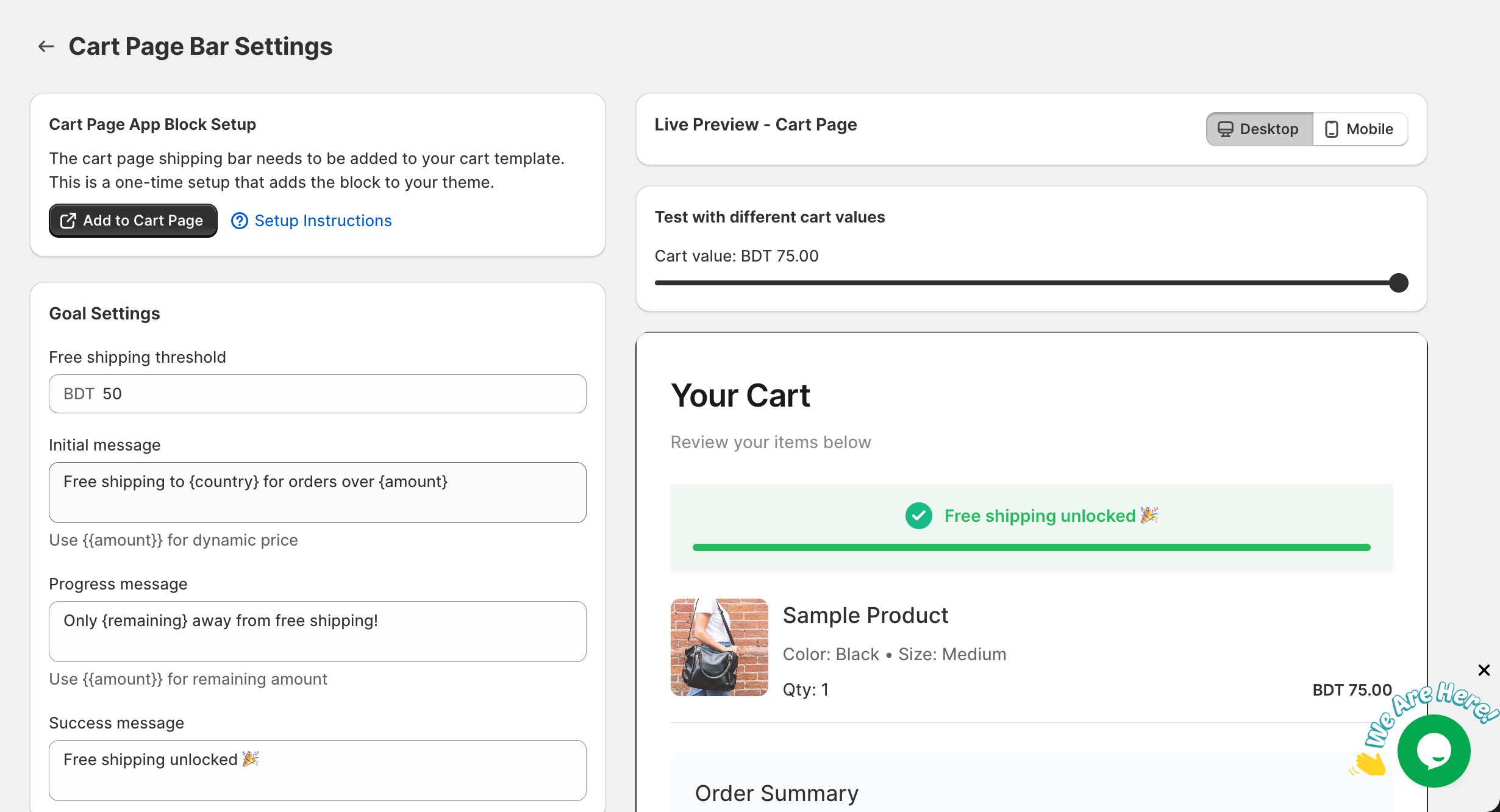
The Cart Page Bar appears as a styled card on your cart page, showing:
- Dynamic messages based on cart total
- A visual progress bar showing how close the customer is to free shipping
- Optional shipping truck icon
- Real-time updates as cart contents change
Prerequisites
- GroPulse Free Shipping Bar app installed
- Growth Plan subscription (or higher)
- App block added to your cart template
Adding the App Block to Your Theme
The Cart Page Bar requires adding an app block to your cart page template.
Step-by-Step Setup
- Open the GroPulse Free Shipping Bar app
- Click Configure on the Cart Page card
- Look for the Cart Page App Block Setup banner
- Click Add to Cart Page
- The Shopify theme customizer opens
- The app block is added to your cart template
- Position the block where you want it to appear
- Click Save
Recommended Positions
- Above cart items: First thing customers see
- Below cart items: Before they proceed to checkout
- Above order summary: Near the totals
- Above checkout button: Final reminder before checkout
Accessing Cart Page Bar Settings
- Open the GroPulse Free Shipping Bar app
- Click Configure on the Cart Page card
- Settings appear on the left, live preview on the right
Goal Settings
Set your free shipping threshold and customize messages.
Free Shipping Threshold
The cart total required for free shipping.
Configuration:
- Enter your threshold amount
- Currency matches your store settings
Initial Message
Shown when the cart is empty or newly started.
Default: Free shipping to {country} for orders over {amount}
Variables:
{country}– Customer’s detected country{amount}– Threshold with currency symbol
Progress Message
Displayed when the customer has items but needs more.
Default: Only {remaining} away from free shipping!
Variables:
{remaining}– Amount needed with currency
Success Message
Celebrates reaching the free shipping goal.
Default: Free shipping unlocked!
Design Settings
Customize the bar’s appearance to match your store.
Card Design
Progress Background Color
Background when still working toward free shipping.
Default: #ffffff (white)
Success Background Color
Background when free shipping is achieved.
Default: #eef7f2 (light green)
Corner Radius
How rounded the corners are.
- Range: 0px to 30px
- 0px = square, higher = more rounded
Border Size
Thickness of the border around the bar.
- Range: 0px to 8px
Layout Width
Choose how the bar spans the page:
- Full width: Stretches across the entire cart area
- Content width: Matches the width of cart content
Progress Bar
Progress Bar Background
The unfilled track color.
Default: #a1a1a133 (light gray)
Progress Bar Fill Color (Incomplete)
Color during progress toward goal.
Default: #f5b540 (gold)
Progress Bar Fill Color (Complete)
Color when goal is reached.
Default: #1eba58 (green)
Progress Bar Radius
Roundness of the progress bar.
- Range: 0px to 20px
Typography
Message Text Size
Main message font size.
- Range: 14px to 28px
- Default: 14px
Message Text Color
Color of message text.
Default: #000000 (black)
Price Text Size
Font size for price amounts.
- Range: 16px to 32px
- Default: 14px
Price Text Color
Color of price/amount values.
Default: #f5b540 (gold)
Success Message Color
Text color for success state.
Default: #1eba58 (green)
Display Settings
Control where, when, and to whom the bar appears.
Show Icons
Toggle the shipping truck icon:
- Show icons: Displays icon with message
- Hide icons: Message text only
Animation
Choose how the bar appears:
| Animation | Description |
|---|---|
| Slide Down | Bar slides in from the top |
| Fade In | Bar gradually appears |
| Scale In | Bar grows from center |
| None | Bar appears instantly |
Show on Empty Cart
Control visibility when cart is empty:
- Yes, show on empty cart: Shows initial message even with no items
- No, hide on empty cart: Only shows when cart has items
Tip: Showing on empty cart can encourage browsing customers to start shopping.
Device Target
Select which devices display the bar:
| Option | Description |
|---|---|
| All devices | Desktop, tablet, and mobile |
| Desktop only | Only computers |
| Mobile only | Only smartphones |
| Tablet only | Only tablets |
Country Targeting
Limit visibility by location:
- All countries: Universal visibility
- Selected countries: Specific countries only
Enter country codes separated by commas when selecting specific countries.
Status
Toggle bar visibility:
- Active: Bar shows on your store
- Inactive: Bar is hidden (settings saved)
Schedule Settings
Requires Growth Plan
Schedule when the bar appears.
Enable Scheduling
Activate time-based display rules.
Schedule Types
| Type | Use Case |
|---|---|
| Always Show | No time restrictions |
| Date Range | Holiday promotions, sales events |
| Days of Week | Weekend-only offers |
| Time-Based | Flash sales, happy hour deals |
Timezone
Select your business timezone for accurate scheduling.
Countdown Timer
Requires Growth Plan
Create urgency with a countdown display.
Enable Countdown Timer
Adds a countdown next to the shipping message.
Timer Duration
- Minutes: 0-59
- Seconds: 0-59
Timer Color
Color of the countdown display.
Default: #e74c3c (red)
Live Preview
See your bar in real-time with a simulated cart page.
Test Cart Values
Simulate different cart totals:
- Slide left for lower values
- Slide right to test success state
- Watch messages and progress update
Device Preview
Switch between:
- Desktop: Full cart layout
- Mobile: Compact mobile view
Saving Changes
- Make your changes
- Save bar appears at top
- Click Save to apply
- Wait for confirmation
Best Practices
Cart Page Strategy
The cart page is a high-intent page – customers here are ready to buy. Use this opportunity wisely:
Message Tips:
- Be encouraging, not pushy
- Highlight the specific amount needed
- Celebrate when goal is reached
Design Tips:
- Make the bar noticeable but not overwhelming
- Use colors that stand out from your cart design
- Ensure mobile readability
Positioning for Maximum Impact
Above Cart Items
- First thing customers see
- Sets expectation before reviewing items
- Good for immediate impact
Below Cart Items
- Seen after reviewing cart
- Natural point before checkout decision
- Good for final push
Above Checkout Button
- Last reminder before checkout
- Highest urgency position
- Good for converting close-to-threshold carts
Animation Recommendations
- Slide Down: Good for catching attention
- Fade In: Subtle and elegant
- None: Clean and straightforward
Empty Cart Consideration
Show on empty cart if:
- You want to encourage browsing
- Your cart page has "continue shopping" elements
Hide on empty cart if:
- Your empty cart has other CTAs
- You want to minimize distractions
Troubleshooting
Bar not appearing on cart page
- Verify app block is added
- Go to Theme Customizer
- Navigate to cart page template
- Check for GP Cart Page Bar block
- Check plan access
- Cart Page Bar requires Growth Plan
- Verify status
- Status must be "Active"
- Clear cache
- Browser cache
- Theme cache (re-save theme)
Bar in wrong position
- Open Theme Customizer
- Go to cart template
- Drag the block to desired position
- Save changes
Progress not updating
- Make sure you’re viewing the live store
- The preview uses a slider for testing
- Real cart uses actual cart total
Styling conflicts with theme
If your theme’s cart page has custom styling:
- Adjust corner radius to match
- Use complementary colors
- Test on multiple browsers
Common Questions
Q: Does it work with ajax carts? A: The bar updates when cart contents change. For ajax carts, there may be a brief delay.
Q: Can I show different bars above and below items? A: Add multiple instances of the app block and position them accordingly.
Q: Will it work with one-page checkout? A: The cart page bar appears on the standard cart page. For checkout, consider the Cart Drawer Bar for ajax carts.
Q: Does it calculate shipping automatically? A: It compares cart total to your set threshold, not actual shipping rates.
For more help, see the FAQ.