
Connect your Google Business Profile to start displaying reviews on your Shopify store. You can add your location by searching for your business name or by entering your Google Place ID.
Before You Begin
Make sure you have:
- GroPulse Google Reviews installed on your Shopify store
- A Google Business Profile (your business must be listed on Google Maps)
- Reviews on your Google Business Profile (recommended, but not required)
Don’t have a Google Business Profile?
Create one for free at Google Business Profile. It takes about 15 minutes to set up and verify.
Accessing the Add Location Modal
- Navigate to Manage locations from the sidebar
- Click the Add location button in the Locations overview section
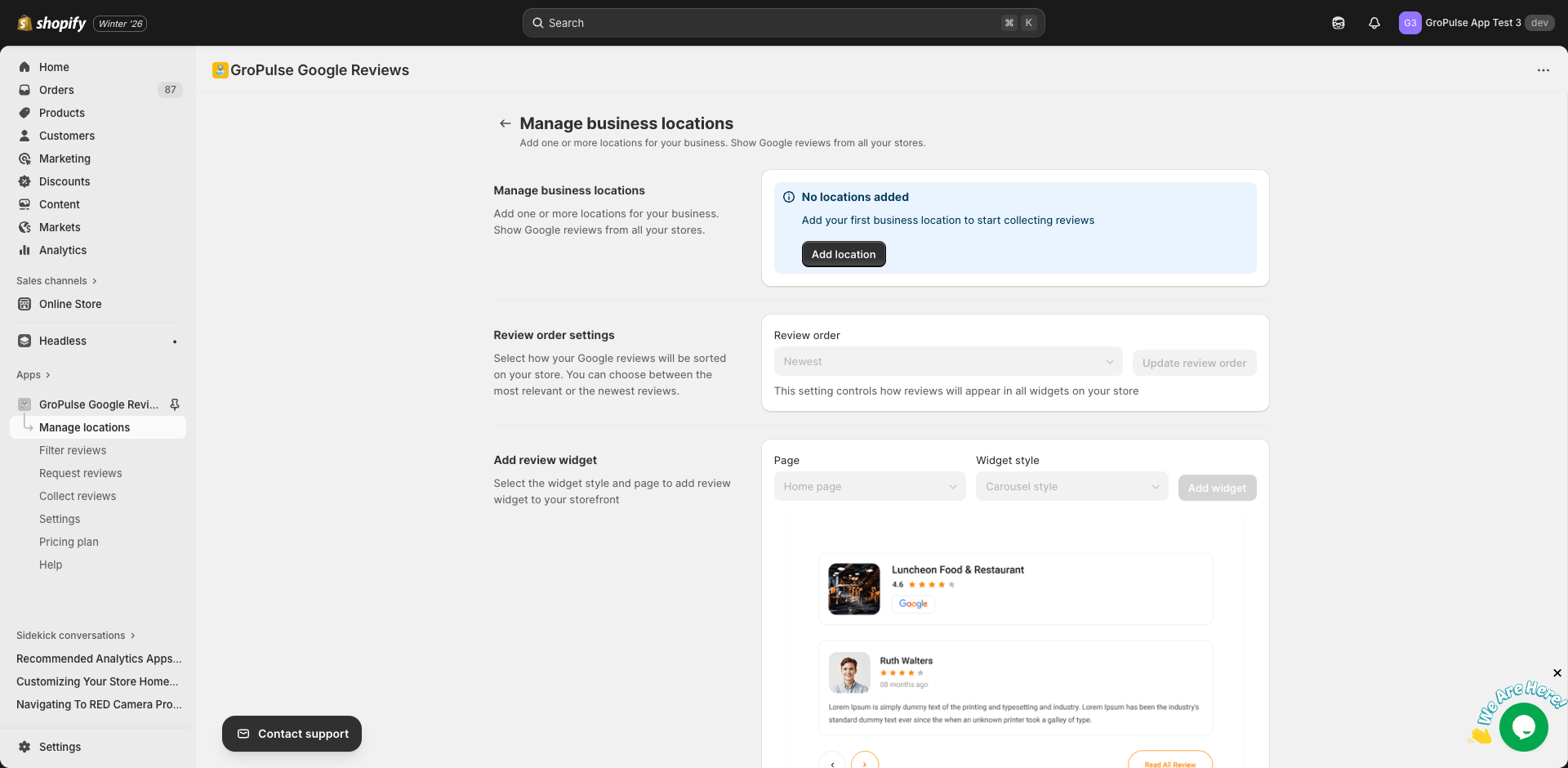
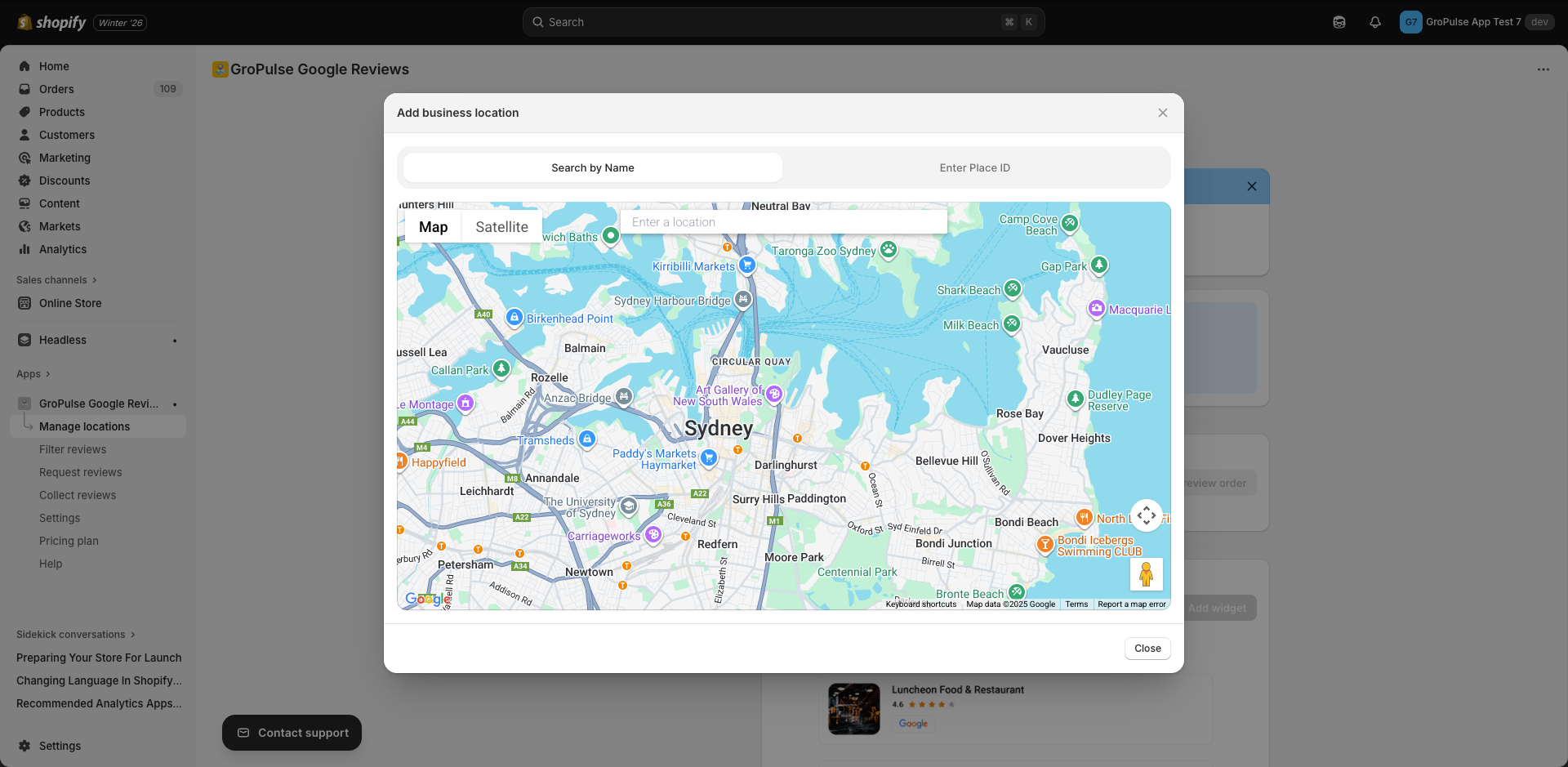
The Add location modal will open with two options:
- Search by Name — Find your business on Google Maps
- Enter Place ID — Manually enter your Google Place ID
Method 1: Search by Name (Recommended)
This is the easiest way to add your location.
Steps
- Make sure the Search by Name tab is selected
- Type your business name in the search field
- Select your business from the dropdown suggestions
- The map will zoom to your location with a marker
- Review the business details in the info window
- Click Select to add this location
Tips for Finding Your Business
- Use your exact business name as it appears on Google Maps
- Include your city if you have a common business name (e.g., “Joe’s Pizza New York”)
- Try your address if the business name doesn’t show results
- If your business doesn’t appear, use the Place ID method instead
Method 2: Enter Place ID
Use this method if:
- Your business doesn’t appear in search results
- You have the exact Place ID from Google
- You want to ensure you’re adding the correct location
Finding Your Place ID
Option A: From Google Maps URL
- Go to Google Maps
- Search for your business
- Click on your business listing
- Look at the URL — the Place ID appears after
place/or in the!1sparameter
Option B: Using Google’s Place ID Finder
- Visit Google’s Place ID Finder
- Search for your business
- Click on your business in the results
- Copy the Place ID shown
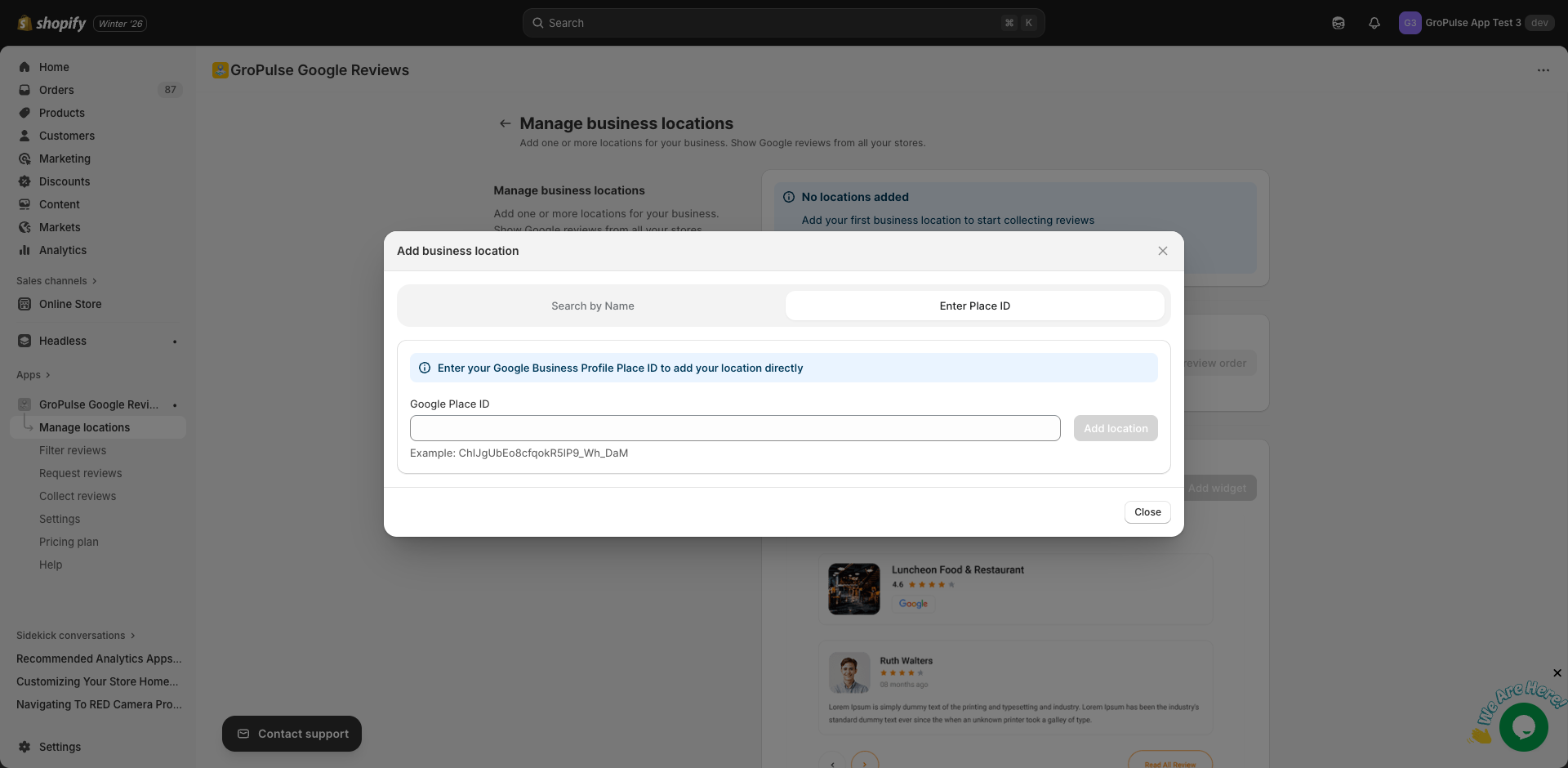
Adding the Place ID
- Click the Enter Place ID tab in the modal
- Paste your Place ID in the input field
- Click Add location
Place ID Format
A valid Google Place ID looks like this:
ChIJN1t_tDeuEmsRUsoyG83frY4Place IDs:
- Start with
Chfollowed by alphanumeric characters - Are typically 20-30 characters long
- Are case-sensitive
After Adding Your Location
Once your location is added successfully:
- Reviews are fetched — The app automatically retrieves your Google reviews
- Location card appears — Your business shows in the Locations overview
- Primary status — Your first location is automatically set as Primary
What the Location Card Shows
| Element | Description |
|---|---|
| Business name | Your Google Business name |
| Address | Full formatted address |
| Rating | Average star rating (0-5) |
| Review count | Total number of Google reviews |
| Primary badge | Indicates this is your main location |
Troubleshooting
“No reviews found for this location”
This means your Google Business Profile either:
- Has no reviews yet
- Has reviews that couldn’t be fetched
Solutions:
- Verify you selected the correct business
- Check your Google Business Profile has public reviews
- Wait a few minutes and click Update reviews now
Business not appearing in search
Try these steps:
- Use your full business name exactly as shown on Google
- Add your city or address to the search
- Use the Place ID method instead
Invalid Place ID error
Check that:
- The Place ID is copied correctly (no extra spaces)
- You’re using a Place ID, not a different Google identifier
- The Place ID is for an active Google Business listing
Location already exists
You’ve already added this location. Each business can only be added once per store.
Managing Your Location
After adding your location, you can:
- Set as Primary Location — Make this your default location
- Remove Location — Delete this location from the Manage locations page
Next Steps
Now that your location is added:
- Add a review widget to display reviews on your store (see Quick Start Guide)
- Filter your reviews to show only the best ones
- Set up email requests to collect more reviews
Need Help?
- Video Tutorial: Watch our How to Add a Location guide
- Contact Support: gropulse.com/contact
- Live Chat: Available in the bottom-right corner of the app