
Control which reviews appear on your Shopify store. Filter by star rating, language, and quantity to showcase your best customer feedback and build trust with potential buyers.
Why Filter Reviews?
Filtering helps you:
- Showcase your best feedback — Display only 4-5 star reviews
- Target your audience — Show reviews in your customers’ language
- Control quantity — Limit reviews to prevent overwhelming visitors
- Improve conversion — Positive reviews boost customer confidence
Accessing Filter Options
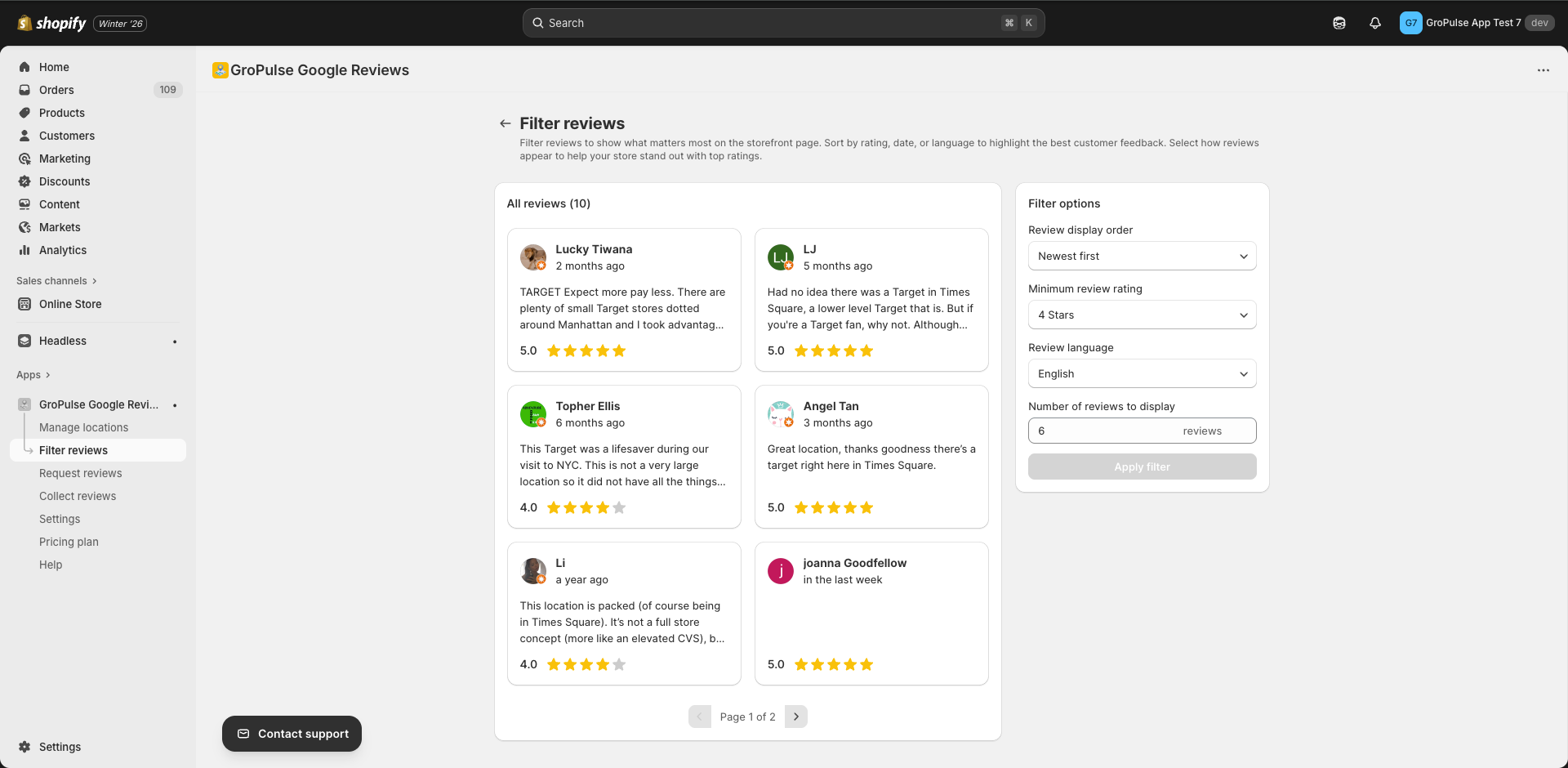
- Navigate to Filter reviews from the sidebar
- The filter options panel appears on the right side
- Your reviews (if any) display on the left
Filter Options
Review Display Order
Control the sequence in which reviews appear.
| Option | Description |
|---|---|
| Oldest first | Shows oldest reviews first |
| Newest first | Shows most recent reviews first |
When to use each:
- Newest first — Best for active businesses with recent reviews
- Oldest first — Useful if your early reviews are particularly strong
Minimum Review Rating
Show only reviews at or above a certain star rating.
| Setting | Reviews Shown |
|---|---|
| 1 Star | All reviews (no filter) |
| 2 Stars | 2, 3, 4, and 5 star reviews |
| 3 Stars | 3, 4, and 5 star reviews |
| 4 Stars | 4 and 5 star reviews only |
| 5 Stars | Only 5 star reviews |
Recommendations:
- 4 Stars — Most popular choice, shows positive reviews only
- 3 Stars — Balanced approach, includes neutral reviews
- 1 Star — Shows all reviews for full transparency
Pro Tip: Setting minimum rating to 4 stars typically increases conversion rates by showing only satisfied customers.
Review Language
Display reviews written in a specific language.
| Option | Description |
|---|---|
| Default | Shows all reviews regardless of language |
| Specific language | Shows only reviews in the selected language |
Available languages include:
- English
- Spanish
- French
- German
- Portuguese
- Italian
- Japanese
- Korean
- Chinese
- And 90+ more languages
When to filter by language:
- Your store serves a specific country/region
- You want reviews in the same language as your store
- You have reviews in multiple languages and want consistency
Number of Reviews to Display
Limit how many reviews appear on your store.
Considerations:
- Fewer reviews (5-10) — Clean look, loads faster
- More reviews (20-50) — More social proof, more scrolling
- Maximum available — Shows all filtered reviews
The maximum is limited to the total reviews that match your other filters.
Applying Filters
After configuring your filter options:
- Review your settings in the filter panel
- Click Apply filter
- Your widget will now display filtered reviews
Changes take effect immediately on your live store.
Understanding Review Counts
The filter page shows two important numbers:
| Display | Meaning |
|---|---|
| X reviews | Reviews currently displayed (after filters) |
| Y total | Total reviews available (before filters) |
Example: “Displaying 15 of 47 reviews” means:
- You have 47 total Google reviews
- 15 match your current filter settings
- 32 reviews are hidden by your filters
Filter Combinations
You can combine multiple filters. For example:
| Scenario | Settings |
|---|---|
| Best English reviews | Rating: 4 Stars, Language: English |
| Recent positive feedback | Order: Newest, Rating: 4 Stars |
| Top 10 reviews | Rating: 5 Stars, Count: 10 |
Filters work together — a review must match ALL criteria to appear.
Best Practices
For Most Stores
Rating: 4 Stars (minimum)
Language: Default (all)
Order: Newest first
Count: 10-20 reviews
For International Stores
Rating: 4 Stars (minimum)
Language: Match your store's primary language
Order: Newest first
Count: 15 reviews
For Maximum Social Proof
Rating: 3 Stars (minimum)
Language: Default (all)
Order: Newest first
Count: Maximum available
Troubleshooting
No reviews showing after filtering
Your filters may be too restrictive.
Solutions:
- Lower the minimum star rating
- Change language to “Default”
- Increase the number of reviews
- Click Apply filter to reset
Reviews not updating
After changing filters:
- Make sure you clicked Apply filter
- Refresh your store page
- Clear your browser cache if needed
Wrong language reviews appearing
The language filter depends on Google’s language detection, which isn’t always perfect.
Note: Some reviews may be miscategorized by Google.
Related Guides
Need Help?
- Contact Support: gropulse.com/contact
- Live Chat: Available in the bottom-right corner of the app