
Automatically request Google reviews from customers after they make a purchase. This guide covers everything from SMTP configuration to customizing your email template.
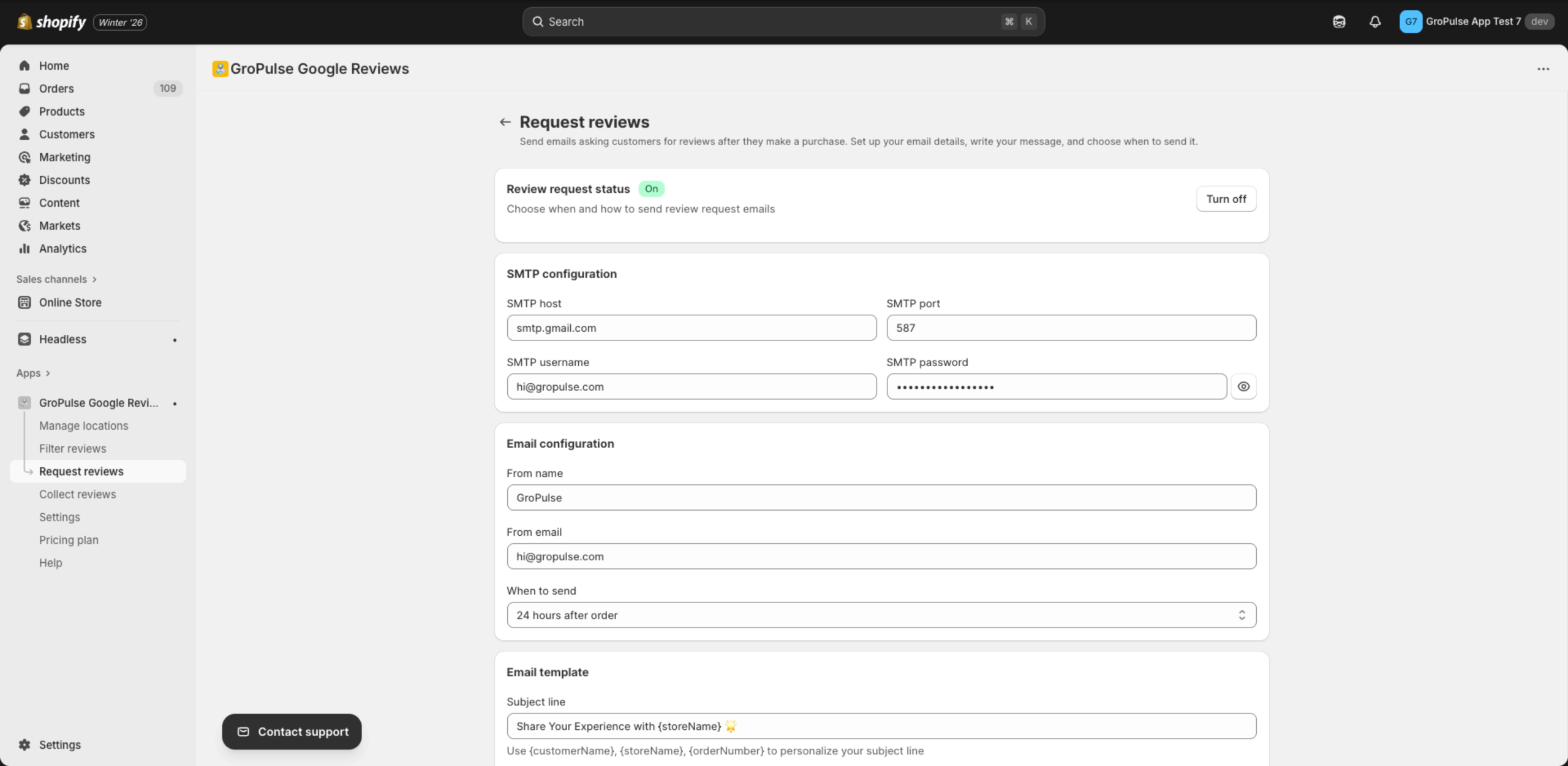
Overview
The email review request feature:
- Sends automatically after each order
- Customizable timing — 1 hour to 1 week after purchase
- Personalized emails — Uses customer name and order details
- Direct link — Takes customers straight to your Google review page
Plan Required: Email automation is available on Basic and Advanced plans. View plans
Step 1: Access Request Reviews
- Navigate to Request reviews from the sidebar
- You’ll see the configuration page with multiple sections
Step 2: Configure SMTP Settings
SMTP (Simple Mail Transfer Protocol) is required to send emails. You’ll need credentials from your email provider.
SMTP Fields
| Field | Description | Example |
|---|---|---|
| SMTP host | Your email provider’s server | smtp.gmail.com |
| SMTP port | Server port number | 587 |
| SMTP username | Your email address | store@example.com |
| SMTP password | App password or email password | xxxx-xxxx-xxxx |
Common SMTP Settings
Gmail
Host: smtp.gmail.com
Port: 587
Username: your-email@gmail.com
Password: Your App Password (not regular password)
Important: Gmail requires an App Password.
Outlook / Microsoft 365
Host: smtp.office365.com
Port: 587
Username: your-email@outlook.com
Password: Your password
Yahoo Mail
Host: smtp.mail.yahoo.com
Port: 587
Username: your-email@yahoo.com
Password: Your App Password
Custom Domain (Google Workspace)
Host: smtp.gmail.com
Port: 587
Username: your-email@yourdomain.com
Password: Your App Password
SendGrid
Host: smtp.sendgrid.net
Port: 587
Username: apikey
Password: Your SendGrid API Key
Mailgun
Host: smtp.mailgun.org
Port: 587
Username: Your Mailgun SMTP username
Password: Your Mailgun SMTP password
Step 3: Configure Email Settings
Sender Information
| Field | Description | Best Practice |
|---|---|---|
| From name | Name shown in recipient’s inbox | Your store name |
| From email | Email address shown to recipients | Same as SMTP username |
Tip: Use your store name as the “From name” for brand recognition.
When to Send
Choose how long after an order the email should be sent:
| Timing | Best For |
|---|---|
| 1 hour | Digital products, instant delivery |
| 6 hours | Same-day delivery |
| 12 hours | Quick shipping |
| 24 hours | Most physical products (Recommended) |
| 48 hours | Standard shipping |
| 72 hours | Longer shipping times |
| 1 week | International orders |
Recommendation: 24 hours works best for most stores — customers have received their order and the purchase is still fresh.
Step 4: Customize Email Template
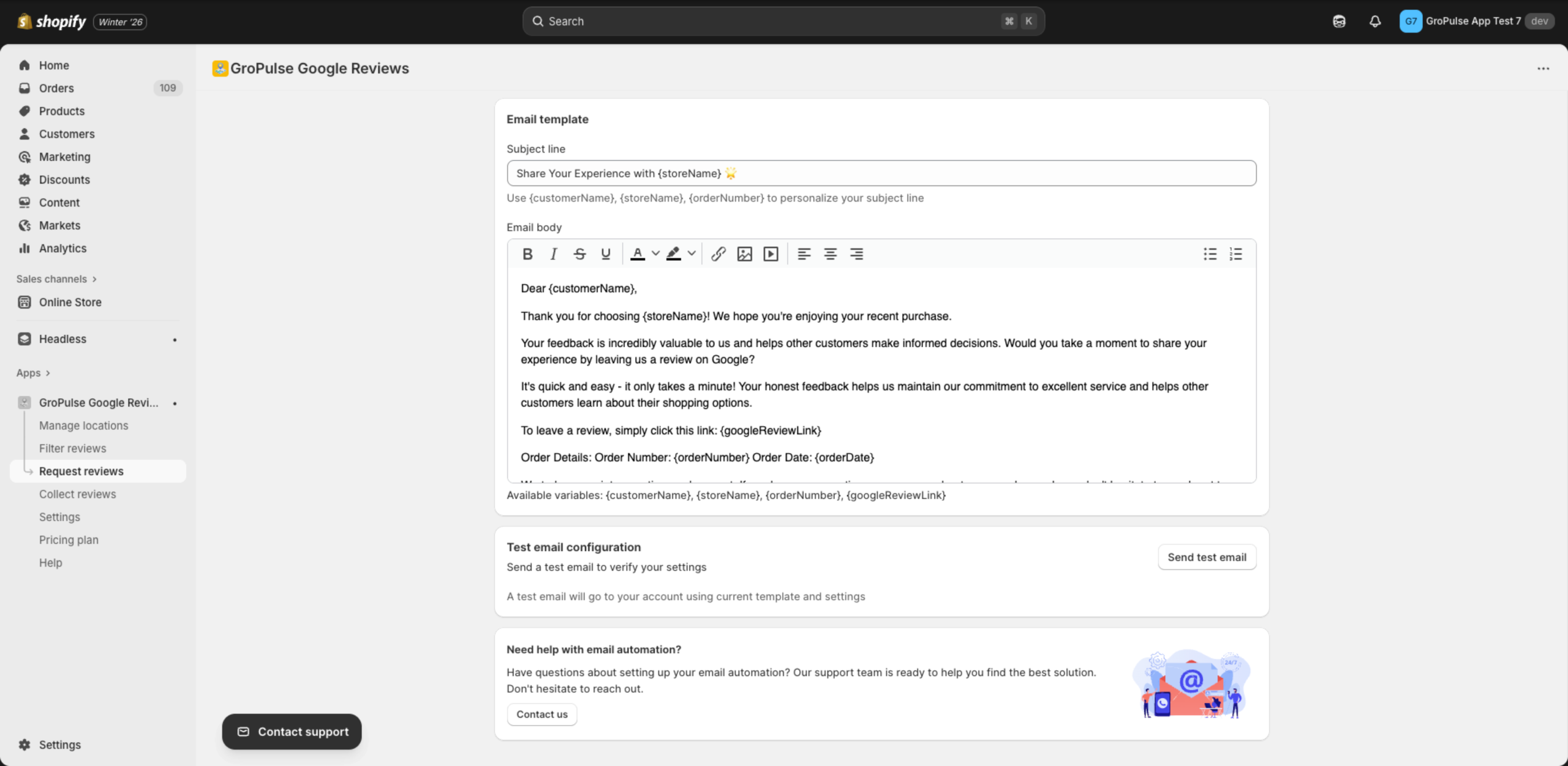
Subject Line
Write a compelling subject that encourages opens.
Good examples:
Share Your Experience with {storeName} ⭐How was your order, {customerName}?We'd love your feedback on order #{orderNumber}
Tips:
- Keep it under 50 characters
- Use personalization variables
- Add an emoji for higher open rates
Email Body
Use the rich text editor to craft your message.
Editor features:
- Bold, italic, underline, strikethrough
- Text color and background color
- Links and images
- Text alignment
- Bullet and numbered lists
Template Variables
Personalize your emails with these variables:
| Variable | Replaced With | Example Output |
|---|---|---|
{customerName} | Customer’s first name | John |
{storeName} | Your store name | Acme Store |
{orderNumber} | Order number | #1234 |
{orderDate} | Date of purchase | December 15, 2025 |
{googleReviewLink} | Direct link to leave a review | https://g.page/… |
Sample Email Template
Dear {customerName},

Thank you for your recent purchase from {storeName}!

We hope you're enjoying your order. Your feedback means the world
to us and helps other customers make informed decisions.

Would you take a moment to share your experience?

👉 Leave a Review: {googleReviewLink}

Order Details:
- Order Number: {orderNumber}
- Order Date: {orderDate}

Thank you for your support!

Best regards,
The {storeName} Team
Step 5: Test Your Configuration
Before enabling, always send a test email.
- Scroll to Test email configuration
- Click Send test email
- Check your inbox (the email goes to your account email)
What to Check
- Email arrives in inbox (not spam)
- From name displays correctly
- Subject line looks good
- All variables are replaced
- Google review link works
- Formatting looks correct
Step 6: Enable Email Automation
Once you’ve tested successfully:
- Find Review request status at the top
- Click Turn on (or toggle to On)
- Status badge will show On in green
Emails will now send automatically after each order based on your timing setting.
Managing Email Automation
Disabling Temporarily
Click Turn off to pause email sending. Your settings are saved.
Modifying Settings
You can change any setting while automation is enabled. Changes apply to new orders only.
Viewing Email Status
Currently, email logs are not displayed in the app. Contact support if you need delivery information.
Troubleshooting
Test email not arriving
- Check spam folder — Test emails often land in spam
- Verify SMTP credentials — Especially the password
- Check SMTP host/port — Must match your provider exactly
- Try a different email — Some providers block automated emails
“Authentication failed” error
- Gmail: Make sure you’re using an App Password
- Outlook: Check if SMTP is enabled in settings
- Other: Verify username and password are correct
Emails going to spam
To improve deliverability:
- Use a professional email domain (not gmail.com)
- Set up SPF and DKIM records for your domain
- Use a dedicated email service like SendGrid or Mailgun
- Keep subject lines non-spammy
Variables not being replaced
- Check variable spelling:
{customerName}not{customername} - Variables are case-sensitive
- Make sure there are no extra spaces inside braces
Google review link not working
- Verify your location is added correctly
- Check that your Google Business Profile is active
- Try updating your reviews from the Manage locations page
Best Practices
Timing
- Don’t send too early — Customers should have received their order
- Don’t wait too long — The purchase should still be memorable
- 24-48 hours is the sweet spot for most businesses
Email Content
- Be personal — Use their name
- Be brief — Get to the point quickly
- Be grateful — Thank them for their purchase
- Be clear — Make the review link prominent
Frequency
- Currently, one email per order is sent
- Avoid manually sending additional requests
Related Guides
Need Help?
- Contact Support: gropulse.com/contact
- Live Chat: Available in the bottom-right corner of the app