
Ask customers to leave Google reviews right after they complete a purchase. The checkout extension displays a review prompt on the Thank You page, capturing customers when they’re most excited about their purchase.
Why Collect Reviews at Checkout?
The Thank You page is the perfect moment to ask for reviews:
- High engagement — Customers are actively on your site
- Purchase excitement — They just bought something they wanted
- No extra emails — Capture reviews without sending follow-up emails
- One-click action — Direct link to your Google review page
Plan Required: Checkout review collection is available on Basic and Advanced plans. View plans
How It Works
- Customer completes their purchase
- On the Thank You page, they see a review prompt
- Clicking the button opens your Google Business review page
- Customer leaves a review directly on Google
Setting Up the Checkout Extension
Step 1: Access Collect Reviews
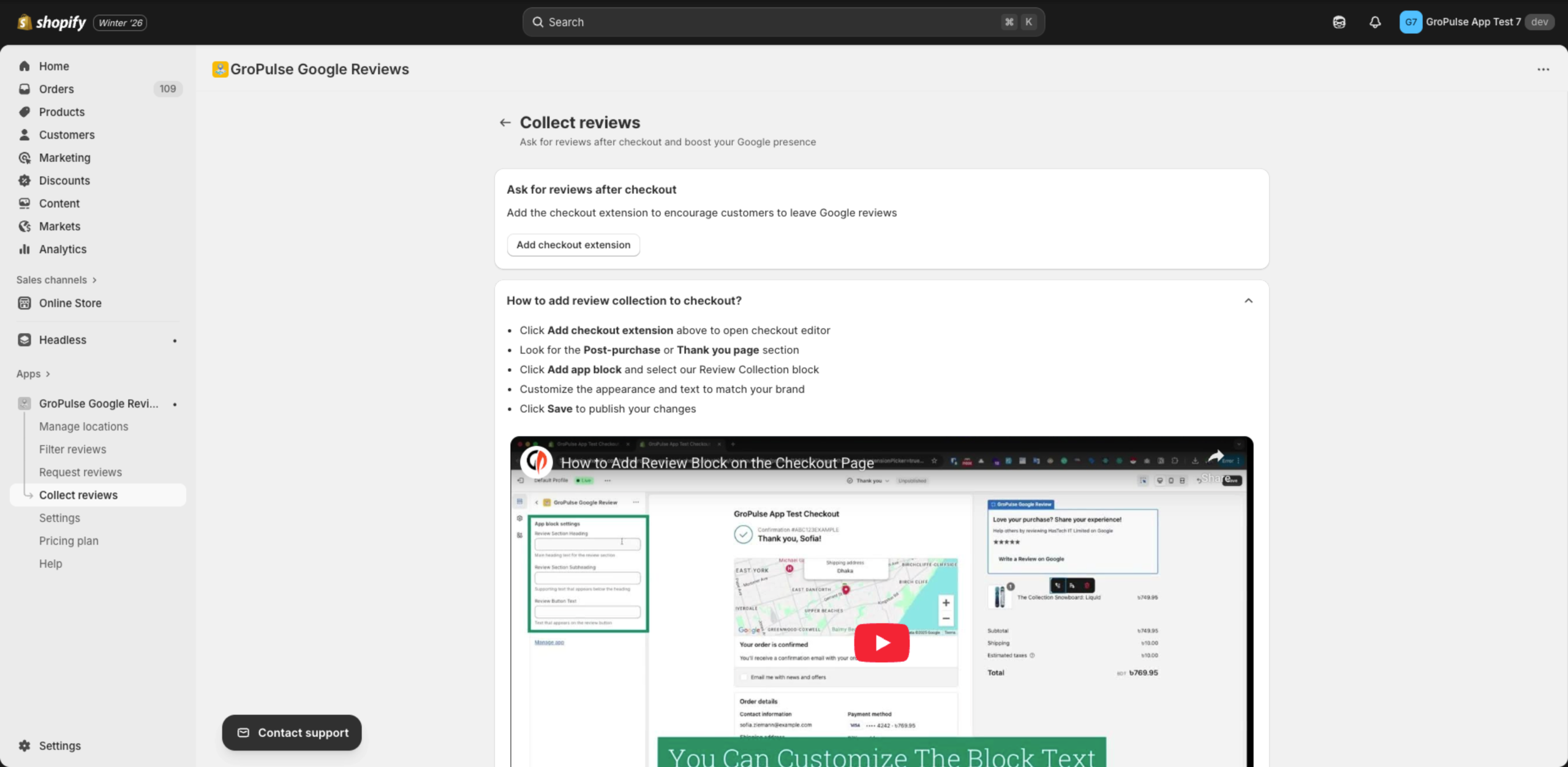
- Navigate to Collect reviews from the sidebar
- You’ll see the setup instructions and video tutorial
Step 2: Add the Checkout Extension
- Click the Add checkout extension button
- This opens the Shopify checkout editor
Step 3: Add the Review Block
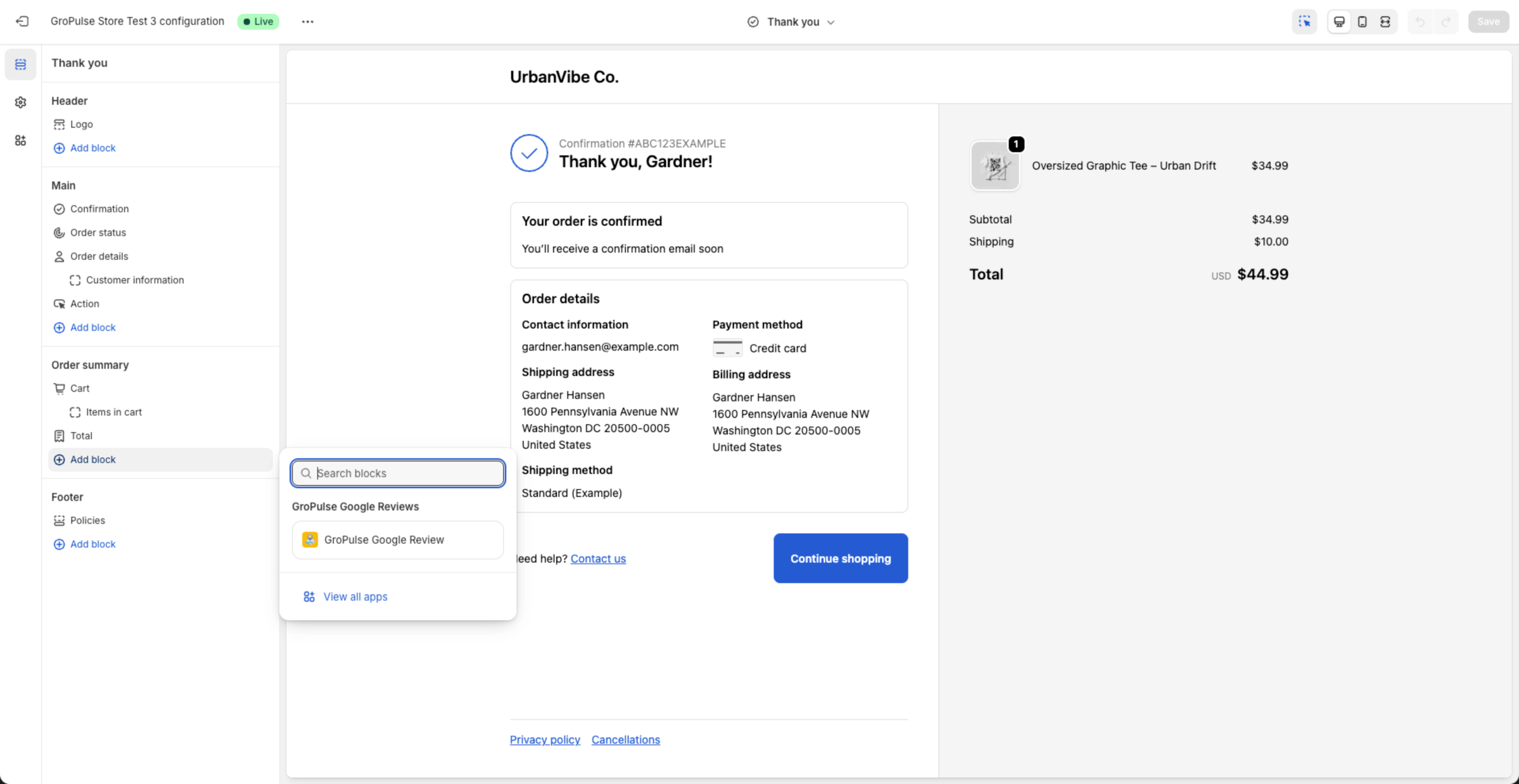
- In the checkout editor, look for the Thank you page section
- Find the Order summary or Main section
- Click Add block
- Search for GroPulse Google Reviews
- Select GroPulse Google Review from the list
Step 4: Customize the Block
Once the block is added, customize its appearance:
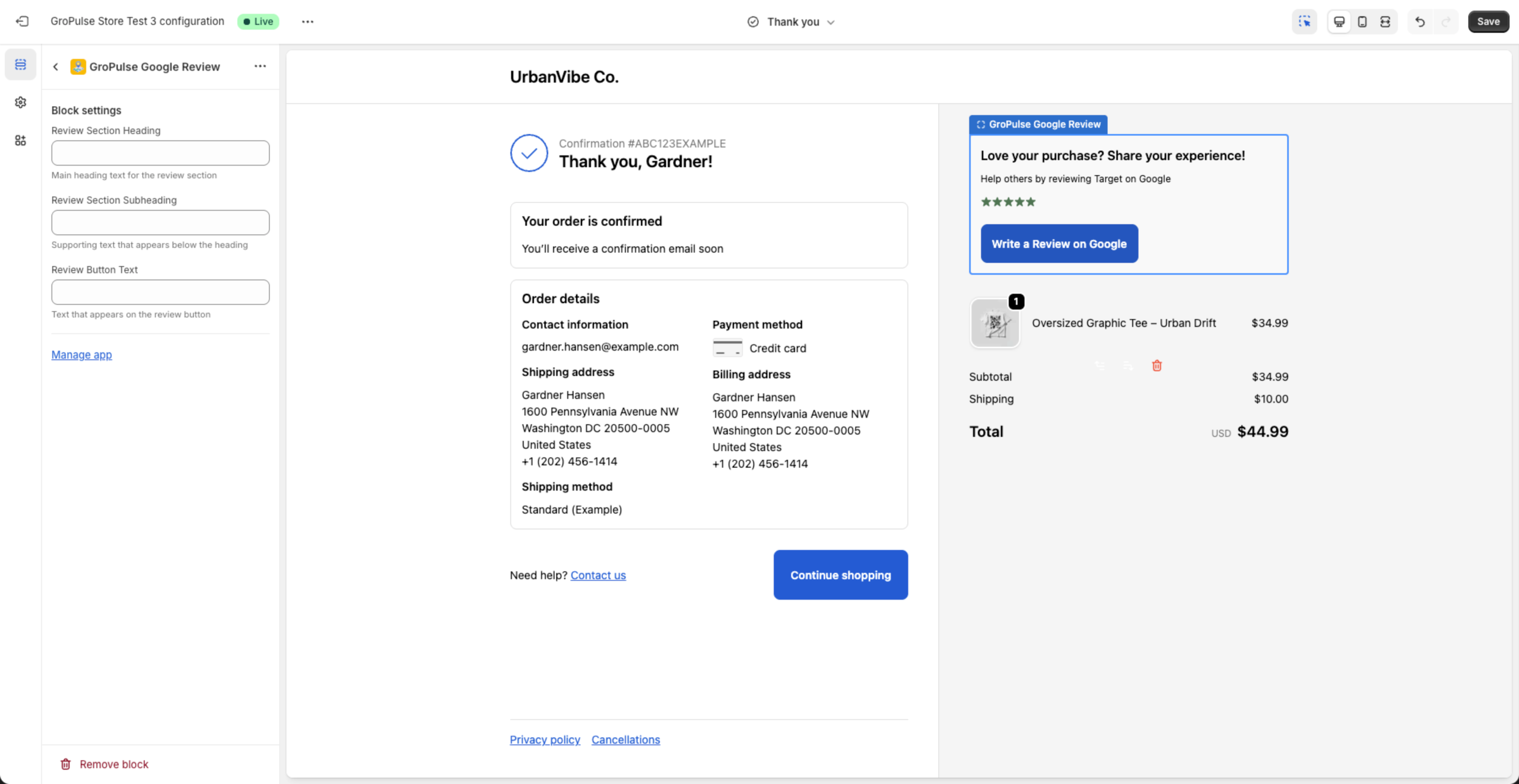
| Setting | Description | Example |
|---|---|---|
| Review Section Heading | Main heading text | “Love your purchase? Share your experience!” |
| Review Section Subheading | Supporting text below heading | “Help others by reviewing Target on Google” |
| Review Button Text | Text on the CTA button | “Write a Review on Google” |
Step 5: Save and Publish
- Review the preview to ensure everything looks correct
- Click Save in the top-right corner
- The extension is now live on your Thank You page
Preview
Here’s how the review collection widget appears to customers after checkout:
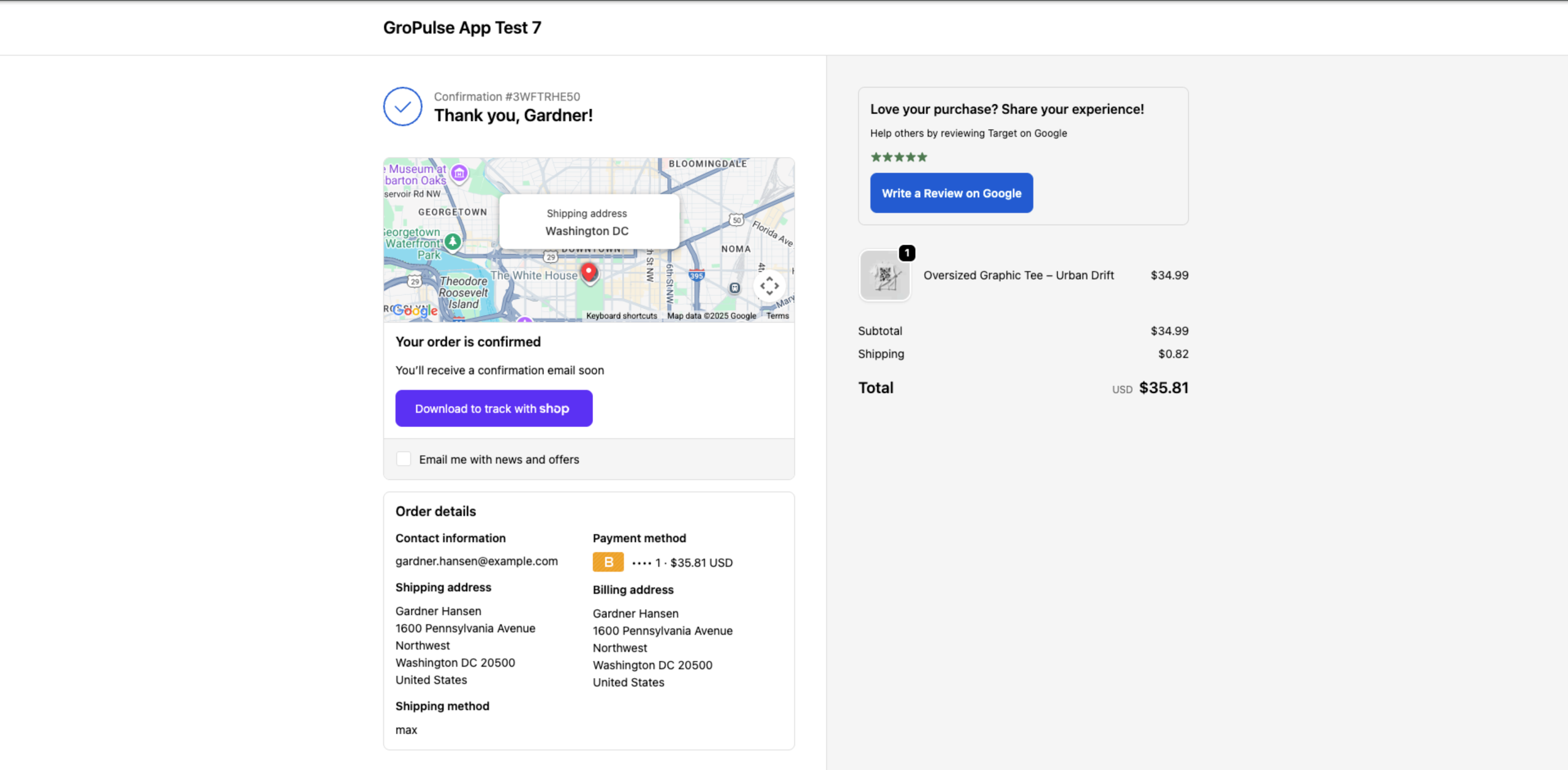
The widget displays:
- Your custom heading and subheading
- A 5-star rating visual
- A prominent call-to-action button
- Clean design that matches checkout aesthetics
Customization Tips
Heading Text
Write a heading that:
- Feels personal and grateful
- Encourages action
- Matches your brand voice
Good examples:
- “Love your purchase? Share your experience!”
- “Enjoying your order? We’d love your feedback!”
- “Thank you! Would you leave us a review?”
Subheading Text
Use the subheading to:
- Explain how reviews help
- Build social proof
- Keep it brief
Good examples:
- “Help others by reviewing us on Google”
- “Your feedback helps other shoppers decide”
- “Share your experience with future customers”
Button Text
Keep button text:
- Action-oriented
- Clear about destination
- Concise
Good examples:
- “Write a Review on Google”
- “Leave a Google Review”
- “Share Your Experience”
Best Practices
Placement
- Add the block in a visible location on the Thank You page
- The Order summary section works well
- Don’t place it where it competes with important order information
Timing
- The checkout extension works immediately after purchase
- For customers who don’t review right away, consider also using Email Review Requests
Combine with Email
For maximum review collection:
- Use the checkout extension for immediate requests
- Set up email automation as a follow-up
- Space emails appropriately (don’t send if they already reviewed)
Troubleshooting
Widget not appearing on Thank You page
- Verify you added the block in the checkout editor
- Make sure you clicked Save
- Check you’re on a paid plan (Basic or Advanced)
- Try a test purchase to see the live widget
Block not available in checkout editor
- Ensure GroPulse Google Reviews is installed
- Check your subscription is active
- Try refreshing the checkout editor
Button not linking to Google
- Verify you’ve added a business location in the app
- Check your location has an active Google Business Profile
- Try updating your reviews from Manage locations
Related Guides
- Email Review Requests — Follow up with customers via email
- Adding Business Location — Connect your Google Business
- Pricing Plans — Compare plan features
Need Help?
- Video Tutorial: Watch the embedded video on the Collect reviews page in the app
- Contact Support: gropulse.com/contact
- Live Chat: Available in the bottom-right corner of the app
Last updated on February 16, 2026
Was this article helpful?
Powered by Support Genix