
Get your JSON-LD schema markup set up on your Shopify store in minutes. This guide walks you through activating the app, enabling schemas, and configuring your store for better search engine visibility.
Prerequisites
Before you begin, make sure you have:
- A Shopify store with GP JSON-LD Schema installed
- Access to your Shopify admin panel
- Basic understanding of SEO (helpful but not required)
Step 1: Activate the App
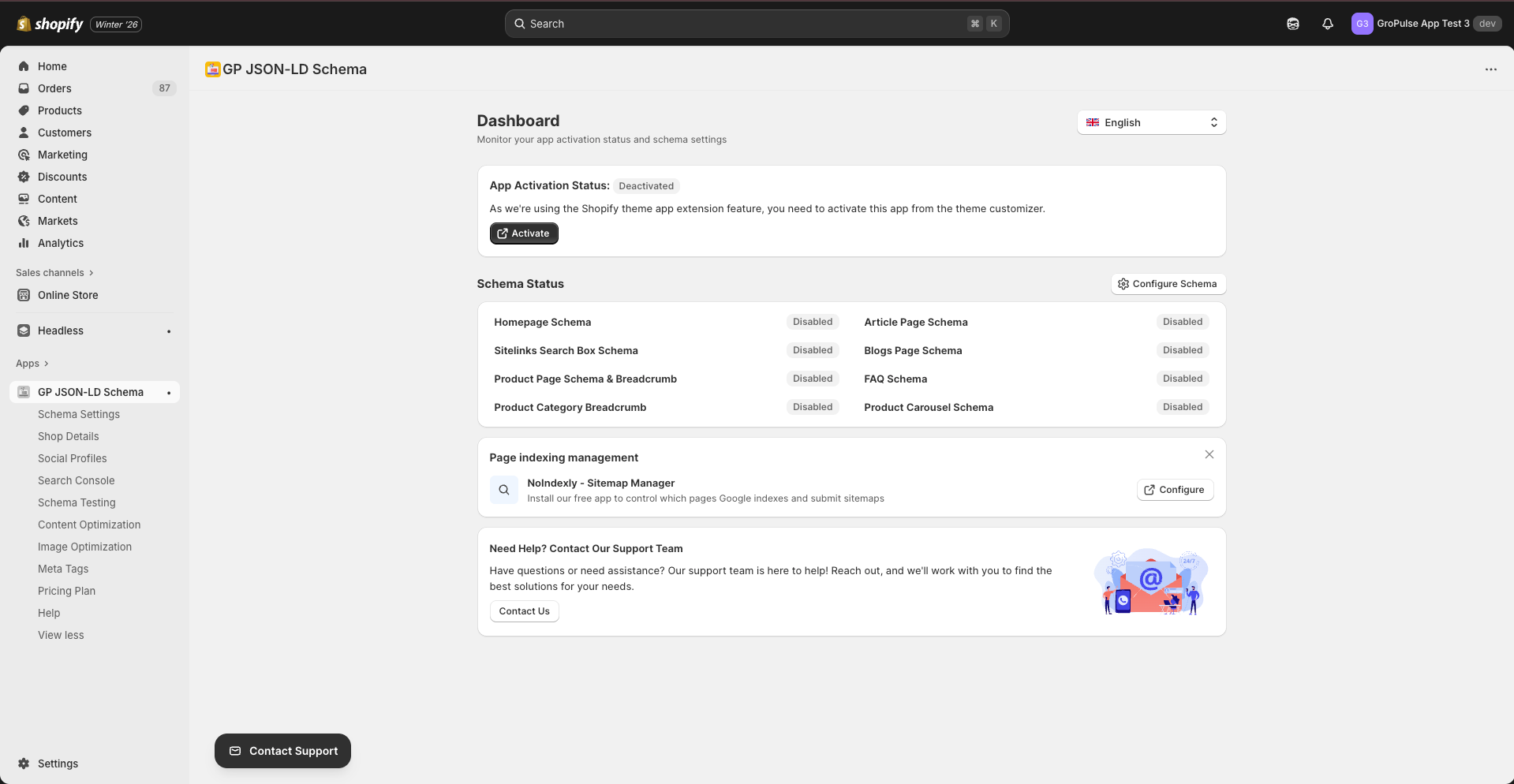
After installing the app, you need to activate it in your theme.
- From the Dashboard, you’ll see “App Activation Status: Deactivated”
- Click the Activate button
- This opens the Shopify theme customizer
- Enable the GP JSON-LD Schema app block
- Click Save in the theme editor
Important: The app uses Shopify's theme app extension feature, so activation through the theme customizer is required.
Step 2: Configure Schema Settings
Navigate to Schema Settings to enable the schema types you need.
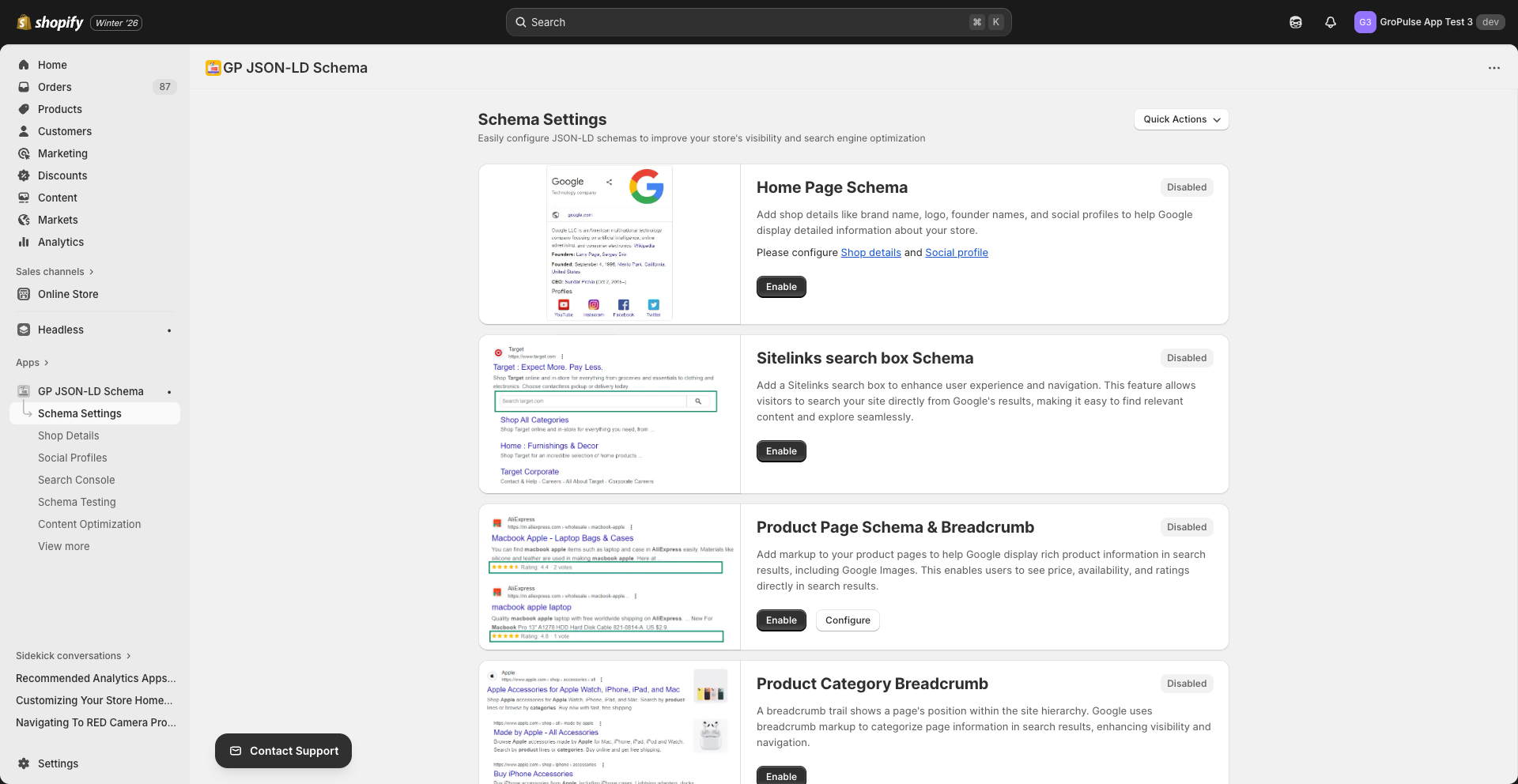
Available Schema Types
| Schema Type | Description | Plan |
|---|---|---|
| Home Page Schema | Brand info, logo, social profiles | Free |
| Sitelinks Search Box | Search box in Google results | Pro |
| Product Page Schema | Price, availability, ratings | Pro |
| Product Category Breadcrumb | Navigation breadcrumbs | Free |
| Article Page Schema | Blog article details | Free |
| Blogs Page Schema | Blog listing information | Free |
| FAQ Schema | Questions and answers | Pro |
| Product Carousel Schema | Product carousel in results | Pro |
| Recipe Schema | Recipe information | Free |
| Video Schema | Video details | Free |
| Local Business Schema | Physical location info | Free |
Enable a Schema
- Find the schema type you want to enable
- Click Enable
- Some schemas require additional configuration – click Configure if available
Step 3: Add Shop Details
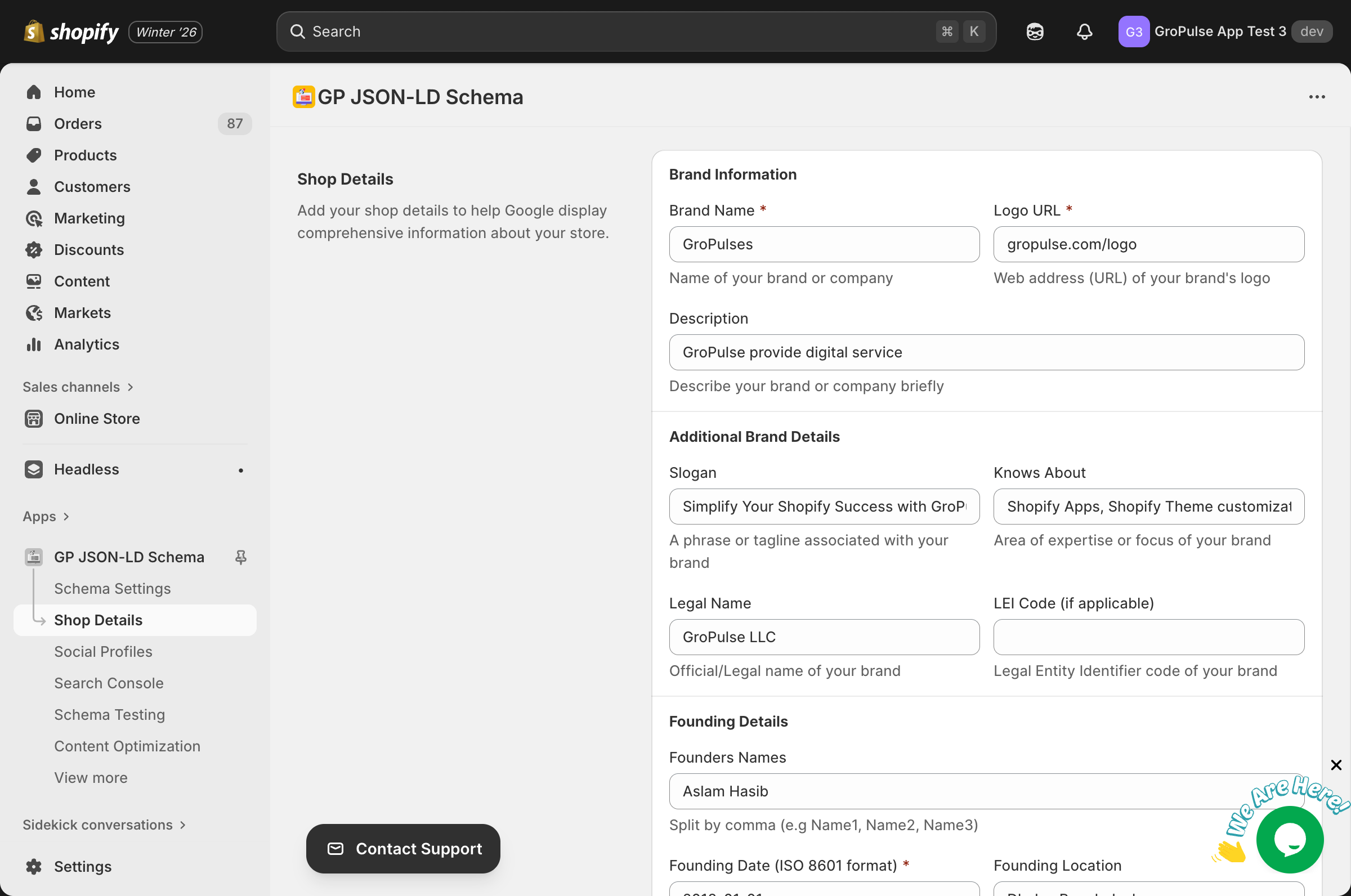
For the Home Page Schema to work effectively, add your business information.
- Go to Shop Details from the sidebar
- Fill in the required fields:
- Brand Name — Your company name
- Logo URL — Web address of your logo
- Founding Date — When your business started
- Optionally add:
- Description, Slogan, Legal Name
- Founders, Number of Employees
- Awards and Recognition
- Click Save
Step 4: Add Social Profiles
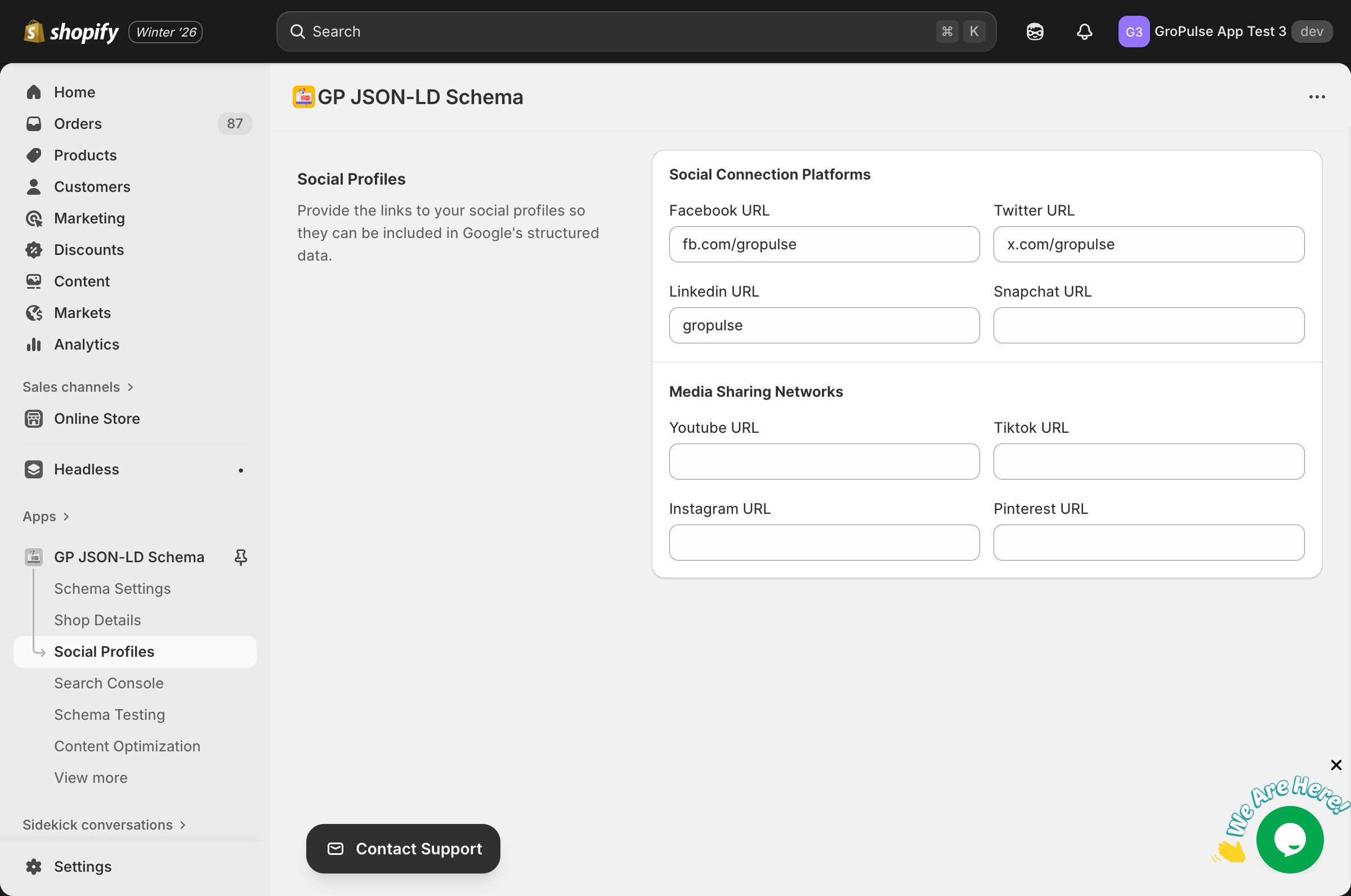
Connect your social media profiles for better brand recognition.
- Go to Social Profiles from the sidebar
- Enter URLs for your social accounts:
- Facebook, Twitter, LinkedIn, Snapchat
- YouTube, TikTok, Instagram, Pinterest
- Click Save
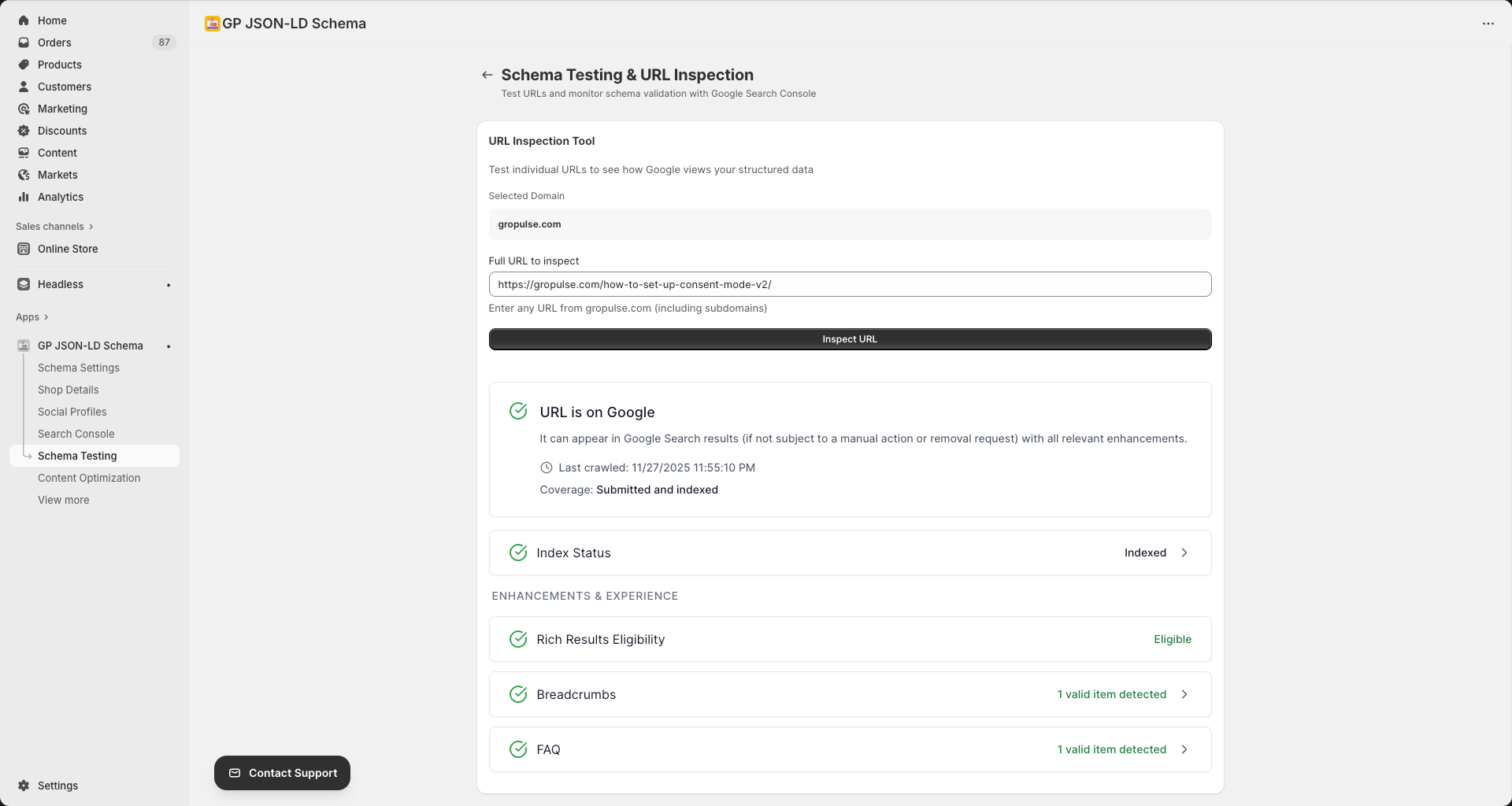
Step 5: Test Your Schema
Verify your schema markup is working correctly.
- Go to Schema Testing from the sidebar
- Connect your Google Search Console account (optional)
- Enter a URL from your store
- Click Inspect URL
- Review the results for any errors
Alternative Testing
Use the Basic Schema Validator if you don’t want to connect Google Search Console:
- Click Use Basic Schema Validator
- Enter your store URL
- View the detected schema types
Dashboard Overview
Your Dashboard displays key information at a glance:
| Section | Description |
|---|---|
| App Activation Status | Shows if the app is active in your theme |
| Schema Status | Quick overview of enabled schemas |
| Page Indexing | Link to NoIndexly for sitemap management |
| Support | Contact information for help |
What’s Next?
Now that you’re set up, explore these features:
- Configuring Schema Types — Detailed schema configuration
- Search Console Integration — Monitor schema performance
- Content Optimization — AI-powered SEO suggestions
- Meta Tags Management — Optimize titles and descriptions
- Pricing Plans — Explore premium features
Need Help?
Contact Support
- Click Contact Support button in any page of the app
- Email us at support@gropulse.com
- Visit gropulse.com/contact
Help Page
Access the Help page from the sidebar for video tutorials and setup guides.
Troubleshooting
App not activating?
- Ensure you’re using a Shopify 2.0 compatible theme
- Check that you’ve saved changes in the theme editor
- Clear your browser cache and refresh
Schema not showing in Google?
- Verify the app is activated in your theme
- Check Schema Testing for errors
- Wait 1-2 weeks for Google to re-crawl your site
- Submit your sitemap in Google Search Console
Store under password protection?
Google cannot crawl password-protected stores. Disable password protection in:
Shopify Admin → Online Store → Preferences → Password protection