
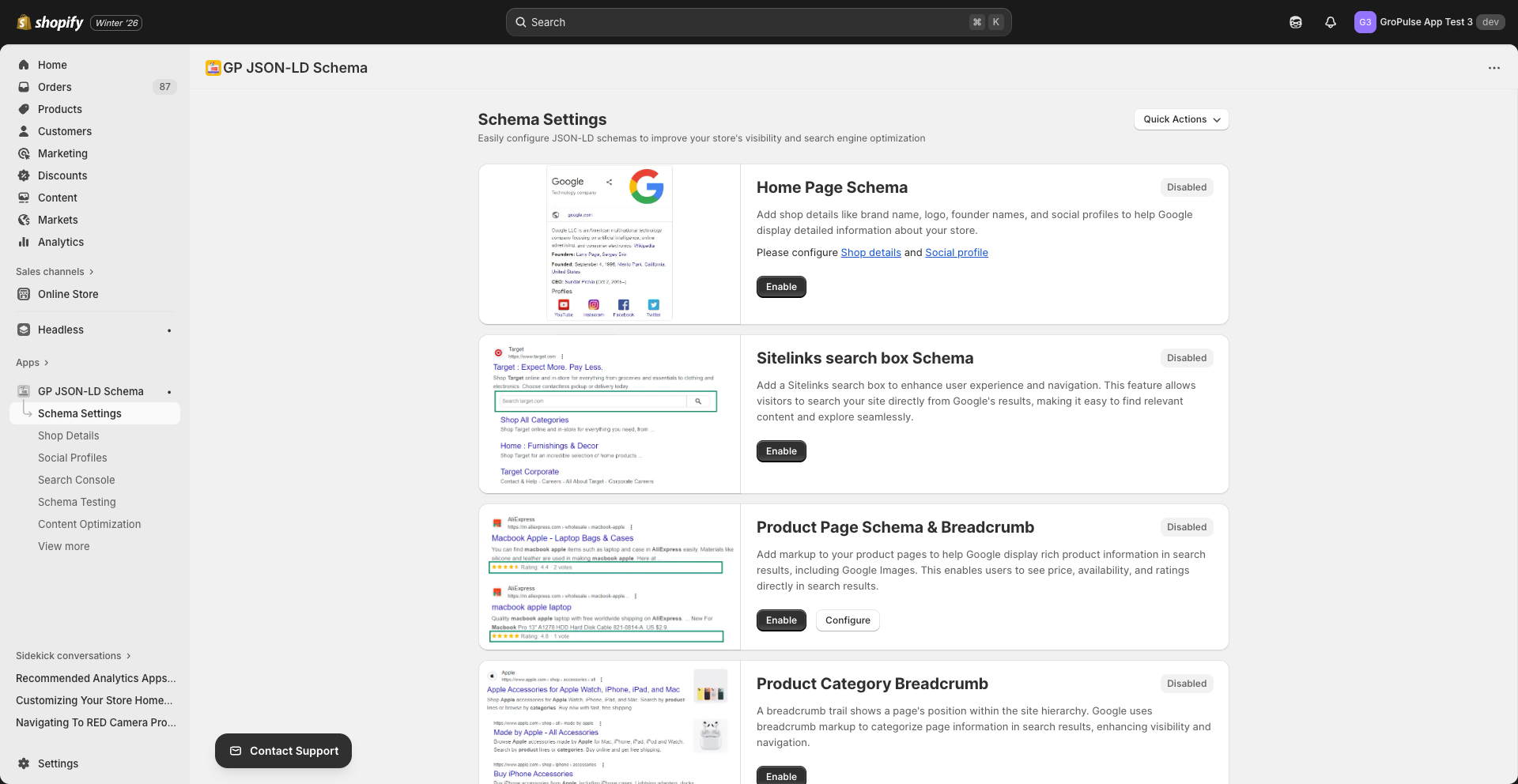
Configure JSON-LD schema types to improve your Shopify store’s visibility in search results. This guide covers all available schema types and how to configure them.
Overview
Schema markup (structured data) helps search engines understand your content better, enabling rich results like:
- Star ratings in search results
- Product prices and availability
- FAQ accordions
- Breadcrumb navigation
- Business information panels
Accessing Schema Settings
- Navigate to Schema Settings from the sidebar
- View all available schema types
- Enable or disable each type as needed
- Configure additional options where available
Schema Types
Home Page Schema
Plan: Free
Adds organization information to your home page, helping Google display your brand in search results.
What it includes:
- Brand name and logo
- Description and slogan
- Founding information
- Social profile links
Requirements:
- Configure Shop Details
- Configure Social Profiles
To enable:
- Click Enable on the Home Page Schema card
- Ensure Shop Details and Social Profiles are configured
- The schema will appear on your home page
Sitelinks Search Box Schema
Plan: Pro
Adds a search box to your Google search listing, allowing users to search your site directly from search results.
Benefits:
- Enhanced user experience
- Direct site navigation from Google
- Professional appearance in search results
To enable:
- Click Enable on the Sitelinks Search Box card
- No additional configuration required
Product Page Schema & Breadcrumb
Plan: Pro
Adds rich product information to your product pages, enabling product rich results in Google.
What it includes:
- Product name and description
- Price and currency
- Availability status
- Brand information
- Product images
- Ratings and reviews (if available)
- Breadcrumb navigation
To configure:
- Click Enable on the Product Page Schema card
- Click Configure for additional options
- Select which product fields to include
- Save your configuration
Rich result features:
- Price shown in search results
- Stock status indicators
- Star ratings display
- Product images in results
Product Category Breadcrumb
Plan: Free
Adds breadcrumb markup to collection/category pages, helping users and search engines understand your site hierarchy.
Benefits:
- Clear navigation path in search results
- Improved site structure understanding
- Better user experience
To enable:
- Click Enable on the Product Category Breadcrumb card
- Breadcrumbs will automatically appear on collection pages
Article Page Schema
Plan: Free
Adds structured data to your blog article pages, enabling article rich results.
What it includes:
- Article headline
- Author information
- Publication date
- Article image
- Publisher details
To enable:
- Click Enable on the Article Page Schema card
- Schema will apply to all blog posts
Blogs Page Schema
Plan: Free
Adds structured data to your blog listing pages.
What it includes:
- Blog name
- Post listings
- Publication information
To enable:
- Click Enable on the Blogs Page Schema card
- Schema will apply to blog index pages
FAQ Schema
Plan: Pro
Adds FAQ structured data, enabling expandable FAQ results in Google search.
Benefits:
- FAQ accordion in search results
- Increased visibility
- More real estate in search results
- Higher click-through rates
To configure:
- Click Enable on the FAQ Schema card
- Click Configure to add your FAQs
- Enter questions and answers
- Save your FAQ content
Best practices:
- Use actual frequently asked questions
- Provide clear, helpful answers
- Keep answers concise but comprehensive
Product Carousel Schema
Plan: Pro
Displays your products in a carousel format in Google search results.
Benefits:
- Visual product showcase
- Multiple products in one result
- Increased engagement
To enable:
- Click Enable on the Product Carousel Schema card
- Products will be included in carousel results
Recipe Schema
Plan: Free
Adds recipe structured data for food-related content.
What it includes:
- Recipe name and description
- Cooking time
- Ingredients list
- Instructions
- Nutrition information
- Ratings
To configure:
- Click Enable on the Recipe Schema card
- Click Configure to set up recipe details
- Add recipe information
- Save your configuration
Video Schema
Plan: Free
Adds video structured data for video content on your store.
What it includes:
- Video title and description
- Duration
- Thumbnail
- Upload date
- Publisher information
To configure:
- Click Enable on the Video Schema card
- Click Configure to set up video details
- Add video information
- Save your configuration
Local Business Schema
Plan: Free
Adds local business information for physical store locations.
What it includes:
- Business name and type
- Address
- Phone number
- Opening hours
- Geographic coordinates
To configure:
- Click Enable on the Local Business Schema card
- Click Configure to add your business details
- Enter address and contact information
- Set opening hours
- Save your configuration
Plan Comparison
| Schema Type | Free | Pro | Advanced |
|---|---|---|---|
| Home Page Schema | Yes | Yes | Yes |
| Product Category Breadcrumb | Yes | Yes | Yes |
| Article Page Schema | Yes | Yes | Yes |
| Blogs Page Schema | Yes | Yes | Yes |
| Recipe Schema | Yes | Yes | Yes |
| Video Schema | Yes | Yes | Yes |
| Local Business Schema | Yes | Yes | Yes |
| Schema Testing | Yes | Yes | Yes |
| Product Page Schema | – | Yes | Yes |
| Sitelinks Search Box | – | Yes | Yes |
| FAQ Schema | – | Yes | Yes |
| Carousel Schema | – | Yes | Yes |
| AI Content Optimization | – | Yes | Yes |
Best Practices
Do’s
- Enable only relevant schema types for your store
- Keep information accurate and up-to-date
- Test your schema after enabling
- Monitor Search Console for errors
Don’ts
- Don’t add fake or misleading information
- Don’t enable schemas for content you don’t have
- Don’t expect immediate results (indexing takes time)
Troubleshooting
Schema not appearing
- Verify the app is activated in your theme
- Check that the specific schema is enabled
- Test the page in Schema Testing
- Clear your site cache
Schema errors in Search Console
- Go to Schema Testing in the app
- Inspect the problematic URL
- Review error details
- Fix missing or incorrect information
- Request re-indexing in Search Console
Related Guides
Need Help?
- Contact Support: gropulse.com/contact
- Live Chat: Available in the bottom-right corner of the app