
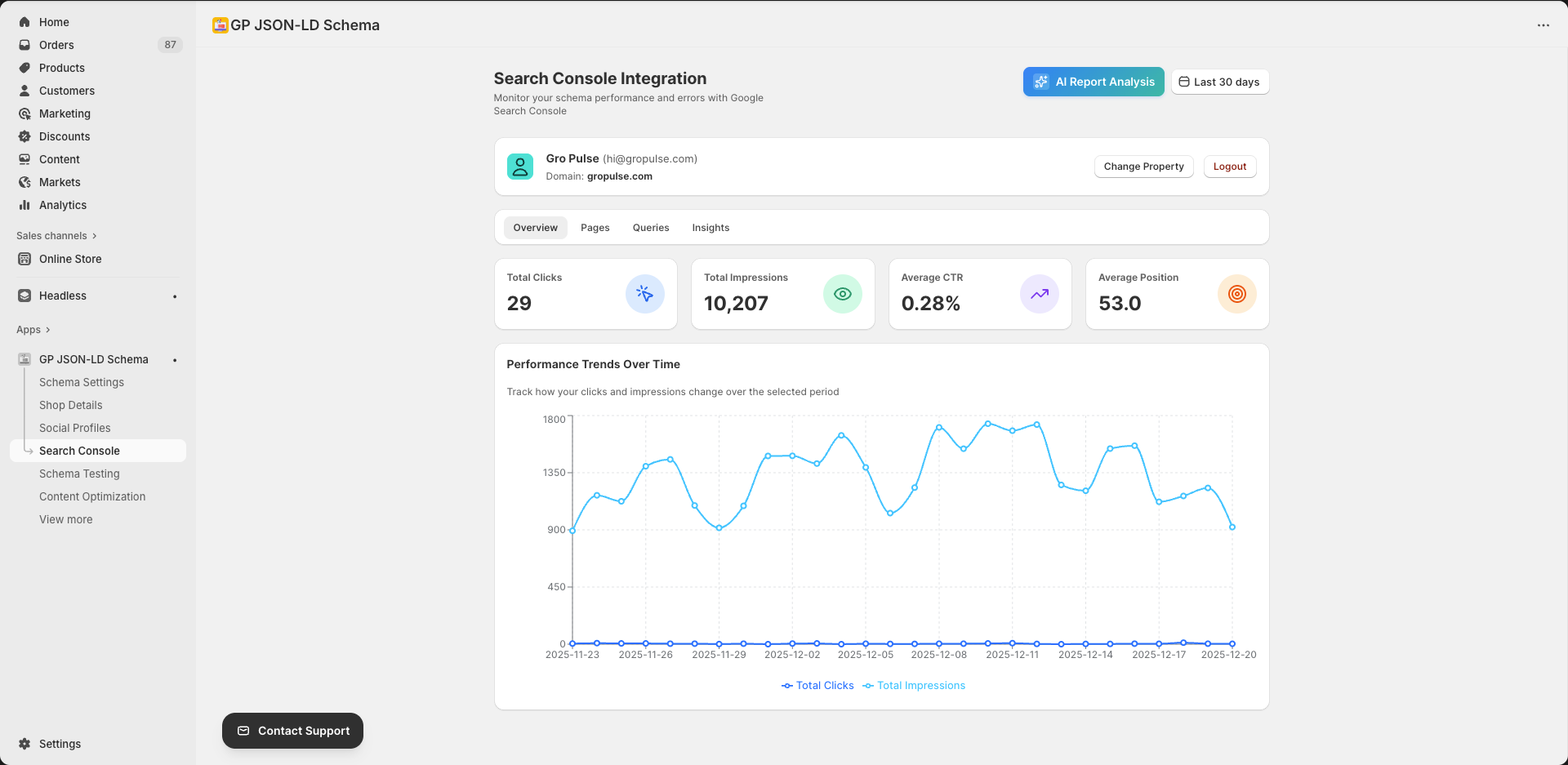
Connect Google Search Console to monitor your schema performance, track errors, and analyze your store’s search visibility directly from the app.
Overview
The Search Console integration provides:
- Performance Analytics — Track clicks, impressions, and rankings
- Schema Error Monitoring — Identify and fix schema issues
- URL Inspection — Test individual pages for schema markup
- Search Insights — Understand how users find your store
Connecting Google Search Console
Prerequisites
- A Google account with Search Console access
- Your store verified in Google Search Console
- Store password protection disabled
Connection Steps
- Go to Search Console from the sidebar
- Click Connect Google Account
- Sign in with your Google account
- Grant the requested permissions
- Select your property (domain)
Selecting Your Property
After connecting, you’ll see your available properties:
- Domain — Shows the connected domain
- Change Property — Switch to a different verified property
- Logout — Disconnect your Google account
Dashboard Tabs
Overview Tab
View high-level performance metrics:
- Total clicks
- Total impressions
- Average CTR (Click-Through Rate)
- Average position
Pages Tab
Analyze performance by page:
- Top performing pages
- Pages with schema errors
- Indexing status
- Click and impression data
Queries Tab
See what search terms bring users to your store:
- Top search queries
- Click and impression data
- Position tracking
- CTR analysis
Insights Tab
AI-powered insights and recommendations:
- Performance trends
- Optimization opportunities
- Schema improvement suggestions
Date Range Selection
Filter data by time period:
- Click the date selector (e.g., “Last 30 days”)
- Choose your preferred range:
- Last 7 days
- Last 28 days
- Last 3 months
- Last 6 months
- Last 12 months
- Custom range
URL Inspection
Test individual URLs for schema markup.
How to Inspect a URL
- Go to Schema Testing from the sidebar
- Enter the full URL to inspect
- Click Inspect URL
- Review the results
What You’ll See
- Indexing status
- Schema types detected
- Errors and warnings
- Last crawl date
Troubleshooting
No data available
Causes:
- New Search Console connection
- Store recently launched
- Low search volume
Solutions:
- Wait for Google to collect data (1-2 weeks)
- Select a longer date range
- Ensure your store is indexed
Connection failed
Solutions:
- Clear browser cache and cookies
- Try a different browser
- Verify your Google account has Search Console access
- Check that the property is verified
Wrong property showing
- Click Change Property
- Select the correct domain
- Confirm the selection
Best Practices
Regular Monitoring
- Check Search Console weekly
- Monitor for new schema errors
- Track performance trends
Acting on Data
- Fix schema errors promptly
- Optimize pages with high impressions but low clicks
- Focus on pages with declining performance
Maintaining Accuracy
- Keep your store information up-to-date
- Ensure product data is accurate
- Regular schema testing
Related Features
- Schema Testing — Test URLs for schema markup
- Content Optimization — AI-powered SEO suggestions
- Schema Settings — Configure schema types
Need Help?
- Contact Support: gropulse.com/contact
- Live Chat: Available in the bottom-right corner of the app
Last updated on February 16, 2026
Was this article helpful?
Powered by Support Genix