
Get your Facebook, TikTok, or Pinterest pixel tracking up and running in just a few minutes.
Prerequisites
Before you begin, make sure you have:
- An active Shopify store
- A Facebook Business account (for Facebook pixel)
- A TikTok Ads account (for TikTok pixel)
- A Pinterest Business account (for Pinterest pixel)
Step 1: Activate the App
After installation, you need to activate the app to enable pixel tracking:
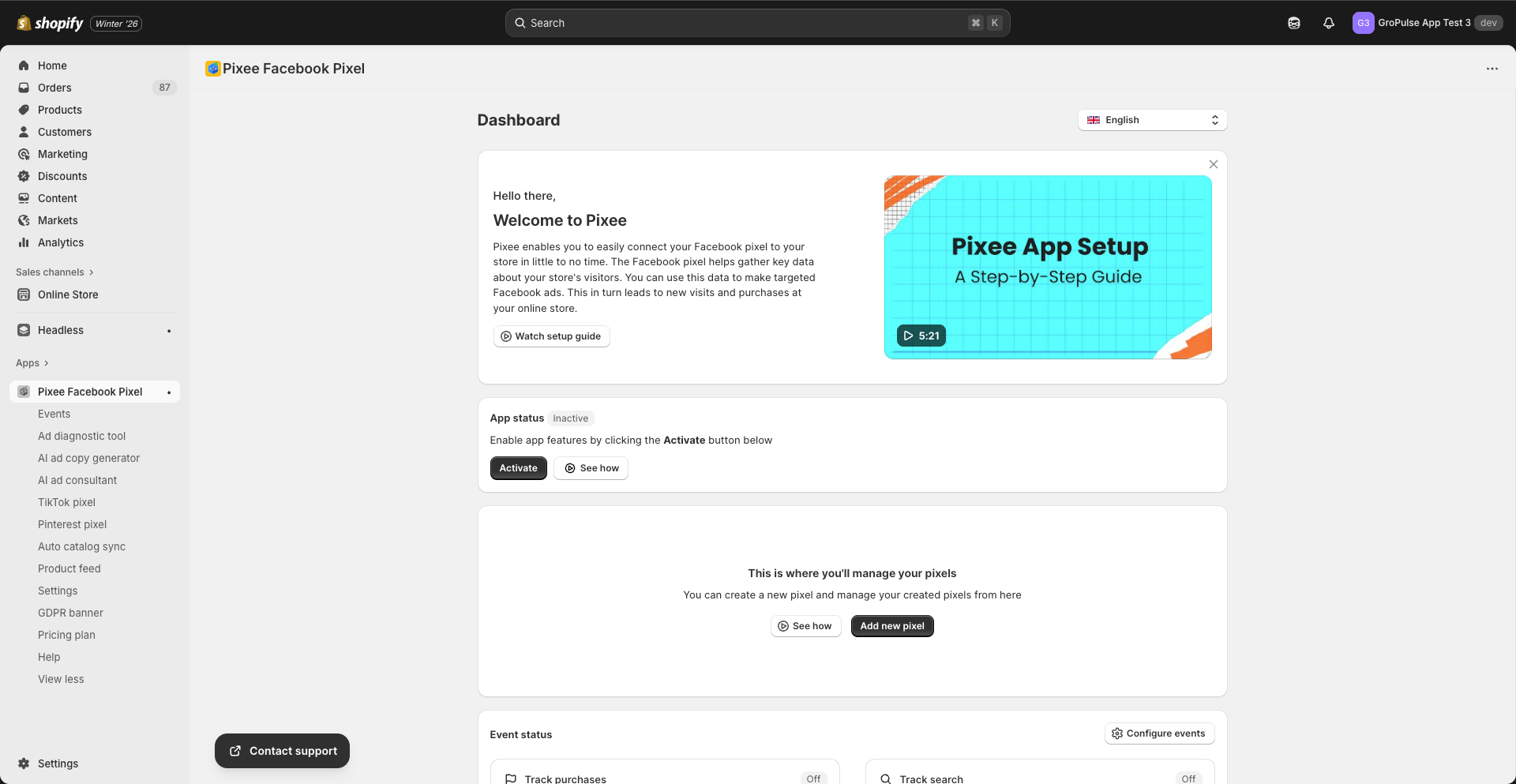
- Open the Pixee app from your Shopify admin
- On the Dashboard, you will see an App Status banner
- Click the Activate button
- The app will be embedded in your store’s theme
Note: The app uses Shopify’s theme app extension to inject tracking scripts into your store.
Step 2: Add Your First Pixel
Adding a Facebook Pixel
- Go to Dashboard in the app
- Click Add new pixel
- Enter your pixel details:
- Pixel Name: A friendly name (e.g., “Main Store Pixel”)
- Pixel ID: Your Facebook Pixel ID (found in Facebook Events Manager)
- Click Save
Adding a TikTok Pixel
- Go to TikTok Pixel in the sidebar
- Click Add new pixel
- Enter your TikTok pixel details:
- Pixel Name: A friendly name
- Pixel ID: Your TikTok Pixel ID
- Click Save
Adding a Pinterest Pixel
- Go to Pinterest Pixel in the sidebar
- Click Add new pixel
- Enter your Pinterest pixel details:
- Pixel Name: A friendly name
- Pixel ID: Your Pinterest Tag ID
- Select which pages to track (All pages or Specific pages)
- Click Save
Step 3: Verify Your Pixel
After adding your pixel, verify it is working correctly:
- Go to your store’s live website
- Browse a few pages and add items to cart
- Check your pixel manager:
- Facebook: Go to Events Manager and check for incoming events
- TikTok: Go to TikTok Ads Manager and check Events
- Pinterest: Go to Pinterest Ads and check Tag activity
Step 4: Connect Your Facebook Account (Optional but Recommended)
For enhanced features like Conversions API, connect your Facebook account:
- Go to Settings in the app
- Under “Login with Facebook”, click Login with Facebook
- Authorize the required permissions
- Your Facebook account will now be connected
What’s Next?
Now that your pixel is set up, explore these features:
- Configure Event Tracking – Choose which events to track
- Set up Conversions API – Enable server-side tracking for better data
- Create a Product Feed – For dynamic product ads
- Set up GDPR Banner – For cookie consent compliance
Need Help?
Watch our setup tutorial video on the Dashboard or check our FAQ for common questions.
Last updated on February 17, 2026
Was this article helpful?
Powered by Support Genix