
This guide explains how to set up and configure Pinterest Tag (Pinterest Pixel) tracking in your Shopify store using Pixee.
What is Pinterest Tag?
Pinterest Tag (commonly called Pinterest Pixel) is a tracking code that helps you:
- Track conversions from Pinterest ads
- Optimize ad delivery based on user actions
- Build targeted audiences for Pinterest ads
- Measure the effectiveness of your Pinterest campaigns
Prerequisites
Before setting up your Pinterest Tag, you need:
- A Pinterest Business account
- Access to Pinterest Ads Manager
- Your Pinterest Tag ID
Finding Your Pinterest Tag ID
- Go to Pinterest Ads Manager
- Click on Ads > Conversions
- Select your tag or create a new one
- Your Tag ID is displayed in the tag details (a numeric string)
Screenshot coming soon
Adding a Pinterest Pixel
Step 1: Navigate to Pinterest Pixel Page
- Open the Pixee app in your Shopify admin
- Click on Pinterest Pixel in the sidebar
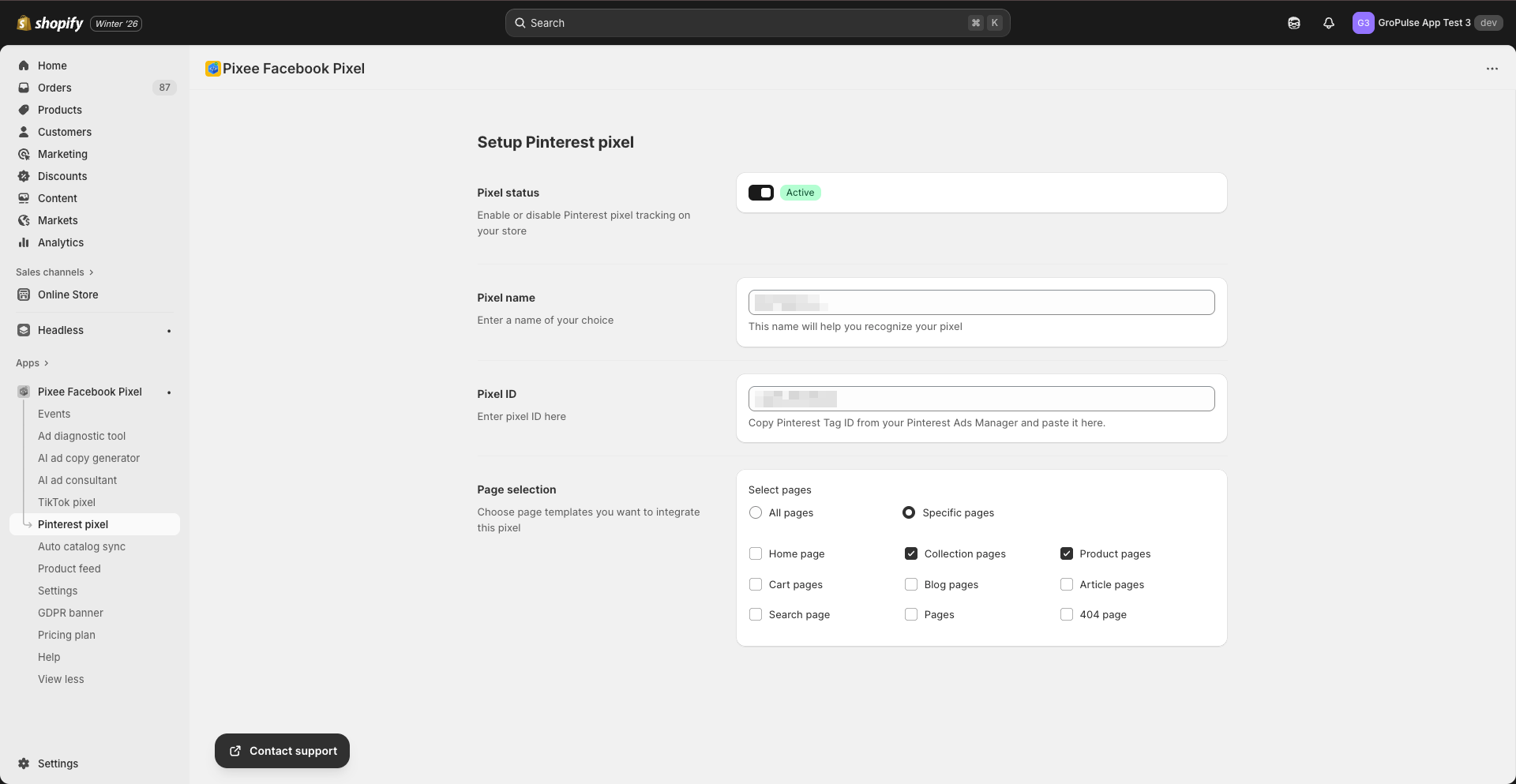
Step 2: Add a New Pixel
- Click Add new pixel button
- You will be taken to the pixel setup form
Step 3: Enter Pixel Details
Fill in the required information:
| Field | Description | Example |
|---|---|---|
| Pixel Name | A friendly name for your pixel | “Pinterest Store Tag” |
| Pixel ID | Your Pinterest Tag ID | “1234567890123” |
Step 4: Select Page Tracking
Choose which pages to track:
- All pages: Track events on every page of your store
- Specific pages: Only track on selected pages
Step 5: Activate and Save
- Toggle the app status to Active if needed
- Click Save to add the pixel
- The pixel will appear in your Pinterest Pixel list
Managing Pinterest Pixels
Viewing Your Pixels
The Pinterest Pixel page displays all your configured pixels in a list showing:
- Pixel Name
- Pixel ID
- Status (Active/Inactive)
- Actions (Edit, Delete)
Adding Multiple Pixels
With a Basic or Advanced plan:
- Click Add new pixel
- Enter the new pixel details
- Configure page tracking
- Save the pixel
Editing a Pixel
- Click Edit next to the pixel
- Update the pixel settings:
- Change the pixel name
- Update the Pixel ID
- Modify page tracking settings
- Click Save
Deleting a Pixel
- Click Delete next to the pixel
- Confirm the deletion
- The pixel will be removed
Events Tracked
Pinterest Tag will automatically track these events:
| Event | When It Fires |
|---|---|
| PageVisit | Every page load |
| ViewCategory | Collection page view |
| ViewContent | Product page view |
| Search | Search results page |
| AddToCart | Adding product to cart |
| Checkout | Starting checkout |
| Lead | Newsletter signup |
Verifying Your Pinterest Tag
Using Pinterest Tag Helper
- Install the Pinterest Tag Helper browser extension
- Visit your store
- Click the extension icon
- Verify events are firing correctly
Using Pinterest Ads Manager
- Go to Pinterest Ads Manager > Conversions
- Select your tag
- View the “Event history” tab
- Check that events are being received
Page Tracking Options
All Pages
Select this option to:
- Track all visitor activity across your store
- Get comprehensive data for audience building
- Enable full-funnel tracking
Specific Pages
Select this option to:
- Only track specific pages you choose
- Reduce data collection if needed
- Focus tracking on key conversion pages
Troubleshooting
Pixel Not Firing
- Verify the app is activated
- Check the Tag ID is correct
- Ensure the pixel status is “Active”
- Check the page tracking settings
Events Not Appearing in Pinterest
- Wait 15-30 minutes for events to appear
- Verify the correct tag is selected
- Clear browser cache and test again
- Use Pinterest’s event testing tool
Wrong Pages Being Tracked
- Review your page tracking settings
- Update from “All pages” to “Specific pages” if needed
- Select only the pages you want to track
Best Practices
- Track all pages initially: Get comprehensive data before limiting
- Verify setup: Test pixel firing after installation
- Monitor weekly: Check Pinterest conversions dashboard
- Use with Catalogs: Combine with catalog sync for dynamic ads
Empty State
If you have not added any Pinterest pixels yet, you will see:
- An empty state message
- An Add new pixel button to get started
- A tutorial button to watch a setup video
Next Steps
- Set up Event Tracking to customize tracked events
- Create Product Feeds for dynamic ads
- Set up Catalog Sync to sync products with Pinterest
Last updated on February 17, 2026
Was this article helpful?
Powered by Support Genix