
This guide explains how to configure which events are tracked by your pixels and how to set up custom events.
What is Event Tracking?
Event tracking allows you to monitor specific actions that visitors take on your store. These events are sent to your connected advertising platforms (Facebook, TikTok, Pinterest) to:
- Measure conversion rates
- Optimize ad delivery
- Build retargeting audiences
- Track the customer journey
Accessing Event Tracking Settings
- Open the Pixee app in your Shopify admin
- Click on Events in the sidebar
- You will see the Event Tracking Setup page
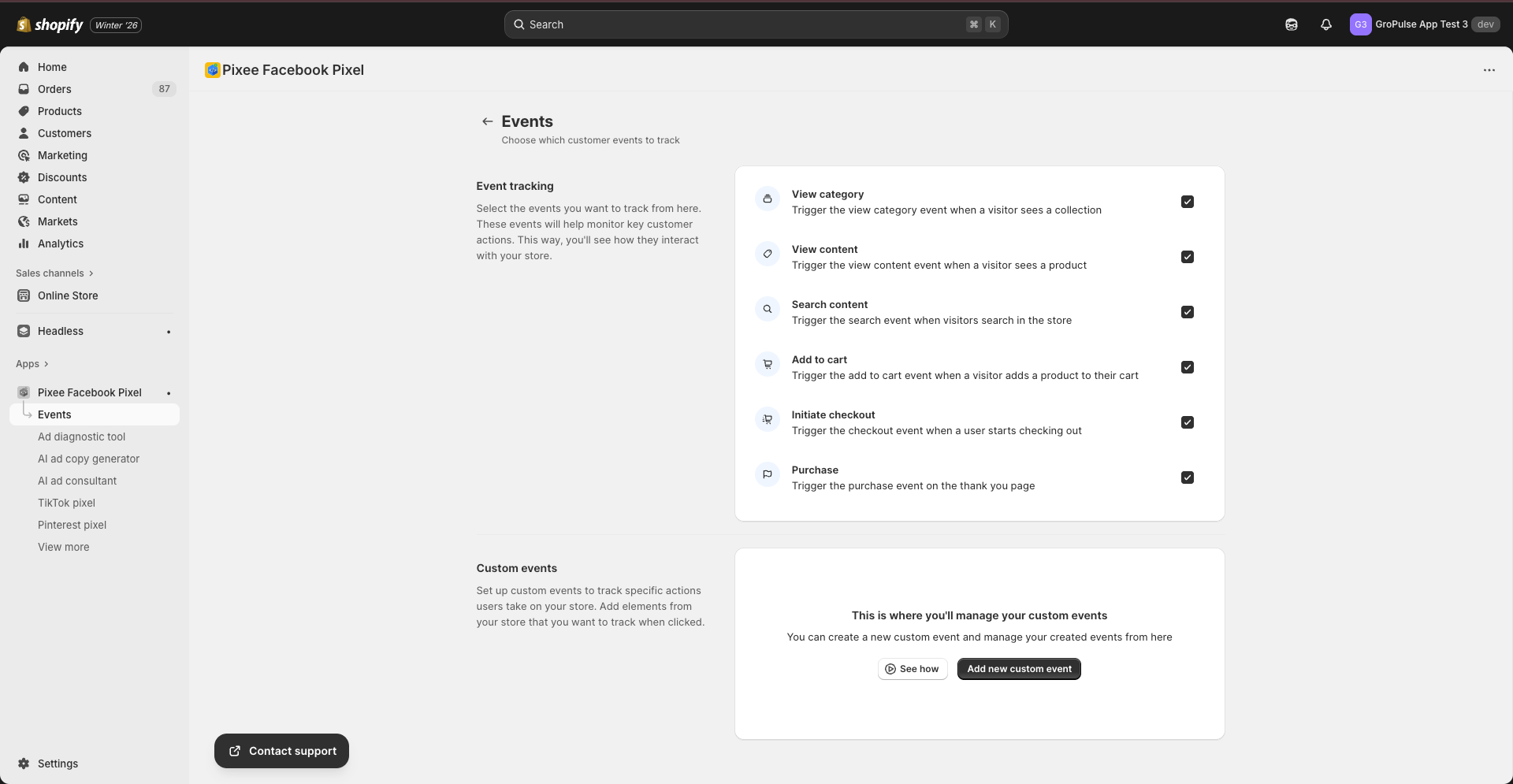
Standard Events
Pixee can track these standard e-commerce events:
View Category (ViewCategory)
Description: Triggers when a visitor views a collection page
Use case: Understand which product categories interest your visitors
Configuration: Enable/disable the checkbox for “Trigger the view category event when a visitor sees a collection”
View Content (ViewContent)
Description: Triggers when a visitor views a product page
Use case: Track product interest and build retargeting audiences
Configuration: Enable/disable the checkbox for “Trigger the view content event when a visitor sees a product”
Search
Description: Triggers when a visitor searches your store
Use case: Understand what products customers are looking for
Configuration: Enable/disable the checkbox for “Trigger the search event when visitors search in the store”
Add to Cart
Description: Triggers when a visitor adds a product to their cart
Use case: Track purchase intent and create cart abandonment audiences
Configuration: Enable/disable the checkbox for “Trigger the add to cart event when a visitor adds a product to their cart”
Initiate Checkout
Description: Triggers when a visitor starts the checkout process
Use case: Track checkout abandonment and optimize for purchases
Configuration: Enable/disable the checkbox for “Trigger the checkout event when a user starts checking out”
Purchase
Description: Triggers on the thank you page after order completion
Use case: Track completed orders and calculate ROAS
Configuration: Enable/disable the checkbox for “Trigger the purchase event on the thank you page”
Configuring Standard Events
Step 1: Navigate to Events Page
- Open the Pixee app
- Click Events in the sidebar
Step 2: Enable/Disable Events
- Review each event checkbox
- Check the box to enable tracking
- Uncheck the box to disable tracking
Step 3: Save Changes
- Click Save to apply your changes
- Changes take effect immediately on your store
Custom Events (Basic and Advanced Plans)
Custom events allow you to track specific actions that are not covered by standard events.
What are Custom Events?
Custom events track specific user interactions like:
- Clicking a specific button
- Viewing a specific section
- Interacting with a form
- Any other custom interaction
Creating a Custom Event
You have two ways to create custom events:
Option 1: Visual Selection
- Click Add custom event
- Choose Select from store
- You will be redirected to your store
- Click on the element you want to track
- The element details are captured automatically
- Return to the app and configure the event
Option 2: Manual Input
- Click Add custom event
- Choose Manual input
- Enter the event details:
- Event Name: The name that appears in your ad platform
- Element Selector: CSS selector for the element (e.g.,
.button-class,#button-id) - Trigger Type: Click, View, etc.
- Save the custom event
Managing Custom Events
- View all custom events in the list
- Edit event settings by clicking Edit
- Delete events by clicking Delete
- Enable/disable individual custom events
Event Data
Each event sends relevant data to your ad platforms:
ViewContent Event Data
- Content ID (product ID)
- Content Name (product title)
- Content Category (product type)
- Value (product price)
- Currency
AddToCart Event Data
- Content IDs (product IDs)
- Content Name (product titles)
- Value (cart value)
- Currency
- Number of items
Purchase Event Data
- Content IDs (ordered product IDs)
- Content Type (product)
- Value (order total)
- Currency
- Number of items
- Order ID
Plan Requirements
| Feature | Free | Basic | Advanced |
|---|---|---|---|
| Standard Event Tracking | Limited | Yes | Yes |
| Custom Events | – | Yes | Yes |
| Event Configuration | – | Yes | Yes |
Best Practices
- Enable all standard events: Track the complete customer journey
- Use meaningful names: Name custom events clearly for easy identification
- Test after changes: Verify events fire correctly after modifications
- Avoid duplicate events: Do not track the same action multiple times
Troubleshooting
Events Not Firing
- Check the event is enabled
- Verify the app is activated
- Clear browser cache and test
- Check browser console for errors
Custom Event Not Working
- Verify the CSS selector is correct
- Test the selector in browser developer tools
- Ensure the element exists on the page
- Check if the element is dynamically loaded
Duplicate Events
- Check you are not tracking the same event twice
- Verify no other apps are tracking the same events
- Review your custom event configurations
Next Steps
- Set up Conversions API for enhanced tracking
- Create Product Feeds for dynamic ads
- Configure GDPR Banner for consent compliance