
This guide explains how to create and manage product feeds for dynamic advertising on Facebook, Instagram, and other platforms.
What is a Product Feed?
A product feed is a structured file containing your product information that advertising platforms use for:
- Dynamic Product Ads: Automatically show relevant products to customers
- Product Catalogs: Sync your inventory with ad platforms
- Retargeting Ads: Show products visitors have viewed or added to cart
- Shopping Campaigns: Display products in shopping results
Accessing Product Feeds
- Open the Pixee app in your Shopify admin
- Click on Product Feed in the sidebar
Creating a Product Feed
Step 1: Navigate to Product Feed Page
- Open the Pixee app
- Click Product Feed in the sidebar
- Click Create new button
Step 2: Configure Feed Settings
Enter the feed details:
| Field | Description |
|---|---|
| Feed Name | A name to identify this feed (e.g., “Facebook Product Feed”) |
| Product Selection | Choose which products to include |
| Update Frequency | How often the feed should refresh |
Step 3: Configure Variant Options
Set up how product variants are displayed:
| Option | Description |
|---|---|
| Color | Map your color variant option |
| Size | Map your size variant option |
| Material | Map your material variant option |
These mappings ensure your product variants display correctly in ads.
Step 4: Save the Feed
- Click Save to create the feed
- The feed will be generated and a URL will be provided
Managing Product Feeds
Viewing Your Feeds
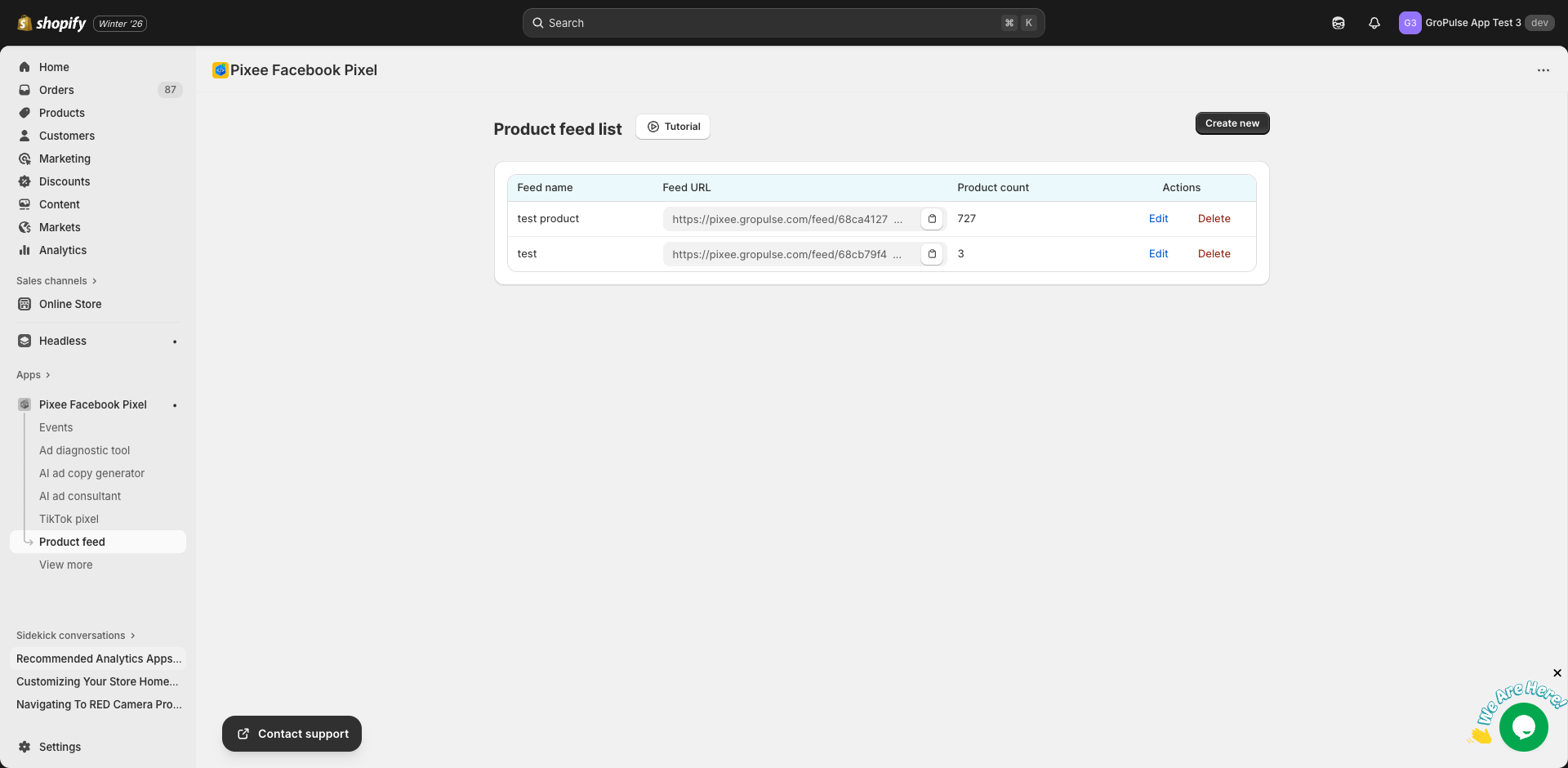
The Product Feed page shows all your feeds in a table:
| Column | Description |
|---|---|
| Feed Name | The name you gave your feed |
| Feed URL | The URL to access your feed (click to copy) |
| Product Count | Number of products in the feed |
| Actions | Edit or Delete the feed |
Copying the Feed URL
- Find your feed in the list
- Click the copy button next to the Feed URL
- The URL is copied to your clipboard
- Use this URL in your ad platform’s catalog settings
Editing a Feed
- Click Edit next to the feed
- Modify the feed settings
- Click Save
- The feed will be regenerated
Deleting a Feed
- Click Delete next to the feed
- Confirm the deletion
- The feed URL will no longer work
Using Your Product Feed
In Facebook Ads Manager
- Go to Facebook Commerce Manager
- Click Catalogs
- Create or select a catalog
- Click Add products > Data feed
- Enter your Pixee feed URL
- Set the update schedule
- Save the data source
In TikTok Ads Manager
- Go to TikTok Ads Manager > Assets
- Click Catalog
- Create a new catalog
- Add a data source
- Enter your Pixee feed URL
In Pinterest
- Go to Pinterest Business Hub
- Click Catalogs
- Add a new data source
- Enter your Pixee feed URL
Feed URL Format
Your product feed URL is hosted on Pixee’s servers:
https://pixee.gropulse.com/feeds/your-feed-id.xmlThis URL is:
- Always accessible by ad platforms
- Updated automatically based on your settings
- Secure and reliable
Product Data in Feed
The feed includes these product fields:
| Field | Description |
|---|---|
| id | Unique product ID |
| title | Product title |
| description | Product description |
| link | Product page URL |
| image_link | Main product image |
| price | Product price with currency |
| availability | In stock / Out of stock |
| brand | Product vendor |
| condition | New / Used / Refurbished |
| google_product_category | Product category |
For variants, additional fields include:
- color
- size
- material
- item_group_id (to group variants)
Variant Option Mapping
Why Map Variants?
Ad platforms need to understand your product variants to:
- Show the correct color in ads
- Display available sizes
- Match user preferences
Setting Up Mapping
- Go to Settings in the app
- Find “Product feed variant option mapping”
- For each option (Color, Size, Material):
- Enable the checkbox
- Enter your store’s option name (e.g., “Colour” instead of “Color”)
- Save settings
Example Mapping
If your store uses different option names:
| Standard Name | Your Store’s Name |
|---|---|
| Color | Colour |
| Size | Sizing |
| Material | Fabric |
Enter your store’s names in the mapping fields.
Syncing Products
Automatic Sync
Product feeds automatically update based on your schedule settings.
Manual Sync
To force an immediate sync:
- Go to Settings
- Find “Manual product feed sync”
- Click Sync Now
- Wait for the sync to complete
Plan Requirements
| Feature | Free | Basic | Advanced |
|---|---|---|---|
| Product Feed | – | 1 feed | Multiple feeds |
| Variant Mapping | – | Yes | Yes |
| Auto-sync | – | Yes | Yes |
Best Practices
- Use descriptive names: Name feeds by their purpose (e.g., “Facebook Dynamic Ads”)
- Map all variants: Ensure color, size, and material are properly mapped
- Check feed regularly: Verify your feed is updating correctly
- Monitor product count: Ensure all products are included
Troubleshooting
Feed URL Not Working
- Check the URL was copied correctly
- Verify the feed exists in your list
- Try regenerating the feed
Products Missing from Feed
- Check product selection settings
- Verify products are published and available
- Ensure products have required data (title, price, image)
Feed Not Updating
- Check the update schedule
- Try a manual sync
- Verify your plan includes product feed
Variant Data Incorrect
- Review your variant mapping settings
- Ensure option names match exactly
- Check your products have the correct options
Next Steps
- Set up Catalog Sync to sync with Facebook catalogs
- Configure Event Tracking for dynamic ads
- Set up Conversions API for better tracking