
This guide explains how to set up and customize the GDPR consent banner for your Shopify store.
What is the GDPR Consent Banner?
The GDPR (General Data Protection Regulation) consent banner is an optional feature that:
- Displays a cookie consent notice to visitors
- Allows visitors to accept or decline tracking
- Helps your store comply with privacy regulations
- Integrates with Shopify’s Customer Privacy API
Who Needs a Consent Banner?
You may need a consent banner if:
- You sell to customers in the European Union
- You sell to customers in the UK
- Your store collects personal data through cookies
- You want to comply with privacy regulations like GDPR, CCPA, etc.
Accessing the GDPR Banner
- Open the Pixee app in your Shopify admin
- Click on GDPR Banner in the sidebar
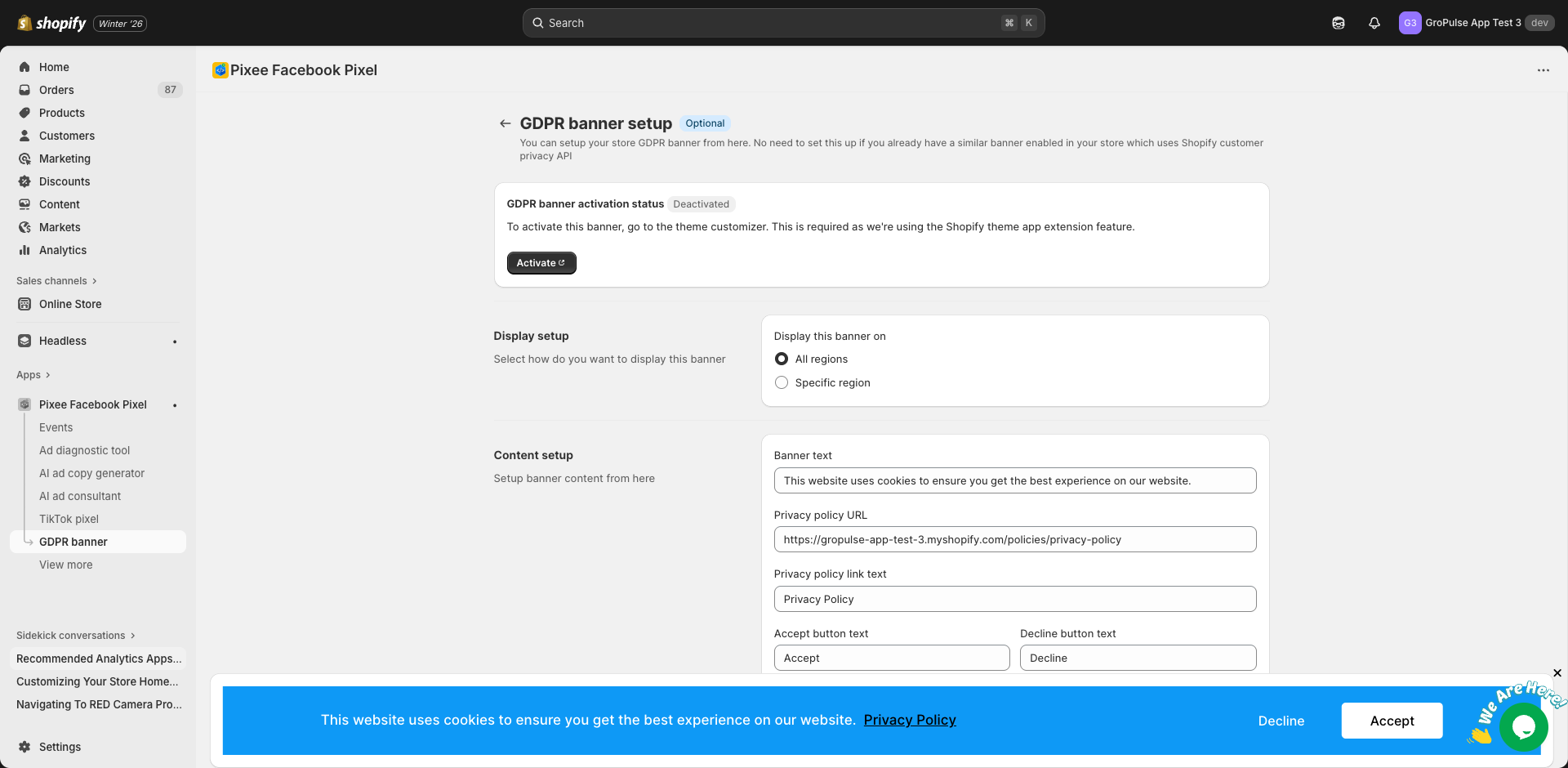
Setting Up the Banner
Step 1: Enable the Banner
- Go to the GDPR Banner page
- Find the “Banner Status” section
- Click Activate to enable the banner
Note: The banner uses Shopify’s theme app extension, which must be enabled in your theme.
Step 2: Configure Display Settings
Region Selection
Choose where to show the banner:
| Option | Description |
|---|---|
| All regions | Show to all visitors regardless of location |
| Specific region | Only show to visitors from selected regions |
For specific regions, select the applicable areas:
- European Union
- United Kingdom
- California (USA)
- Other regions
Step 3: Customize Banner Content
Banner Text
Customize the main message displayed in the banner:
Example: "We use cookies to enhance your experience and analyze site traffic.
By clicking 'Accept', you consent to our use of cookies."
Privacy Policy Link
Enter your privacy policy details:
| Field | Description | Example |
|---|---|---|
| Privacy Policy URL | Link to your privacy policy page | /pages/privacy-policy |
| Privacy Policy Link Text | Text for the link | “Privacy Policy” |
Button Text
Customize the button labels:
| Field | Default | Description |
|---|---|---|
| Accept Button Text | “Accept” | Text for the accept button |
| Decline Button Text | “Decline” | Text for the decline button |
Step 4: Preview the Banner
The page includes a live preview at the bottom showing how your banner will appear to visitors.
Step 5: Save Settings
- Click Save to apply your changes
- The banner will appear on your store
Banner Behavior
When the Banner Appears
The banner appears:
- On the first visit to your store
- At the bottom of the page
- Until the visitor makes a choice
After Visitor Accepts
When a visitor clicks “Accept”:
- Pixel tracking is enabled
- Cookies are set
- The banner is hidden
- Choice is remembered for future visits
After Visitor Declines
When a visitor clicks “Decline”:
- Pixel tracking is disabled
- Only essential cookies are set
- The banner is hidden
- Choice is remembered for future visits
Integration with Tracking
The consent banner integrates with:
Shopify Customer Privacy API
- Automatically respects Shopify’s privacy settings
- Works with other apps using the same API
- Maintains consistent consent across your store
Pixel Tracking
- Facebook Pixel respects consent settings
- TikTok Pixel respects consent settings
- Pinterest Pixel respects consent settings
Consent Tracking in Settings
To enable consent tracking:
- Go to Settings in the app
- Find “Tracking Consent”
- Toggle to enable “Use Shopify customer privacy API”
- Save settings
This ensures pixels only fire after consent is given.
Customization Options
Banner Position
The banner appears at the bottom of the page as a fixed bar.
Styling
The banner uses a clean, professional design that:
- Works with most theme styles
- Is readable on all devices
- Meets accessibility standards
Plan Requirements
| Feature | Free | Basic | Advanced |
|---|---|---|---|
| GDPR Banner | Yes | Yes | Yes |
| Custom Text | Yes | Yes | Yes |
| Region Targeting | Yes | Yes | Yes |
Best Practices
- Be clear: Use simple language visitors can understand
- Link to privacy policy: Always include a link to your full policy
- Test on mobile: Verify the banner works on mobile devices
- Keep it concise: Short messages have better engagement
Troubleshooting
Banner Not Appearing
- Verify the banner is activated
- Check the theme app embed is enabled:
- Go to Online Store > Themes > Customize
- Check App embeds section
- Enable Pixee if disabled
- Clear browser cache and cookies
Banner Appears in Wrong Regions
- Check your region settings
- Verify “All regions” vs “Specific region” setting
- Note: IP-based detection may not be 100% accurate
Banner Blocking Content
- The banner should appear at the bottom of the page
- If it blocks content, contact support
- Check for theme CSS conflicts
Tracking Still Active After Decline
- Ensure consent tracking is enabled in Settings
- Verify the pixel configurations respect consent
- Check for other tracking scripts not managed by Pixee
Compliance Considerations
Important: While Pixee provides tools for consent management, you are responsible for ensuring your store complies with applicable privacy regulations. Consider consulting with a legal professional for compliance advice specific to your business.
Key considerations:
- GDPR (European Union)
- UK GDPR (United Kingdom)
- CCPA (California, USA)
- LGPD (Brazil)
- Other regional regulations
Next Steps
- Configure Tracking Consent in Settings
- Set up your Pixels with consent awareness
- Review your Privacy Policy to ensure it covers pixel tracking