
Welcome to GP ‑ Wishlist & Upsell Suite — a powerful Shopify app designed to help you boost sales, increase customer engagement, and maximize your store’s revenue potential. This guide will walk you through installing the app and completing the initial setup.
What is GP ‑ Wishlist & Upsell Suite?
GP ‑ Wishlist & Upsell Suite is an all-in-one promotional toolkit for Shopify merchants. Beyond the core wishlist functionality, it includes multiple revenue-boosting features:
- Wishlist Management — Let customers save products and return to purchase later
- Email Notifications — Automated reminders, back-in-stock alerts, and price drop notifications
- Volume Discounts — Tiered pricing to encourage bulk purchases
- BOGO Offers — Flexible “Buy X Get Y” promotional campaigns
- Upsell Offers — Strategic product recommendations to increase order value
- Product Bundles — Sell multiple products together at a discounted price
- Product Recommendations — Curated and personalized product suggestions
The app supports 15 languages and integrates seamlessly with your Shopify theme.
Installation
Step 1: Install from Shopify App Store
- Navigate to the Shopify App Store
- Search for “GP ‑ Wishlist & Upsell Suite”
- Click Add app
- Review the permissions and click Install app
Once installed, you’ll be redirected to the app’s setup wizard.
Initial Setup Wizard
After installation, GP ‑ Wishlist & Upsell Suite guides you through a simple 3-step setup process to get your wishlist up and running.
Step 1: Activate the App
The first step enables the app’s theme extension on your storefront.
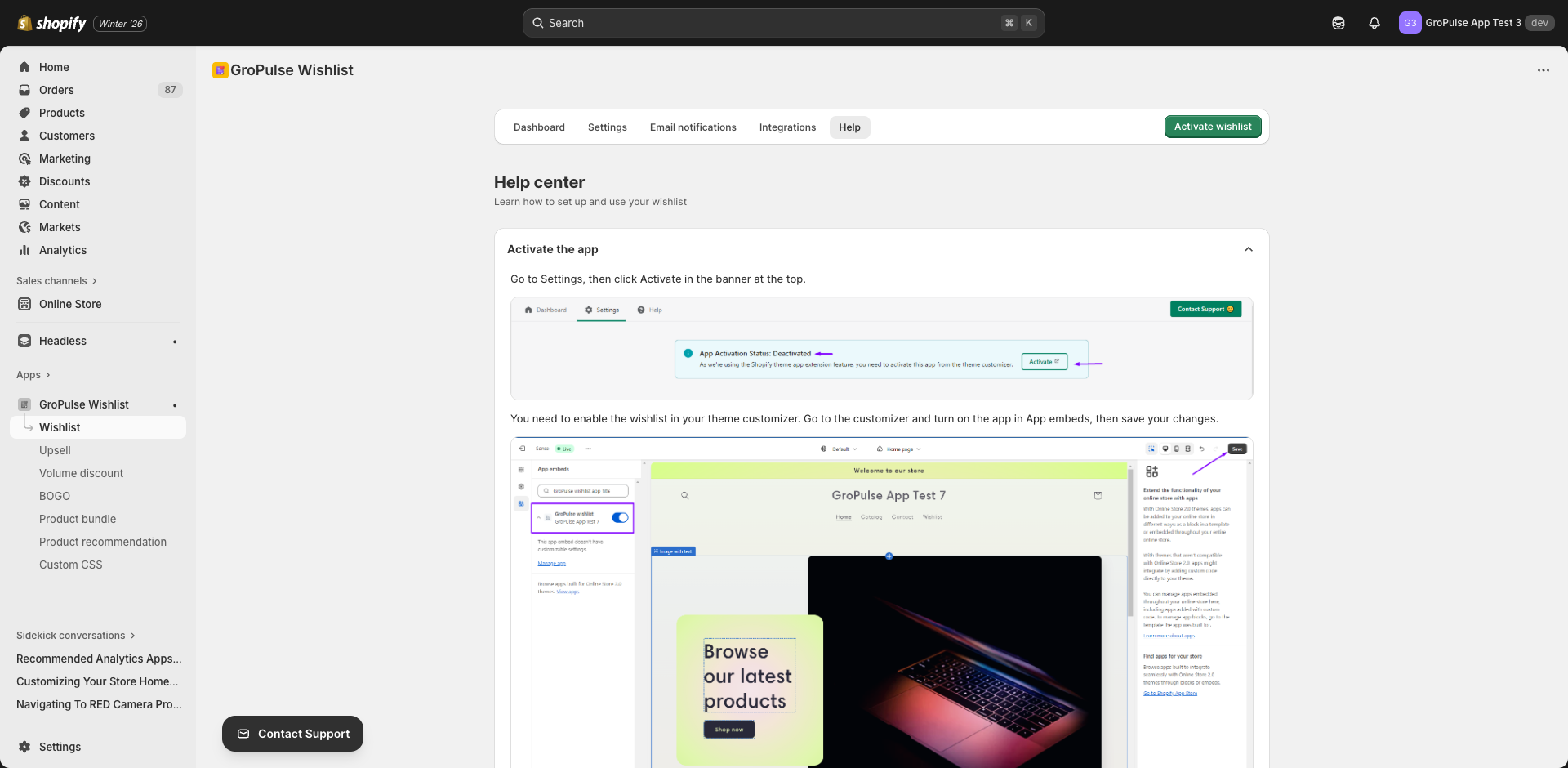
How to activate:
- Click the provided link to open your theme customizer
- In the theme customizer, locate the App embeds section (left sidebar)
- Find GroPulse Wishlist in the embedded apps list
- Toggle the switch to enable the app
- Click Save in the top-right corner
Video Tutorial: A built-in video guide is available directly in the app to help you through this step.
Step 2: Add the Wishlist Button to Product Pages
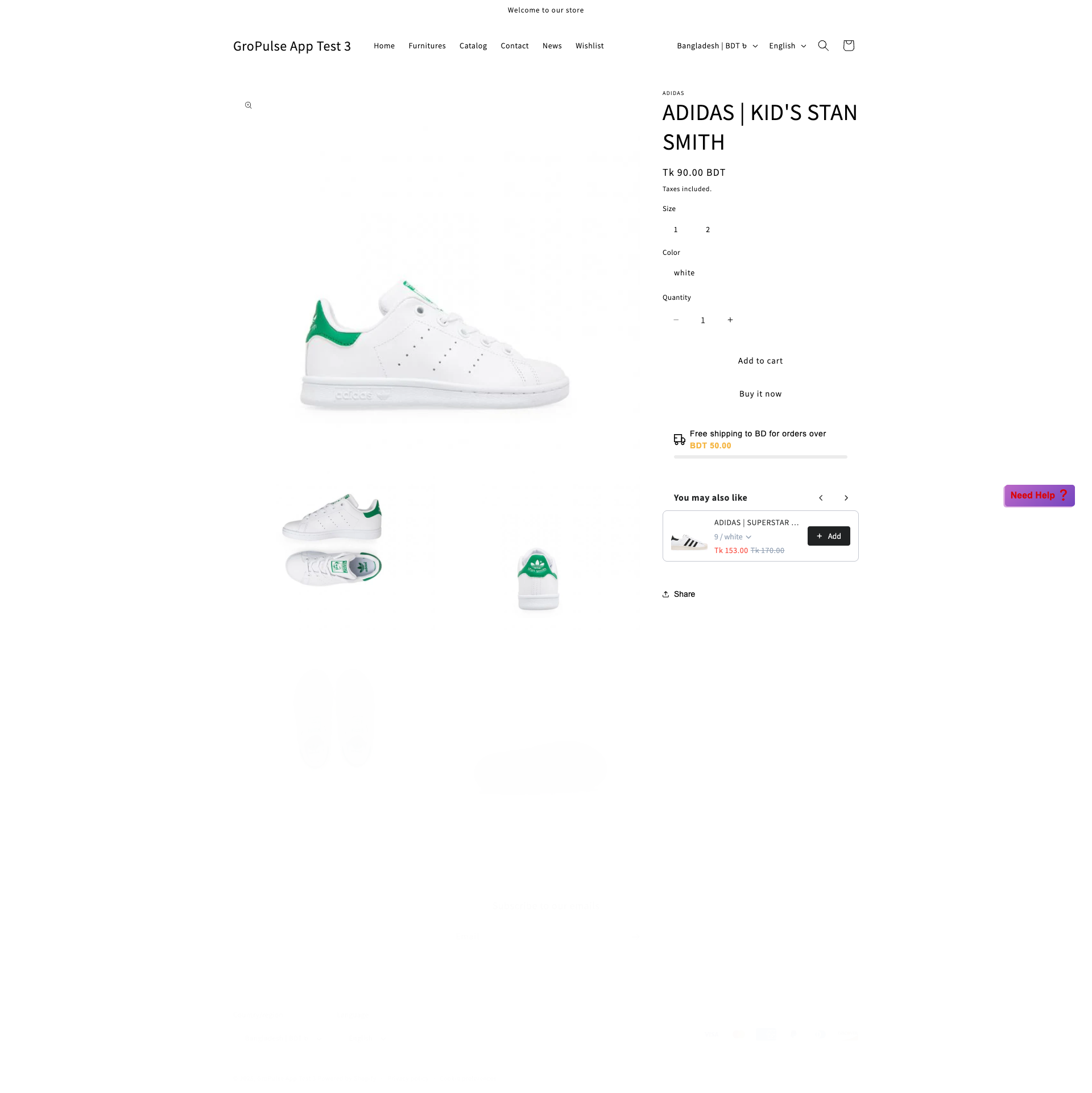
This step adds the “Add to Wishlist” button on your product pages.
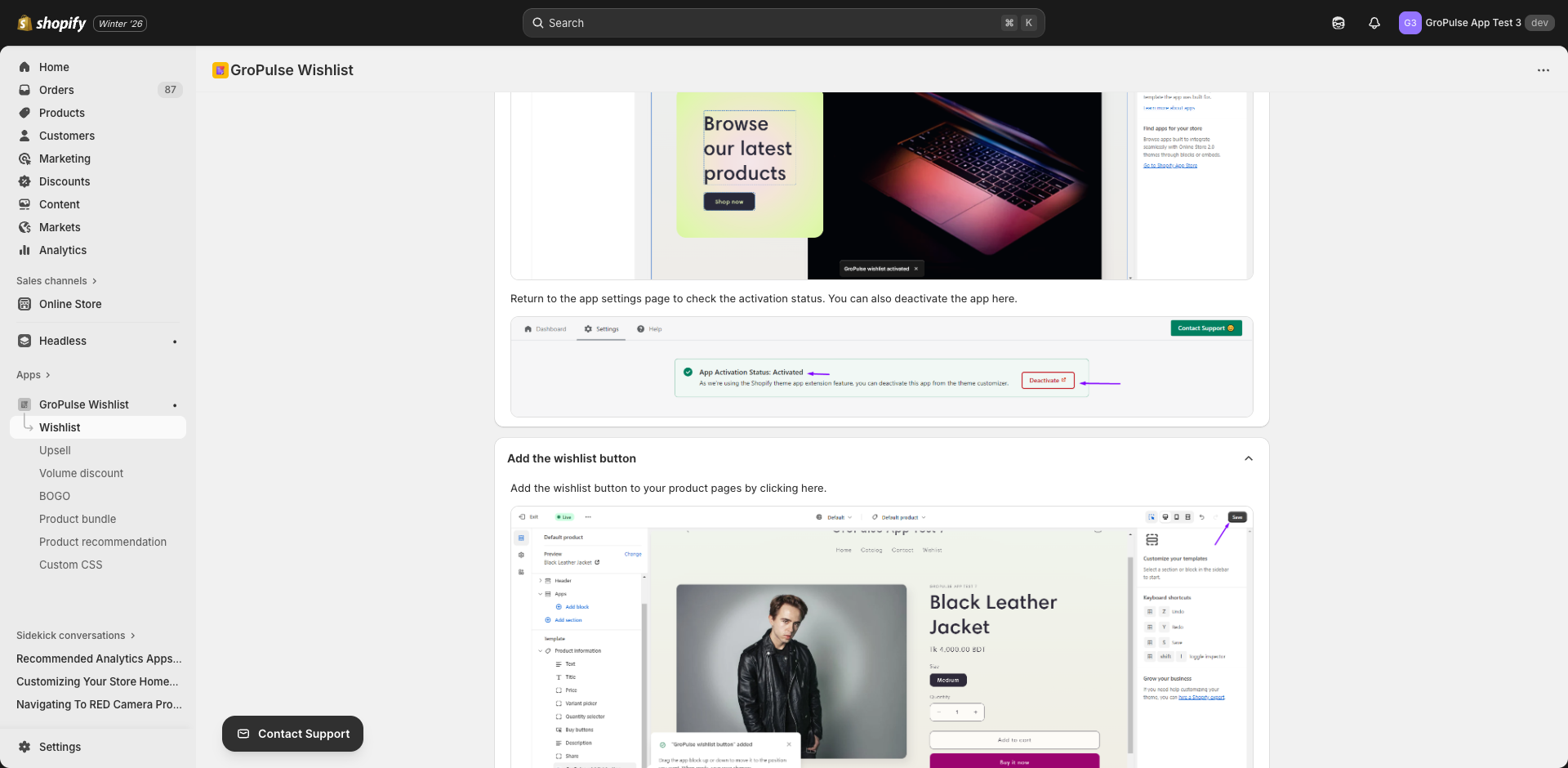
For Online Store 2.0 themes:
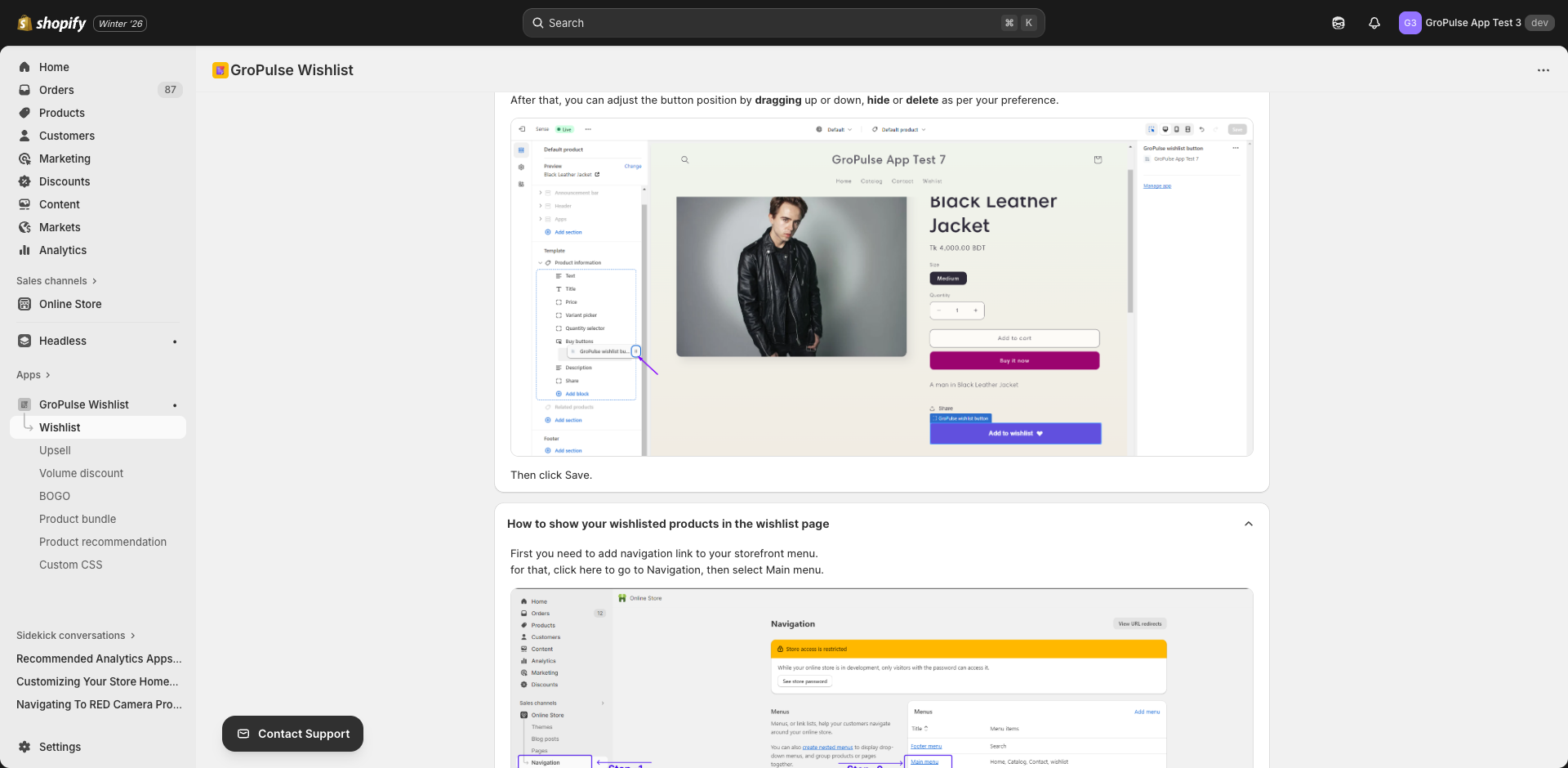
- Click the provided link to open the product page editor
- The wishlist button block will be automatically added to your product template
- Drag the button to reposition it as needed
- You can also hide or delete the button from the customizer if required
- Click Save
For vintage/older themes:
- Copy the provided HTML code from the app
- Open your theme’s code editor
- Locate the
product-template.liquidfile - Paste the code where you want the wishlist button to appear
- Save the file
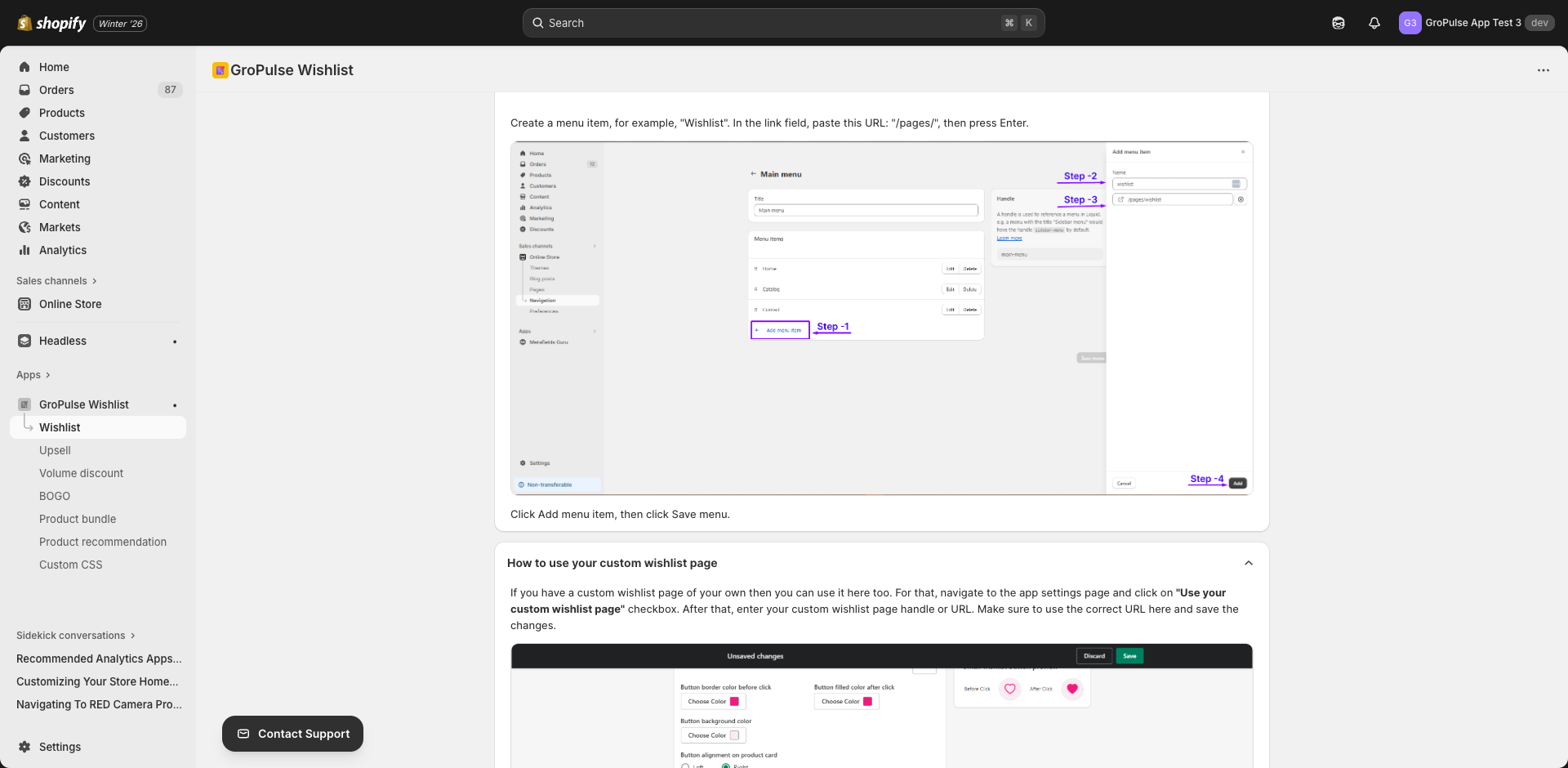
Step 3: Add the Wishlist Page to Navigation
Create a menu link so customers can easily access their wishlist.
How to add:
- Click the link to open your Shopify Navigation settings
- Select Main menu (or your preferred menu)
- Click Add menu item
- Enter a name like “Wishlist”
- In the link field, paste:
/pages/wishlist - Press Enter, then click Save menu
Setup Complete!
Once all three steps are done, you’ll see a congratulations message. Click Finish to complete the wizard and access the full app dashboard.
Navigating the App
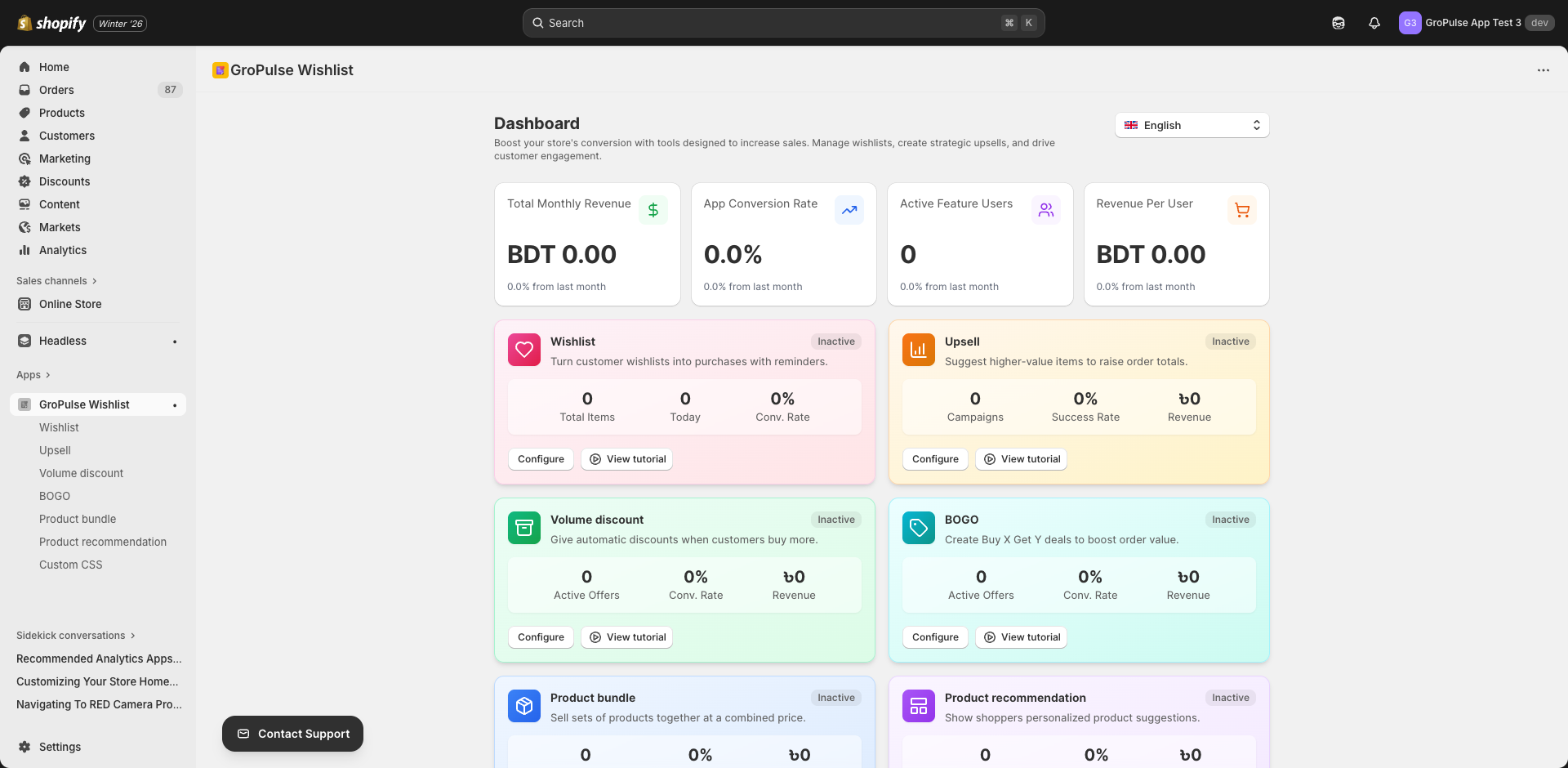
After setup, you’ll have access to the main navigation with these sections:
| Section | Description |
|---|---|
| Home | Dashboard with analytics overview and performance metrics |
| Wishlist | Wishlist settings, email notifications, and customer data |
| Upsell | Create and manage upsell offers |
| Volume Discount | Set up tiered quantity-based discounts |
| BOGO | Configure “Buy One Get One” promotions |
| Product Bundle | Create product bundle offers |
| Product Recommendation | Set up recommendation widgets |
| Custom CSS | Advanced styling customization (Pro feature) |
Quick Tips for Success
- Start with the wishlist — Ensure your wishlist button appears correctly on product pages
- Enable email notifications — Set up wishlist reminders to re-engage customers
- Test on your storefront — Visit your store as a customer to verify everything works
- Explore promotional features — Once comfortable, try Volume Discounts or BOGO offers
Need Help?
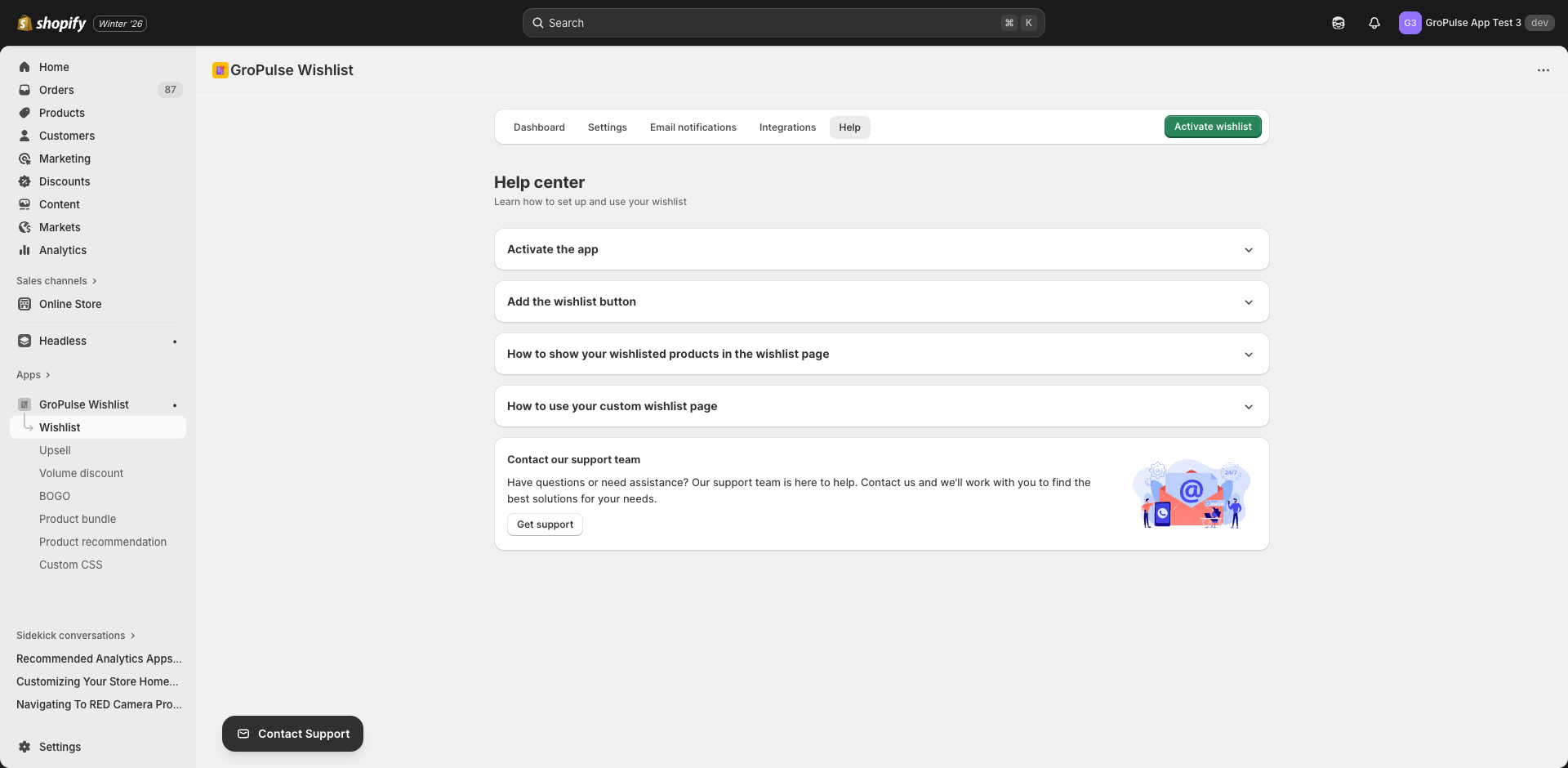
- Setup Guide: Each section has a built-in Help tab with documentation and video tutorials
- Support: Contact our support team through the app’s contact options
- Knowledge Base: Access detailed documentation for each feature
What’s Next?
Now that you’re set up, explore these guides to make the most of GP ‑ Wishlist & Upsell Suite:
- Navigating the Dashboard — Understanding your analytics and KPIs
- Setting Up Your Wishlist — Customize wishlist appearance and behavior
- Wishlist Reminder Emails — Automate customer follow-ups
GP ‑ Wishlist & Upsell Suite — Helping you convert browsers into buyers.