
Back-in-stock notifications automatically alert customers when items they’ve wishlisted become available again. This feature helps you capture sales that would otherwise be lost to stockouts.
Why Back-in-Stock Notifications Matter
When a customer adds an out-of-stock item to their wishlist, they’re showing strong purchase intent. Notifying them instantly when stock returns:
- Captures high-intent buyers immediately
- Reduces lost sales from stockouts
- Builds customer trust and loyalty
- Creates urgency around restocked items
Prerequisites
Before setting up back-in-stock notifications:
- Configure your SMTP settings in the Email Notifications tab
- Ensure your Shopify inventory tracking is enabled
- Have customers with wishlisted items
Accessing Back-in-Stock Settings
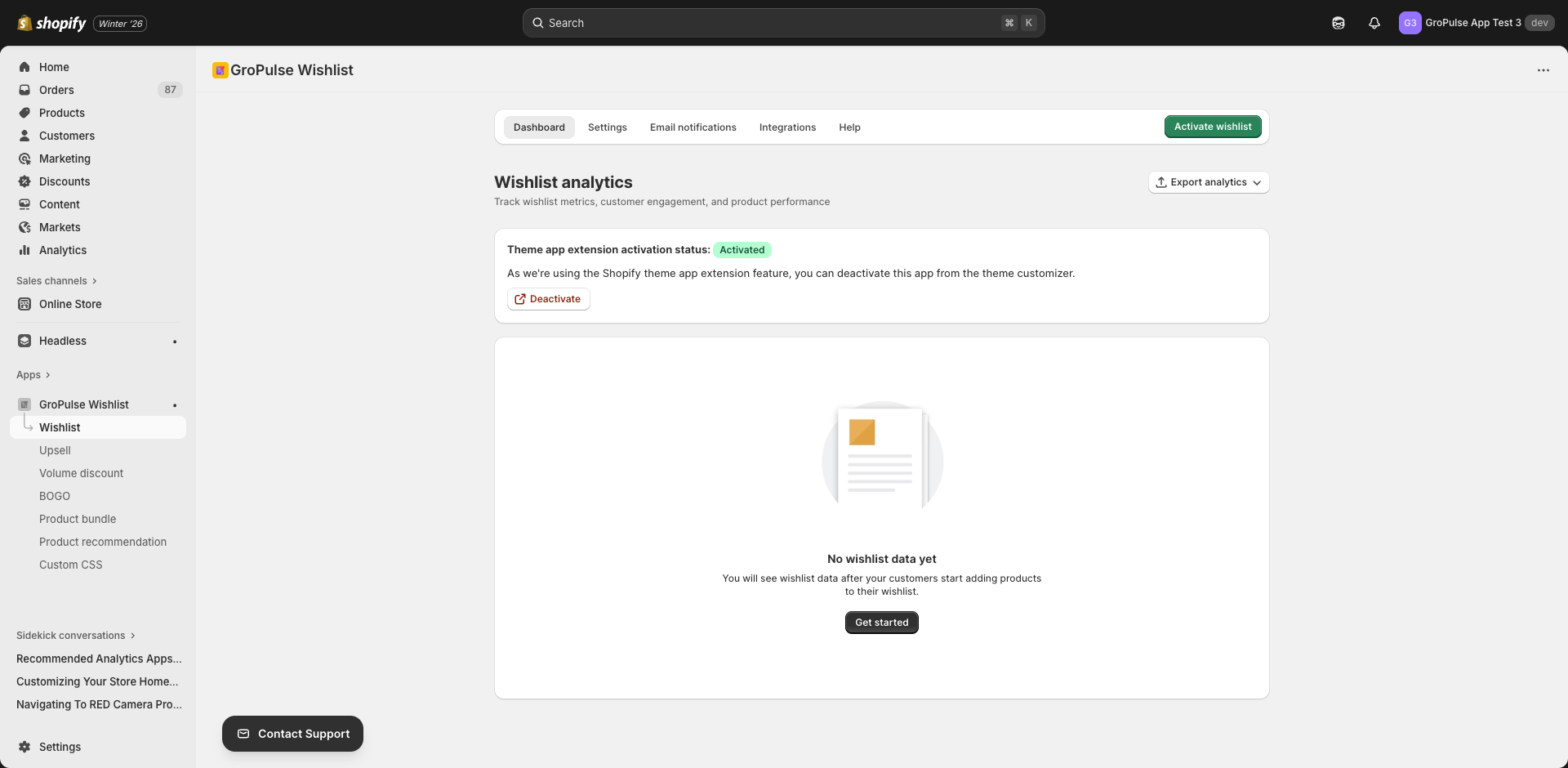
- Navigate to Wishlist in the main menu
- Click the Email Notifications tab
- Select Back-in-Stock panel
Configuration Options
Enable Back-in-Stock Notifications
Toggle the checkbox to enable automatic notifications when inventory is restored.
Notification Settings
Inventory Threshold
Set the minimum stock level that triggers notifications:
| Setting | Description |
|---|---|
| 1 | Notify when at least 1 unit is available |
| 5 | Notify when 5+ units are in stock |
| 10 | Notify when 10+ units are available |
| Custom | Set your own threshold |
Tip: A higher threshold ensures stock isn’t depleted by the time customers arrive.
Maximum Notifications
Control how many customers receive notifications per product restock:
| Option | Description |
|---|---|
| Unlimited | Notify all customers who wishlisted the item |
| 10 | Notify only the first 10 customers |
| 25 | Notify the first 25 customers |
| 50 | Notify the first 50 customers |
| 100 | Notify the first 100 customers |
Why limit? For limited-stock items, you may want to notify only as many customers as you can serve.
Email Content
Email Subject
Create urgency in your subject line. Examples:
- “Great news! {{product_name}} is back in stock”
- “Your wishlist item is available again!”
- “Hurry — {{product_name}} just restocked”
Email Template
Design your notification email using the rich text editor.
Available Variables
| Variable | Description |
|---|---|
{{customer_name}} | Customer’s first name |
{{product_name}} | Name of the restocked product |
{{product_image}} | Product image HTML |
{{store_name}} | Your store’s name |
Example Template:
<h2>Hi {{customer_name}},</h2>

<p>Great news! An item from your wishlist is back in stock:</p>

<div style="text-align: center;">
  {{product_image}}
  <h3>{{product_name}}</h3>
</div>

<p>Don't wait — popular items sell out quickly!</p>

<p>
  <a href="{{product_url}}" style="background: #000; color: #fff; padding: 12px 24px; text-decoration: none;">
    Shop Now
  </a>
</p>

<p>Thanks for shopping with {{store_name}}!</p>
Social Links
Add social media links to your email footer:
- Instagram — Your Instagram profile URL
- Facebook — Your Facebook page URL
- Twitter/X — Your Twitter profile URL
- Email — Your support email address
Testing
Before going live:
- Click Send Test Email
- Enter your email address
- Review the test email
- Verify all variables display correctly
- Test all links
How It Works
- Customer adds out-of-stock item to wishlist
- System tracks the product’s inventory
- When inventory exceeds your threshold, emails are queued
- Customers receive notifications based on your settings
- Notification is logged for analytics
Best Practices
Inventory Threshold
| Scenario | Recommended Threshold |
|---|---|
| High-demand items | 10+ units |
| Regular items | 5 units |
| Made-to-order | 1 unit |
Email Timing
Back-in-stock emails are time-sensitive. The system sends them as soon as stock is detected, giving your customers the best chance to purchase.
Creating Urgency
- Mention limited quantities
- Include “Shop Now” CTAs
- Reference product popularity
- Add countdown timers if possible
Email Content Tips
- Lead with the product image — Visual recognition is instant
- Keep it short — Get to the point quickly
- Single CTA — One clear action to take
- Mobile-friendly — Most emails are read on phones
Troubleshooting
Notifications Not Sending
- Verify SMTP settings are configured
- Check that the feature is enabled
- Confirm inventory threshold is set correctly
- Ensure product inventory tracking is on in Shopify
Wrong Products Triggering
- Verify the inventory threshold setting
- Check that variant inventory is tracked correctly
- Review product inventory settings in Shopify
Customers Not Receiving
- Check email addresses are valid
- Review spam folder placement
- Verify customer has the item wishlisted
Analytics
Track your back-in-stock notification performance in the Dashboard:
- Emails Sent — Total notifications delivered
- Open Rate — Percentage of emails opened
- Click Rate — Percentage that clicked through
- Conversion Rate — Purchases from notifications
What’s Next?
Continue building your email automation strategy:
- Price Drop Notifications — Alert customers to deals
- Abandoned Wishlist Recovery — Re-engage inactive customers
- Email Templates & Social Links — Advanced customization
Never lose a sale to stockouts again — back-in-stock notifications bring customers back at the perfect moment.