
Volume discounts encourage customers to buy more by offering tiered pricing based on quantity. This feature helps increase your average order value while giving customers better deals on bulk purchases.
Why Volume Discounts Work
Volume discounts create a win-win:
- For customers: Better pricing when buying more
- For you: Higher order values and faster inventory turnover
They’re especially effective for:
- Consumable products
- Gift items
- B2B sales
- Clearance items
Accessing Volume Discounts
- Navigate to Volume Discount in the main menu
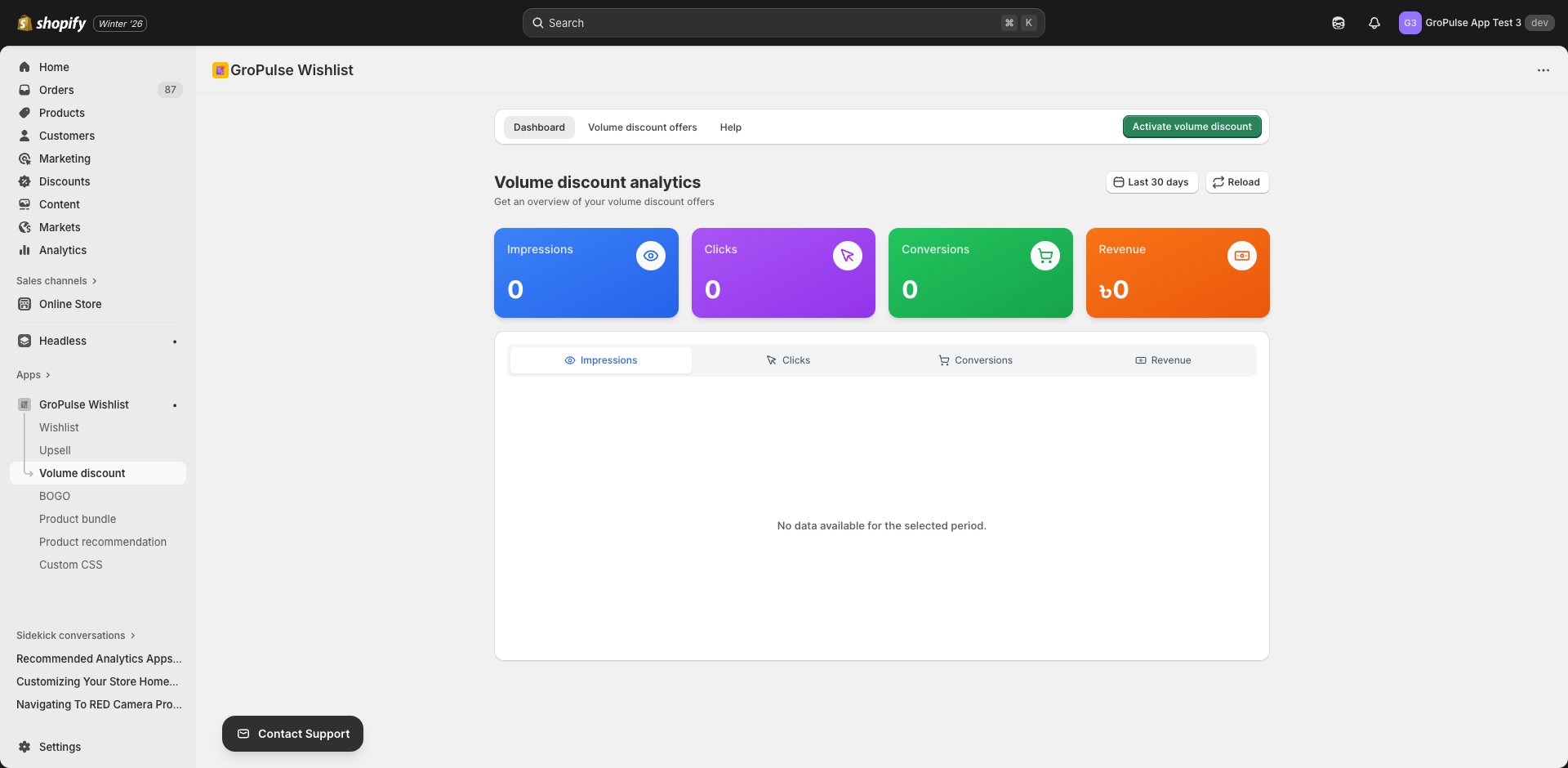
- You’ll see three tabs:
- Dashboard — Analytics for your volume discount offers
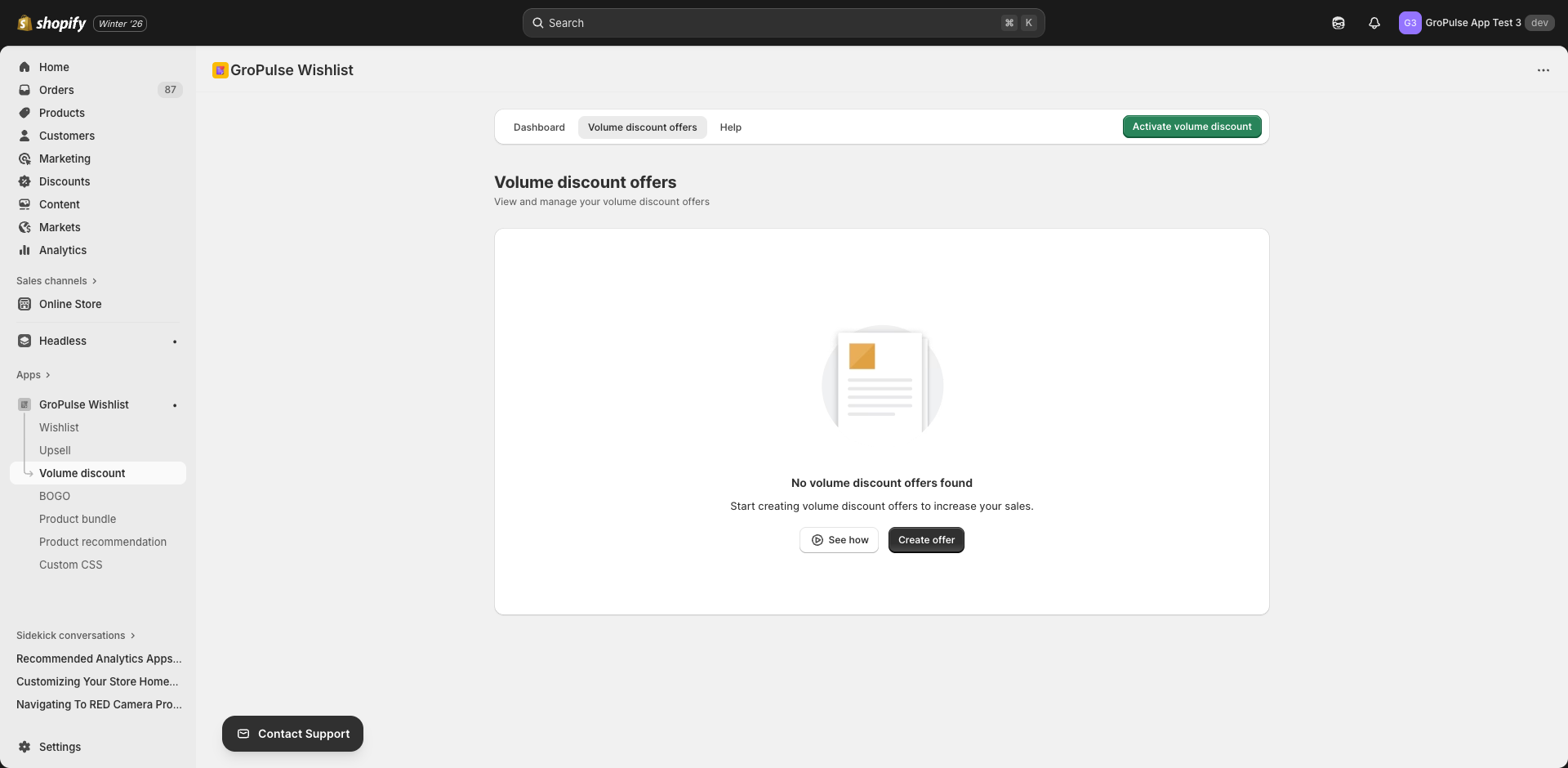
- Offers — Create and manage discount tiers
- Help — Documentation and tutorials
Creating a Volume Discount Offer
- Go to the Offers tab
- Click Create Offer
- Configure the settings across multiple tabs
General Settings
Configure basic offer information:
| Setting | Description |
|---|---|
| Offer Title | Internal name for your reference (e.g., “Summer T-Shirt Deal”) |
| Customer-Facing Title | Title customers see (e.g., “Buy More, Save More!”) |
| Customer-Facing Subtitle | Additional text below the title |
| Add to Cart Button Text | Text on the purchase button |
| Available Quantity Added Text | Message shown when items are added |
| Max Quantity Reached Text | Message when limit is reached |
| Default Tier Badge Text | Badge text for the default tier (e.g., “Most Popular”) |
Discount Selection
Discount Type
Choose how discounts are calculated:
| Type | Description | Example |
|---|---|---|
| Percentage | Discount as percentage off | 10% off, 20% off |
| Fixed Amount | Dollar amount off per item | $5 off, $10 off |
Discount Combinations
Select which other discounts can stack with volume discounts:
| Option | Description |
|---|---|
| Product Discounts | Combine with product-level discounts |
| Order Discounts | Combine with order-level discounts |
| Shipping Discounts | Combine with shipping discounts |
Note: Be careful with combinations — they can significantly reduce margins.
Discount Tiers
Create tiered pricing that increases with quantity. You need at least 2 tiers.
Tier Configuration
Each tier requires:
| Field | Description | Example |
|---|---|---|
| Quantity | Units required for this tier | 3 |
| Discount Value | Percentage or fixed amount | 10% or $5 |
| Title | Tier heading | “Buy {{quantity}}” |
| Subtitle | Tier description | “{{discountValue}} off” |
| Mark as Default | Pre-select this tier | Checkbox |
Example Tier Setup
| Tier | Quantity | Discount | Title | Subtitle |
|---|---|---|---|---|
| 1 | 1 | 0% | Buy 1 | Regular price |
| 2 | 3 | 10% | Buy 3 | Save 10% |
| 3 | 5 | 15% | Buy 5 | Save 15% |
| 4 | 10 | 20% | Buy 10 | Save 20% |
Available Variables in Tier Text
| Variable | Description |
|---|---|
{{quantity}} | The tier’s quantity |
{{discountValue}} | The discount amount with symbol |
Adding/Removing Tiers
- Click Add Another Tier to create more levels
- The first two tiers cannot be removed
- Click the delete icon to remove additional tiers
Default Tier
Mark one tier as “default” to pre-select it for customers. This is typically your most popular option.
Display Rules
Control where and how volume discounts appear.
Product Selection Type
| Option | Description |
|---|---|
| All Products | Apply to entire catalog |
| Specific Products | Apply to selected products only |
| Specific Collections | Apply to selected collections |
All Products with Exclusions
When using “All Products,” you can exclude specific products:
- Click Select Products to Exclude
- Search and select products to exclude
- These products won’t show volume discount
Specific Products
When targeting specific products:
- Click Select Products
- Search and select products to include
- Only these products will show volume discount
Specific Collections
When targeting collections:
- Click Select Collections
- Choose collections to include
- All products in selected collections will show volume discount
Placement Settings
Configure where the volume discount widget appears.
Widget Position
Choose where on the product page the widget displays:
- Before add to cart button
- After add to cart button
- Custom location (via theme customization)
Schedule Settings
Control when your offer is active.
Start Date
Set when the offer becomes active. Leave blank to start immediately.
End Date
Set when the offer ends. Leave blank for no end date.
Time Zone
Dates are based on your Shopify store’s time zone.
Design Settings
Customize the look of your volume discount widget.
Layout Style
Choose from layout options:
| Layout | Description |
|---|---|
| Classic | Traditional horizontal tier display |
| Cards | Card-based tier display |
Color Customization
Customize colors for:
- Widget background
- Tier background
- Selected tier background
- Text color
- Border color
- Button colors
Typography
Configure font sizes for:
- Title
- Subtitle
- Tier text
- Price display
Saving and Activating
- Review all settings
- Click Save to create the offer
- Toggle the offer Active to enable it
- Visit a product page to verify it displays
Managing Offers
Offer List
The Offers tab shows all your volume discounts with:
- Offer name
- Status (Active/Inactive)
- Products/Collections count
- Creation date
- Actions (Edit, Delete, Toggle)
Editing Offers
- Click the offer name or edit icon
- Make your changes
- Click Save
Deleting Offers
- Click the delete icon
- Confirm deletion
Warning: Deleted offers cannot be recovered.
Enabling/Disabling
Toggle the status switch to quickly enable or disable offers without deleting them.
Volume Discount on Storefront
Best Practices
Tier Strategy
| Approach | Best For |
|---|---|
| Shallow tiers (5%, 10%, 15%) | Margin-conscious businesses |
| Deep tiers (10%, 20%, 30%) | Moving inventory quickly |
| Few tiers (2-3) | Simple messaging |
| Many tiers (4-5) | Encouraging larger purchases |
Pricing Psychology
- Make the jump worth it — Each tier should feel like a meaningful upgrade
- Use odd numbers — “Buy 3” feels more specific than “Buy 2”
- Highlight savings — Show the dollar amount saved
- Mark a default — Guide customers to your preferred tier
Product Selection
| Selection | When to Use |
|---|---|
| All Products | Store-wide promotions |
| Specific Products | Targeting slow movers |
| Collections | Category-specific deals |
Common Mistakes to Avoid
- Too many tiers — Causes decision paralysis
- Too small discounts — Not motivating
- No default tier — Missing guidance
- Forgetting exclusions — Discounting already-discounted items
Troubleshooting
Widget Not Appearing
- Verify offer is active
- Check product is included in display rules
- Ensure theme extension is enabled
- Clear browser cache
Discount Not Applying
- Verify Shopify discount function is installed
- Check tier quantities are correct
- Review discount combination settings
Wrong Products Showing
- Review display rules configuration
- Check exclusions are set correctly
- Verify collection membership
Analytics
Track volume discount performance in the Dashboard tab:
- Total Revenue — Sales through volume discounts
- Conversion Rate — Visitors who purchased with discount
- Average Order Value — Impact on order size
- Popular Tiers — Which quantities customers choose
What’s Next?
Explore more promotional features:
- BOGO Offers Made Easy — Buy X Get Y promotions
- Upsell Offers — Increase order value
- Product Bundles — Sell products together
Volume discounts turn single-item buyers into bulk purchasers — start offering tiered pricing today.