
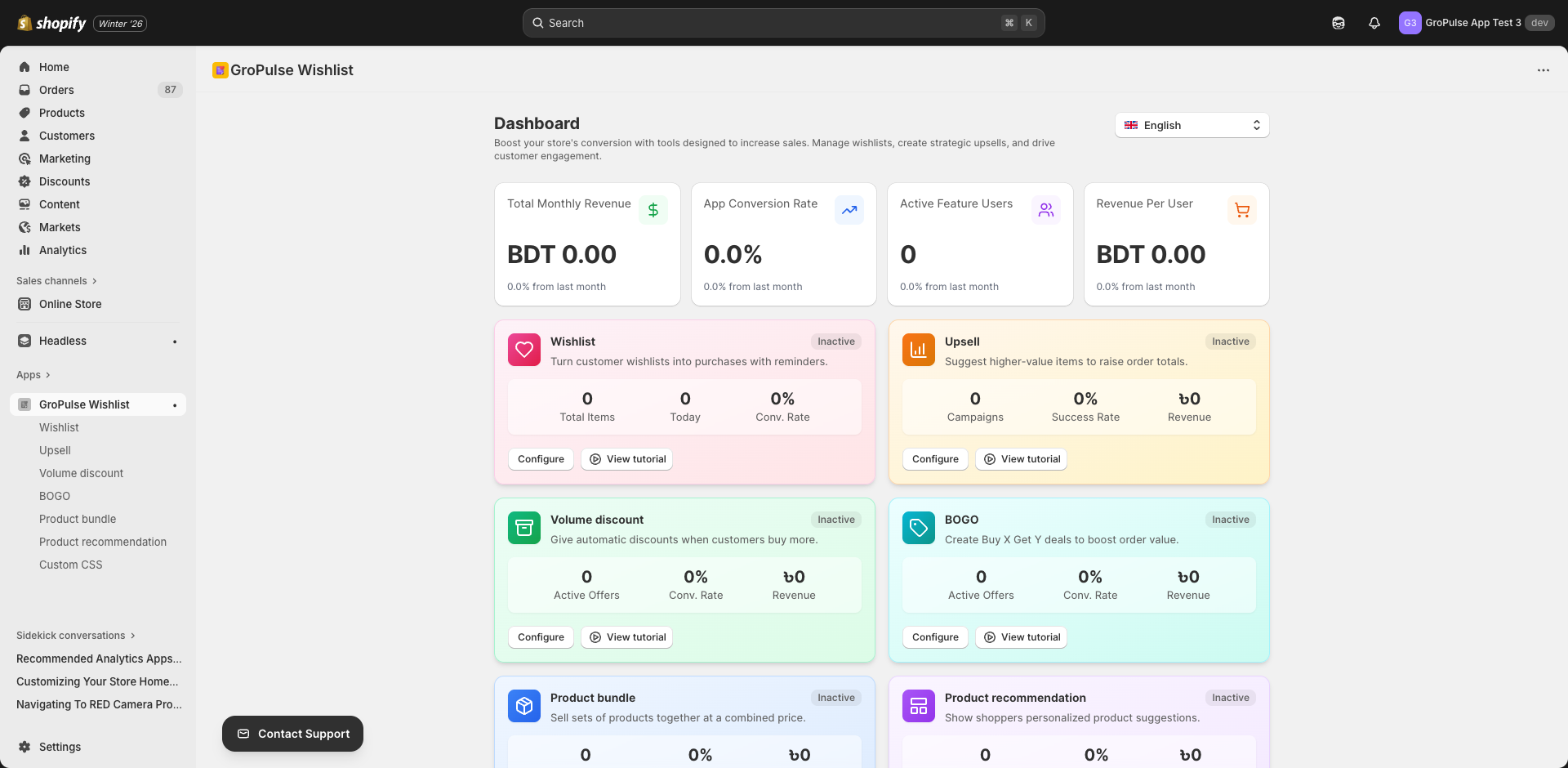
GP ‑ Wishlist & Upsell Suite uses Shopify’s theme app extension to seamlessly integrate widgets into your storefront. This guide explains how to enable, position, and customize the theme extension blocks.
What is a Theme Extension?
A theme app extension is a modern way for Shopify apps to add functionality to your store without modifying your theme’s code directly. Benefits include:
- No code editing required — Use the theme customizer
- Easy updates — App updates automatically apply
- Safe installation — Won’t break your theme
- Quick removal — Disable anytime without residue
Enabling the Theme Extension
Step 1: Access Theme Customizer
- Go to Online Store > Themes in Shopify admin
- Click Customize on your active theme
Step 2: Enable App Embeds
- In the customizer, click the App embeds icon (puzzle piece) in the left sidebar
- Find GroPulse Wishlist in the list
- Toggle the switch to enable the extension
- Click Save
Important: The app embed must be enabled for any widgets to appear.
Available Theme Blocks
GP ‑ Wishlist & Upsell Suite provides several blocks you can add to your theme:
Wishlist Button Block
gropulse-wishlist-button.liquid
Adds the “Add to Wishlist” button to product pages.
Placement options:
- Product form section
- Below add to cart button
- Product description area
- Custom location
Wishlist Page Block
gropulse-wishlist.liquid
Displays the full wishlist page with all saved items.
Best placement:
- Dedicated wishlist page template
- Customer account area
Volume Discount Block
gropulse-volume-discount.liquid
Shows tiered pricing options on product pages.
Best placement:
- Above or below add to cart
- Product information section
BOGO Offer Block
gropulse-bogo-offer.liquid
Displays Buy One Get One promotions.
Best placement:
- Product page (near add to cart)
- Cart page
- Collection pages
Upsell Offer Block
gropulse-upsell-offer.liquid
Shows upsell product recommendations.
Best placement:
- Below product description
- Cart page
- Cart drawer
Product Bundle Block
gropulse-product-bundler.liquid
Displays product bundle offers.
Best placement:
- Product page
- Collection page
- Dedicated bundle section
Product Recommendations Block
gropulse-product-recommendations.liquid
Shows curated product recommendations.
Best placement:
- Product page (bottom)
- Collection page
- Homepage
- Cart page
Adding Blocks to Your Theme
Using Theme Customizer
- Open the theme customizer
- Navigate to the page template you want to edit (e.g., Product page)
- Click Add section or Add block
- Find the GroPulse block you want to add
- Drag to position it
- Configure settings if available
- Click Save
Block Settings
Each block may have customizable settings:
| Setting | Description |
|---|---|
| Visibility | Show/hide the block |
| Position | Where in the section it appears |
| Styling | Color and size options |
| Behavior | Interaction settings |
Theme-Specific Placement
Online Store 2.0 Themes
Modern themes support app blocks natively:
- Open theme customizer
- Select the template (Product, Collection, etc.)
- Find the section where you want the block
- Click Add block within that section
- Select the GroPulse block
- Position and save
Compatible themes include:
- Dawn
- Sense
- Fresh
- Craft
- Ride
- Studio
- Publisher
- Crave
Vintage Themes
Older themes may require manual code insertion:
- Go to Online Store > Themes > Edit code
- Find the template file (e.g.,
product.liquid) - Add the render snippet:
{% render 'gropulse-wishlist-button' %}- Position it where you want the button
- Save
Snippet Reference
Available Snippets
| Snippet | Purpose |
|---|---|
gropulse-wishlist-button | Wishlist add button |
gropulse-lbw-styles | Login-based wishlist styles |
navigation-wishlist-button | Header wishlist icon |
volume-discount-header | Volume discount header |
volume-discount-option | Individual tier option |
volume-discount-variants | Variant selector |
volume-discount-add-to-cart | Add to cart with discount |
volume-discount-savings | Savings display |
Rendering Snippets
{% comment %} Basic render {% endcomment %}
{% render 'gropulse-wishlist-button' %}

{% comment %} With product context {% endcomment %}
{% render 'gropulse-wishlist-button', product: product %}

{% comment %} With custom settings {% endcomment %}
{% render 'gropulse-volume-discount', product: product, show_savings: true %}
Navigation Wishlist Icon
Add a wishlist icon to your header navigation:
For Header Section
- Open theme customizer
- Click on your header section
- Look for app blocks or announcement bar area
- Add the wishlist navigation button block
Manual Code Method
In your header.liquid or navigation file:
{% render 'navigation-wishlist-button' %}Position it near your cart icon for consistency.
Page Templates
Creating a Wishlist Page
- In Shopify admin, go to Online Store > Pages
- Click Add page
- Title: “Wishlist” (or your preferred name)
- In theme customizer, assign the wishlist template
- Add the wishlist page block to the template
URL Configuration
Default wishlist URL: /pages/wishlist
Ensure your menu links point to this URL:
- Go to Online Store > Navigation
- Edit your main menu
- Add a menu item with link:
/pages/wishlist
Troubleshooting
Blocks Not Appearing
- Check app embed is enabled
- Theme customizer > App embeds > GroPulse Wishlist ON
- Verify block is added
- Check the specific template in customizer
- Ensure block is visible (not hidden)
- Check theme compatibility
- Some vintage themes need manual code
- Clear cache
- Browser cache
- Shopify CDN cache (wait 5-10 minutes)
Wrong Position
- Open theme customizer
- Navigate to the template
- Drag the block to new position
- Save changes
Styling Issues
- Check for theme CSS conflicts
- Use Custom CSS feature to override
- Verify app embed styles are loading
Multiple Blocks Showing
- Check for duplicate blocks in customizer
- Remove extra instances
- Verify code doesn’t have duplicate renders
Best Practices
Placement Guidelines
| Block | Recommended Position |
|---|---|
| Wishlist button | Near add to cart |
| Volume discount | Above add to cart |
| BOGO offer | Prominent, above fold |
| Upsell | Below product, in cart |
| Bundle | Product page, dedicated section |
| Recommendations | Page bottom, cart |
Mobile Considerations
- Test all placements on mobile
- Ensure buttons are touch-friendly
- Consider hiding some blocks on mobile if cluttered
- Verify scrolling and interactions work
Performance
- Don’t add duplicate blocks
- Remove unused blocks
- Use lazy loading where available
Advanced Customization
Conditional Rendering
{% comment %} Only show on specific products {% endcomment %}
{% if product.tags contains 'wishlist-enabled' %}
  {% render 'gropulse-wishlist-button' %}
{% endif %}

{% comment %} Only for logged-in customers {% endcomment %}
{% if customer %}
  {% render 'gropulse-wishlist-button' %}
{% endif %}
Custom Styling in Theme
{% comment %} Wrap with custom class {% endcomment %}
<div class="my-custom-wrapper">
  {% render 'gropulse-wishlist-button' %}
</div>
/* In theme CSS */
.my-custom-wrapper .gp-wishlist-button {
/* Custom styles */
}What’s Next?
Continue optimizing your store:
- Custom CSS Styling — Advanced visual customization
- Email Templates & Social Links — Email customization
- Understanding Your Analytics — Track performance
Proper theme extension integration ensures your widgets appear exactly where you want them — take time to set it up right.