
This guide provides an introduction to the Sales Notifications feature in SalesPulse, including how to access it and check activation status.
What are Sales Notifications?
Sales notifications are real-time popup notifications that display recent purchases made on your store. They create social proof and urgency by showing visitors that other customers are actively buying from your store. Use them to:
- Build trust and credibility with new visitors
- Create urgency through social proof
- Increase conversion rates by showing active sales
- Highlight popular products
- Encourage hesitant buyers to complete their purchase
Accessing the Sales Notifications Feature
To access the Sales Notifications feature:
- Open your Shopify admin
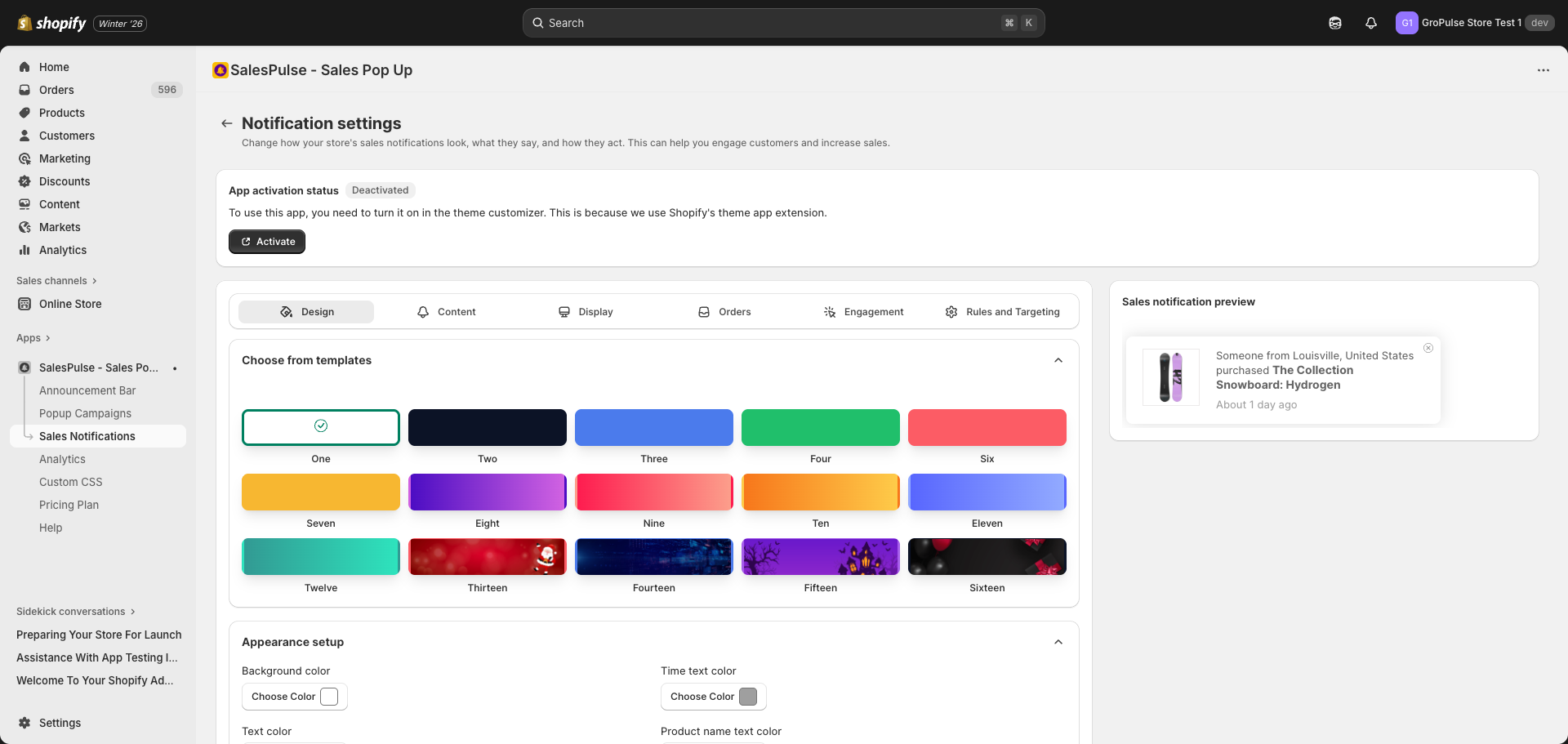
- Navigate to Apps > SalesPulse – Sales Pop Up
- Click Sales Notifications in the left sidebar
Activation Status
Before your sales notifications can appear on your store, the feature must be activated in the Theme Customizer.
Checking Activation Status
The Sales Notifications page displays an App activation status card at the top:
| Status | Description |
|---|---|
| Activated | The feature is enabled and notifications will display on your store |
| Deactivated | The feature needs to be activated in the Theme Customizer |
How to Activate
If the status shows “Deactivated”:
- Click the Activate button on the status card
- This opens the Shopify Theme Customizer
- In the App Embeds panel, find Sales Pop Up
- Toggle the switch to enable it
- Click Save in the top-right corner
Settings Overview
The Sales Notifications settings are organized into six tabs:
| Tab | Purpose |
|---|---|
| Design settings | Templates, colors, dimensions, animations, seasonal themes |
| Content settings | Message format, position, spacing, time display text |
| Display settings | Page targeting, device targeting, timing settings |
| Order settings | Exclude orders, number of orders to display |
| Engagement settings | Cross-sell, visitor counter, countdown timer, stock alerts |
| Rules and Targeting settings | Geo-targeting, trigger rules |
Key Features
The Sales Notifications feature includes:
| Feature | Description |
|---|---|
| Template Library | 15 pre-designed notification templates |
| Appearance Customization | Configure colors for background, text, and elements |
| Custom Dimensions | Set custom width and height for notifications |
| Animation Settings | Add smooth entry and exit animations |
| Seasonal Themes | Automatically switch themes for holidays |
| Position Control | Choose corner placement (desktop and mobile) |
| Time Display | Customizable time format with localization support |
| Page Targeting | Show on all pages or specific page types |
| Device Targeting | Control display on desktop and mobile |
| Order Exclusions | Exclude specific orders from being displayed |
| Cross-sell Suggestions | Show product recommendations |
| Visitor Counter | Display real-time viewer counts |
| Countdown Timer | Add urgency with time-limited offers |
| Stock Scarcity Alerts | Show low stock warnings |
| Geo-targeting | Target visitors by country |
| Trigger Rules | Exit intent, scroll depth, time on page, inactivity |
How Sales Notifications Work
Sales notifications display real-time purchase data from your store:
- Data Source: Notifications pull from your actual Shopify orders
- Display Limit: Up to 20 orders from the past 60 days
- Customer Privacy: Customer names can be anonymized to “Someone”
- Location Display: Shows customer city and country
- Product Link: Clicking the notification goes to the product page
Example Notification
A typical sales notification shows:
- Product image
- Customer location (city, country)
- Product name (linked to product page)
- Time since purchase (“About 1 day ago”)
- Close button for visitors to dismiss
Best Practices
Building Trust
- Use real order data for authenticity
- Keep notifications non-intrusive
- Allow visitors to close notifications easily
Optimizing Conversions
- Position notifications in visible but non-obtrusive corners
- Use engagement features like countdown timers for urgency
- Enable stock scarcity alerts for popular products