
This guide explains how to customize the visual appearance of your sales notifications, including templates, colors, dimensions, animations, and seasonal themes.
Accessing Design Settings
- Navigate to Sales Notifications in the SalesPulse app
- Click the Design tab (selected by default)
Template Library
Choose from 15 pre-designed templates to quickly style your notifications.
Applying a Template
- Scroll to the Choose from templates section
- Click on any template thumbnail
- The template styles are applied immediately
- View the change in the live preview
- Customize individual settings as needed
Appearance Setup
Configure individual color settings to match your brand.
Color Settings
| Setting | Description | Recommendation |
|---|---|---|
| Background color | Main notification background | Match your store theme or use white/dark |
| Text color | Primary text for customer location and message | Ensure high contrast with background |
| Close button color | Color of the X button | Should be visible but not distracting |
| Time text color | “About X ago” timestamp | Can be slightly muted |
| Product name text color | Clickable product link | Use your brand accent color |
How to Change Colors
- Click the Choose Color button next to the setting
- Use the color picker to select a color
- The preview updates in real-time
Color Contrast Tips
- Ensure text is readable against the background
- Use dark text on light backgrounds
- Use light text on dark backgrounds
- Test on both desktop and mobile
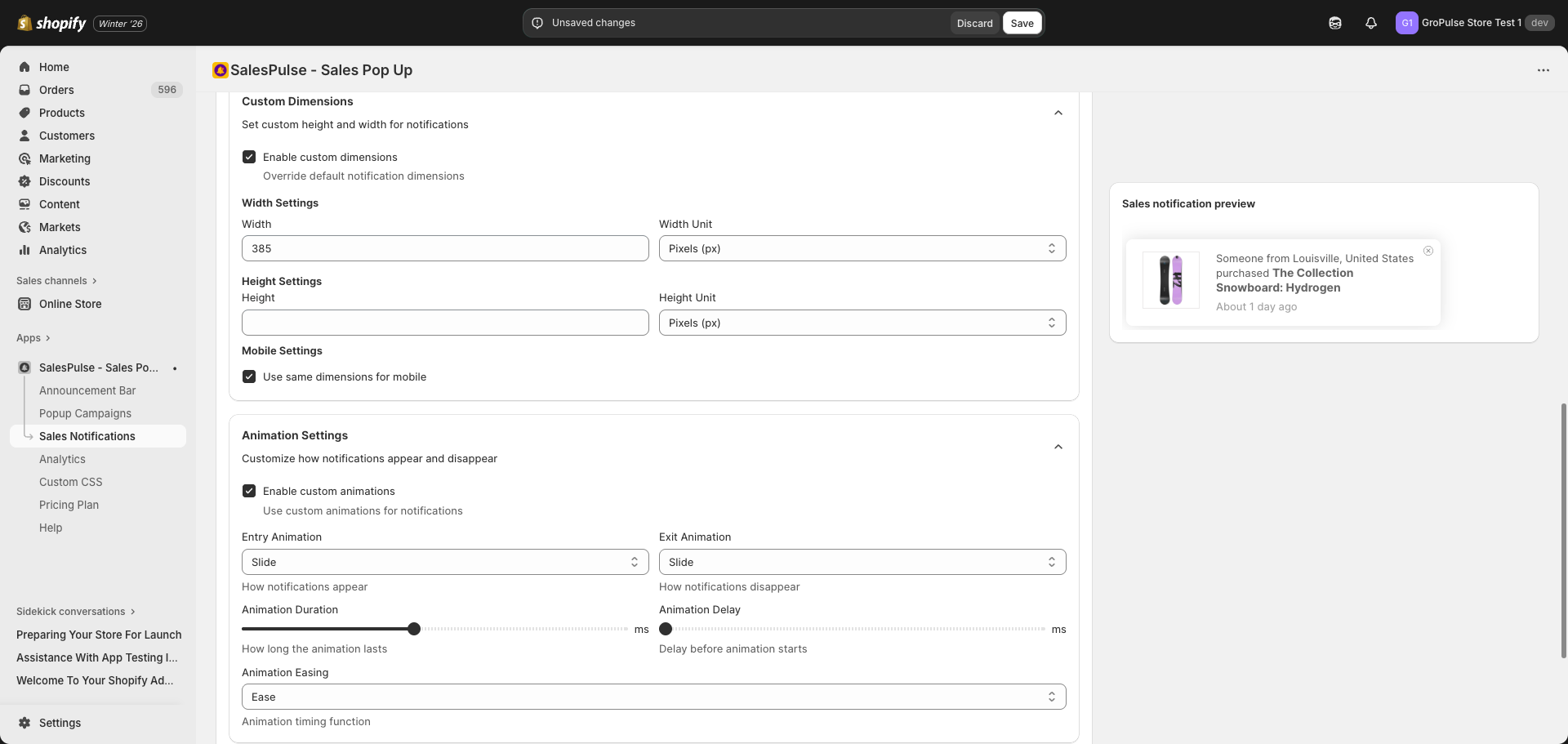
Custom Dimensions
Override the default notification size with custom dimensions.
Enabling Custom Dimensions
- Find the Custom Dimensions section
- Check Enable custom dimensions
- Configure width and height settings
Width Settings
| Setting | Options | Default |
|---|---|---|
| Width | 200-1000 | 385 |
| Width Unit | Pixels (px), Percentage (%), Viewport Width (vw) | Pixels (px) |
Height Settings
| Setting | Options | Default |
|---|---|---|
| Height | 100-500 | Auto |
| Height Unit | Pixels (px), Percentage (%), Viewport Height (vh) | Pixels (px) |
Mobile Settings
Check Use same dimensions for mobile to apply desktop dimensions to mobile devices.
If unchecked, mobile devices will use responsive default dimensions.
Animation Settings
Add smooth motion effects when notifications appear and disappear.
Enabling Animations
- Find the Animation Settings section
- Check Enable custom animations
- Configure animation options
Entry Animation
How notifications appear on screen:
| Animation | Description |
|---|---|
| Slide | Slides in from the edge (default) |
| Bounce | Bounces into view |
| Scale | Grows from small to full size |
Exit Animation
How notifications disappear:
| Animation | Description |
|---|---|
| Slide | Slides out of view (default) |
| Bounce | Bounces out |
| Scale | Shrinks before disappearing |
Animation Timing
| Setting | Range | Default | Description |
|---|---|---|---|
| Animation Duration | 200-2000ms | 1000ms | How long the animation lasts |
| Animation Delay | 0-1000ms | 0ms | Delay before animation starts |
Animation Easing
Controls the acceleration curve of animations:
| Option | Description |
|---|---|
| Linear | Constant speed throughout |
| Ease | Starts slow, speeds up, ends slow (default) |
| Ease In | Starts slow, speeds up |
| Ease Out | Starts fast, slows down |
| Ease In Out | Starts and ends slow |
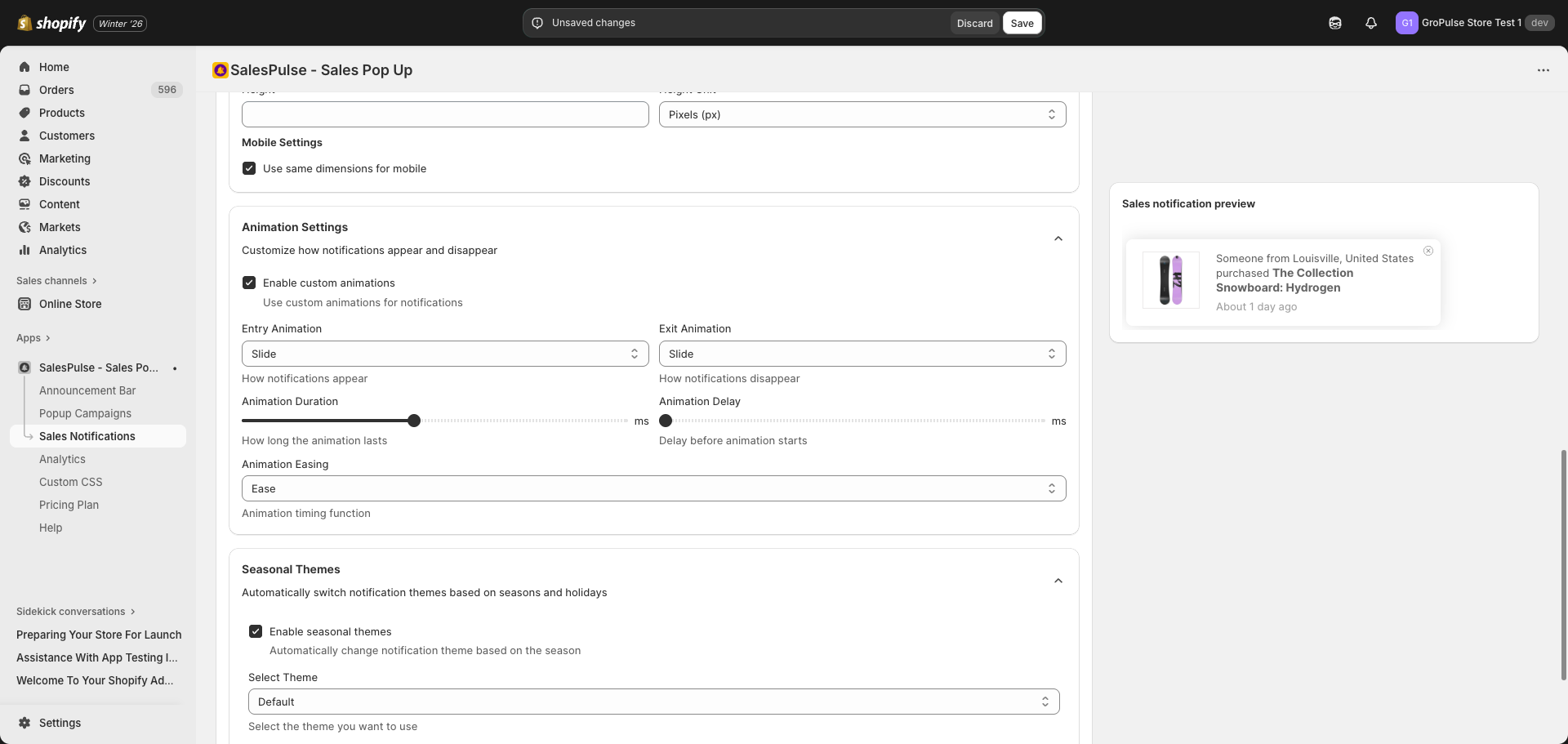
Seasonal Themes
Automatically change notification appearance based on seasons and holidays.
Enabling Seasonal Themes
- Find the Seasonal Themes section
- Check Enable seasonal themes
- Configure theme and date range
Available Themes
| Theme | Description | Typical Date Range |
|---|---|---|
| Default | Standard appearance | Year-round |
| Christmas | Holiday red and green theme | 12-01 to 12-31 |
| Halloween | Spooky orange and black | 10-01 to 10-31 |
| Valentine’s Day | Romantic pink and red | 02-01 to 02-14 |
| Black Friday | Bold dark theme | 11-20 to 11-30 |
| Cyber Monday | Tech-inspired design | 11-25 to 12-02 |
| New Year | Celebratory theme | 12-28 to 01-05 |
Configuring Date Range
- Select a theme from the Select Theme dropdown
- Enter Start Date in MM-DD format (e.g., 12-01)
- Enter End Date in MM-DD format (e.g., 12-25)
The theme automatically switches back to default after the end date.
Live Preview
The bottom of the Design settings page shows a live preview of your notification.
Preview Features
- Real-time updates: Changes appear instantly
- Product image: Shows an actual product from your store
- Customer info: Displays sample location data
- Time stamp: Shows relative time format
- Close button: Visible for testing placement
Preview Example
The preview shows a notification like:
[X]
[Product Image]
Someone from Louisville, United States purchased
The Collection Snowboard: Hydrogen
About 1 day ago
Design Best Practices
Brand Consistency
- Match notification colors to your store theme
- Use your brand’s accent color for product links
- Keep the design cohesive with your overall store aesthetic
Readability
- Ensure sufficient contrast between text and background
- Don’t make text too small
- Test readability on different devices
Non-Intrusive Design
- Avoid overly bright or flashy colors
- Keep animations smooth and quick
- Ensure close button is visible and accessible
Mobile Optimization
- Test designs on actual mobile devices
- Ensure notifications don’t block important content
- Keep notifications appropriately sized for small screens
Seasonal Considerations
- Plan seasonal theme dates in advance
- Test seasonal themes before they go live
- Ensure seasonal themes still match your brand
Troubleshooting
Colors Not Saving
If colors revert after saving:
- Ensure you click the Save button
- Wait for the save confirmation
- Refresh the page to verify
Animations Not Working
If animations don’t appear:
- Check that Enable custom animations is checked
- Ensure animation duration is not set to 0
- Test in an incognito browser window
Seasonal Theme Not Switching
If the seasonal theme doesn’t activate:
- Verify the date range is correct (MM-DD format)
- Check current date is within the range
- Ensure Enable seasonal themes is checked