
This guide explains how to control where, when, and to whom your sales notifications appear, including page targeting, device targeting, geo-targeting, and behavioral triggers.
Overview
Targeting rules allow you to show sales notifications to the right visitors at the right time. Settings are spread across two tabs:
- Display settings – Page and device targeting, timing
- Rules and Targeting settings – Geo-targeting, behavioral triggers
Page Targeting
Control which pages display your sales notifications.
Accessing Page Targeting
- Click the Display tab
- Find the Select pages section
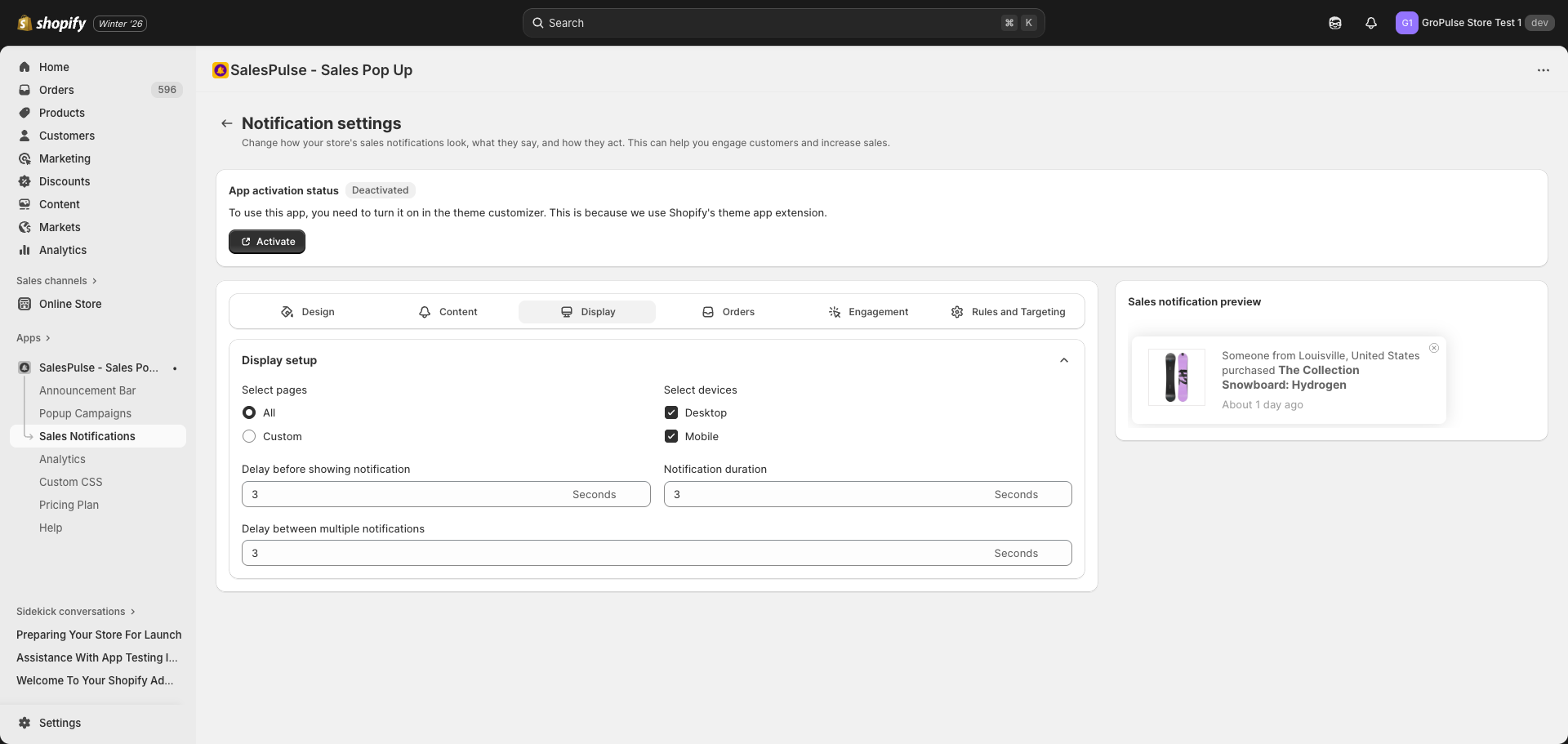
Page Selection Options
| Option | Description |
|---|---|
| All | Show notifications on every page (default) |
| Custom | Show only on selected page types |
Custom Page Types
When “Custom” is selected, choose from:
| Page Type | Description |
|---|---|
| Home Page | Your store’s homepage |
| Collection Pages | Category and collection listing pages |
| Product Pages | Individual product detail pages |
| Cart Pages | Shopping cart page |
| Blog Pages | Blog posts and listings |
| Search Page | Search results page |
| Pages | Custom pages (about, contact, etc.) |
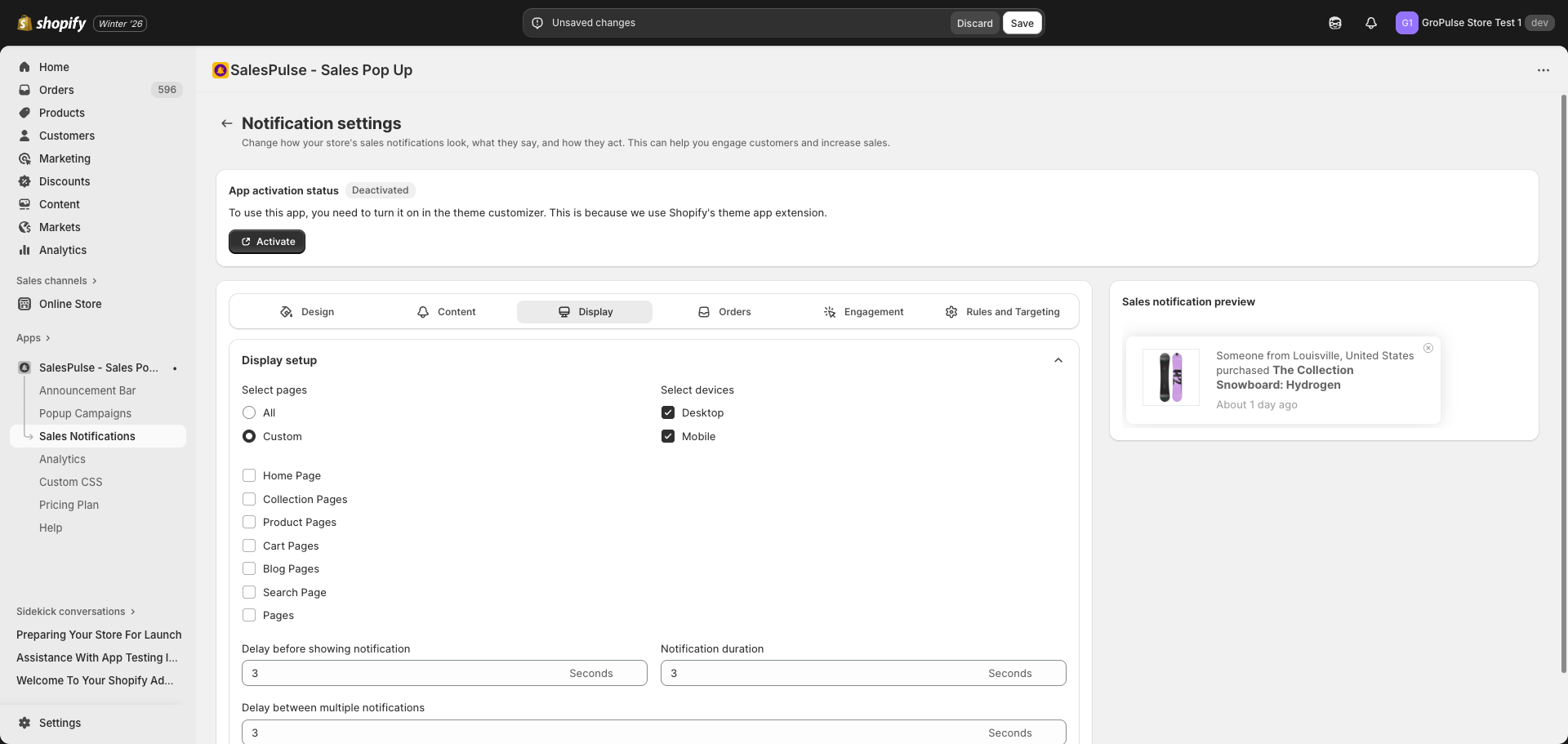
Page Targeting Strategies
| Strategy | Configuration | Use Case |
|---|---|---|
| All Pages | Select “All” | Maximum visibility |
| Shopping Pages | Product Pages, Collection Pages, Cart Pages | Focus on buyers |
| Content Pages | Home Page, Blog Pages | Engage browsers |
| Product Focus | Product Pages only | Show on decision pages |
Device Targeting
Control which devices see your sales notifications.
Accessing Device Targeting
- Click the Display tab
- Find the Select devices section
Device Options
| Device | Description |
|---|---|
| Desktop | Computers and laptops |
| Mobile | Smartphones and tablets |
Both are enabled by default.
Device Configuration
Uncheck a device to hide notifications on that device type:
| Configuration | Result |
|---|---|
| Both checked | Shows on all devices |
| Desktop only | Hides on mobile |
| Mobile only | Hides on desktop |
Use Cases
Desktop Only
- Complex notifications with more details
- When mobile real estate is limited
- Testing before mobile rollout
Mobile Only
- Mobile-specific promotions
- When mobile conversion is a focus
- Simplified mobile experience
Geo-Targeting
Display notifications based on visitor location.
Accessing Geo-Targeting
- Click the Rules and Targeting tab
- Find the Geo-targeting Settings section
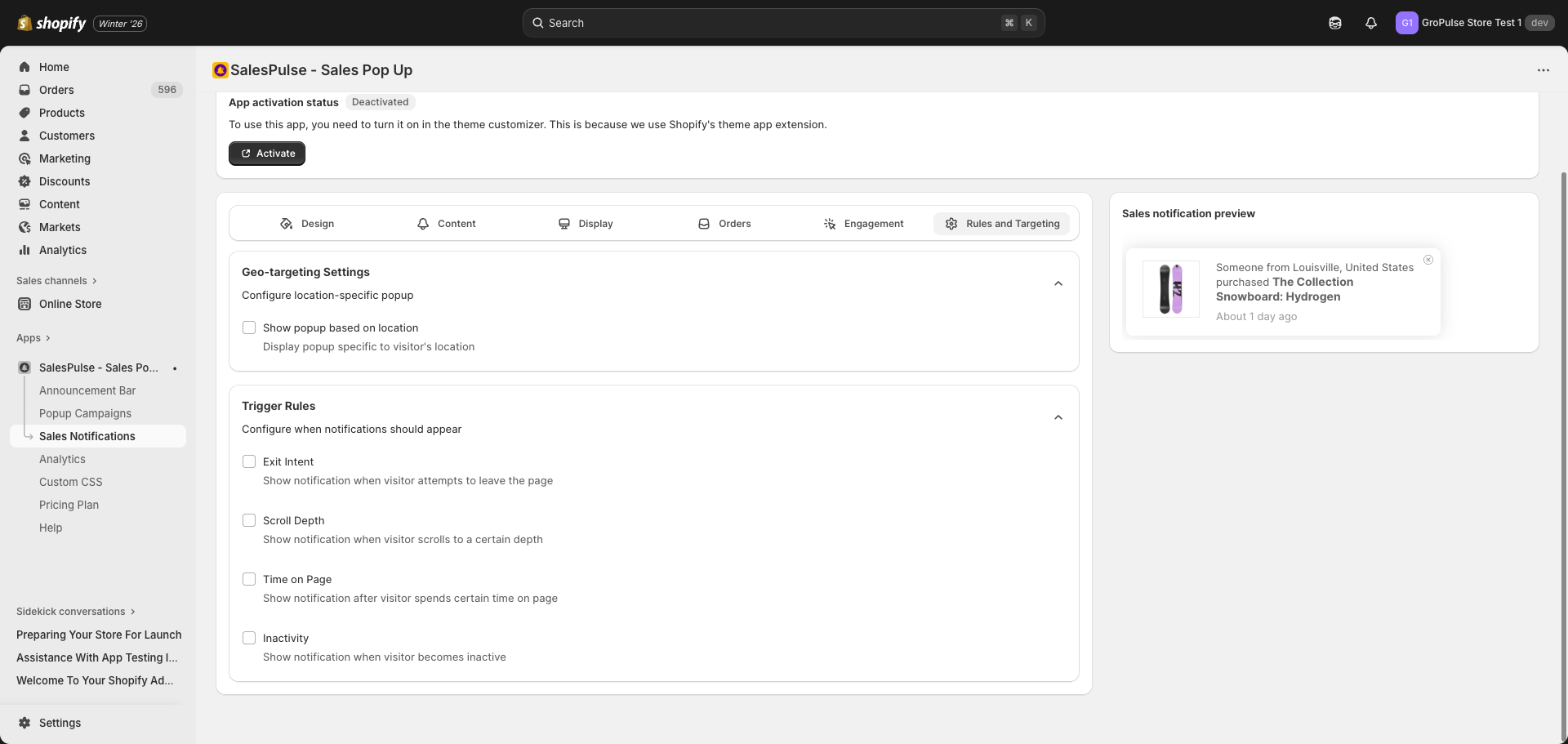
Enabling Geo-Targeting
- Check Show popup based on location
- Choose a targeting mode
- Configure country settings if needed
Targeting Modes
| Mode | Description |
|---|---|
| Show to all countries | Display to visitors from any country (default) |
| Show to specific countries | Only show to selected countries |
| Hide from specific countries | Show to all except selected countries |
How Location Detection Works
- Location is detected automatically using visitor’s IP address
- No visitor action required
- Works for most visitors (some VPN users may be misdetected)
Use Cases
Country-Specific Promotions
Show notifications only in countries where you ship:
- Select “Show to specific countries”
- Choose your shipping destinations
Regional Exclusions
Hide from countries where you don’t operate:
- Select “Hide from specific countries”
- Choose countries to exclude
Trigger Rules
Configure behavioral triggers for when notifications appear.
Accessing Trigger Rules
- Click the Rules and Targeting tab
- Find the Trigger Rules section
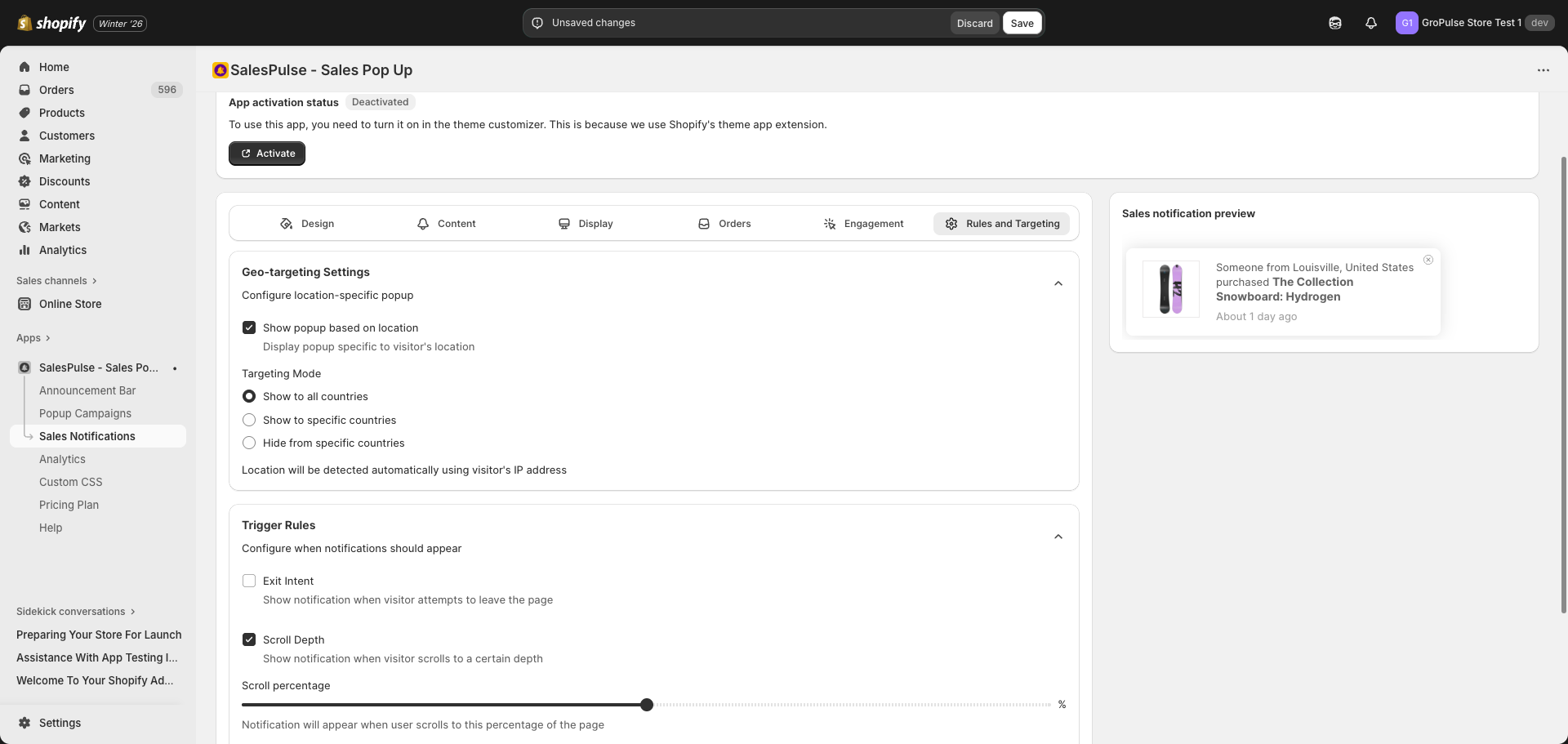
Available Triggers
Exit Intent
| Setting | Description |
|---|---|
| Trigger | Show when visitor moves cursor to leave the page |
| Best For | Catching leaving visitors with social proof |
| Desktop | Works when cursor moves toward browser UI |
| Mobile | Limited functionality on mobile devices |
Scroll Depth
| Setting | Description |
|---|---|
| Trigger | Show when visitor scrolls to a certain percentage |
| Range | 0-100% of page |
| Default | 50% |
| Best For | Engaging visitors who are reading content |
Configuration:
- Check Scroll Depth
- Adjust the percentage slider (e.g., 50%)
- Notification appears when visitor scrolls to that point
Time on Page
| Setting | Description |
|---|---|
| Trigger | Show after visitor spends certain time on page |
| Best For | Engaging visitors who are browsing |
| Timing | Set in seconds |
Inactivity
| Setting | Description |
|---|---|
| Trigger | Show when visitor becomes inactive |
| Best For | Re-engaging distracted visitors |
| Detection | No mouse movement or scrolling |
Combining Targeting Rules
Create precise targeting by combining multiple rules.
Example Combinations
Engaged Product Viewers
- Pages: Product Pages only
- Devices: All devices
- Trigger: Scroll Depth 50%
Shows to visitors actively viewing products.
Desktop Exit Intent
- Pages: All pages
- Devices: Desktop only
- Trigger: Exit Intent
Catches desktop visitors about to leave.
Mobile Product Pages
- Pages: Product Pages, Cart Pages
- Devices: Mobile only
- Geo: Domestic only
Targets mobile shoppers in your country.
Display Timing Settings
Control the timing of notification display.
Timing Options
Located in the Display settings tab:
| Setting | Default | Description |
|---|---|---|
| Delay before showing notification | 3 seconds | Wait time before first notification |
| Notification duration | 3 seconds | How long each notification displays |
| Delay between multiple notifications | 3 seconds | Gap between consecutive notifications |
Timing Strategies
| Approach | Delay | Duration | Between |
|---|---|---|---|
| Quick | 2s | 3s | 3s |
| Balanced | 3s | 4s | 5s |
| Relaxed | 5s | 5s | 8s |
| Subtle | 10s | 4s | 15s |
Targeting Best Practices
Relevance
- Show notifications where they add value
- Product pages benefit most from social proof
- Avoid overwhelming visitors with too many triggers
Non-Intrusive Approach
- Use appropriate delays before showing
- Don’t combine too many aggressive triggers
- Allow visitors to close notifications easily
Testing
- Start with broader targeting, then narrow
- Monitor performance to optimize
- Test different trigger combinations
Mobile Considerations
- Exit intent works less reliably on mobile
- Consider simpler targeting for mobile
- Ensure notifications don’t block content
Troubleshooting
Notifications Not Appearing
Check these settings:
- Page targeting: Current page is included
- Device targeting: Current device is enabled
- Geo-targeting: Visitor location is included
- Triggers: Trigger conditions are met
Notifications Appearing Too Often
Adjust these settings:
- Increase delay before showing
- Increase delay between notifications
- Narrow page targeting
- Reduce number of active triggers