
This guide explains how to configure timing settings and advanced engagement features like cross-sell suggestions, visitor counters, countdown timers, and stock scarcity alerts.
Display Timing
Control when and how long notifications appear.
Accessing Timing Settings
- Click the Display settings tab
- Find the timing options at the bottom
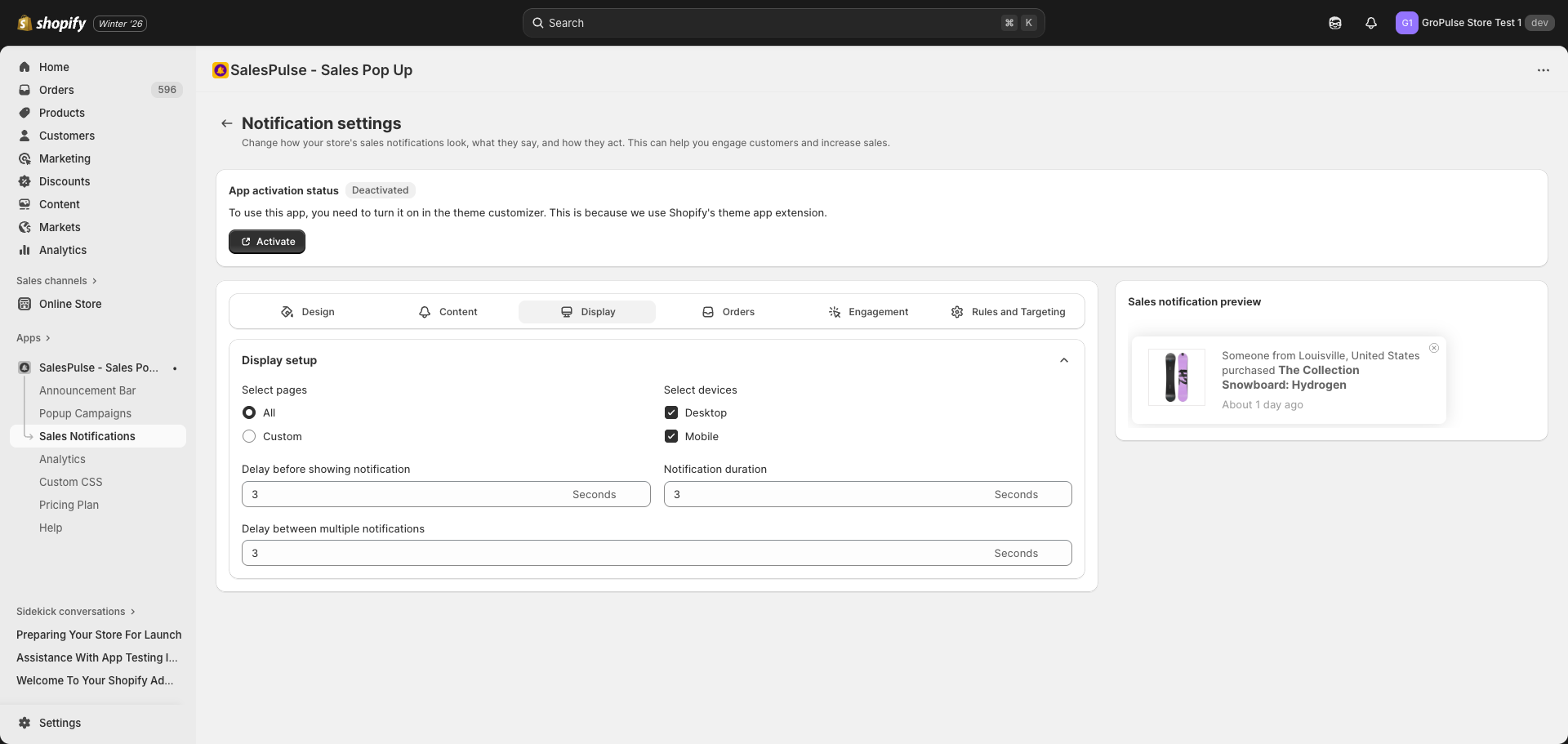
Timing Options
| Setting | Default | Range | Description |
|---|---|---|---|
| Delay before showing notification | 3 seconds | 3+ seconds | Wait time before first notification appears |
| Notification duration | 3 seconds | 3+ seconds | How long each notification stays visible |
| Delay between multiple notifications | 3 seconds | 3+ seconds | Gap between consecutive notifications |
Recommended Timing Configurations
| Use Case | Delay | Duration | Between |
|---|---|---|---|
| High Urgency | 2-3s | 3-4s | 3-5s |
| Balanced | 3-5s | 4-5s | 5-8s |
| Subtle | 5-10s | 4-5s | 10-15s |
| Minimal Distraction | 10-15s | 5s | 20-30s |
Engagement Settings
Advanced features to increase conversions and urgency.
Accessing Engagement Settings
- Click the Engagement settings tab
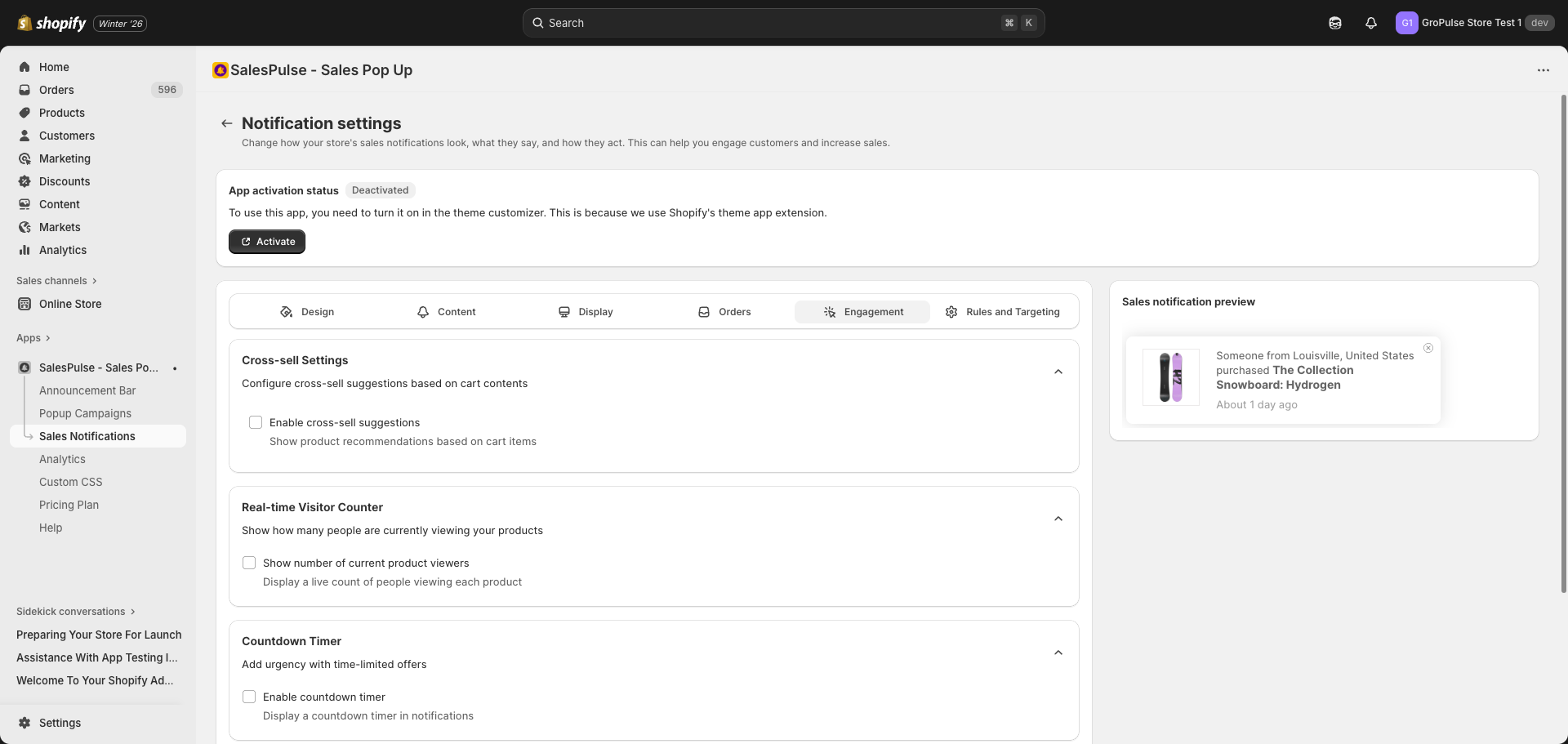
Cross-Sell Suggestions
Show product recommendations based on cart contents.
Enabling Cross-Sell
- Check Enable cross-sell suggestions
- Configure suggestion options
Cross-Sell Options
| Setting | Description | Options |
|---|---|---|
| Suggestion Type | How products are selected | Related products, Complementary items |
| Maximum suggestions | Number of products to suggest | 1-5 (default: 3) |
| Suggestion Message | Message template | Use {{product}} placeholder |
Suggestion Types
| Type | Description | Best For |
|---|---|---|
| Related products | Products from same category | Showing alternatives |
| Complementary items | Products often bought together | Upselling |
Customizing the Message
Default message: Complete your purchase with {product}
Examples:
- “You might also like {product}”
- “Customers also bought {product}”
- “Don’t forget {product}!”
Real-time Visitor Counter
Show how many people are currently viewing products.
Enabling Visitor Counter
- Check Show number of current product viewers
- Configure the message template
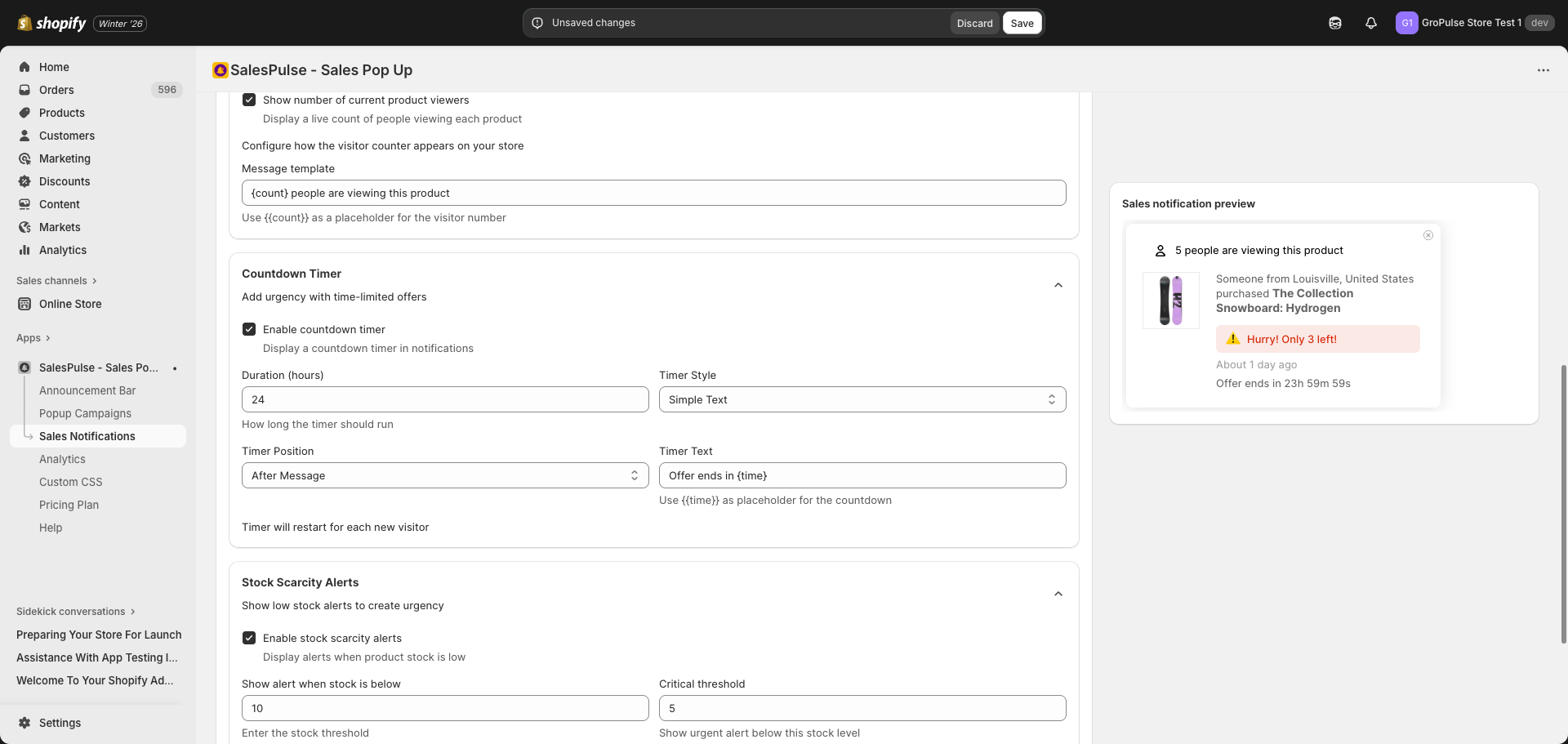
Visitor Counter Options
| Setting | Description | Default |
|---|---|---|
| Message template | Display message | {count} people are viewing this product |
Customizing the Message
Use {{count}} as placeholder for the visitor number:
Examples:
- “{count} people are viewing this product”
- “{count} shoppers are looking at this right now”
- “Hot item! {count} viewers”
How It Works
- Shows simulated real-time viewer counts
- Adds social proof and urgency
- Updates dynamically on product pages
Countdown Timer
Add urgency with time-limited offers.
Enabling Countdown Timer
- Check Enable countdown timer
- Configure timer options
Countdown Timer Options
| Setting | Description | Options/Range |
|---|---|---|
| Duration (hours) | How long the timer runs | 1-72 hours (default: 24) |
| Timer Style | Visual appearance | Simple Text, Digital Clock, Circular |
| Timer Position | Where timer appears | Before Message, After Message, Below Message |
| Timer Text | Message with timer | Use {{time}} placeholder |
Timer Styles
| Style | Description |
|---|---|
| Simple Text | Plain text countdown (e.g., “23h 59m 59s”) |
| Digital Clock | Clock-style display |
| Circular | Circular progress indicator |
Timer Position
| Position | Placement |
|---|---|
| Before Message | Above the purchase message |
| After Message | Below the purchase message (default) |
| Below Message | At the bottom of notification |
Customizing Timer Text
Default: Offer ends in {time}
Examples:
- “Offer ends in {time}”
- “Only {time} left!”
- “Sale ends: {time}”
- “Hurry! {time} remaining”
Important Notes
- Timer restarts for each new visitor
- Creates urgency without fixed deadlines
- Works independently for each visitor session
Stock Scarcity Alerts
Show low stock warnings to create urgency.
Enabling Stock Alerts
- Check Enable stock scarcity alerts
- Configure threshold and messages
Customizing Messages
Use {{count}} as placeholder for stock count:
Low stock examples:
- “Only {count} items left in stock!”
- “Selling fast – {count} remaining”
- “Low stock: {count} left”
Critical stock examples:
- “Hurry! Only {count} left!”
- “Almost gone! Just {count} remaining”
- “Last chance – only {count}!”
Alert Position
| Position | Placement |
|---|---|
| Before Message | Above the purchase message |
| After Message | Below the purchase message (default) |
| Below Message | At the bottom of notification |
Live Preview
The preview shows enabled engagement features:
Features visible in preview:
- Visitor counter badge
- Stock scarcity alert
- Countdown timer
Troubleshooting
Timer Not Showing
- Verify Enable countdown timer is checked
- Check timer duration is set
- Ensure timer position is configured
- Save and refresh the page
Stock Alerts Not Appearing
- Verify Enable stock scarcity alerts is checked
- Check product inventory is below threshold
- Ensure product has inventory tracking enabled in Shopify
- Test with products that have low stock