
This guide explains how to configure the messages, call-to-action buttons, and coupon codes displayed in your announcement bar.
Accessing Content Settings
- Open the Announcement Bar Editor
- Click the Content Settings tab
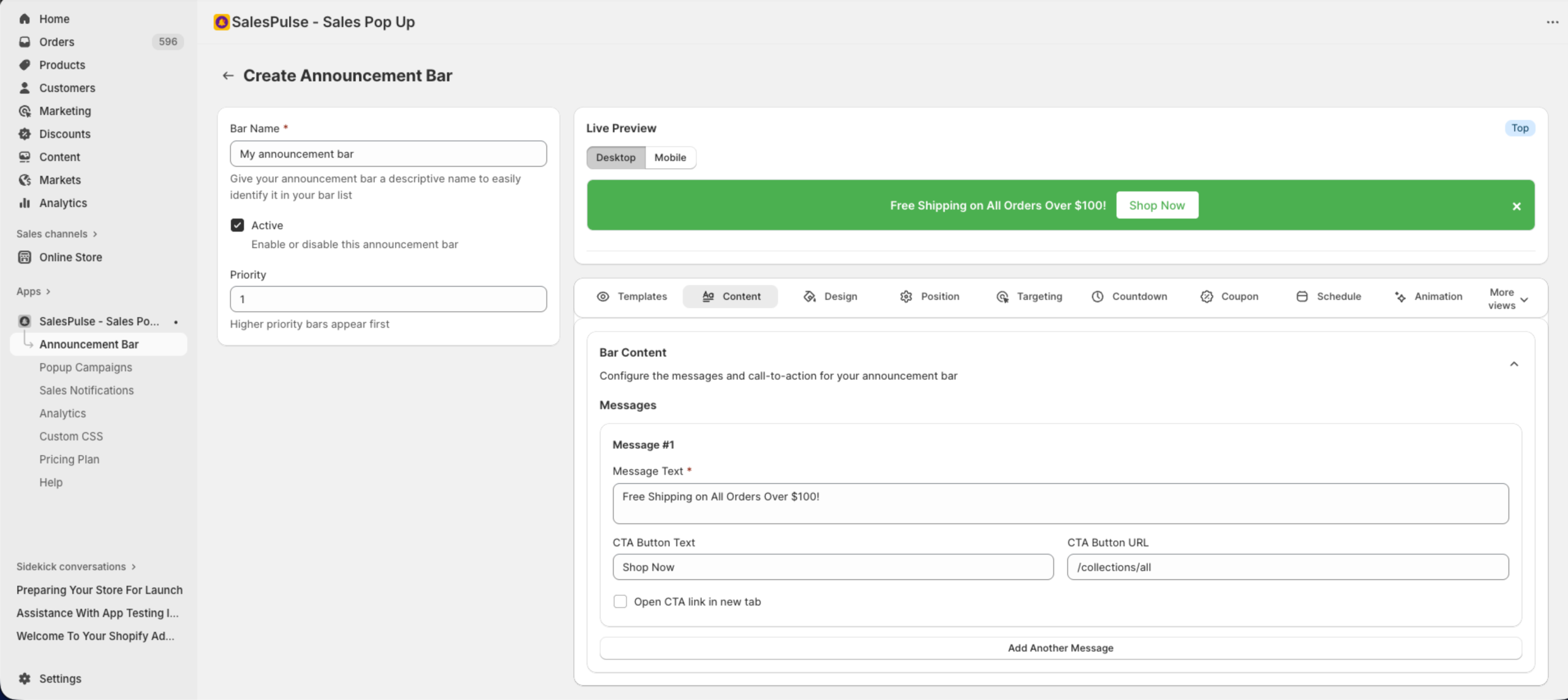
Messages
Your announcement bar can display one or more messages. Multiple messages rotate automatically.
Adding a Message
Each message includes:
| Field | Description | Required |
|---|---|---|
| Message Text | The main announcement text | Yes |
| CTA Button Text | Text for the call-to-action button | No |
| CTA Button URL | Link destination when button is clicked | No |
| Open in new tab | Open CTA link in a new browser tab | No |
Message Text
Enter your announcement message:
- Keep it concise and clear
- Focus on one key point per message
- Use action-oriented language
Examples:
- “Free shipping on orders over $50”
- “Summer Sale: Up to 50% off everything”
- “Use code SAVE20 for 20% off your order”
CTA Button
Add a call-to-action button to drive action:
- Enter CTA Button Text (e.g., “Shop Now”, “Learn More”, “Get Code”)
- Enter CTA Button URL (e.g., “/collections/sale”, “/pages/shipping”)
- Optionally check Open CTA link in new tab
Tips:
- Use action verbs: “Shop”, “Save”, “Discover”
- Keep button text short: 2-3 words
- Link to relevant pages (sale collections, product pages)
Multiple Messages
Add additional messages for rotation:
- Click Add Another Message
- Configure the new message
- Messages will rotate automatically
Use cases for multiple messages:
- Highlight different promotions
- Show various trust signals
- Display multiple discount codes
Coupon Code Settings
Display and promote discount codes directly in your announcement bar.
Click the Coupon Code Settings tab to configure.
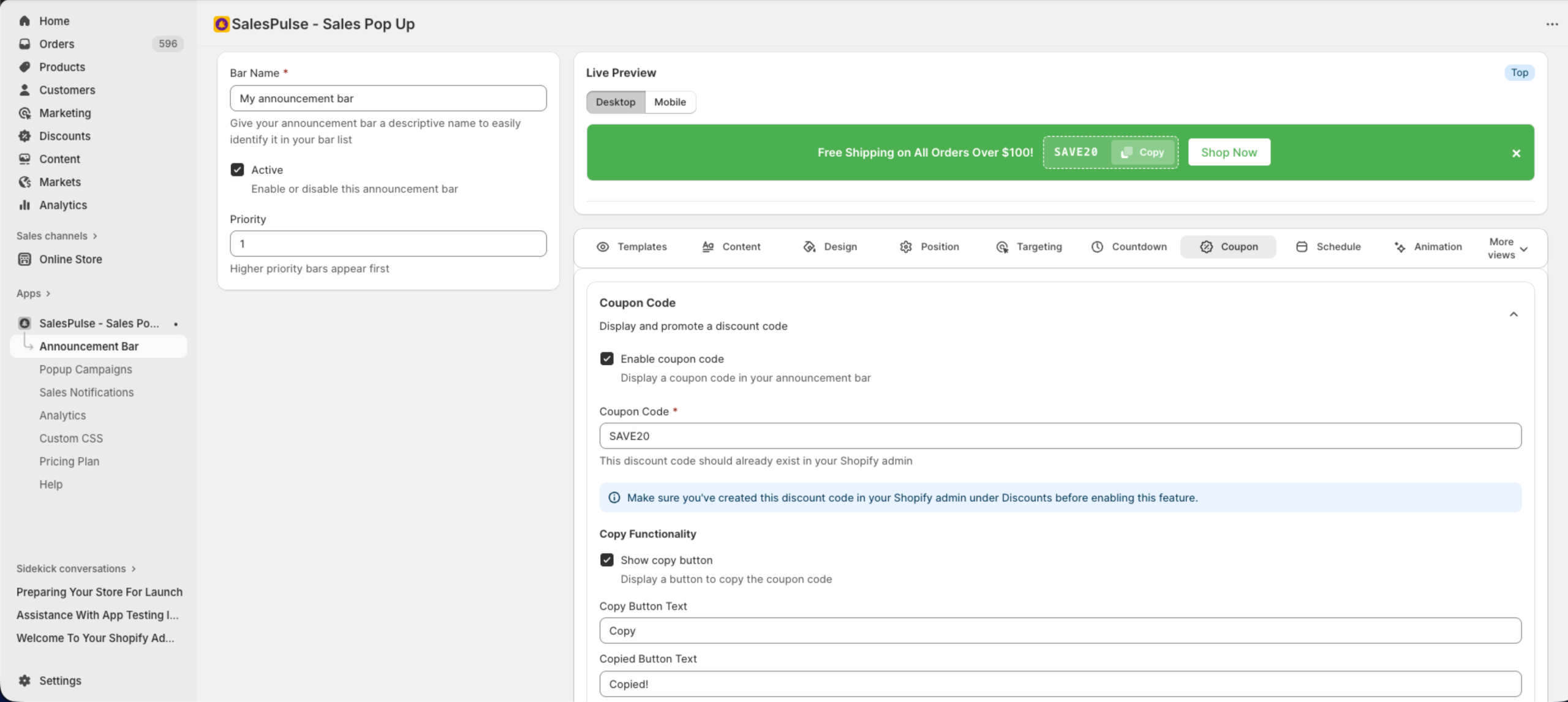
Enabling Coupon Codes
- Check Enable coupon code
- Enter the discount code
Coupon Code Field
| Field | Description |
|---|---|
| Coupon Code | The discount code to display (required) |
Important: The discount code must already exist in your Shopify admin under Discounts before enabling this feature.
Copy Functionality
Make it easy for customers to copy the code:
Show Copy Button
When enabled, displays a button for one-click copying:
| Setting | Description |
|---|---|
| Copy Button Text | Button label before copying (default: “Copy”) |
| Copied Button Text | Button label after copying (default: “Copied!”) |
Auto-Copy on Click
When enabled, the code is automatically copied when customers click on it.
Advanced Options
Auto-Apply at Checkout
Automatically apply the discount code when customers click through to checkout:
- Check Auto-apply at checkout
- Ensure your CTA button links to the cart page
How it works: The discount code is appended to the cart URL, automatically applying the discount.
Requirements:
- CTA button must link to your cart page (e.g., “/cart”)
- The discount code must be valid and active
Content Best Practices
Writing Effective Messages
Be Clear and Concise
| Instead of… | Write… |
|---|---|
| “We are pleased to announce that we are offering free shipping” | “Free Shipping on All Orders” |
| “Limited time offer on selected items” | “50% Off – Today Only” |
Create Urgency
- Use time-sensitive language
- Include countdown timers (see Scheduling)
- Mention limited quantities
Include Value Proposition
Tell customers what they get:
- Free shipping threshold
- Discount percentage
- Exclusive offer details
CTA Button Best Practices
Use Action Verbs
| Weak | Strong |
|---|---|
| “Click Here” | “Shop Now” |
| “More Info” | “Discover Deals” |
| “Link” | “Get 20% Off” |
Match CTA to Message
| Message | CTA |
|---|---|
| “Free Shipping on Orders $50+” | “Shop Now” |
| “Use Code SAVE20” | “Copy Code” or “Shop Sale” |
| “New Arrivals Just Dropped” | “See What’s New” |
Coupon Code Best Practices
Make Codes Memorable
| Hard to Remember | Easy to Remember |
|---|---|
| “XK29VB83” | “SAVE20” |
| “DISC15OFF” | “SUMMER15” |