
This guide explains how to activate the SalesPulse – Sales Pop Up app features on your Shopify store.
Overview
SalesPulse uses Shopify’s Theme App Extensions to display features on your storefront. This means you need to activate each feature in the Theme Customizer before it appears on your store.
The app has three main features that can be activated independently:
| Feature | Description |
|---|---|
| Sales Notifications | Display recent purchase notifications to build trust and social proof |
| Announcement Bar | Display announcements and promotions at the top of your store |
| Popup Campaigns | Display popups for lead capture, promotions, and customer engagement |
Activation Status
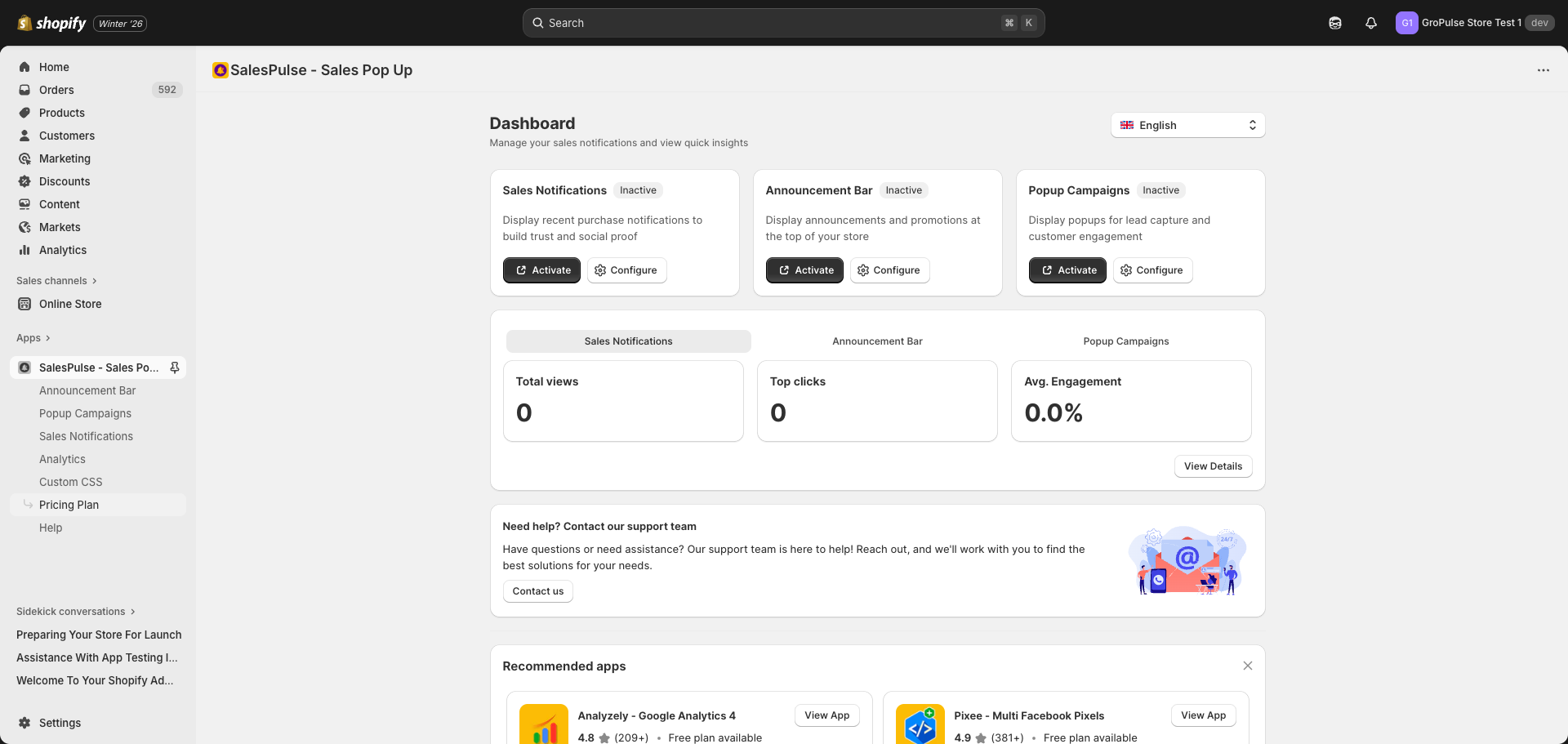
You can check the activation status of each feature on the Dashboard page. Each feature card shows:
- Enabled (green badge): The feature is activated in the theme customizer
- Inactive (gray badge): The feature needs to be activated
How to Activate a Feature
Step 1: Click the Activate Button
From the Dashboard or any feature page, click the Activate button next to the feature you want to enable.
This will open the Shopify Theme Customizer directly to the App Embeds panel.
Step 2: Enable the Feature Toggle
In the Theme Customizer, you’ll see the App embeds panel on the left side with a list of available app features:
- Sales Pop Up – For sales notifications
- Popup Campaigns – For popup campaigns
- Announcement Bar – For announcement bars
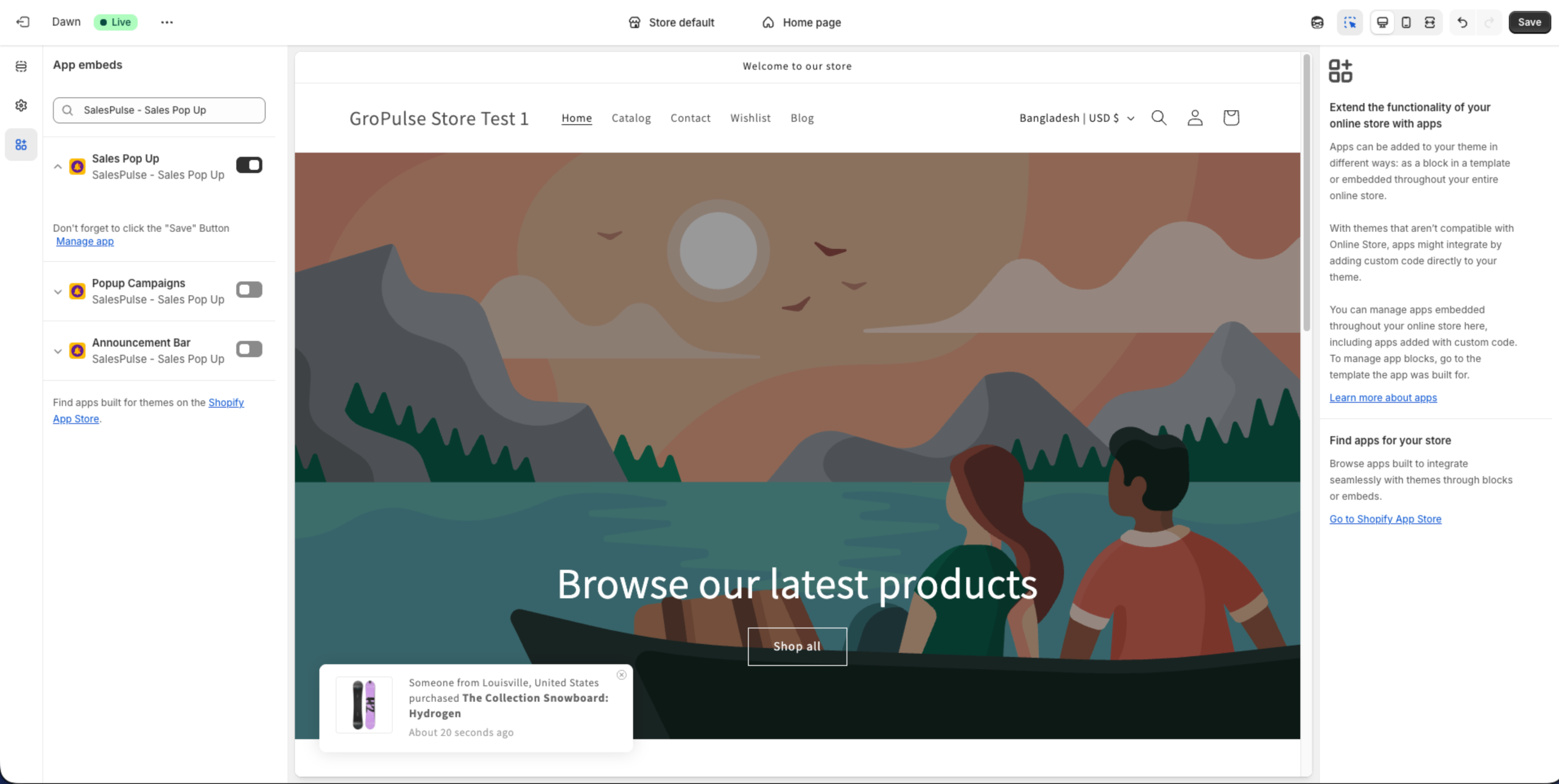
Click the toggle button next to each feature you want to enable. When enabled, the toggle will be highlighted.
Step 3: Save Your Changes
Important: After enabling the features, you must click the Save button in the top-right corner of the Theme Customizer.
A reminder message will appear: “Don’t forget to click the Save Button”
Step 4: Return to the App
Click the Manage app link or navigate back to the SalesPulse app to configure your features.
Activating Multiple Features
You can activate all three features at once:
- Open the Theme Customizer via any Activate button
- Enable the toggles for all features you want to use:
- Sales Pop Up
- Popup Campaigns
- Announcement Bar
- Click Save once to save all changes
Deactivating a Feature
To temporarily disable a feature without deleting your settings:
- Go to your Shopify Admin > Online Store > Themes
- Click Customize on your live theme
- Click the App embeds icon in the left navigation (puzzle piece icon)
- Find the feature you want to disable and click its toggle to turn it off
- Click Save
Your feature settings will be preserved and you can re-enable the feature at any time.
Troubleshooting
Feature Not Showing on Store
If a feature is not appearing on your storefront:
- Check activation status: Ensure the feature shows “Enabled” on the Dashboard
- Verify theme customizer: Open Theme Customizer and confirm the toggle is enabled
- Save changes: Make sure you clicked Save after enabling the feature
- Clear cache: Try clearing your browser cache or viewing your store in incognito mode
- Check feature settings: Some features require additional configuration (e.g., creating an announcement bar)
Multiple Themes
If you have multiple themes installed, you need to activate the app features on each theme separately. The activation is theme-specific.