
The Cart Drawer Bar displays a shipping progress bar inside your store’s sliding cart drawer (also known as a cart slider or ajax cart). This provides instant feedback when customers add items, encouraging them to continue shopping without leaving the page.
Plan Required: Growth Plan
Overview
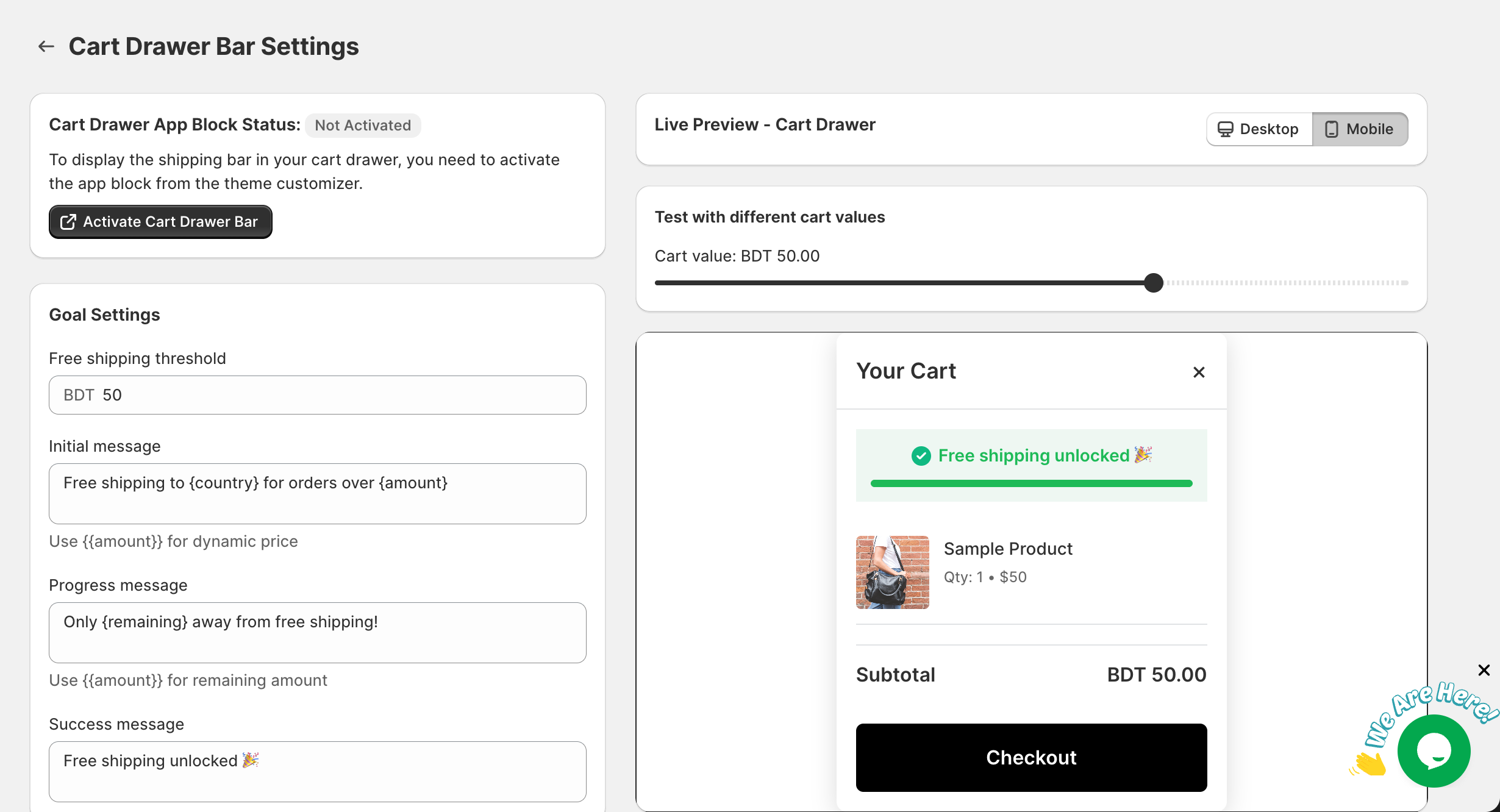
The Cart Drawer Bar appears within your sliding cart interface, showing:
- Dynamic free shipping messages
- Visual progress bar
- Optional shipping icon
- Real-time updates as items are added
Prerequisites
- GroPulse Free Shipping Bar app installed
- Growth Plan subscription (or higher)
- A theme with sliding cart drawer functionality
- App embed activated for the cart drawer
Theme Compatibility
The Cart Drawer Bar works with themes that have a sliding cart drawer. Most modern Shopify themes include this feature. If your theme doesn’t have a cart drawer, this feature won’t be visible.
Themes that typically support cart drawers:
- Dawn (Shopify’s default theme)
- Most themes from the Shopify Theme Store
- Popular third-party themes
To check if your theme has a cart drawer:
- Add a product to your cart on your store
- If a side panel slides in showing your cart, you have a cart drawer
- If you’re redirected to the cart page, your theme uses a traditional cart
Adding the Cart Drawer Bar
Step-by-Step Setup
- Open the GroPulse Free Shipping Bar app
- Click Configure on the Cart Drawer card
- Look for the Cart Drawer App Block Setup banner
- Follow the instructions to enable the cart drawer integration
- The app will integrate with your theme’s cart drawer
If Setup Doesn’t Work
Some themes have custom cart drawer implementations. If the automatic setup doesn’t work:
- Contact our support team for theme-specific assistance
- We can provide custom integration instructions
- Some themes may require minor code modifications
Accessing Cart Drawer Bar Settings
- Open the GroPulse Free Shipping Bar app
- Click Configure on the Cart Drawer card
- Configure settings on the left, preview on the right
Goal Settings
Configure your free shipping goal and messages.
Free Shipping Threshold
The cart total needed for free shipping.
To set:
- Enter your threshold amount
- Currency auto-detected from store settings
Initial Message
Shown when cart is empty or just starting.
Default: Free shipping to {country} for orders over {amount}
Variables:
{country}– Customer’s country{amount}– Threshold with currency
Progress Message
Displayed when customer needs more items.
Default: Only {remaining} away from free shipping!
Variables:
{remaining}– Amount needed
Success Message
Shown when free shipping is achieved.
Default: Free shipping unlocked!
Design Settings
Customize appearance to fit your cart drawer design.
Card Design
Progress Background Color
Background when goal is not yet reached.
Default: #ffffff (white)
Success Background Color
Background when free shipping is earned.
Default: #eef7f2 (light green)
Corner Radius
Roundness of corners.
- Range: 0px to 20px
- Keep lower values to match typical drawer styling
Border Size
Border thickness.
- Range: 0px to 5px
Progress Bar
Progress Bar Background
The track color.
Default: #a1a1a133 (light gray)
Progress Bar Fill Color (Incomplete)
Color during progress.
Default: #f5b540 (gold)
Progress Bar Fill Color (Complete)
Color when goal is reached.
Default: #1eba58 (green)
Progress Bar Radius
Roundness of progress bar.
- Range: 0px to 15px
Typography
Message Text Size
Main message size.
- Range: 11px to 18px
- Default: 14px
- Keep smaller for drawer context
Message Text Color
Message text color.
Default: #000000 (black)
Price Text Size
Size of price values.
- Range: 12px to 20px
- Default: 14px
Price Text Color
Color of amounts.
Default: #f5b540 (gold)
Success Message Color
Text color for success state.
Default: #1eba58 (green)
Display Settings
Control visibility and behavior.
Show Icons
Toggle the shipping icon:
- Show icons: Displays truck icon
- Hide icons: Text only
Tip: In cart drawers, icons can help catch attention in the compact space.
Position
Choose where the bar appears within the drawer:
| Position | Description |
|---|---|
| Top | At the very top of the drawer |
| Above Items | Just before the cart item list |
| Below Items | After all cart items |
| Above Subtotal | Before the subtotal/totals section |
| Bottom | At the bottom before checkout |
Recommended: Above Items or Above Subtotal for best visibility.
Animation
How the bar appears:
| Animation | Description |
|---|---|
| Slide Down | Slides in from top |
| Fade In | Gradually appears |
| None | Appears instantly |
Note: Scale In is not available for cart drawer to maintain smooth drawer behavior.
Show on Empty Cart
Control display when drawer has no items:
- Yes, show on empty cart: Shows initial message
- No, hide on empty cart: Hidden until items added
Device Target
Which devices see the bar:
| Option | Description |
|---|---|
| All devices | Universal |
| Desktop only | Computers only |
| Mobile only | Phones only |
| Tablet only | Tablets only |
Country Targeting
Limit by geography:
- All countries: Everyone sees it
- Selected countries: Specific countries only
Status
Enable or disable:
- Active: Visible on store
- Inactive: Hidden (settings saved)
Schedule Settings
Requires Growth Plan
Time-based visibility control.
Enable Scheduling
Turn on scheduling features.
Schedule Types
| Type | Description |
|---|---|
| Always Show | No restrictions |
| Date Range | Specific date period |
| Days of Week | Selected days only |
| Time-Based | Specific hours |
Timezone
Select your business timezone.
Countdown Timer
Requires Growth Plan
Add urgency with countdown.
Enable Countdown Timer
Show countdown with message.
Timer Duration
- Minutes: 0-59
- Seconds: 0-59
Timer Color
Countdown display color.
Default: #e74c3c (red)
Live Preview
Preview the bar in a simulated drawer.
Test Cart Values
Slide to test different amounts:
- Low values show progress message
- High values show success state
Device Preview
Switch between:
- Desktop: Wider drawer preview
- Mobile: Narrower mobile drawer
Saving Changes
- Make changes
- Save bar appears
- Click Save
- Confirm success message
Best Practices
Cart Drawer Specific Tips
The cart drawer is a unique context – it’s compact, temporary, and action-oriented:
Keep it compact:
- Use shorter messages
- Smaller font sizes (14px or less)
- Minimal padding
Make it scannable:
- Users quickly glance at drawers
- Key info should be immediately visible
- Use contrasting colors
Position strategically:
- Above Items: Seen immediately when drawer opens
- Above Subtotal: Seen when reviewing before checkout
Message Optimization for Drawers
Good drawer messages:
- “Add $15 for FREE shipping!”
- “So close! $5 more”
- “Free shipping earned!”
Avoid:
- Long explanatory messages
- Multiple sentences
- Excessive punctuation
Color Considerations
Cart drawers often have their own styling:
- Match or complement drawer background
- Ensure sufficient contrast
- Test visibility with actual products in cart
Mobile Optimization
Cart drawers on mobile are even more compact:
- Test thoroughly on mobile devices
- Consider hiding on mobile if too cramped
- Ensure text is readable at smaller sizes
Integration with Other Bars
If using multiple bar types:
- Cart Drawer shows in drawer context
- Top/Bottom Bar shows on regular pages
- Consider if both are needed or overwhelming
Troubleshooting
Bar not showing in cart drawer
- Verify theme has cart drawer
- Add product and check for sliding drawer
- Some themes use redirect to cart page instead
- Check app embed
- App embed must be activated
- Check theme customizer for app embeds
- Verify plan access
- Requires Growth Plan
- Check status
- Must be set to “Active”
- Theme compatibility
- Some custom themes need additional setup
- Contact support for help
Bar appears in wrong position
- Change the Position setting in Display Settings
- Save and test on your store
- Clear browser cache if needed
Drawer styling conflicts
If the bar looks wrong in your drawer:
- Adjust corner radius to match drawer style
- Modify colors to complement
- Reduce font sizes if too large
- Contact support for theme-specific help
Bar not updating when items added
- Make sure to test on live store, not just preview
- Ajax cart updates may have slight delay
- Clear cache and hard refresh
Countdown not showing
- Verify countdown is enabled
- Check that cart hasn’t reached goal (countdown hides on success)
- Ensure Growth Plan is active
Common Questions
Q: What if my theme doesn’t have a cart drawer? A: This feature only works with sliding cart drawers. Use the Cart Page Bar for traditional cart pages.
Q: Can I customize the drawer itself? A: This app only controls the shipping bar. Drawer customization is theme-dependent.
Q: Does it work with third-party cart drawer apps? A: Compatibility varies. Contact support to check your specific setup.
Q: Why does it look different from the preview? A: The preview is a simulation. Actual appearance depends on your theme’s drawer styling.
Q: Can I have multiple bars in the drawer? A: One bar per drawer is recommended to avoid clutter in the compact space.
Q: Will it slow down the cart drawer? A: No, the app is optimized for performance and loads asynchronously.
For more help, see the FAQ or contact support.