
BOGO (Buy One Get One) offers are one of the most effective promotional tools in retail. GP ‑ Wishlist & Upsell Suite makes creating BOGO campaigns simple with pre-built templates and flexible configuration options.
What is BOGO?
BOGO stands for “Buy One, Get One” — a promotional strategy where customers receive free or discounted items when they purchase qualifying products. Common variations include:
- Buy 1 Get 1 Free — Classic BOGO
- Buy 2 Get 1 Free — Multi-buy promotions
- Buy 1 Get 1 50% Off — Partial discounts
- Buy 1 Get $10 Off — Fixed amount discounts
Accessing BOGO Offers
- Navigate to BOGO in the main menu
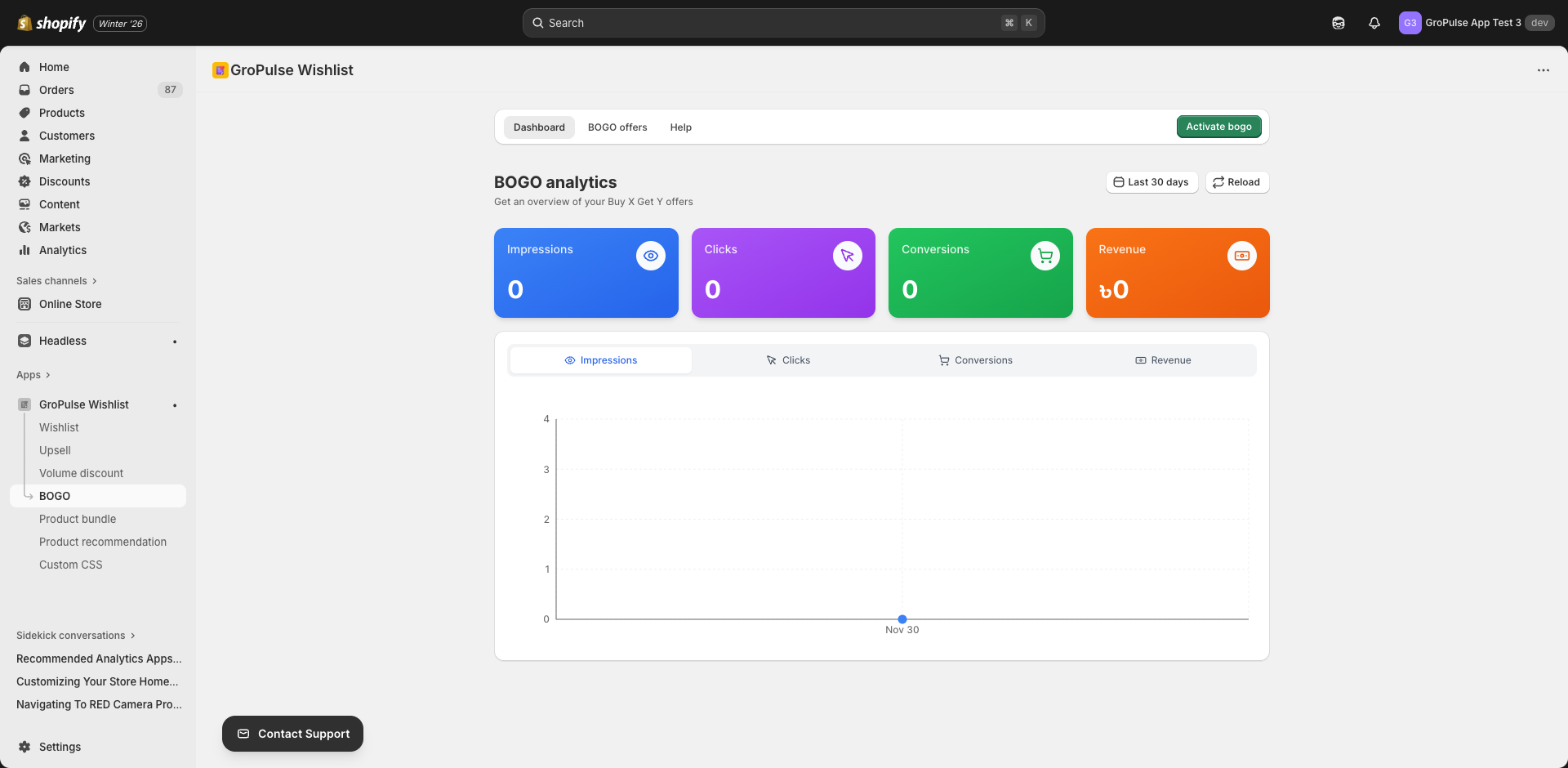
- You’ll see three tabs:
- Dashboard — Analytics for your BOGO offers
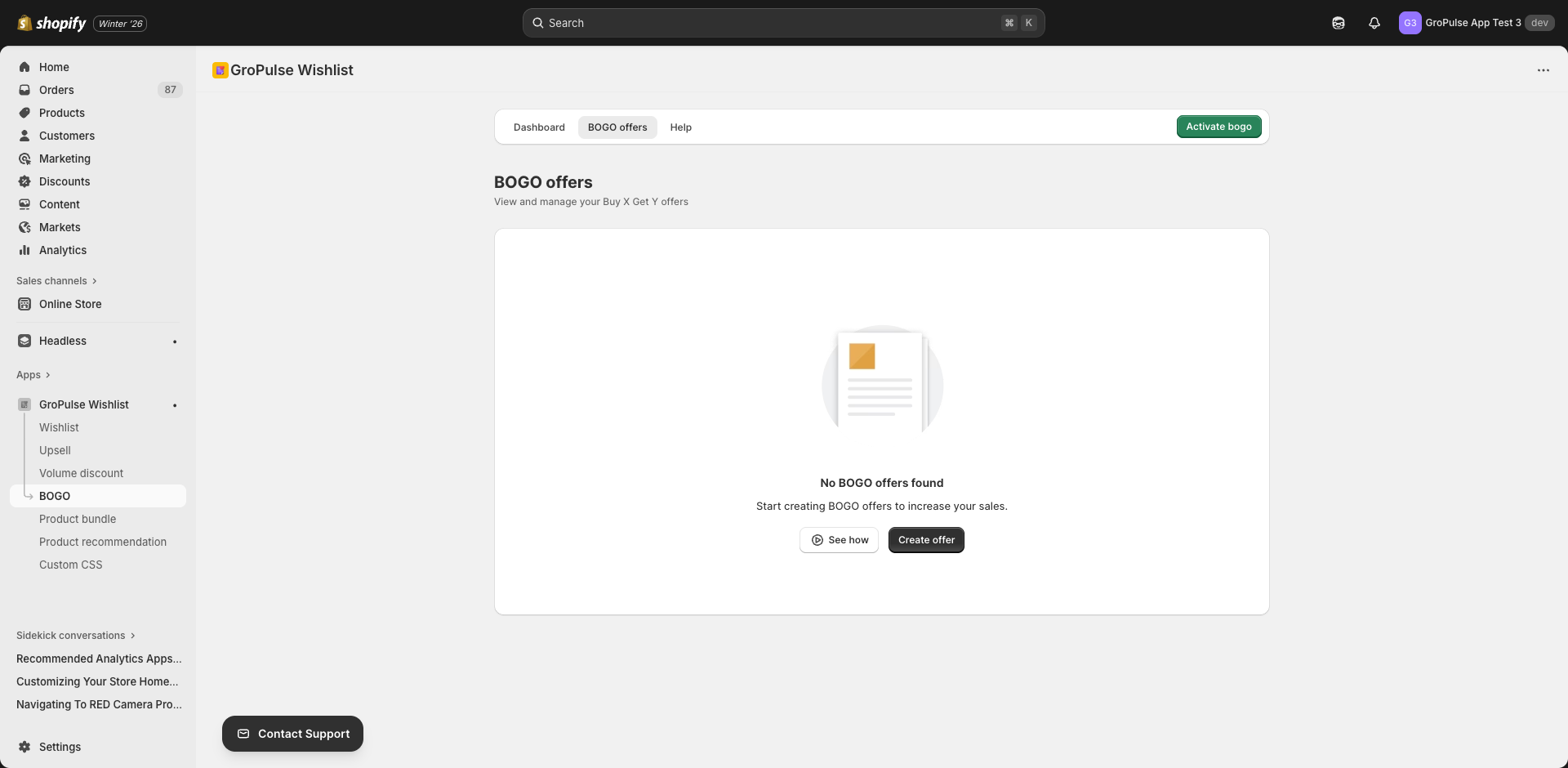
- Offers — Create and manage promotions
- Help — Documentation and tutorials
Pre-Built Templates
GP ‑ Wishlist & Upsell Suite includes 6 ready-to-use BOGO templates. Simply click a template to apply its settings instantly.
Popular Templates
| Template | Description | Best For |
|---|---|---|
| Buy 1 Get 1 Free | Classic 100% off on second item | Quick clearance, new customer acquisition |
| Buy 2 Get 1 Free | Free item after buying 2 | Increasing average order value |
| Buy 1 Get 1 50% Off | Half price on second item | Premium products, margin protection |
Advanced Templates
| Template | Description | Best For |
|---|---|---|
| Buy 2 Get 1 50% Off | 50% off after 2 purchases | Bulk purchases while maintaining margins |
| Buy 3 Get 1 Free | Free item after buying 3 | High-volume items, wholesale |
| Buy 1 Get $10 Off | Fixed $10 discount | Clear value communication |
Each template includes pre-configured:
- Titles and messaging
- Color themes
- Trigger and reward settings
- Design customization
Creating a BOGO Offer
Step 1: Choose a Template or Start Fresh
- Go to Offers tab
- Click Create Offer
- Either:
- Click a template card to apply its settings
- Or configure from scratch using the tabs
Settings Tabs
BOGO offers have 7 configuration tabs:
| Tab | Purpose |
|---|---|
| Template | Select pre-built configurations |
| General | Basic offer information |
| Offer | Trigger and reward configuration |
| Placement | Where the offer appears |
| Schedule | Start and end dates |
| Design | Visual customization |
| Advanced | Usage limits and combinations |
General Settings
Configure basic offer information:
| Setting | Description |
|---|---|
| Offer Title | Internal name for your reference |
| Customer-Facing Title | Title customers see (e.g., “Buy One, Get One Free!”) |
| Customer-Facing Subtitle | Additional descriptive text |
| Add to Cart Button Text | CTA button text (e.g., “GET THIS DEAL”) |
| Deal Badge Text | Badge label (e.g., “BOGO”, “SPECIAL OFFER”) |
| Available Quantity Added Text | Message when items are added |
| Max Quantity Reached Text | Message when limit is reached |
Offer Configuration
The Offer tab has two main sections: Trigger and Reward.
Trigger Configuration
Define what customers must buy to qualify:
Trigger Type
| Option | Description |
|---|---|
| Same Products | Customer must buy multiple of the same product |
| Different Products | Customer can mix different products |
Trigger Quantity
How many items customer must buy to trigger the offer (e.g., 1, 2, 3).
Product Selection
| Option | Description |
|---|---|
| All Products | Any product triggers the offer |
| Specific Products | Only selected products trigger |
| Specific Collections | Products from selected collections trigger |
You can also exclude specific products from triggering.
Reward Configuration
Define what customers receive:
Reward Type
| Option | Description |
|---|---|
| Same Products | Reward is the same product they’re buying |
| Different Products | Reward is a different product |
Reward Quantity
How many items customer receives as reward (typically 1).
Discount Type
| Type | Description |
|---|---|
| Free | 100% off (completely free) |
| Percentage | X% off the reward item |
| Fixed Amount | $X off the reward item |
Discount Value
When using percentage or fixed amount, specify the discount value.
Placement Settings
Choose where the BOGO offer widget appears:
| Location | Description |
|---|---|
| Product Page | Show on individual product pages |
| Collection Page | Show on collection/category pages |
| Cart Page | Show in the shopping cart |
Schedule Settings
Control when your offer is active:
| Setting | Description |
|---|---|
| Start Date | When the offer becomes active |
| Start Time | Specific time to start |
| End Date | When the offer ends (optional) |
| End Time | Specific time to end |
Leave end date blank for offers with no expiration.
Design Settings
Customize the visual appearance with color options:
Color Options
| Setting | Purpose |
|---|---|
| Primary Color | Main accent color |
| Background Color | Widget background |
| Hover Background Color | Background on hover |
| Badge Background Color | Deal badge background |
| Badge Text Color | Deal badge text |
| Selected Background Color | Selected item background |
| Discount Badge Color | Discount indicator |
| Add to Cart Button Background | CTA button fill |
| Add to Cart Button Text Color | CTA button text |
| Offer Text Color | General text color |
| Trigger Section Background | “Buy” section background |
| Reward Section Background | “Get” section background |
Theme Options
| Theme | Description |
|---|---|
| Light | Light background with dark text |
| Dark | Dark background with light text |
Advanced Settings
Fine-tune offer behavior:
Usage Limits
| Setting | Description |
|---|---|
| Customer Usage Limit | Max times one customer can use (0 = unlimited) |
| Total Usage Limit | Max total redemptions (0 = unlimited) |
Purchase Requirements
| Setting | Description |
|---|---|
| Minimum Purchase Amount | Minimum cart value to qualify |
| Allow Multiple Applications | Can offer apply multiple times per order? |
Discount Combinations
Choose which discounts can stack with BOGO:
- Product Discounts
- Order Discounts
- Shipping Discounts
Priority
Set offer priority (higher number = higher priority) when multiple offers could apply.
Best Practices
Choosing the Right BOGO Type
| Goal | Recommended BOGO |
|---|---|
| Clear inventory fast | Buy 1 Get 1 Free |
| Increase order size | Buy 2 Get 1 Free |
| Protect margins | Buy 1 Get 1 50% Off |
| Premium products | Buy 1 Get $X Off |
Messaging Tips
- Be clear — “Buy 1, Get 1 Free” is clearer than “BOGO”
- Show value — “Save $29.99!” resonates more than percentages
- Create urgency — Add end dates to drive action
- Use action CTAs — “Get This Deal” beats “Add to Cart”
Product Selection
- Same product BOGOs work best for consumables
- Different product BOGOs work well for accessories
- Collection-based BOGOs are great for seasonal promotions
Managing Offers
Offer List
The Offers tab shows all your BOGO promotions with:
- Offer name and status
- Trigger/reward summary
- Creation date
- Quick actions
Enabling/Disabling
Toggle the status switch to quickly enable or disable offers without deleting them.
Editing
Click the offer name to open the edit form and make changes.
Deleting
Click the delete icon and confirm to permanently remove an offer.
Analytics
Track BOGO performance in the Dashboard:
- Total Revenue — Sales through BOGO offers
- Conversion Rate — Visitors who used BOGO
- Usage Count — Times offer was redeemed
- Popular Products — Which products trigger most
Troubleshooting
Offer Not Appearing
- Verify offer is active
- Check placement settings
- Confirm product is included in trigger rules
- Ensure theme extension is enabled
Discount Not Applying
- Check Shopify discount function is installed
- Verify trigger quantity is met
- Review discount combination settings
Wrong Products Showing
- Review trigger product selection
- Check exclusions are set correctly
- Verify collection membership
What’s Next?
Explore more promotional features:
- Upsell Offers — Increase order value
- Product Bundles — Sell products together
- Volume Discounts — Tiered quantity pricing
BOGO offers drive sales and delight customers — start creating promotions today.