
This guide explains how to sync your Shopify products with Facebook Product Catalogs for dynamic advertising.
What is Catalog Sync?
Catalog Sync automatically keeps your Facebook Product Catalog updated with your Shopify inventory. This enables:
- Dynamic Product Ads: Show personalized products to potential customers
- Collection Ads: Display groups of products in ads
- Shop Tab on Facebook/Instagram: Sell directly on social platforms
- Product Tagging: Tag products in posts and stories
Prerequisites
Before setting up Catalog Sync:
- Connect your Facebook account in the app Settings
- Have a Facebook Business account
- Have a Facebook Product Catalog created (or create one during setup)
Accessing Catalog Sync
- Open the Pixee app in your Shopify admin
- Click on Catalog Sync in the sidebar
Creating a Catalog Sync
Step 1: Navigate to Catalog Sync Page
- Open the Pixee app
- Click Catalog Sync in the sidebar
- Click Create new button
Step 2: Connect to Facebook
If you have not connected your Facebook account:
- Click Login with Facebook
- Authorize the required permissions
- Return to the Catalog Sync page
Step 3: Select or Create a Catalog
- Choose an existing Facebook catalog from the dropdown
- Or create a new catalog by entering a name
Step 4: Configure Sync Settings
Set up your sync preferences:
| Option | Description |
|---|---|
| Catalog Name | Name for this sync configuration |
| Product Selection | All products or specific collections |
| Sync Frequency | How often products are synced |
Step 5: Save and Start Sync
- Click Save to create the sync
- The initial sync will begin automatically
- Products will appear in your Facebook catalog
Managing Catalog Syncs
Viewing Your Syncs
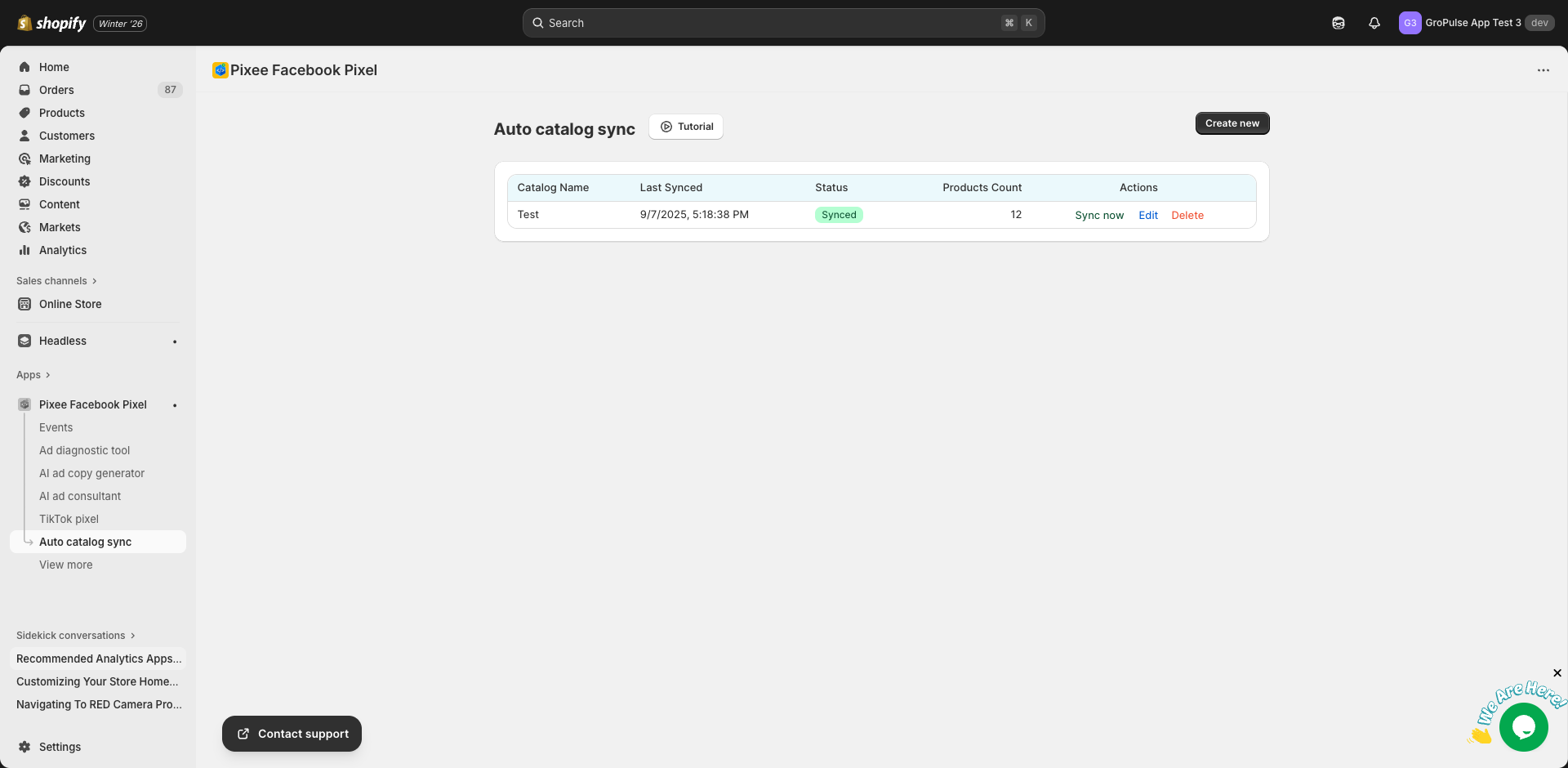
The Catalog Sync page shows all your syncs in a table:
| Column | Description |
|---|---|
| Catalog Name | The name of your sync configuration |
| Last Synced | When products were last updated |
| Status | Syncing, Completed, or Error |
| Products Count | Number of products synced |
| Actions | Sync now, Edit, or Delete |
Triggering a Manual Sync
- Find your catalog in the list
- Click Sync now in the Actions column
- The sync will start immediately
- Wait for completion (shown by status indicator)
Editing a Sync
- Click Edit next to the catalog
- Modify the sync settings
- Click Save
- A new sync will be triggered
Deleting a Sync
- Click Delete next to the catalog
- Confirm the deletion
- Products will remain in Facebook but stop updating
Sync Status Indicators
| Status | Description |
|---|---|
| Syncing | Products are currently being synced |
| Completed | Last sync completed successfully |
| Error | There was an issue with the last sync |
If you see an error status:
- Click on the sync to see error details
- Fix the issue (e.g., reconnect Facebook)
- Try syncing again
Product Data Synced
The following product information is synced to Facebook:
| Field | Description |
|---|---|
| ID | Unique product identifier |
| Title | Product name |
| Description | Product description |
| Price | Current price |
| Sale Price | Discounted price (if applicable) |
| Currency | Price currency |
| Availability | In stock / Out of stock |
| Image URL | Main product image |
| Product Link | URL to the product page |
| Brand | Product vendor |
| Category | Product type/category |
Variant Information
For products with variants:
- Each variant is synced as a separate item
- Color, size, and material are included
- Variants are grouped by
item_group_id
Sync Frequency
Choose how often your catalog updates:
| Frequency | Description |
|---|---|
| Every hour | For fast-moving inventory |
| Every 6 hours | Balanced update frequency |
| Daily | For stable inventory |
| Manual only | Sync on demand |
Plan Requirements
| Feature | Free | Basic | Advanced |
|---|---|---|---|
| Catalog Sync | 1 catalog | Multiple | Multiple |
| Auto-sync | Yes | Yes | Yes |
| Manual sync | Yes | Yes | Yes |
During Sync Process
While products are syncing:
- A progress banner appears at the bottom of the page
- You can continue using the app
- Sync runs in the background
- You will be notified when complete
Best Practices
- Start with daily sync: Adjust frequency based on inventory changes
- Keep Facebook connected: Ensure your Facebook session stays active
- Check sync status regularly: Verify products are syncing correctly
- Use quality images: High-quality images perform better in ads
Troubleshooting
Sync Failed
- Check your Facebook account is still connected
- Verify you have permission to access the catalog
- Check for any error messages
- Try syncing again
Products Not Appearing in Facebook
- Wait for the sync to complete
- Check the product count matches expectations
- Verify products meet Facebook’s requirements
- Check the catalog in Facebook Commerce Manager
Outdated Product Information
- Trigger a manual sync
- Check the sync frequency settings
- Verify your Shopify products are up to date
“Permission Denied” Error
- Go to Settings and log out of Facebook
- Log back in and grant all requested permissions
- Try syncing again
Catalog Not Found
- Verify the catalog exists in Facebook
- Check you have access to the catalog
- Try selecting a different catalog
Viewing in Facebook
To view your synced products:
- Go to Facebook Commerce Manager
- Select your catalog
- Click on “Catalog” > “Items”
- View all synced products
Next Steps
- Create Product Feeds for other platforms
- Set up Dynamic Ads to use your catalog
- Configure Event Tracking for retargeting
Last updated on February 17, 2026
Was this article helpful?
Powered by Support Genix