
The Dashboard is your home screen in the CodeUp app. It provides a quick overview of your code setup status and easy access to all app features.
Accessing the Dashboard
The Dashboard is the first page you see when you open the CodeUp app. You can always return to it by:
- Clicking Home in the navigation menu
- Clicking the back button from any other page
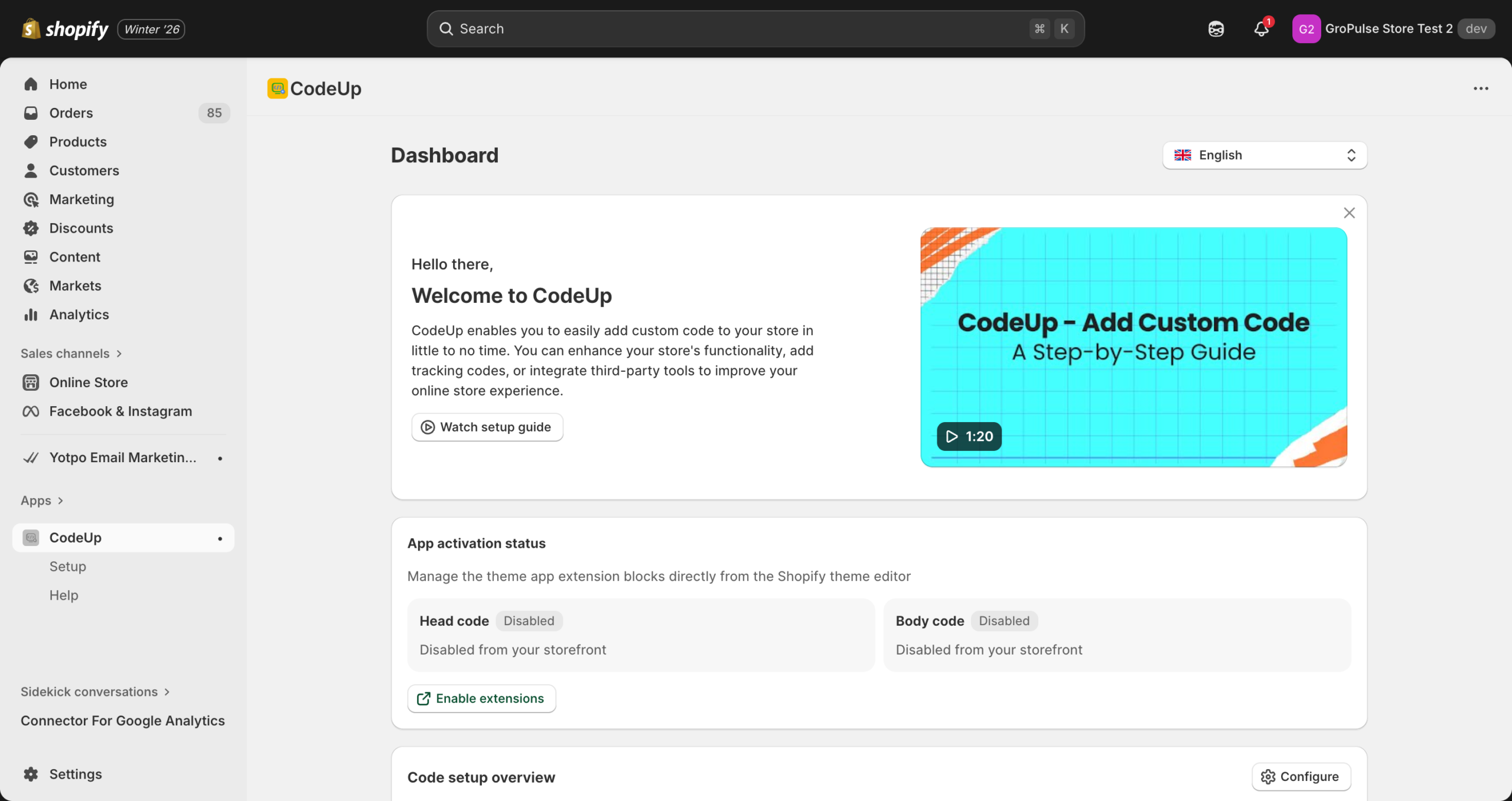
Dashboard Sections
1. Welcome Card
The Welcome Card appears when you first start using the app. It includes:
- A greeting message
- Brief description of what CodeUp does
- Watch setup guide button – Opens a video tutorial in a modal
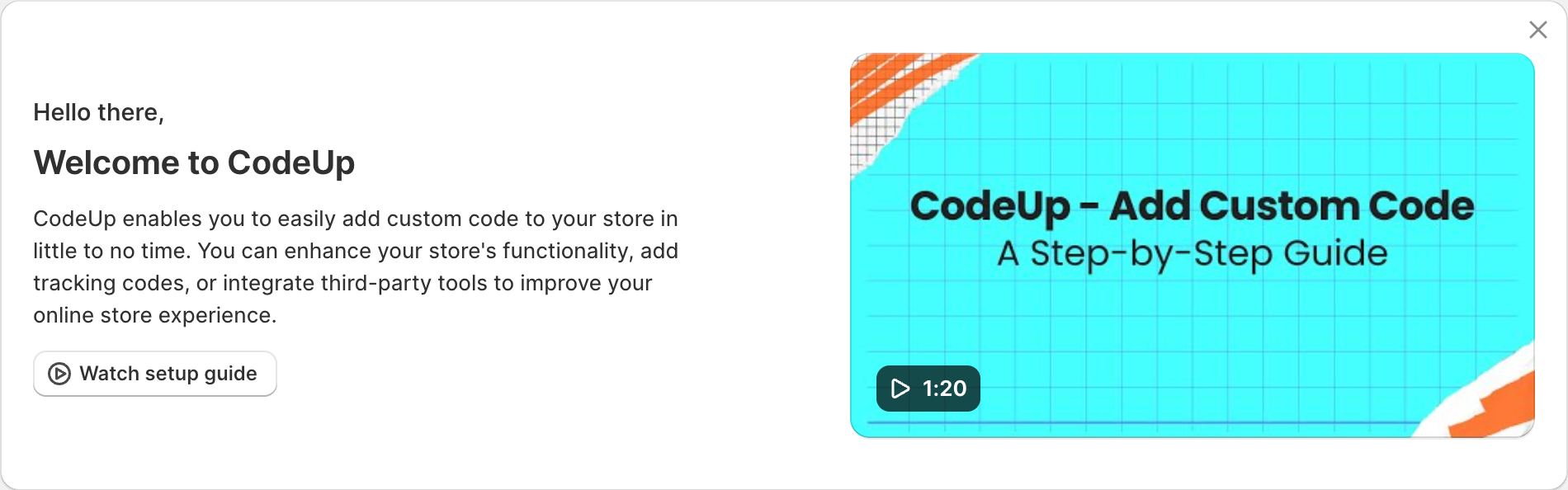
Tip: You can dismiss the Welcome Card by clicking the X button in the top-right corner. Once dismissed, it will not appear again.
2. App Activation Status
This section shows whether your code injection is enabled or disabled on your store’s frontend.
What it displays:
- Head code status: Shows if header code injection is Enabled or Disabled
- Body code status: Shows if body code injection is Enabled or Disabled
- Enable/Disable extensions button: Quick link to the theme customizer
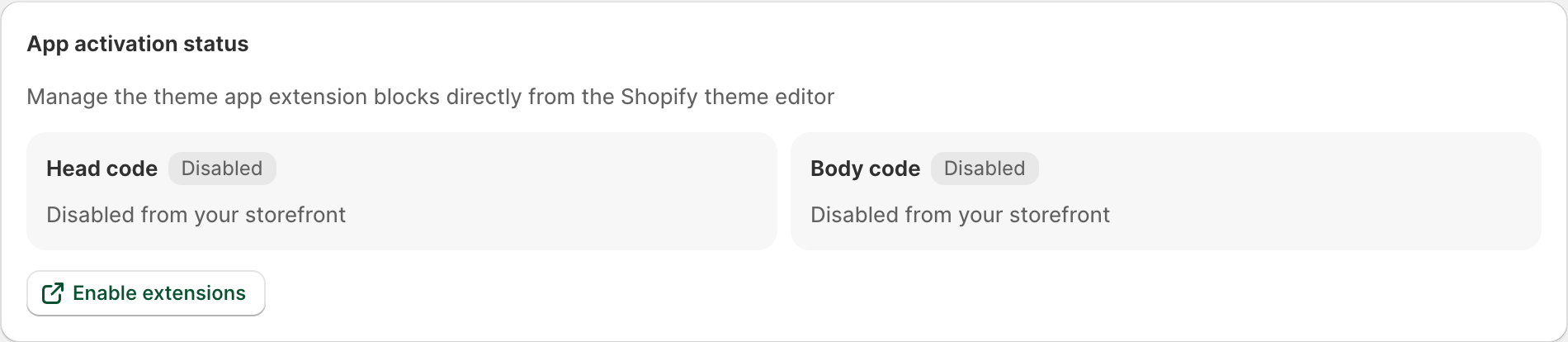
Status meanings:
| Status | Badge Color | Description |
|---|---|---|
| Enabled | Green | Code is live on your storefront |
| Disabled | Gray | Code is not being injected into your store |
3. Code Setup Overview
This section provides a comprehensive view of your code configuration status.
What it shows:
- Head code configuration: Whether header code is configured and enabled
- Body code configuration: Whether body code is configured and enabled
- Page templates: Which pages have your code applied
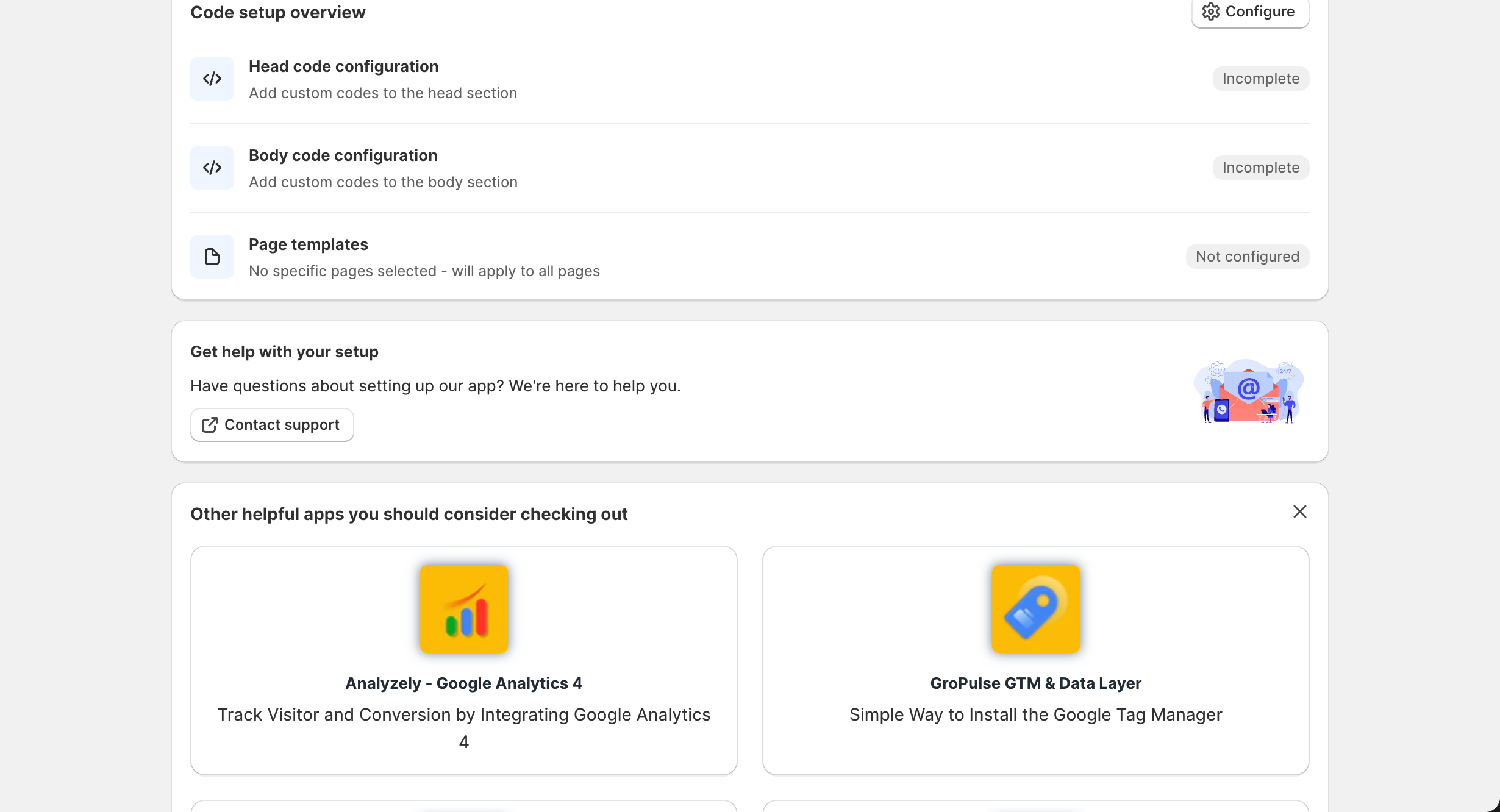
Configuration statuses:
| Status | Description |
|---|---|
| Complete | Code is configured AND enabled in the theme |
| Incomplete | Code is either not configured or not enabled |
| Configured and enabled | Code is saved and active on your store |
| Configured but not enabled in theme | Code is saved but needs to be enabled in theme customizer |
| Add custom codes to the [section] | No code has been added yet |
Page templates display:
- If you selected specific pages, it shows: “Applied to: Home, Product, Cart…”
- If no pages are selected, code applies to all pages and shows: “All pages”
- If nothing is configured, it shows: “Not configured”
The Configure button takes you directly to the Setup page to modify your code.
4. Contact Support Card
This section provides quick access to customer support.
Features:
- Helpful illustration
- Contact support button that links to gropulse.com/contact
5. Recommended Apps
At the bottom of the dashboard, you will find recommendations for other helpful apps from GroPulse:
- Analyzely – Google Analytics 4: Track visitors and conversions with GA4
- GroPulse GTM & Data Layer: Simple Google Tag Manager integration
- GroPulse Rich Snippets for SEO: Add JSON-LD schema for better Google rankings
- GroPulse Google Reviews: Display authentic customer feedback from Google Maps
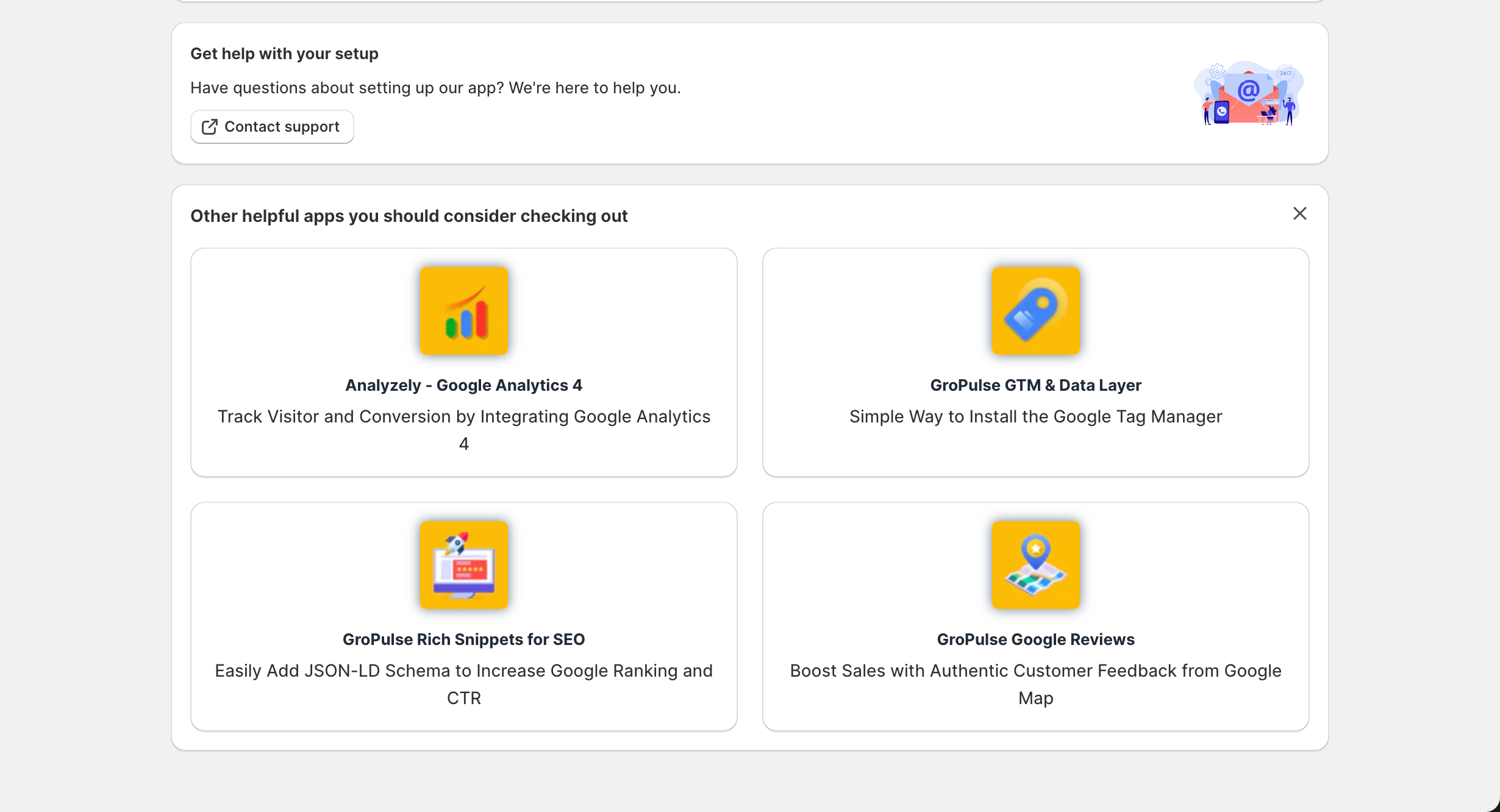
Tip: You can dismiss the recommendations section by clicking the X button. This preference is remembered for your current session.
Language Selection
CodeUp supports multiple languages. You can change the app language using the language selector dropdown in the top-right corner of the page.
The language selector dropdown is located in the top-right corner of the app interface.
Supported languages include:
- English
- German (Deutsch)
- Spanish (Espanol)
- French (Francais)
- Italian (Italiano)
- Japanese
- Chinese (Simplified and Traditional)
- Portuguese (Brazil and Portugal)
- And more
Next Steps
From the Dashboard, you can: