
CodeUp uses Shopify’s Theme App Extension feature to inject your custom code into your store. This guide explains how to enable, disable, and manage the theme extension blocks.
What is a Theme App Extension?
Theme App Extensions are Shopify’s recommended way for apps to add functionality to store themes. They provide:
- Safe integration: Code is added without directly editing theme files
- Easy control: Enable or disable from the theme customizer
- Theme updates: Your code persists through theme updates
- Reversibility: Disabling the extension removes the code cleanly
CodeUp provides two extension blocks:
- Head code – Injects code into the
<head>section - Body code – Injects code before the closing
</body>tag
Understanding Activation Status
The App activation status section on your Dashboard and Setup pages shows the current state of your theme extensions.
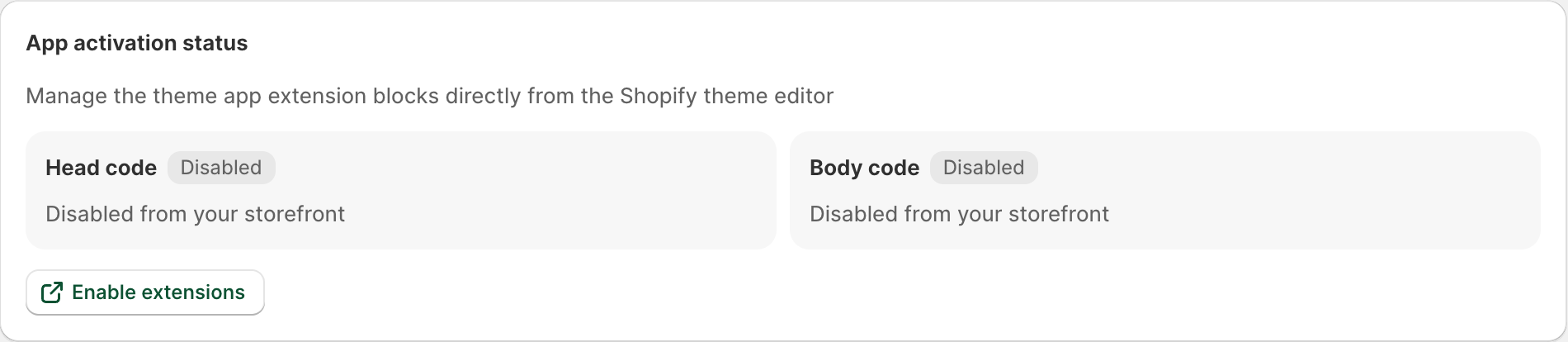
Status Indicators
| Status | Badge | Meaning |
|---|---|---|
| Enabled | Green “Enabled” badge | The extension is active and your code is live on your storefront |
| Disabled | Gray “Disabled” badge | The extension is not active; code is not being injected |
Status Messages
- “Live on your storefront” – The code is actively being injected into your store pages
- “Disabled from your storefront” – The code exists but is not being displayed
Enabling the Theme Extension
To enable CodeUp’s theme extensions and start displaying your custom code:
Method 1: From the CodeUp App
- Open the CodeUp app
- On the Dashboard or Setup page, find the App activation status section
- Click the Enable extensions button
- This opens your theme customizer with the app blocks section visible
Click the “Enable extensions” button to open your theme customizer.
Method 2: From Shopify Admin
- Go to Online Store > Themes in your Shopify admin
- Click Customize on your current theme
- In the theme editor sidebar, scroll down to find App embeds or look for the CodeUp blocks
- Toggle the blocks to enable them
In the Theme Customizer
Once in the theme customizer:
- Look for the App embeds section in the left sidebar (you may need to scroll down)
- Find the CodeUp extension blocks:
- Head code – Toggle this to enable header code injection
- Body code – Toggle this to enable body code injection
- Toggle ON the blocks you want to activate
- Click Save in the theme customizer
In the Shopify theme customizer, find the “App embeds” section and toggle the CodeUp blocks ON.
Disabling the Theme Extension
To temporarily disable code injection without deleting your code:
From the CodeUp App
- When both extensions are enabled, the button changes to Disable extensions
- Click the button to open the theme customizer
- Toggle OFF the extension blocks
- Click Save
From Theme Customizer Directly
- Go to Online Store > Themes > Customize
- Find the App embeds section
- Toggle OFF the CodeUp blocks
- Click Save
Important: Disabling the theme extension does NOT delete your code from the CodeUp app. Your code is preserved and will appear again when you re-enable the extension.
Managing Head Code vs Body Code Separately
You can enable or disable each extension block independently:
- Enable only Head code: Useful when you only need
<head>section code (like meta tags or CSS) - Enable only Body code: Useful when you only need scripts before
</body>(like chat widgets) - Enable both: For complete code injection in both locations
- Disable both: To temporarily remove all CodeUp code from your store
You can independently enable or disable each code block in the theme customizer.
When to Enable/Disable
Enable the extensions when:
- You have finished adding and testing your code in the CodeUp app
- You want your code to appear on your live store
- You have verified the code works correctly
Disable the extensions when:
- You are troubleshooting issues with your store
- You need to temporarily remove tracking codes
- You want to test your store without the custom code
- You are switching themes and want to check compatibility
Theme Changes and Extension Persistence
When you update your theme:
- Theme App Extensions typically persist through theme updates
- Your code configuration in CodeUp is stored separately and is not affected
When you switch themes:
- You may need to re-enable the extension blocks in the new theme
- Your code in CodeUp remains unchanged
- Simply enable the extensions in the new theme’s customizer
When you install CodeUp on a new theme:
- Extensions are disabled by default
- You need to manually enable them from the theme customizer
Troubleshooting Extension Issues
Extensions show as disabled but should be enabled
- Go to your theme customizer directly (Themes > Customize)
- Check the App embeds section
- Ensure the toggles are in the ON position
- Click Save
Code not appearing despite extensions being enabled
- Verify you have code entered in the CodeUp Setup page
- Make sure you clicked Save after adding code
- Check if page targeting is limiting where code appears
- Clear your browser cache and check again
Cannot find CodeUp blocks in theme customizer
- Make sure CodeUp is properly installed
- Try refreshing the theme customizer
- Look in both “App embeds” and “App blocks” sections
- Contact support if blocks are not visible
Extension status not updating in the app
- Refresh the CodeUp app page
- The status should update to reflect the current theme customizer settings
Best Practices
- Always save in both places: Save your code in CodeUp AND save in the theme customizer after enabling blocks
- Test before enabling: Add and preview your code before enabling extensions on a live store
- Use preview mode: Use Shopify’s theme preview to test code before publishing
- Keep extensions disabled during development: Only enable when ready to go live
- Document your setup: Keep track of which blocks are enabled and what code they contain
Related Guides
- Setting Up Custom Code – Add your custom code
- Page Targeting – Control where code appears
- Troubleshooting – Fix common issues
- Dashboard Overview – Monitor activation status