
The Data Layer is the foundation of your tracking setup. It’s a JavaScript object that stores information about user interactions and page data, which GTM uses to trigger tags and send data to your analytics platforms.
Understanding the Data Layer
What is a Data Layer?
A data layer is a structured format for organizing the information you want to track. When a user performs an action (like adding a product to cart), the app pushes an event to the data layer, which GTM then uses to fire the appropriate tags.
GroPulse Data Layer Name
The app uses a custom data layer named: groPulseGTMDatalayer
This ensures compatibility and avoids conflicts with other tracking implementations.
Accessing Data Layer Settings
- Open the GroPulse GTM & Data Layer app
- Click Configure data layer from the Dashboard
Available Events
E-Commerce Events
| Event | Trigger | Data Included |
|---|---|---|
| purchase | Order completed | Order ID, revenue, tax, shipping, products |
| begin_checkout | Checkout started | Cart items, cart value, currency |
| add_to_cart | Product added to cart | Product details, quantity, price |
| remove_from_cart | Product removed from cart | Product details, quantity |
| view_item | Product page viewed | Product details, price, category |
| view_item_list | Collection page viewed | Collection name, products displayed |
Page Events
| Event | Trigger | Data Included |
|---|---|---|
| page_view | Any page load | Page title, URL, referrer |
Event Data Structure
Each event includes structured data following Google’s recommended e-commerce schema:
Purchase Event Example
{
  event: 'purchase',
  ecommerce: {
    transaction_id: '12345',
    value: 99.99,
    tax: 8.50,
    shipping: 5.99,
    currency: 'USD',
    items: [
      {
        item_id: 'SKU123',
        item_name: 'Product Name',
        item_brand: 'Brand Name',
        item_category: 'Category',
        price: 49.99,
        quantity: 2
      }
    ]
  }
}
Add to Cart Event Example
{
  event: 'add_to_cart',
  ecommerce: {
    currency: 'USD',
    value: 49.99,
    items: [
      {
        item_id: 'SKU123',
        item_name: 'Product Name',
        price: 49.99,
        quantity: 1
      }
    ]
  }
}
Configuring Events
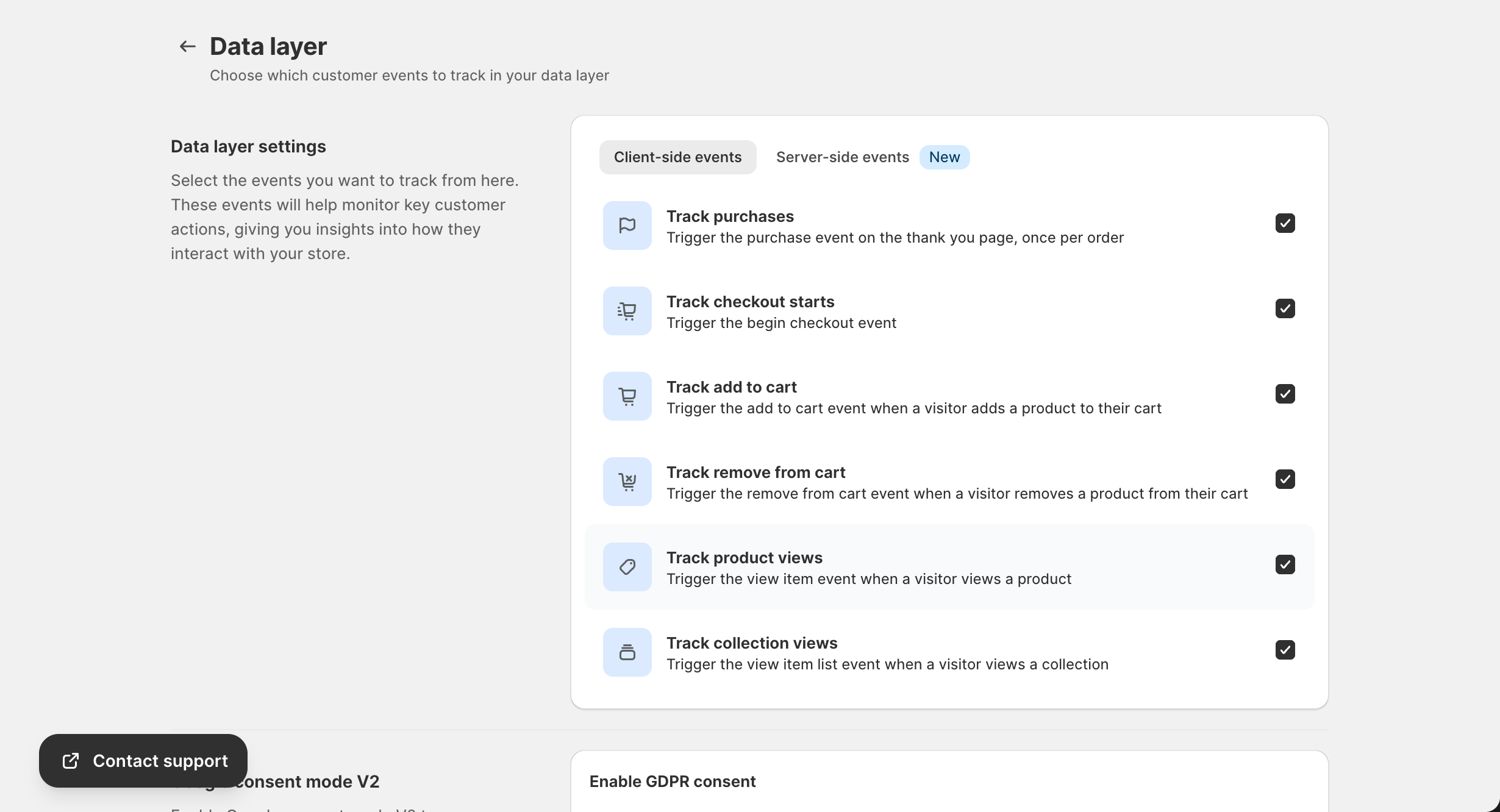
Enabling/Disabling Events
- Navigate to Data Layer Settings
- Toggle each event on or off based on your needs
- Click Save to apply changes
Recommended Configuration
For most stores, we recommend enabling:
- Track purchases (Essential for conversion tracking)
- Track add to cart (Important for funnel analysis)
- Track checkout starts (Identify checkout abandonment)
- Track product views (Understand product interest)
Google Consent Mode V2
The app supports Google Consent Mode V2 for GDPR compliance:
What is Consent Mode?
Consent Mode allows Google tags to adjust their behavior based on user consent status. When a user doesn’t consent to cookies:
- Tags can still send anonymized data
- Conversion modeling fills in data gaps
- Full compliance with privacy regulations
Enabling Consent Mode
- In Data Layer Settings, find the Google Consent Mode V2 section
- Toggle the feature On
- Configure the consent banner (see Consent Management)
Consent States
| State | Description |
|---|---|
ad_storage | Enables storage for advertising (cookies) |
analytics_storage | Enables storage for analytics |
ad_user_data | Consent to send user data to Google |
ad_personalization | Consent for personalized advertising |
Custom Events
Creating Custom Events (Advanced Plan)
For stores with specific tracking needs, custom events allow you to track any user interaction:
- Navigate to Data Layer Settings
- Scroll to Custom Events section
- Click Add Custom Event
- Define:
- Event name
- Trigger conditions
- Data to include
Common Custom Event Use Cases
- Newsletter signup
- Wishlist additions
- Product reviews
- Quick view opens
- Filter usage
- Search queries
Server-Side Events
For improved data accuracy, the app supports server-side event tracking:
Benefits of Server-Side Events
- Better data accuracy – Not affected by ad blockers
- Improved attribution – More reliable conversion tracking
- Enhanced privacy – Data processed server-side
- Cross-platform consistency – Same data to all platforms
Server-Side Event Configuration
Server-side events are automatically configured when you:
- Enable the corresponding client-side event
- Have a paid plan (Pro or Advanced)
- Configure the platform’s API credentials (e.g., Facebook Conversion API token)
See Server-Side Events Guide for detailed setup.
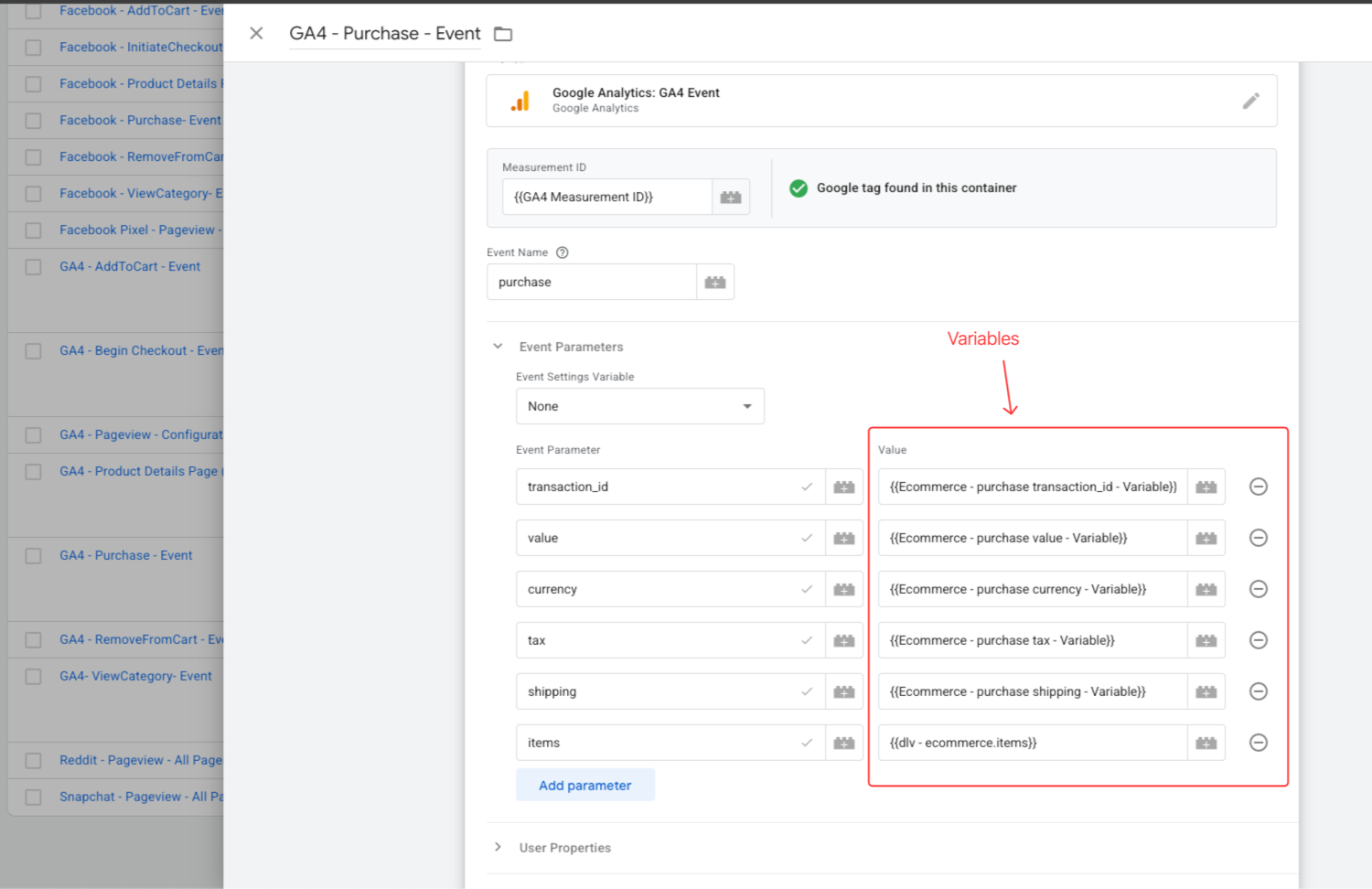
Data Layer Variables in GTM
After importing the template, these variables are available in GTM:
Built-in Variables
| Variable | Description |
|---|---|
DLV - ecommerce.transaction_id | Order ID |
DLV - ecommerce.value | Transaction value |
DLV - ecommerce.currency | Currency code |
DLV - ecommerce.items | Product array |
Using Variables in Tags
- In GTM, create or edit a tag
- Click the variable selector ({{)
- Choose the appropriate data layer variable
- The value will be populated when the event fires
Troubleshooting
Events Not Firing
- Check Event Status: Verify the event is enabled in Data Layer Settings
- Check App Activation: Ensure the app is activated in your theme
- Use GTM Preview: Test events in GTM Preview mode
- Check Console: Look for JavaScript errors in browser console
Incorrect Data
- Check Product Data: Ensure products have SKUs and prices set
- Check Currency: Verify store currency matches expected format
- Clear Cache: Some data layer values may be cached
Missing Variables in GTM
- Import Template: Ensure you’ve imported the latest template
- Check Variable Names: Variable names are case-sensitive
- Verify Event Trigger: Make sure the trigger matches the event name
Best Practices
- Start Simple: Enable core events first, then add more
- Test Thoroughly: Use GTM Preview mode before publishing
- Monitor Data: Regularly check your analytics for data quality
- Keep Updated: Import new templates when adding platforms
- Document Changes: Note what events you’ve enabled and why