
The Top/Bottom Bar is a fixed shipping progress bar that displays at the top or bottom of your store pages. It’s the most popular choice for encouraging customers to add more items to their cart to reach free shipping.
Overview
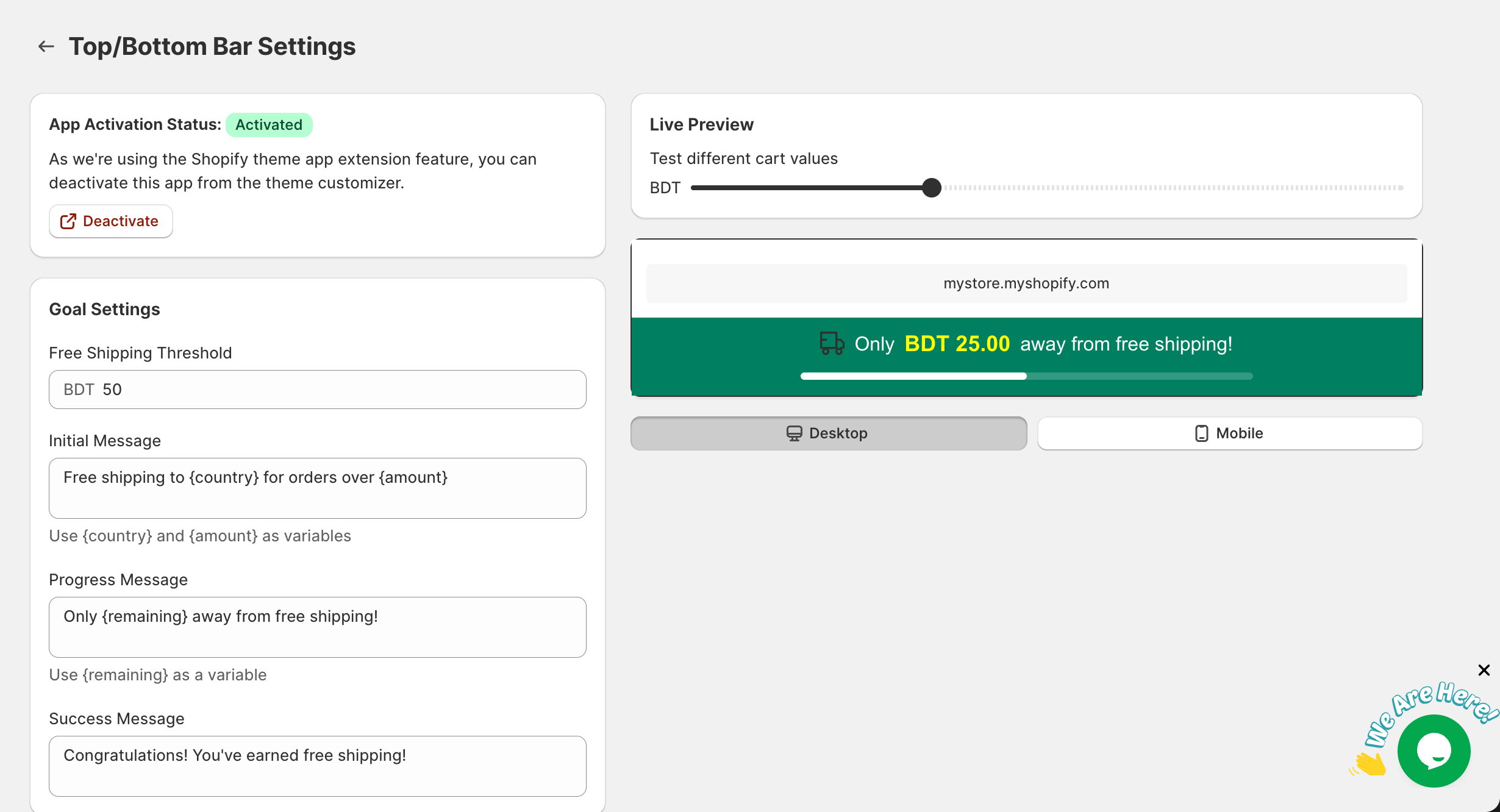
The Top/Bottom Bar appears as a slim banner across the full width of your store, showing:
- A customizable message about free shipping
- A visual progress bar indicating how close the customer is to free shipping
- An optional shipping truck icon
Accessing Top/Bottom Bar Settings
- Open the GroPulse Free Shipping Bar app from your Shopify admin
- Click Configure on the Top/Bottom Bar card
- You’ll see the configuration page with all settings on the left and a live preview on the right
App Activation Status
Before the bar can appear on your store, you need to activate the app embed:
- Activated: The bar is enabled and will show on your store (if bar status is Active)
- Not Activated: Click the activation link to enable the app in your theme
To activate or deactivate:
- Click the Activate or Deactivate link
- This opens your Shopify theme customizer
- Toggle the app embed switch
- Click Save in the theme customizer
Goal Settings
The Goal Settings section controls the free shipping threshold and the messages displayed to customers.
Free Shipping Threshold
This is the minimum cart value customers need to reach for free shipping.
How to set:
- Enter the threshold amount in the text field
- The currency prefix matches your store’s default currency
- Example: Enter "50" for a $50 threshold
Tip: Match this to your actual Shopify shipping settings for consistency.
Initial Message
This message displays when the customer’s cart is empty or has just started shopping.
Default: Free shipping to {country} for orders over {amount}
Available variables:
{country}– Displays the customer’s detected country{amount}– Displays the free shipping threshold with currency
Example customizations:
- "Spend {amount} and get FREE shipping!"
- "Free shipping on orders over {amount} to {country}"
Progress Message
This message appears when the customer has items in their cart but hasn’t reached the threshold yet.
Default: Only {remaining} away from free shipping!
Available variables:
{remaining}– Displays the amount still needed for free shipping
Example customizations:
- "Add {remaining} more to unlock free shipping!"
- "You’re so close! Just {remaining} away from free shipping"
Success Message
This message celebrates when the customer qualifies for free shipping.
Default: Congratulations! You've earned free shipping!
Example customizations:
- "Free shipping unlocked!"
- "You did it! Your order ships free"
Customize Appearance
The appearance settings let you fully customize the look of your shipping bar to match your store’s branding.
Color Settings
Bar Background Color
The background color of the shipping bar when the customer hasn’t reached free shipping yet.
Default: #ffffff (white)
Success Background Color
The background color when the customer qualifies for free shipping.
Default: #eef7f2 (light green)
Progress Fill Color
The color of the filled portion of the progress bar during progress.
Default: #f5b540 (gold/orange)
Progress Bar Complete Color
The color of the progress bar when completely filled (goal achieved).
Default: #1eba58 (green)
Progress Track Color
The background color of the progress bar track (unfilled portion).
Default: #a1a1a133 (light gray with transparency)
Typography Settings
Text Font Family
Choose from popular web-safe fonts:
- Arial
- Helvetica
- Verdana
- Tahoma
- Trebuchet MS
- Times New Roman
- Georgia
- Courier
Message Text Size
Adjust the size of the main message text.
- Range: 12px to 24px
- Default: 16px
Message Text Color
The color of the main message text.
Default: #000000 (black)
Success Message Color
The color of the message when free shipping is achieved.
Default: #1eba58 (green)
Price Text Size
The size of price amounts displayed in messages.
- Range: 12px to 24px
- Default: 18px
Price Text Color
The color of price amounts.
Default: #f5b540 (gold/orange)
Show Icon
Choose whether to display the shipping truck icon:
- Show icon – Displays a truck icon next to the message
- Hide icon – Shows only the text message
Display Settings
Control where, when, and to whom the shipping bar appears.
Bar Status
Toggle the bar on or off without removing your configuration.
- Active – Show bar on storefront: The bar is visible to customers
- Inactive – Hide bar from storefront: The bar is hidden (settings are saved)
Position
Choose where the bar appears on the page:
- Top: Fixed at the top of the browser window
- Bottom: Fixed at the bottom of the browser window
Tip: Top position is more visible but may interfere with navigation. Bottom position is less intrusive.
Targeted Page
Select which pages display the shipping bar:
| Option | Description |
|---|---|
| All Pages | Shows on every page of your store |
| Homepage | Only on your store’s main page |
| Collection Pages | Only on collection/category pages |
| Product Pages | Only on individual product pages |
| Cart Page | Only on the cart page |
Tip: If you’re also using the Product Page Bar or Cart Page Bar, you may want to exclude those pages from the Top/Bottom Bar to avoid duplication.
Device Target
Control which devices see the shipping bar:
| Option | Description |
|---|---|
| Show on all devices | Desktop, tablet, and mobile |
| Desktop only | Only computers and laptops |
| Mobile only | Only smartphones |
| Tablet only | Only tablets (iPad, Android tablets) |
Country Target
Show the bar to all visitors or only those from specific countries:
- All Countries: Everyone sees the bar
- Selected Countries: Only visitors from chosen countries
When "Selected Countries" is chosen, select the specific country from the dropdown list.
Use case: If you only offer free shipping to certain regions, show the bar only to eligible visitors.
Schedule Settings
Requires Growth Plan
Schedule your shipping bar to appear only during specific times.
Enable Scheduling
Check this box to turn on scheduling. When disabled, the bar shows according to other settings.
Schedule Types
Always Show
The bar displays continuously (same as having scheduling disabled).
Date Range
Show the bar only between specific dates:
- Start Date: When the bar should start showing
- End Date: When the bar should stop showing
- Optionally set start and end times within these dates
Use case: Perfect for holiday promotions or limited-time free shipping offers.
Days of Week
Show the bar only on selected days:
- Select one or more days (Sunday through Saturday)
- Set start and end times for those days
Use case: Weekend-only promotions or excluding certain days.
Time-Based
Show the bar during specific hours each day:
- Start Time: When the bar starts showing
- End Time: When the bar stops showing
Use case: Flash sales or time-limited offers.
Timezone
Select your preferred timezone for accurate scheduling:
- UTC
- Eastern Time
- Central Time
- Mountain Time
- Pacific Time
- British Time
- Central European Time
- Tokyo Time
- Sydney Time
Countdown Timer
Requires Growth Plan
Add urgency with a countdown timer displayed inline with your message.
Enable Countdown Timer
Check this box to display a countdown timer next to the shipping message.
Timer Duration
Set the countdown duration:
- Minutes: 0-59
- Seconds: 0-59
Default: 10 minutes, 0 seconds
Timer Color
Choose the color for the countdown timer display.
Default: #e74c3c (red)
Tip: The countdown timer resets when the page is refreshed. It’s designed to create urgency, not track actual offer expiration.
Live Preview
The Live Preview section shows how your shipping bar will look in real-time.
Test Cart Values
Use the slider to simulate different cart values:
- Move left for lower cart values (shows progress message)
- Move right to higher values (shows success message)
- Set to 0 to see the initial message
Device Preview
Toggle between views:
- Desktop: Full-width preview
- Mobile: Narrower preview simulating mobile screen width
Saving Your Changes
After making any changes:
- A Save bar appears at the top of the page
- Click Save to apply your changes
- Click Discard to revert to the last saved settings
- Wait for the confirmation message
Important: Changes are not applied to your store until you click Save.
Best Practices
Optimal Threshold
- Set your threshold slightly above your average order value
- This encourages customers to add "just one more item"
- Example: If your average order is $35, set threshold to $50
Message Tips
- Keep messages short and clear
- Create excitement with the success message
- Use the {remaining} variable to show exact amounts needed
Color Selection
- Match your brand colors for consistency
- Ensure good contrast for readability
- Use green for success states (universal positive signal)
Placement Recommendations
- Top position: Higher visibility, more impact
- Bottom position: Less intrusive, good for mobile
- Consider your store’s header design when choosing
Testing
- Always test on both desktop and mobile
- Check the bar with various cart values
- Visit your actual store to verify appearance
Common Questions
Q: Why isn’t my bar showing? A: Check that both the app embed is activated AND the bar status is set to Active.
Q: Can I have different thresholds for different countries? A: Currently, you can set one threshold but show/hide the bar by country. For different thresholds, consider creating multiple stores.
Q: Does the progress bar update automatically? A: Yes, the bar updates in real-time as customers add or remove items from their cart.
Q: Can I use custom fonts? A: The app offers popular web-safe fonts. Custom font upload is not currently available.
For more questions, see the FAQ.